Question

White space when undo a grouping.

  • November 28, 2025
  • 3 replies
  • 45 views

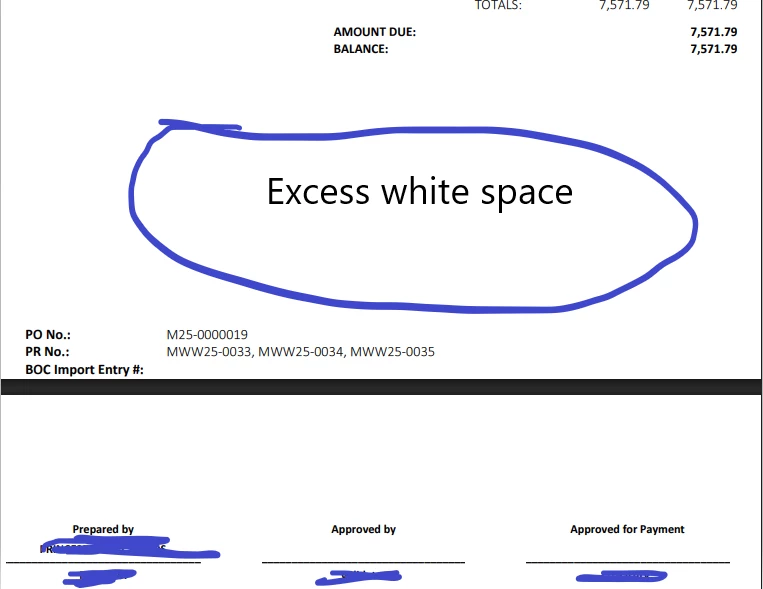
I have this kind bug/issue, when I add a group then undo it (ctrl + z), it still creates a white space. Even there is no group. Therefore, I can’t find where the area/group is if there is white space. How to fix this kind of problem 

also, the fields CanGrow = False

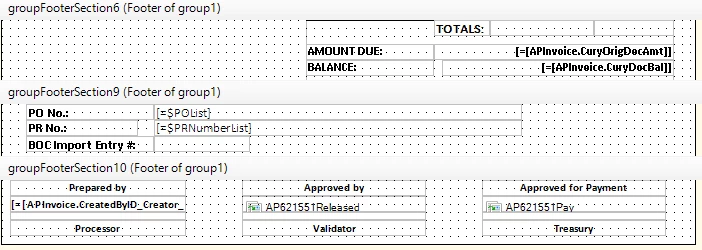
The white space is between Footer 6 and Footer 9 (Group 1)

3 replies

jinin
Pro I
Forum|alt.badge.img+11
  • Pro I
  • December 1, 2025

Hi ​@bubbles25 ,

The report contains invisible GroupHeader/GroupFooter sections that were left behind after using Undo. Although they don’t appear in the designer, they still exist and have a non-zero Height, which causes excess white space in the output. Set the Height of these hidden sections to 0, save the report, publish it, and the unwanted white space will be removed.


  • Author
  • Freshman I
  • December 2, 2025


Hi ​@bubbles25 ,

The report contains invisible GroupHeader/GroupFooter sections that were left behind after using Undo. Although they don’t appear in the designer, they still exist and have a non-zero Height, which causes excess white space in the output. Set the Height of these hidden sections to 0, save the report, publish it, and the unwanted white space will be removed.

I’m sorry, you mention “Set the height of this hidden section” where I can see this?

I fixed this issue by opening the rpx file to notepad/visual code then find these footer section then finally set the height. 


jinin
Pro I
Forum|alt.badge.img+11
  • Pro I
  • December 2, 2025


Hi ​@bubbles25 ,

The report contains invisible GroupHeader/GroupFooter sections that were left behind after using Undo. Although they don’t appear in the designer, they still exist and have a non-zero Height, which causes excess white space in the output. Set the Height of these hidden sections to 0, save the report, publish it, and the unwanted white space will be removed.

I’m sorry, you mention “Set the height of this hidden section” where I can see this?

I fixed this issue by opening the rpx file to notepad/visual code then find these footer section then finally set the height. 

To adjust the Height, you must either:

  1. Open the Sections Inspector (CTRL + ALT + SHIFT + F12), or

  2. Edit the RPX XML directly — which is exactly what you did.

You opened the RPX file in Notepad/Visual Studio Code, located the invisible GroupFooter/GroupHeader nodes, and manually set their Height=0, which removes the extra white space. That is the correct fix when Designer doesn’t display the ghost sections.