I am looking for a solution to find a way to edit my generic inquiry to highlight the names or descriptions in Appointments screen. I have configured my GI; the last thing I am trying to do is to find a way to see the duplicate names in Yellow.
The result is
Could you please advise me on a way to highlight duplicate names in yellow?
I tried using formulas in the Style and Grouping Tab sections, but I couldn't find a way to highlight duplicate values.
Best answer by arpine08
Hi @esimonyan41,
I found a possible solution using only Generic Inquiries (without customization) to highlight duplicate descriptions based on FSAppointment.DocDesc.
The idea is to create a small pre-aggregated GI that counts how many times each description appears, then join this GI back to the main GI and use the count in the Style formula to highlight duplicate descriptions.
The attached XML file (FS-Appointment-Pre.xml) contains the pre-aggregated GI (Appointments - Description Duplicate Count) used in this example. Step 1 – Create a pre-aggregated GI (Appointments - Description Duplicate Count)
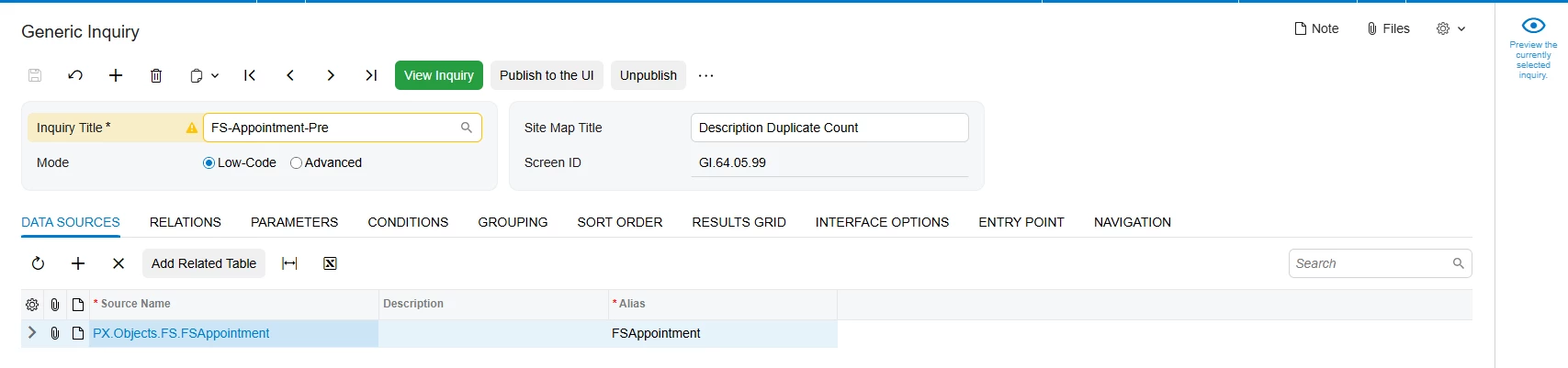
Data Sources tab: PX.Objects.FS.FSAppointment
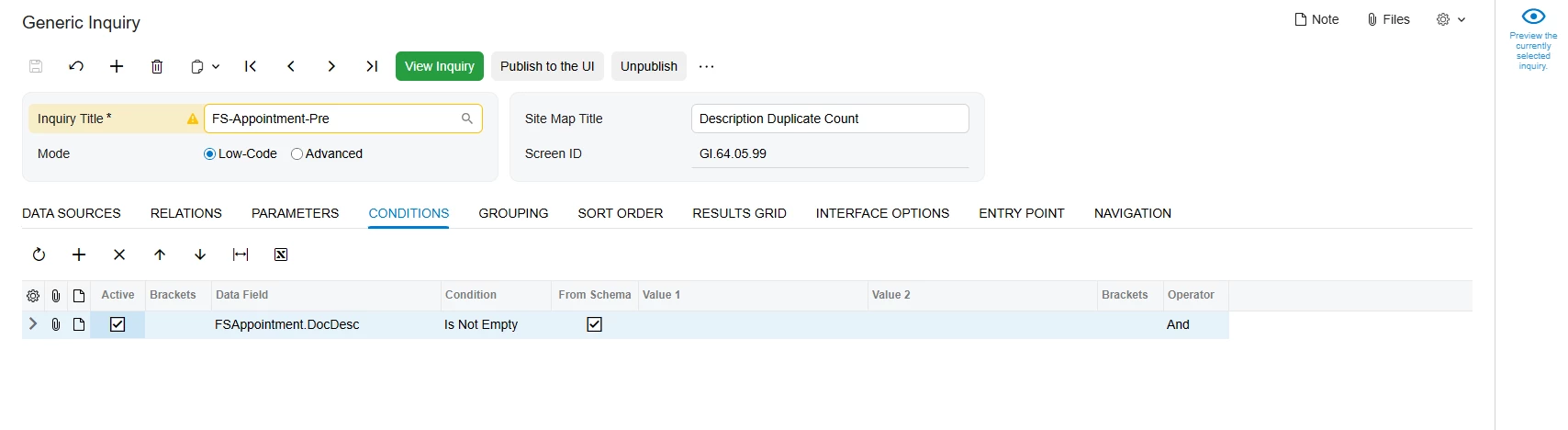
Conditions tab: Add the following condition to exclude empty or null descriptions from the duplicate count: FSAppointment.DocDesc → Is Not Empty
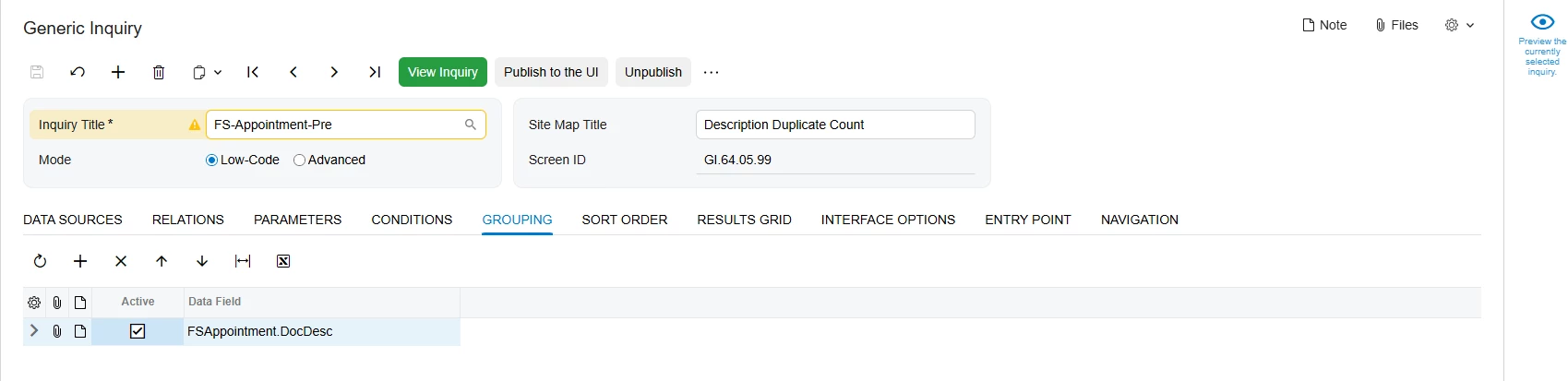
Grouping tab: Group by: FSAppointment.DocDesc
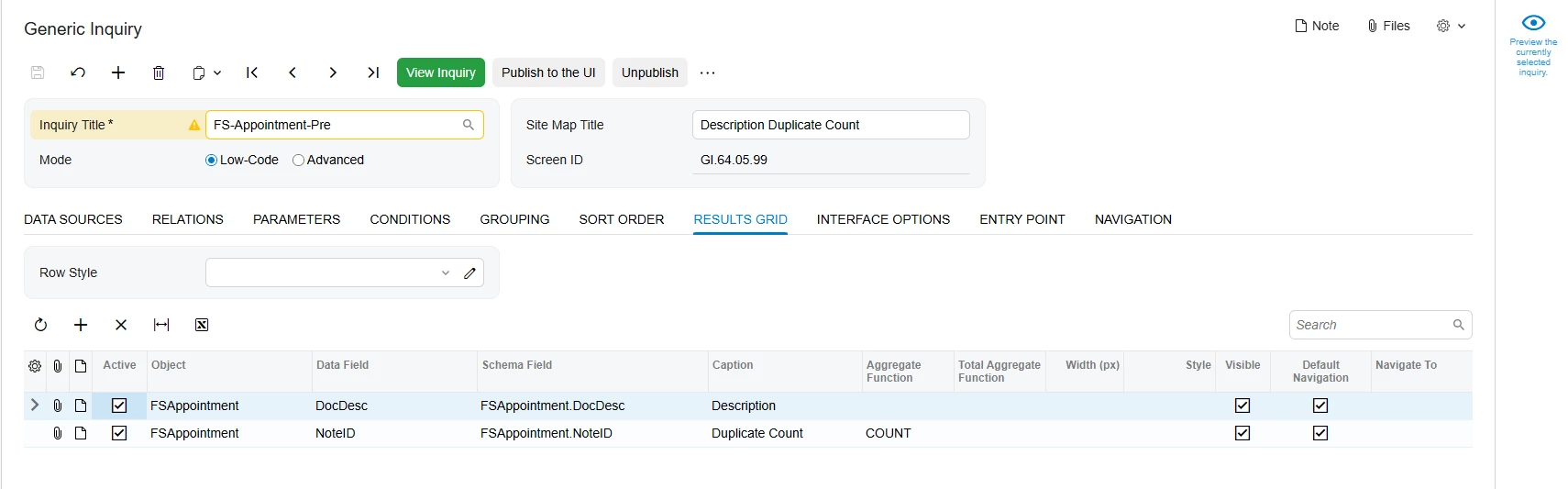
Results Grid tab:
Add:
FSAppointment.DocDesc;
FSAppointment.NoteID → Aggregate Function = COUNT
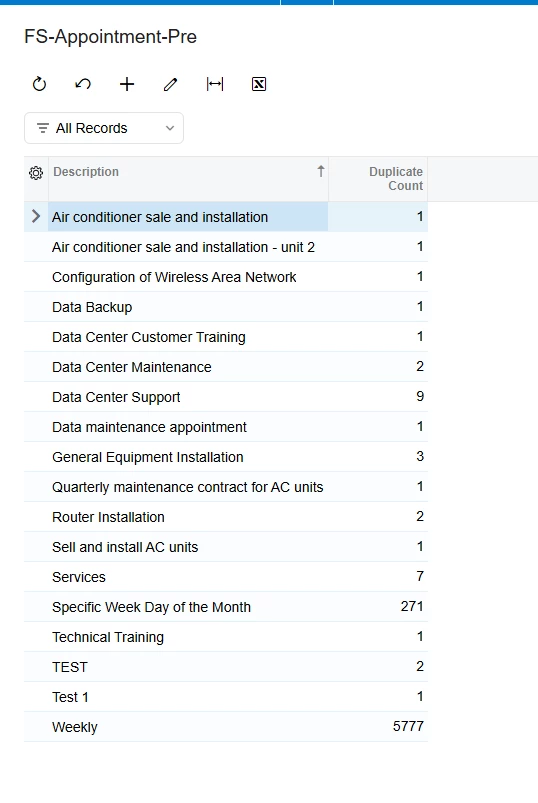
Result of the pre-aggregated GI:
Step 2 – Add the pre-aggregated GI to the main GI
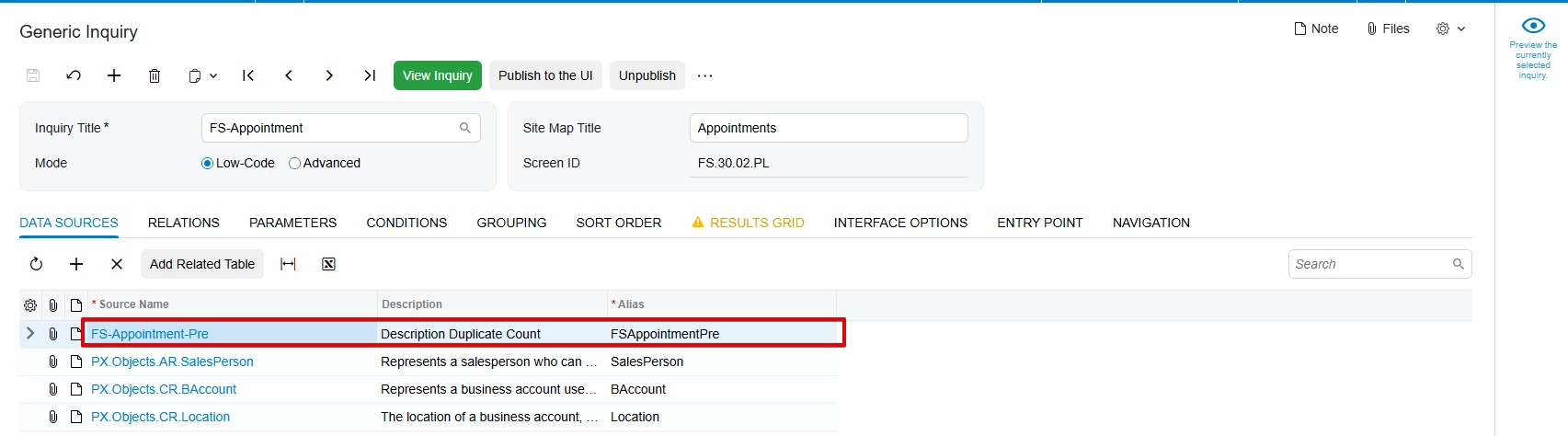
Data Sources tab: Add the pre-aggregated GI as an additional data source
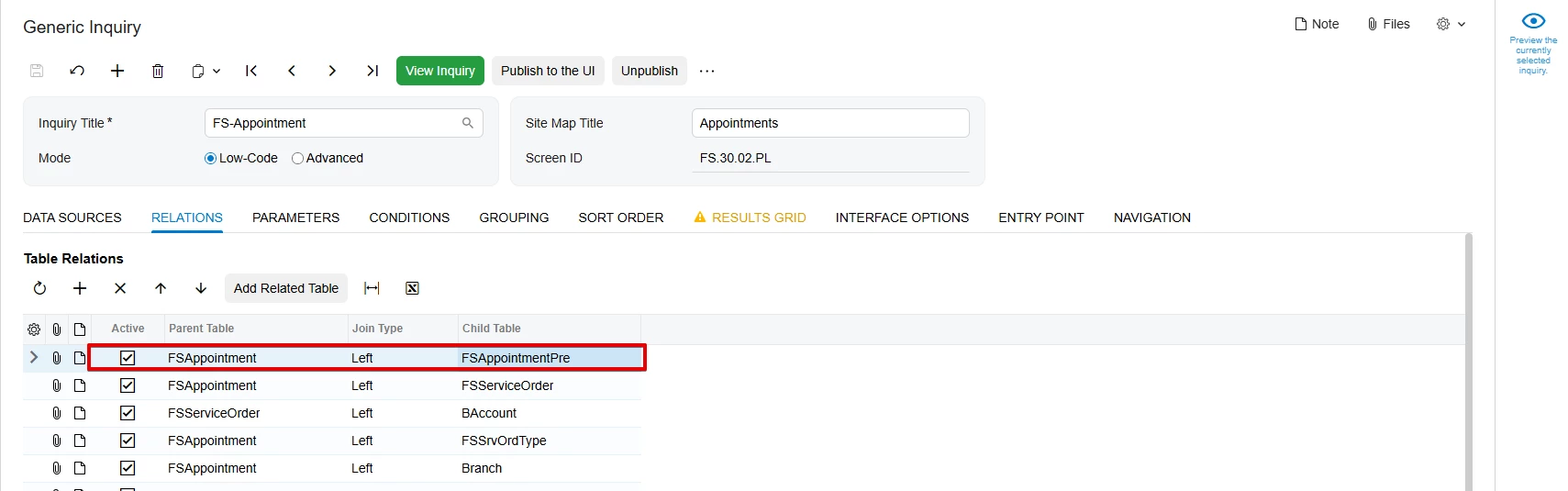
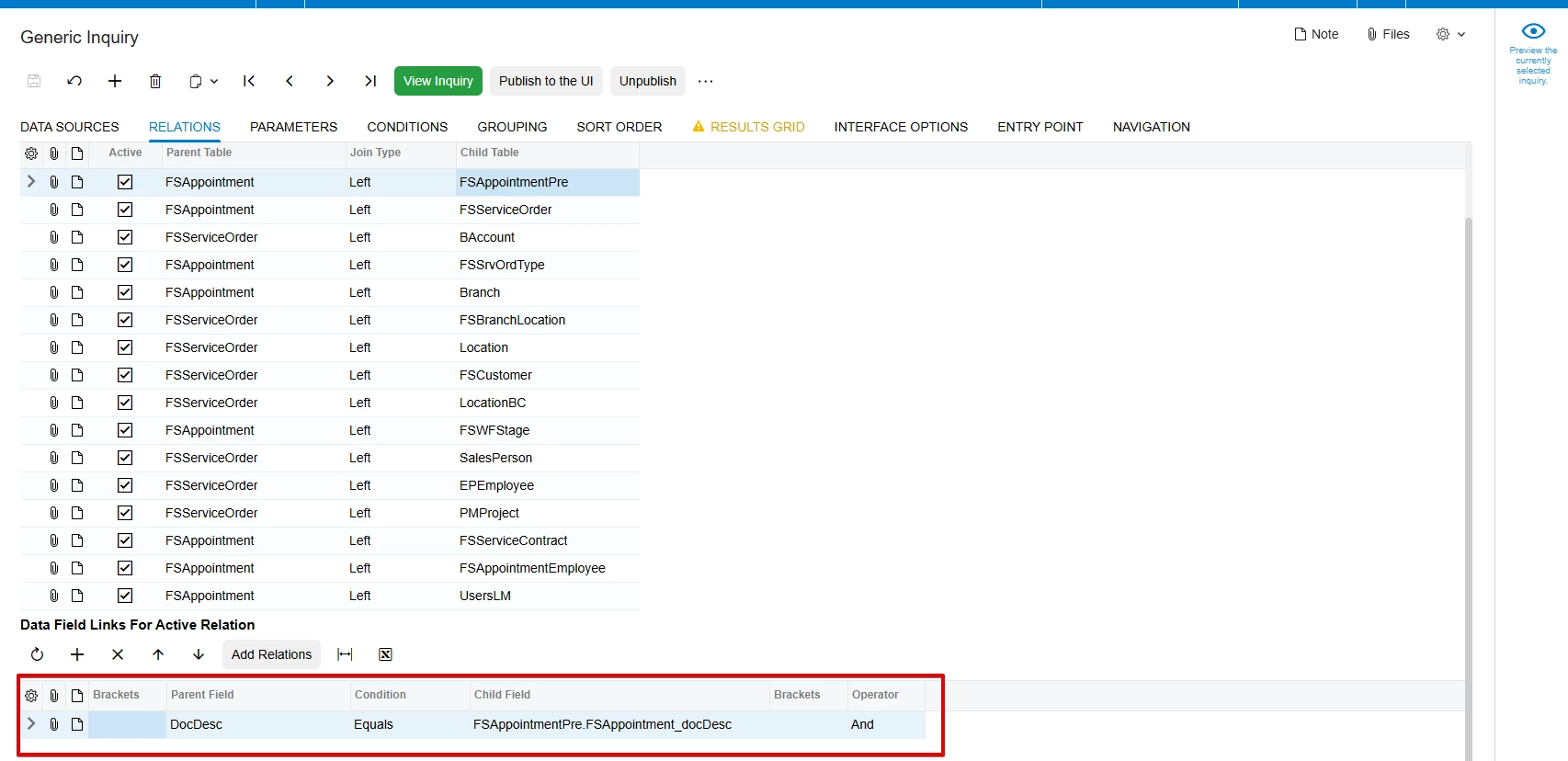
Relations tab: Create a LEFT JOIN using: FSAppointment.DocDesc = FSAppointmentPre.FSAppointment_docDesc
I used a LEFT JOIN so that all appointment records remain in the main GI
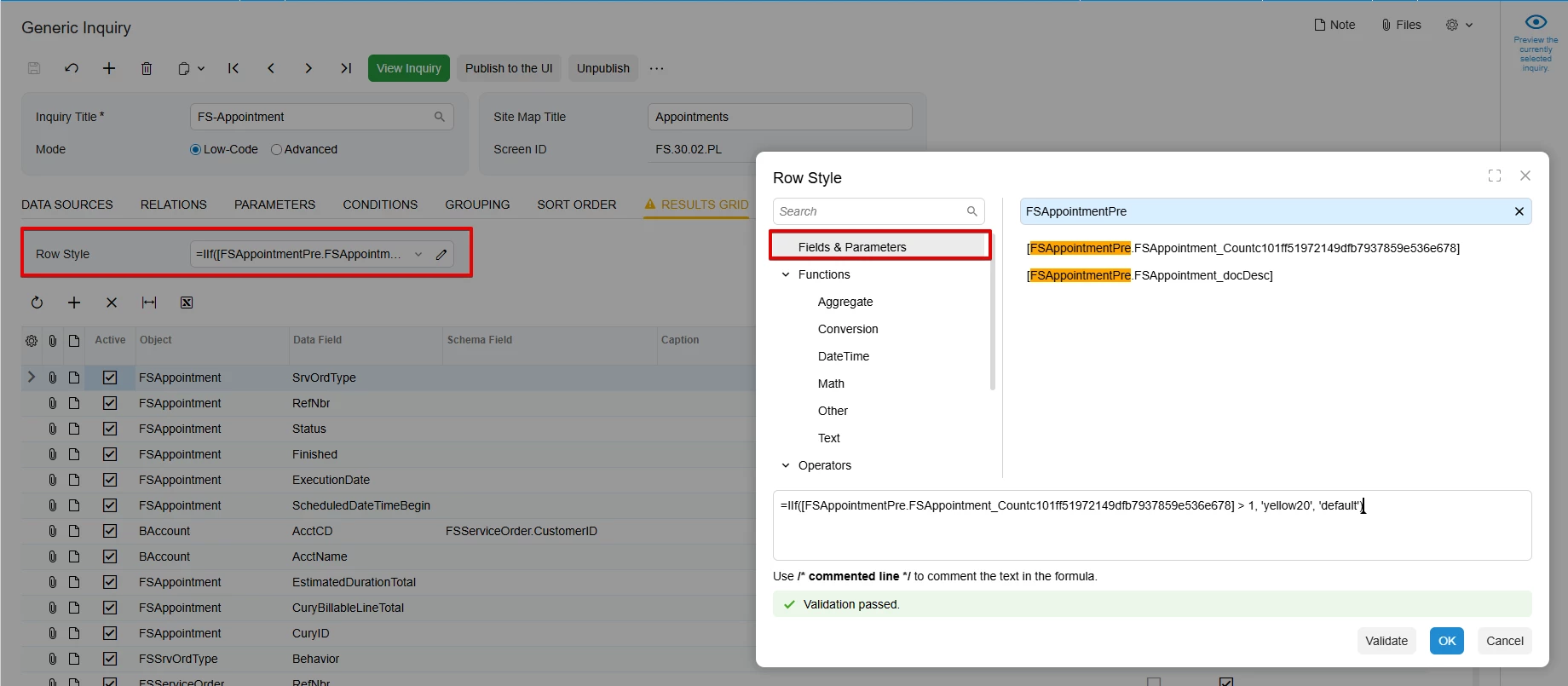
The COUNT field can be selected from the Fields & Parameters section in the Style editor.
Any description with a count greater than 1 will be highlighted.
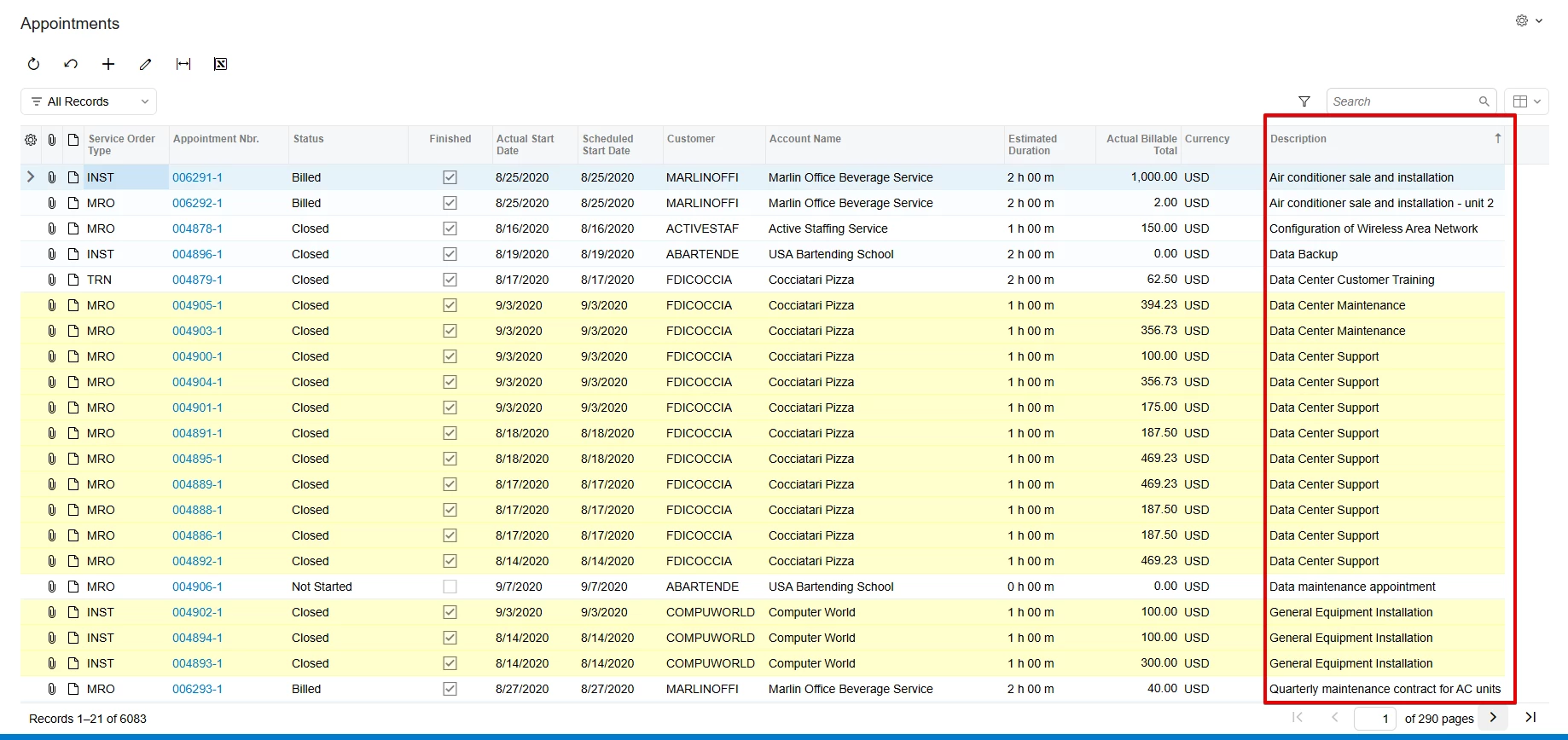
Result:
Note: The provided XML file is a starting point and can be adjusted based on your specific requirements, including data sources, fields, and conditions.
I found a possible solution using only Generic Inquiries (without customization) to highlight duplicate descriptions based on FSAppointment.DocDesc.
The idea is to create a small pre-aggregated GI that counts how many times each description appears, then join this GI back to the main GI and use the count in the Style formula to highlight duplicate descriptions.
The attached XML file (FS-Appointment-Pre.xml) contains the pre-aggregated GI (Appointments - Description Duplicate Count) used in this example. Step 1 – Create a pre-aggregated GI (Appointments - Description Duplicate Count)
Data Sources tab: PX.Objects.FS.FSAppointment
Conditions tab: Add the following condition to exclude empty or null descriptions from the duplicate count: FSAppointment.DocDesc → Is Not Empty
Grouping tab: Group by: FSAppointment.DocDesc
Results Grid tab:
Add:
FSAppointment.DocDesc;
FSAppointment.NoteID → Aggregate Function = COUNT
Result of the pre-aggregated GI:
Step 2 – Add the pre-aggregated GI to the main GI
Data Sources tab: Add the pre-aggregated GI as an additional data source
Relations tab: Create a LEFT JOIN using: FSAppointment.DocDesc = FSAppointmentPre.FSAppointment_docDesc
I used a LEFT JOIN so that all appointment records remain in the main GI
The COUNT field can be selected from the Fields & Parameters section in the Style editor.
Any description with a count greater than 1 will be highlighted.
Result:
Note: The provided XML file is a starting point and can be adjusted based on your specific requirements, including data sources, fields, and conditions.