Answer

Move the Stock Item Image to a different Page?

  • August 6, 2025
  • 3 replies
  • 64 views

Forum|alt.badge.img

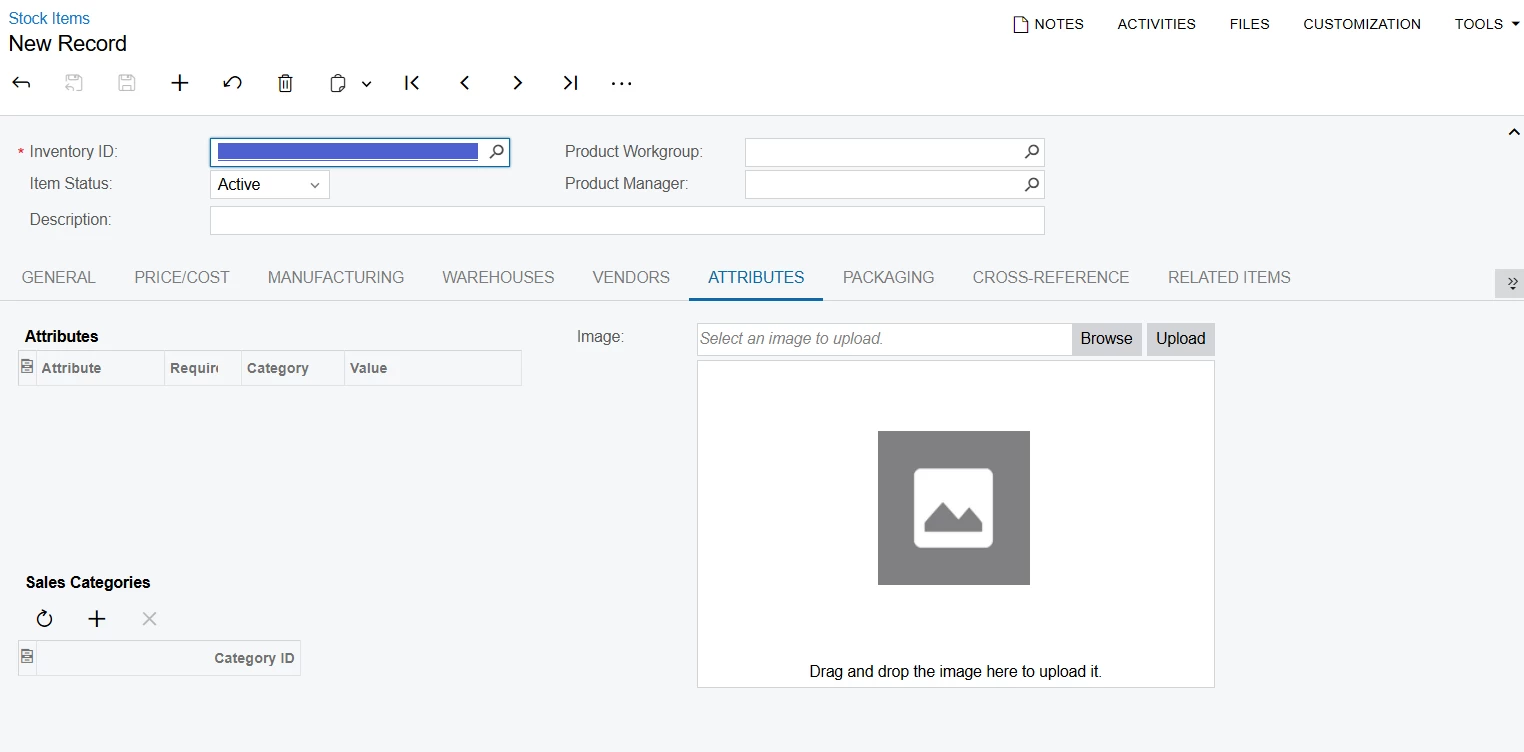
I’m trying to move the option to see this photo to either the general tab or the main par. However, whenever I try, I get just a text box, and not the image or the selector. Is there a way to move it? I don’t see any additional code that would be creating the image.

 

Best answer by darylbowman

...you’d probably need to ‘Edit ASPX’ and cut/copy that to the new location

I just did this for someone. I had to change the control ID to ID="imgUploader2" in order for ‘Generate Customization Script’ to correctly implement it

3 replies

darylbowman
Captain II
Forum|alt.badge.img+15

In aspx, this field’s definition is:

<px:PXImageUploader Height="320px" Width="430px" ID="imgUploader" runat="server" DataField="ImageUrl" AllowUpload="true" AllowNoImage="false" ShowComment="true" DataMember="ItemSettings"
></px:PXImageUploader>

I believe you’d probably need to ‘Edit ASPX’ and cut/copy that to the new location


DominicB
Freshman I
  • Freshman I
  • August 21, 2025

A “No-Code” option for this, is to change the order that the tabs display in.

For instance, the last company I did this for found it more helpful to have the “Attributes” tab be 1st in the list because the attributes and images are referred to more frequently than the “General” settings of the item (which are generally available in a GI anyway).

Just an option, good luck.


darylbowman
Captain II
Forum|alt.badge.img+15
  • Answer
  • August 29, 2025

...you’d probably need to ‘Edit ASPX’ and cut/copy that to the new location

I just did this for someone. I had to change the control ID to ID="imgUploader2" in order for ‘Generate Customization Script’ to correctly implement it