Question

Import Scenario File Maintenance

  • August 24, 2026
  • 4 replies
  • 57 views

I want to update a field in the File Maintenance Screen. I have tried building an import scenario to do this, but it seems to have a hard time calling upon an already existing File so that we can update the Import File Reg. Exp.

We are creating this import so that we can schedule a daily import that updates the Reg Exp to the next day. Then we can pull a file with the right date from an external source automatically.

4 replies

smilner3
Varsity III
Forum|alt.badge.img+1
  • Varsity III
  • August 24, 2026

There are two things going on here, and the second one probably means you don't need the import scenario at all.

Why the scenario can't find the file. On File Maintenance (SM202510), the only key selector on the form is FileID — a GUID — and it's set read-only. Import scenarios drive the screen the way a user does, so with no writable business key there's nothing to navigate by. That's structural to the screen, not something you're doing wrong.

You may not need to update it daily. The field is a regular expression, not a literal filename. If your files are named on a stable pattern and only the date changes — Orders_20260818.csv, Orders_20260819.csv — then a pattern like Orders_\d{8}\.csv matches every one of them, and you never touch the field again. Worth testing against a couple of real filenames before building anything.

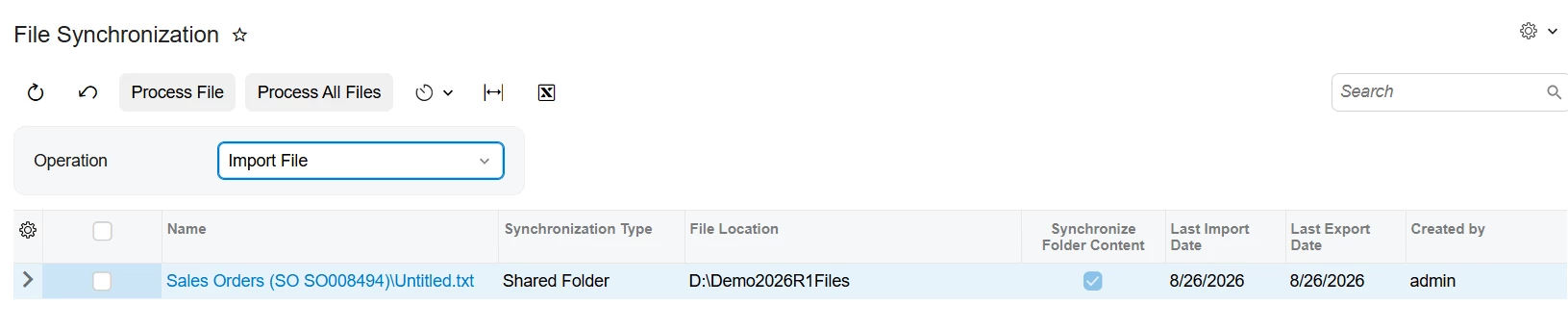
For the daily pull itself, that's already built in. On SM202510's Synchronization tab set Synchronize on with your synchronization type and location, then use File Synchronization (SM202530): pick Operation = Import File, tick the file row, and Schedules ▸ Add. That schedules the retrieval directly — no import scenario in the loop.

If the filenames genuinely can't be matched by one pattern, say what they look like and it's worth a second look.


  • Author
  • Freshman II
  • August 25, 2026

@smilner3 

Thank you for the input! The issue we are running into is that the files will accumulate in this folder. They don’t get moved automatically once they have been synced. They also don’t want to overwrite the original file. My understanding is that Acumatica will pick up everything in the folder if it matches the naming convention. We have discussed a batch script that could move the files, but IT is hesitant on relying on this as our only method to prevent duplication. (This is somewhat of a custom table so we want to have as many fail safes as possible. There will be a Key field that will help prevent this as well) We also don’t want to be loading a ton of duplicate files into Acumatica for space reasons. Any thoughts?


KrunalDoshi
Semi-Pro III
Forum|alt.badge.img+6
  • Semi-Pro III
  • August 26, 2026

Hi ​@smilner3,

I do not think it will overwrite the original file. Whenever you run the File Synchronization for Import or Export, system will automatically identify the timestamp and based on that it will import or export the file based on the filename you have initially uploaded. If the file is never modified, then it will not create a duplicate.

For example, I have tried below scenario.

I have uploaded a file to Sales Order

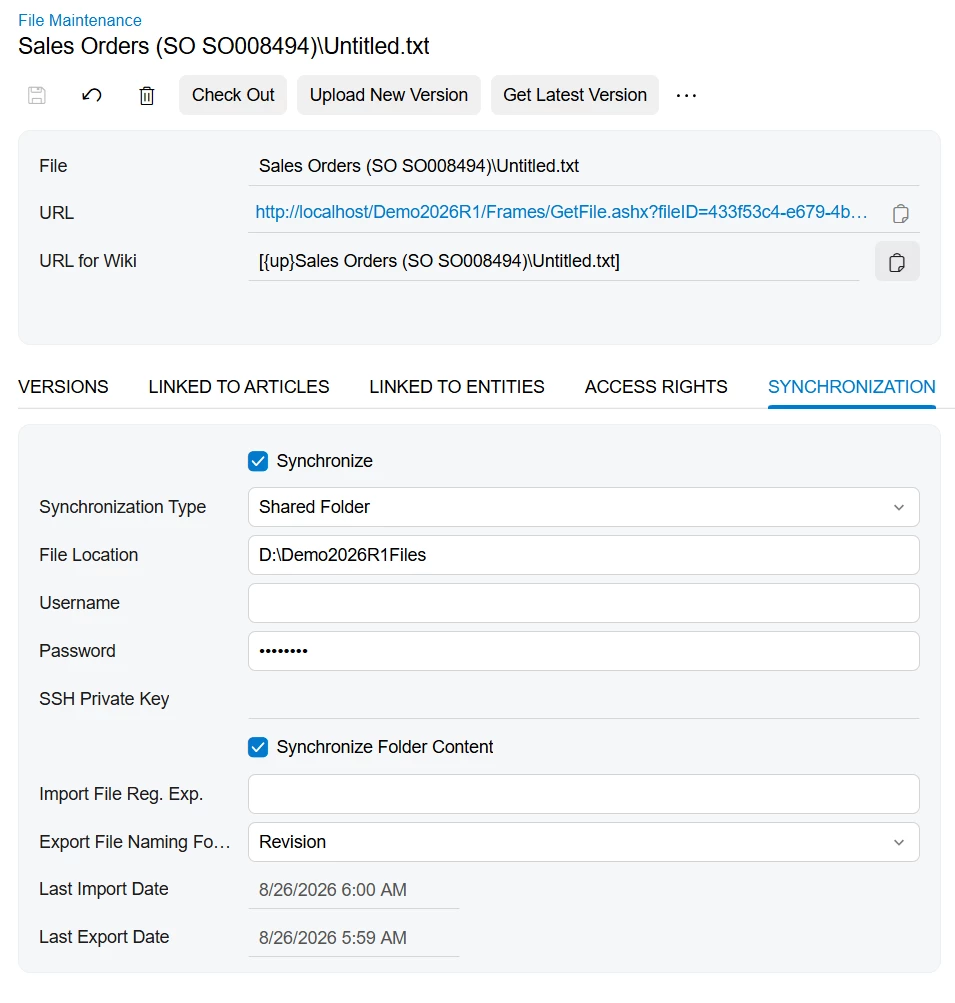
Set the synchronization to shared folder with the Export File Naming Format set to Revision.

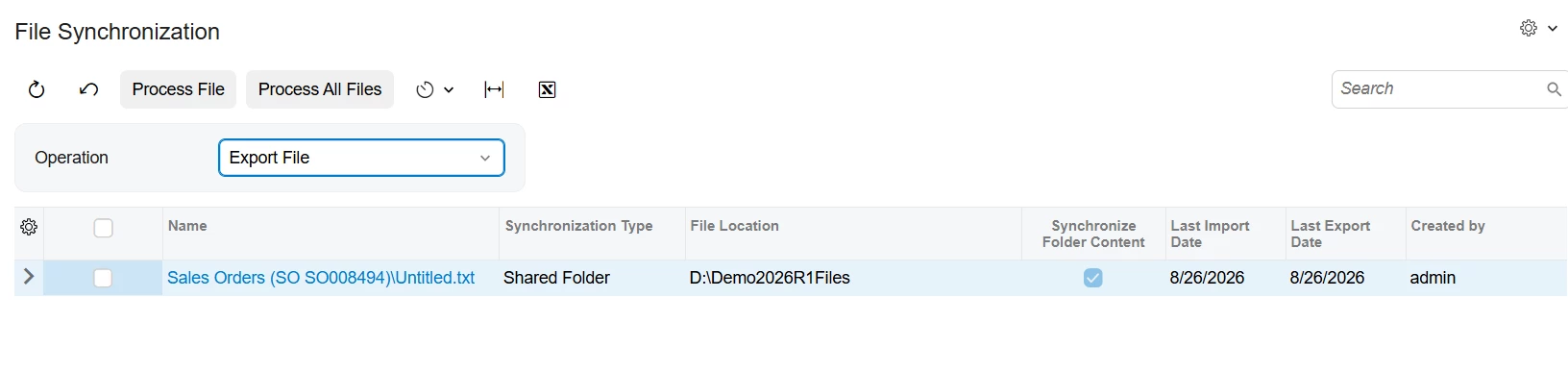
Ran the File Synchronization with Operation = Export File.

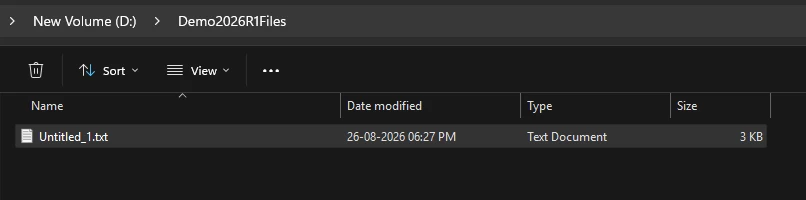
This has created the original file in the shared folder.

After that I have ran the Export File Synchronization few times, it did not do anything.

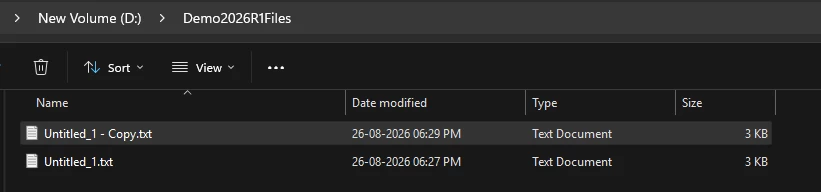
I have then duplicated the file and modified its content.

Ran the File Synchronization with Operation = Import File

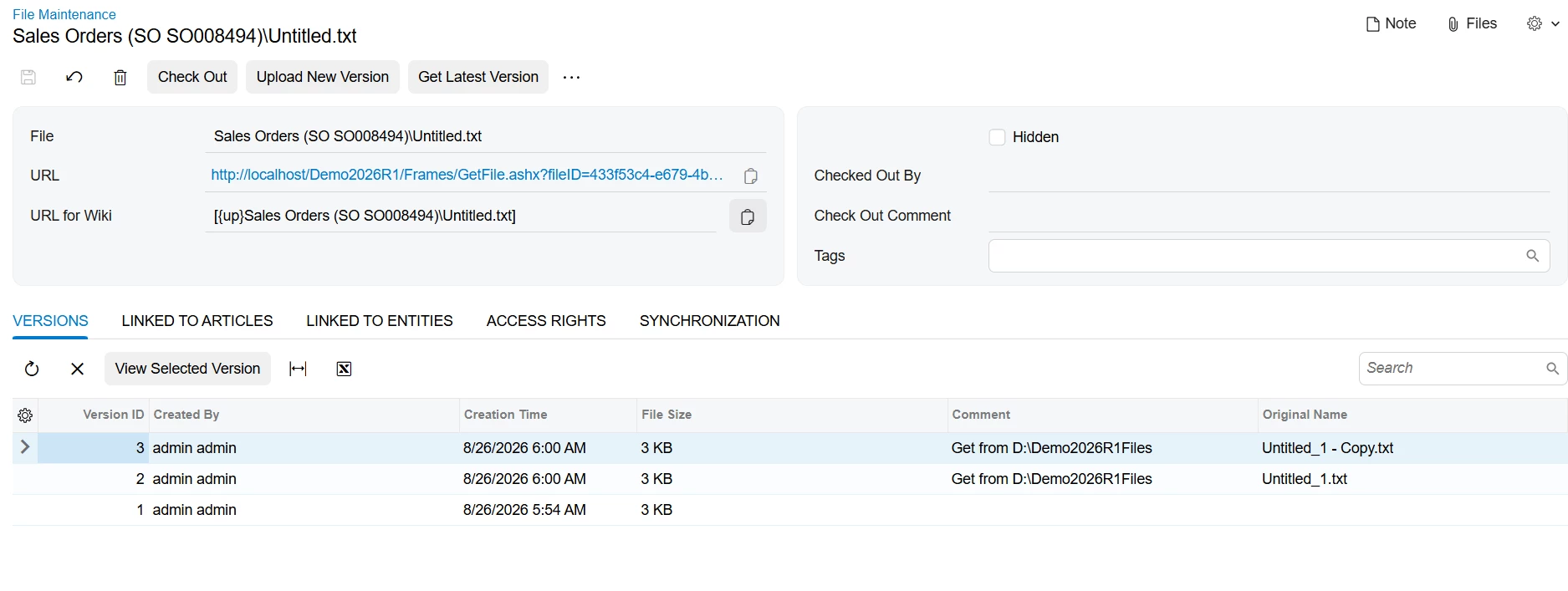
It has imported the modified version of file to the same file which I had uploaded initially to the Sales Order. Finally, the File Maintenance screen for the uploaded file looks like below.

Let me know if this helps or I have missed anything you want to achieve.

You can review below help articles for the Synchronization tab and Shared Folder.

https://help.acumatica.com/Wiki/ShowWiki.aspx?pageid=cedc116f-1c35-4053-9aae-65a525be642f

https://help.acumatica.com/Wiki/(W(2))/ShowWiki.aspx?pageid=d6f4ecc9-c572-4ecc-a122-900158b2dc29


smilner3
Varsity III
Forum|alt.badge.img+1
  • Varsity III
  • August 26, 2026

@KrunalDoshi , this is a really helpful test, and your Versions tab shows the piece that matters most here. Two files in the folder, one import run, and both came in as separate versions of the same file record: Version 2 with Original Name Untitled_1.txt, Version 3 with Untitled_1 - Copy.txt. So folder content sync doesn't create a file record per file. Every matching file becomes another version on the one record you configured.

@rjarrell81, that's good news for your space concern. Thirty dated files won't turn into thirty file records in Acumatica.

The wrinkle in your case is that the file is feeding an import scenario. Only one version can be the current one, and a scenario prepares from the current version. If two days' files land between scheduled runs, both come in as versions, but only one of them is current and the other day never gets prepared. You wouldn't see an error and you wouldn't get a duplicate. You'd just be short a day, which on a custom table is easy to miss.

For that reason I'd lean toward pointing one file at one file for this particular job. On File Maintenance (SM202510), Synchronization tab: Synchronize on, Synchronization Type = Shared Folder, File Location set to the full path of that single file, Synchronize Folder Content left off. One new version per sync, one file per cycle, and the scenario always prepares what just arrived.

You still get the no-op behavior either way. The Synchronization tab help Krunal linked says the system imports a file only if its modification date is later than the file already imported under that name, and that it applies to both single file and folder sync. So a run where nothing new arrived does nothing, which lines up with Krunal seeing repeated exports come back empty.

Then Sync Type = Incremental - New Only on Import Scenarios (SM206025) gives you a second layer. Prepare only runs when a newer version of the file exists, and if there isn't one it stops with a message that all versions have been processed. Last piece is ordering the two schedules so the file sync runs before Process Import Scenarios (SM206035), with enough gap for the file to land.

Between the modification date check, the sync type, and your key field, that's three things standing between you and a double load, and none of them is the batch script. If you want to keep the dated originals, that stays a copy step on your side, but it becomes housekeeping rather than your safety net.

@KrunalDoshi  , if you've seen the version behavior work out differently on a scenario-attached file, I'd be glad to hear it.