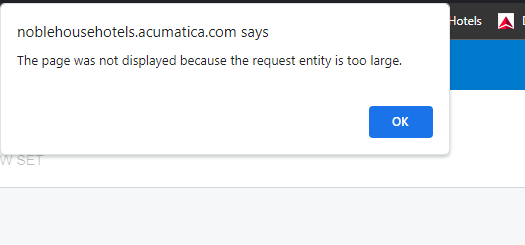
This process includes several steps to set up. If you get stuck or get any errors along the way like I did, I would suggest using ChatGPT to troubleshoot.
- You need to create a Data Provider called “ARMImportExport”, Provider Type = “Excel Provider”. In this screen there is a Schema tab. Add a Source Object called “Row Set”, make it active, and then add the Source Fields based on the attached Excel file. You cannot import these settings unfortunately, so will have to manually key in each field in the schema.
- Create an Export Scenario named “Export ARM Row Set”, Screen Name = “Row Sets”, Provider = “ARMImportExport” (the provider you just created), Provider Object = “Row Set” (if you do not see this option, double check that you made Row Set active in the Data Provider setup screen). I am attaching the XML file that you should be able to import to this screen.
- Create an Import Scenario named “Import ARM Row Set”, Screen Name = “Row Sets”, Provider = “ARMImportExport”, Provider Object = “Row Set”. The XML for this screen is also attached.
Once you have these items setup, you should now be able to export your existing row format by going to the Export by Scenario screen and finding the Export Scenario that you created. On this screen, click Prepare. This will load all of your row sets into one table, but you should be able to filter by your Row Set Code or Row Set Description before downloading the Excel file.
Once you have your Excel file downloaded, you can make the necessary modifications to your row set in Excel. When you are ready to import, go to the Import by Scenario screen and find your new Import Scenario. Click the “...” menu, click ‘Upload File Version’, and browse to find the Excel file you want to import with your updated row format. Click Prepare and Acumatica will load the row set into this screen. Once loaded just click Import and the row set will be written into Acumatica.
Note that this screen will not overwrite an existing row set code, so you will have to rename it in the Excel file first. If you want to keep the same row set code, you first have to unassign it from any existing reports, delete the old row set code, and then import.
If you cannot use these XML files for some reason, I can take screenshots of the required fields for these screens, but they cannot be exported to Excel unfortunately.