



After upgrading to 2025R2, clicking Export>PDF from the check printing window no longer protects the MICR line. Previously, all characters were being replaced by “•••••••••••••••••••” but it now shows the MICR font. Is there a way to turn this feature back on?
Solved
Exporting printed checks to PDF no longer protecting the MICR line
Best answer by dgranger70
Hi
I believe when I posted this, it was shortly after Chromium based browsers updated their PDF viewer to support the MICR font. Censoring the MICR line was not something Acumatica was doing and was specific to the PDF viewer being used.
I did find a work around where the user printing checks would export the PDF, securely move it to a computer without the MICR font installed, and open it in Adobe Acrobat. Without MICR font installed, Adobe displayed ••••••••••••••••••• for the MICR line. It still wasn’t fully protected because you could copy and paste it into a text document and it would print the full account and routing number. Adobe version 26.001.21563.0 (even the free version) does have an option to “flatten” the document by printing it as an image.
Click the Print icon, select Microsoft Print to PDF as the printer, and click Advanced. Then select the checkbox for “Print As Image”:
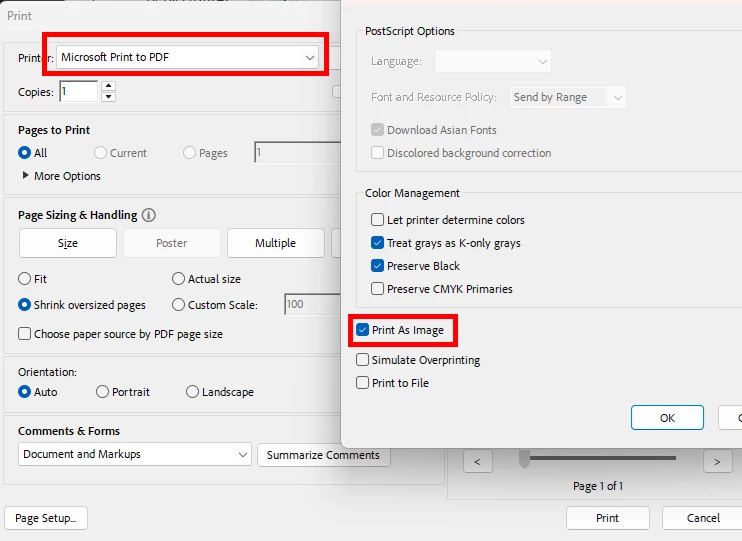
This removes the ability to copy and paste from the saved document. Maybe not the most elegant solution but you can’t beat free!

Enter your E-mail address. We'll send you an e-mail with instructions to reset your password.