
News

Introducing Beacon: Your New Knowledge Destination

  • July 7, 2026
  • 4 replies
  • 110 views

Natalia Rozhikhina
Acumatica Moderator
Forum|alt.badge.img

We're excited to launch Beacon, Acumatica's unified home for product knowledge.

As mentioned in our previous announcement, Beacon is now live.

One place for everything. Documentation, release notes, known issues, job aids, videos, and knowledge base articles now live together in a single, continuously updated destination.

Personalized for you. Browse public documentation without signing in, or sign in with your existing Acumatica Portal SSO credentials for a tailored experience.

AI-powered. Beacon includes an AI assistant to help you find answers faster. It's still learning; if it gets something wrong, please bear with it as we continue improving it. Send feedback to training@acumatica.com.

More personalization coming. This is just the first step. Stay tuned for deeper role-based personalization and richer AI experiences ahead.

Visit Beacon today: https://beacon.acumatica.com


4 replies

rkenna
Captain II
Forum|alt.badge.img+4
  • Captain II
  • July 7, 2026

Excited to try it out. Thanks for the post ​@Natalia Rozhikhina!


Elena Abilova
Community Manager
Forum|alt.badge.img
  • Education Technology Analyst
  • July 7, 2026

Woot woot! Super excited for this news!


TimRodman
Pro I
Forum|alt.badge.img+1
  • Pro I
  • July 8, 2026

Very cool.

Two questions:

1. Is https://beacon.acumatica.com intended to replace https://openuni.acumatica.com?

2. If so, are the https://openuni.acumatica.com PDF files available somewhere on https://beacon.acumatica.com? I looked, but I can’t find them.


Natalia Rozhikhina
Acumatica Moderator
Forum|alt.badge.img

Hi ​@TimRodman, thank you for your questions!

That’s right, all current content (except outdated materials) has been moved from Open University to Beacon.

To access the materials:

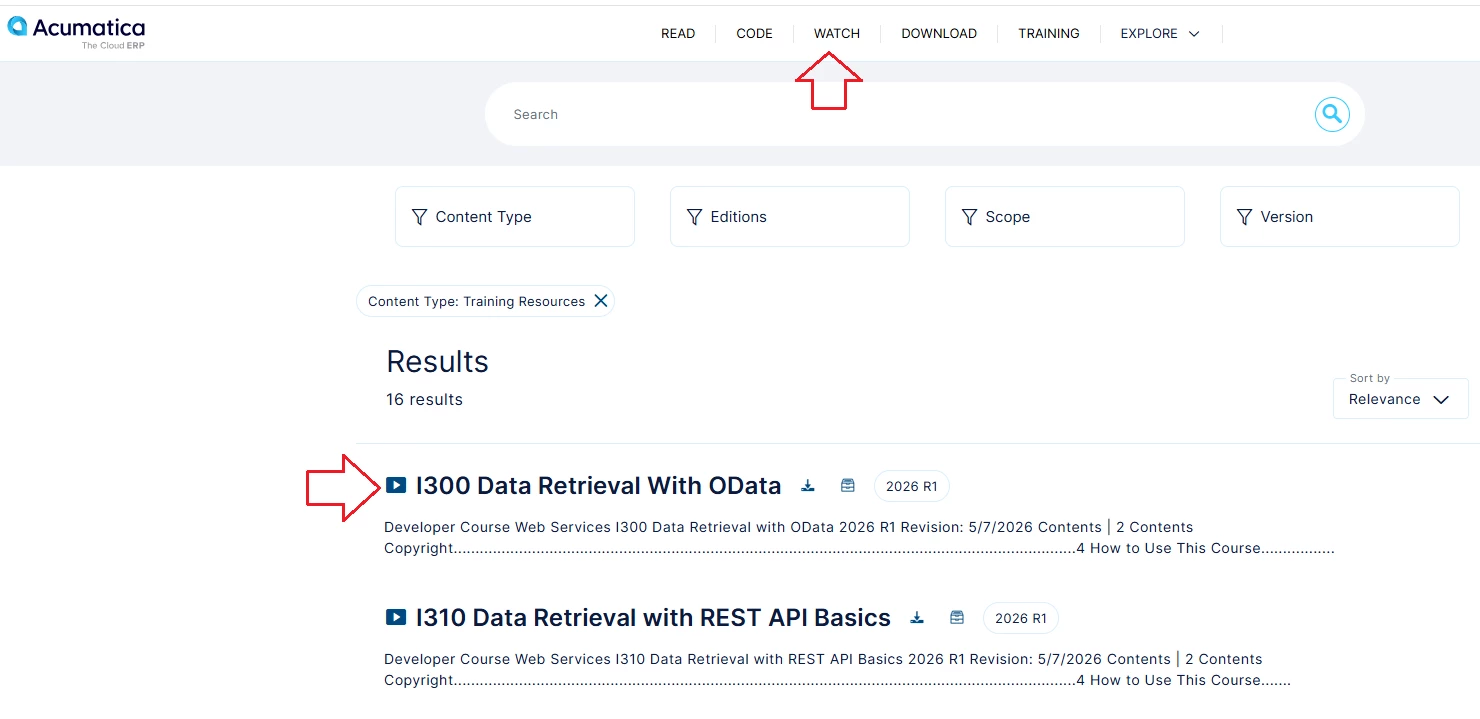
  1. Go to Training
  2. Choose a learning path and click Save to My Library
  3. Click your name in the top-right corner
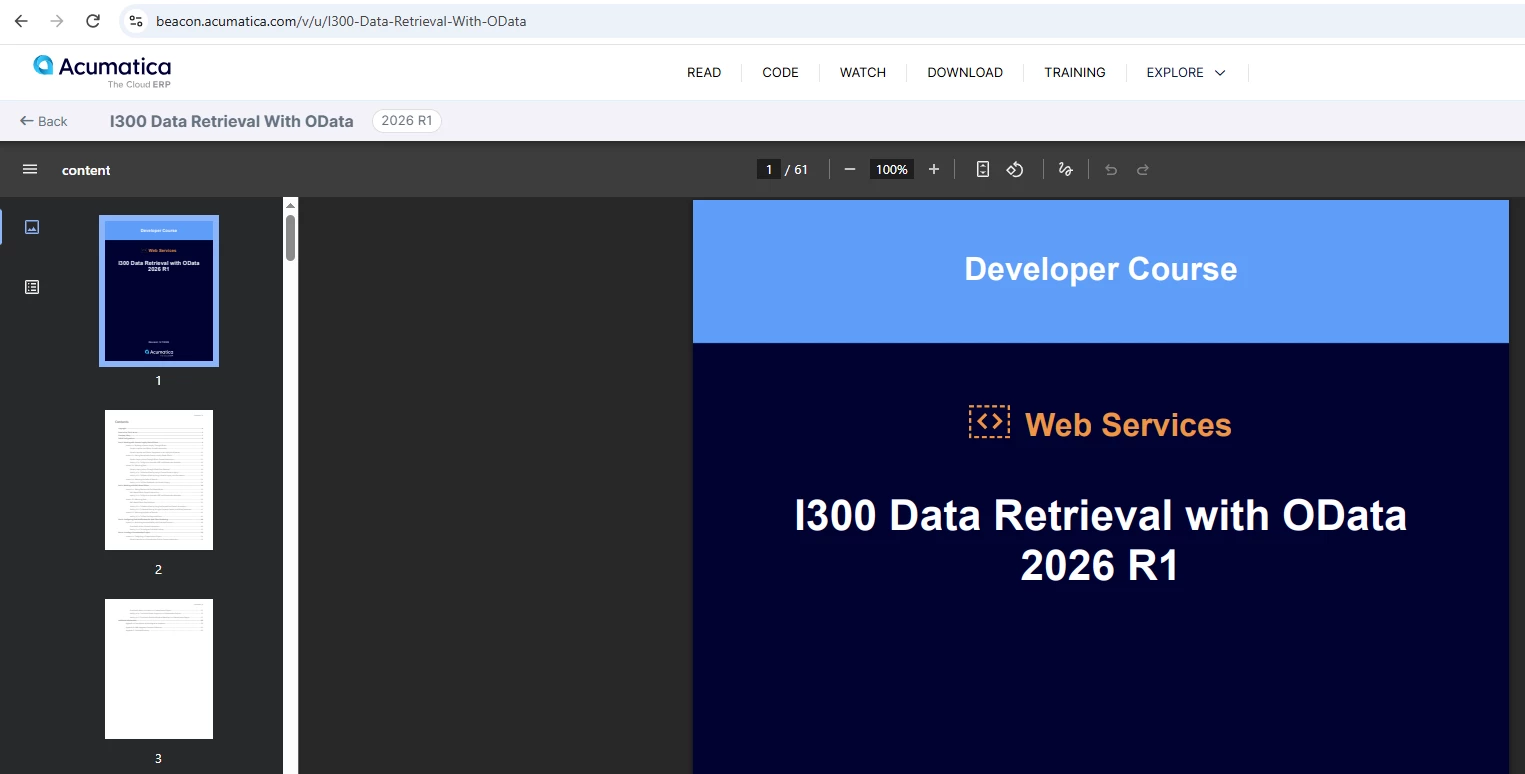
  4. Open My Books and select the one you need

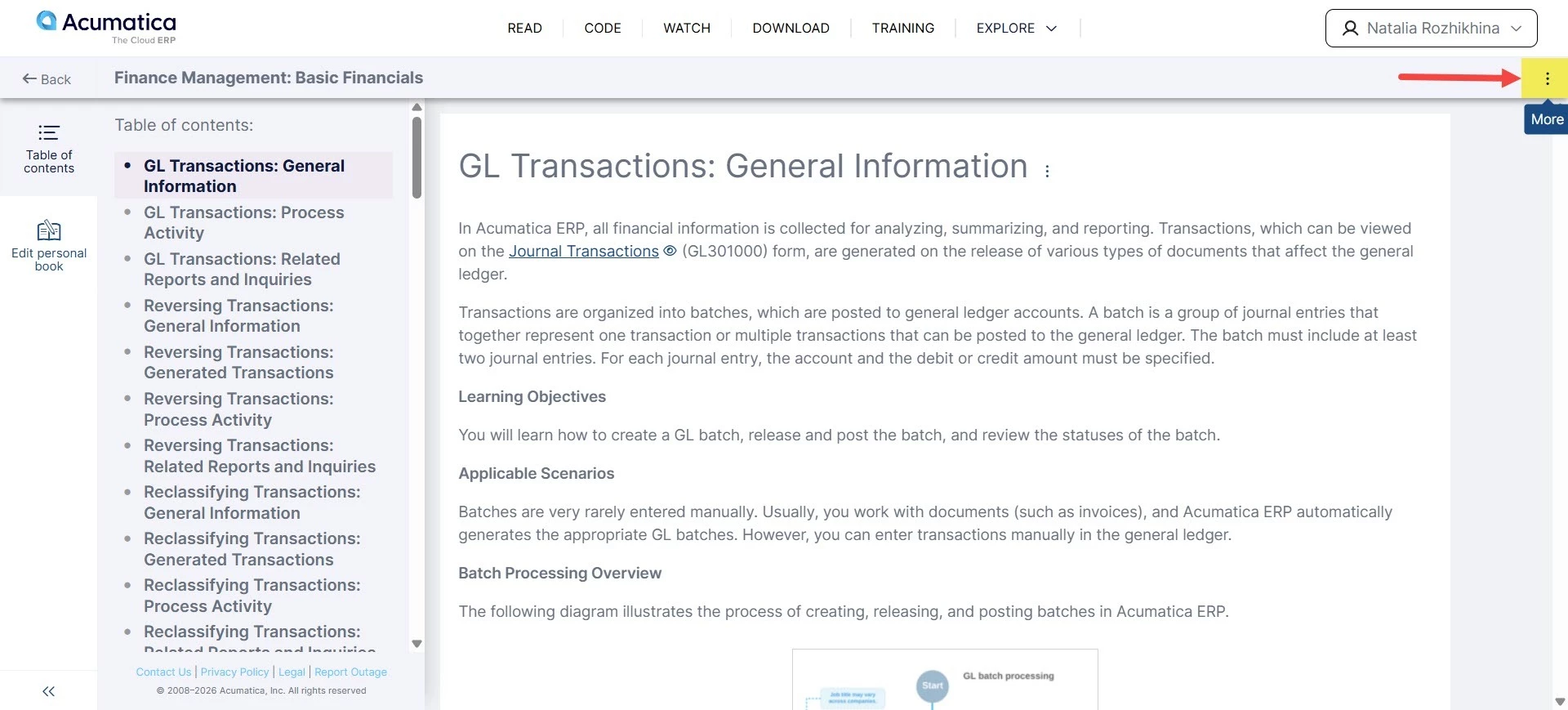
You can read the content directly on the site, or:

  1. Click the three dots next to the book name (as shown in the screenshot)
  2. A menu will appear with a share link and an option to download the PDF