




Looking for a specific topic? Beacon offers several ways to help you find the information you need.
We recommend signing in before you begin because this gives you access to more content.
Search All Beacon Content
The Search box is available on every Beacon page. To search across all available content, start from the home page, which opens after you sign in.
Note: Use keywords rather than full-sentence questions in the Search box. To ask questions and converse, use Beacon AI Chatbot, as described in Meet Beacon's AI Chatbot: Your Shortcut to Finding Answers.
Then you can:
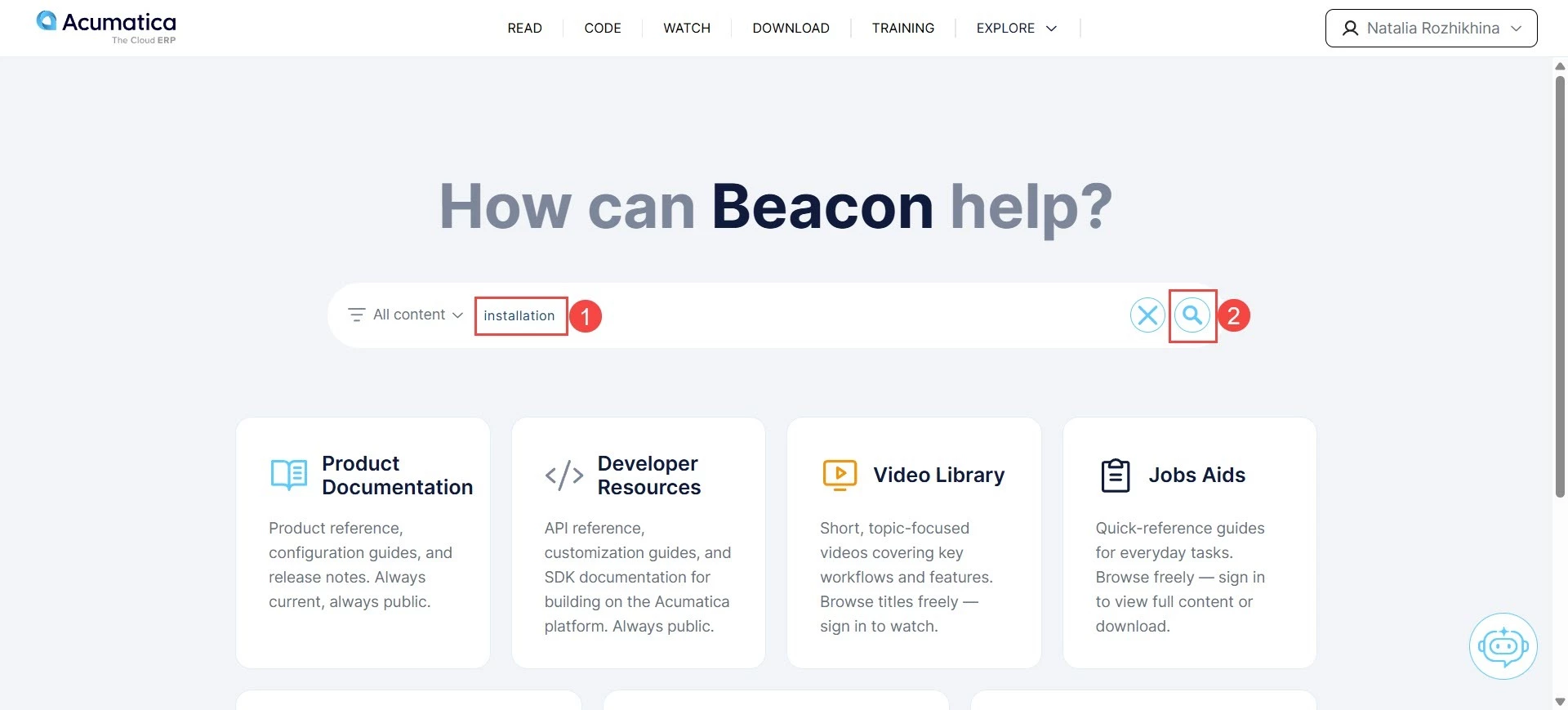
- Enter one or more keywords in the Search box (Item 1 below). You can narrow down the results by clicking the All Content button here, or by using the Search page as described in Step 4.
- Press Enter or click the Search button (Item 2).
- Review the list of available results.
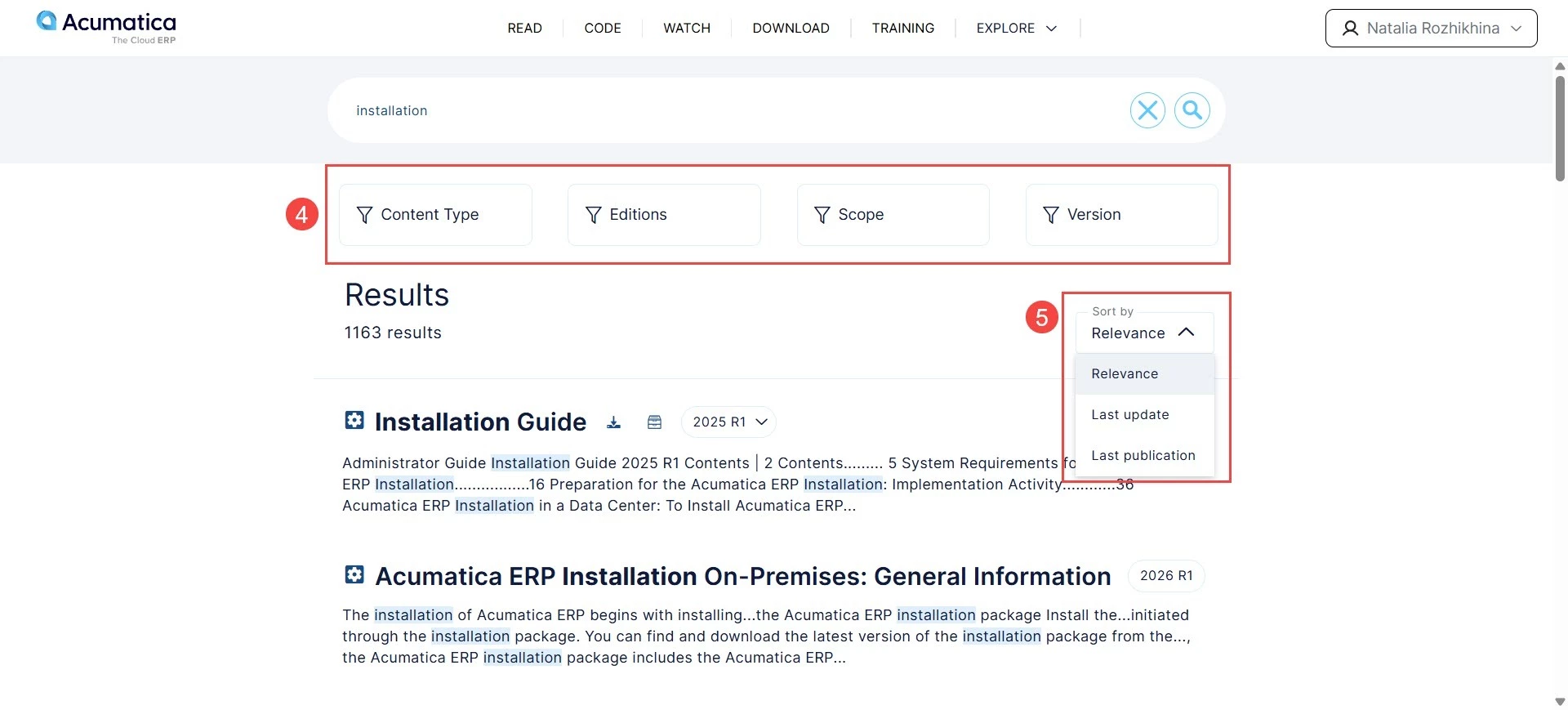
- Optional: Narrow the results by applying filters (Item 4), such as content type, edition, scope, and version.
- Optional: Sort the results by the most recently updated or published content. By default, they’re sorted by relevance (Item 5).
Search Within a Specific Part
To find a particular type of content, you can apply filters to your search results or go directly to the relevant Beacon part, where you’ll find some predefined filters that have been configured for you. In Beacon, a section is a part of the site that you access by going to a tab on the top navigation bar. For example, to find training materials about installing Acumatica ERP:
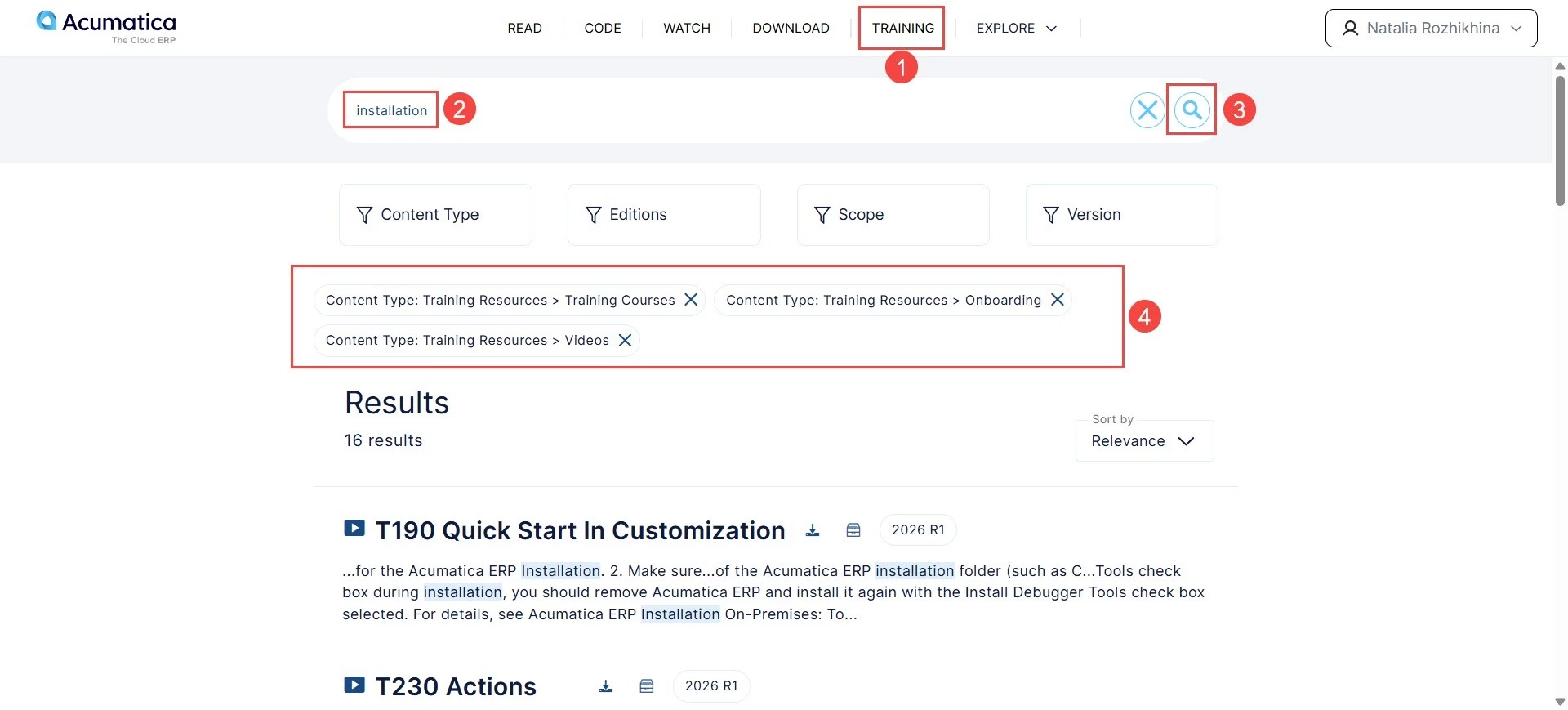
- Click Training on the top navigation bar (Item 1 below) to open the Training page.
- Enter installation in the Search box (Item 2).
- Press Enter or click the magnifying glass icon (Item 3).
Because you are searching within the Training part, Beacon automatically applies the relevant filters (Item 4) and displays fewer, more focused results.
Search Within a Publication
Once you have found the documentation you need, you can search for specific information within it as follows:
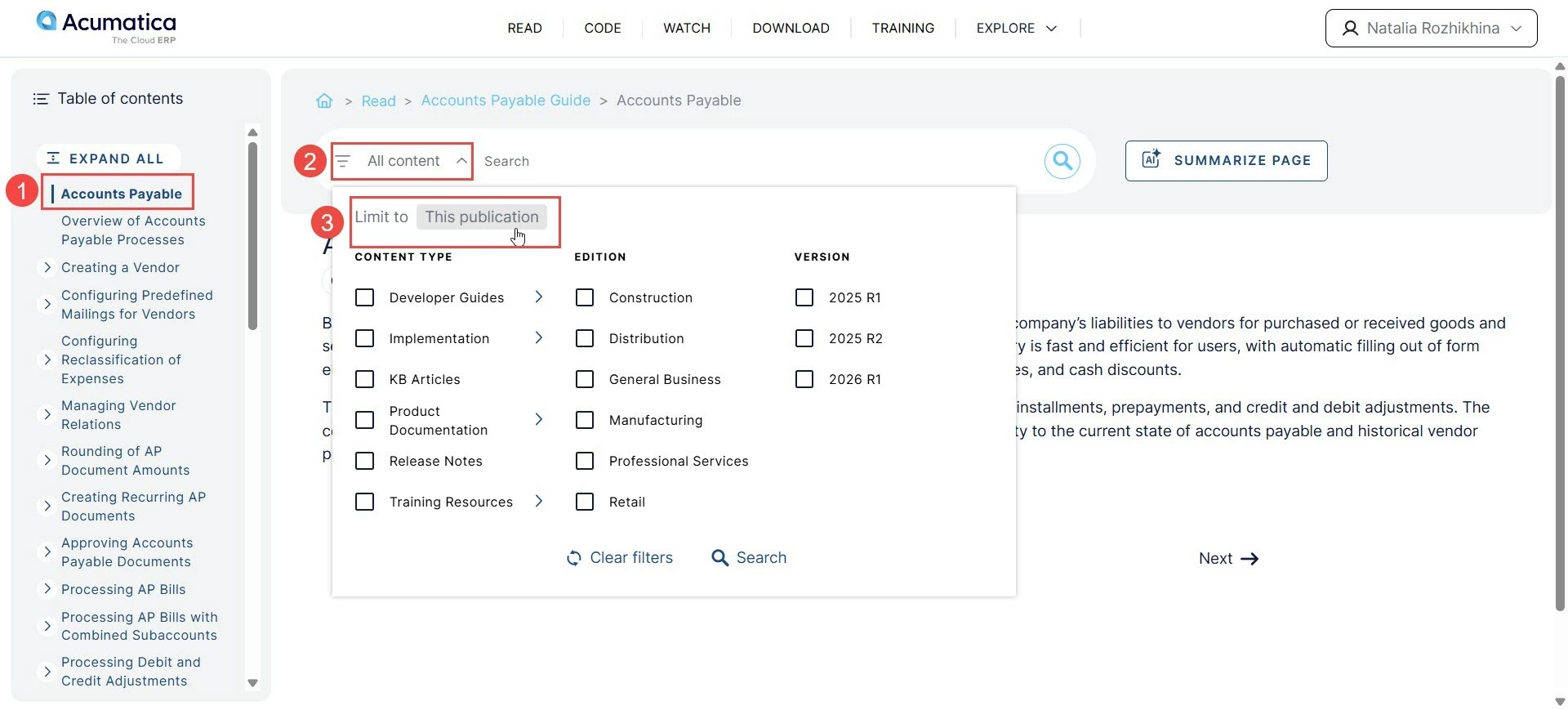
- Open the publication or any topic within a publication (Item 1).
- Open the search filters (Item 2).
- Confirm that Limit to This Publication is selected (Item 3).
- Perform your search, as described above
Beacon will display all topics in the selected publication that contain your keyword. If you clear In This Publication before searching, the system will search within the entire documentation.
Ask Beacon AI Chatbot
You can also use Beacon AI Chatbot to find information.
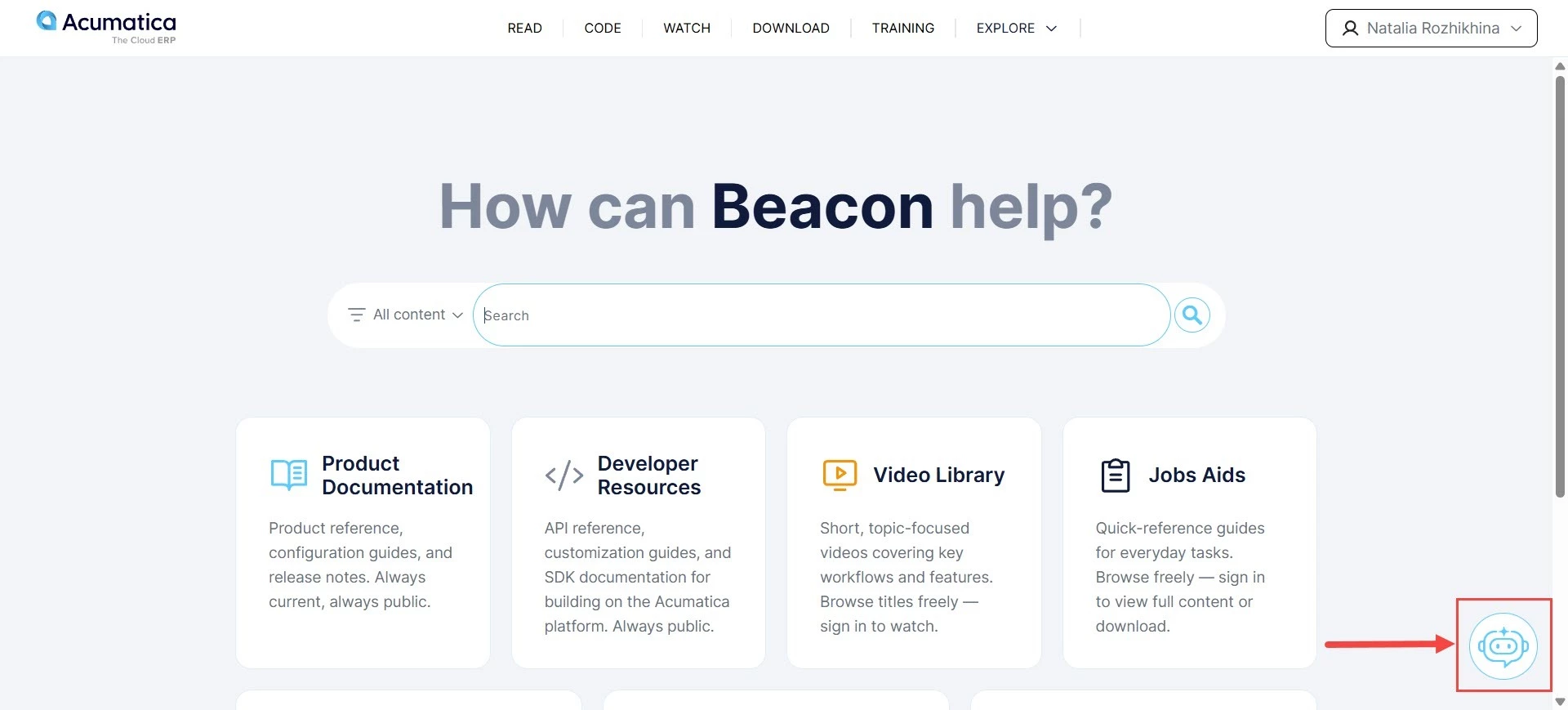
Ask a question in your own words, and AI Chatbot will provide an answer based on Acumatica documentation, along with links to the relevant topics.
Unlike a standard search, which gives you a list of results, the AI Agent provides a direct answer to your question. Convenient, isn’t it?
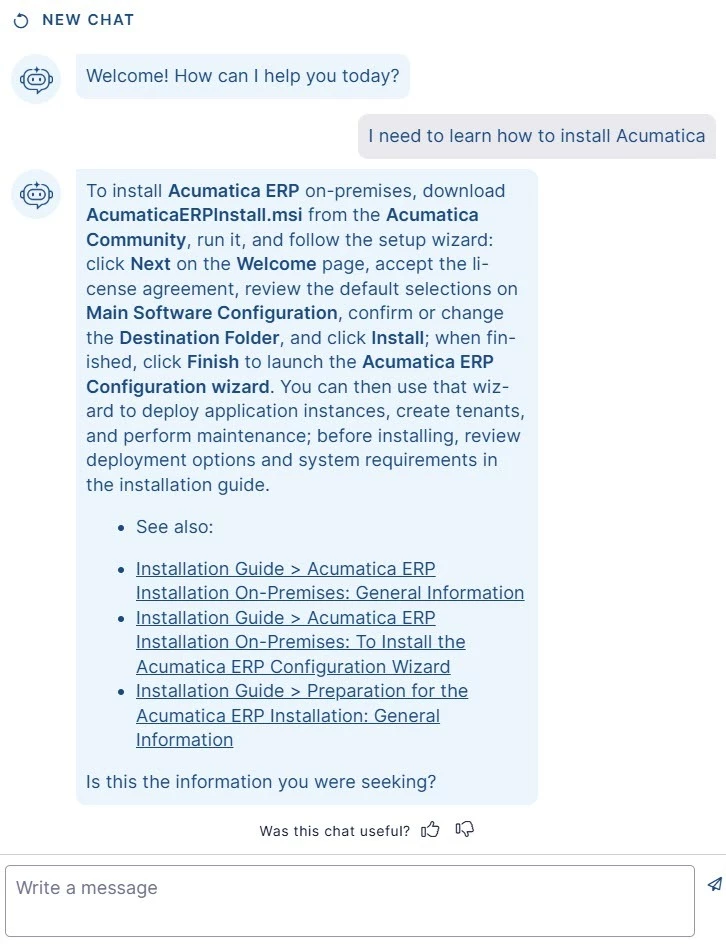
Learn more about Beacon’s AI Chatbot here: Meet Beacon's AI Chatbot: Your Shortcut to Finding Answers.
You’re now ready to begin your Beacon knowledge hunt!