




Last time, we showed you how to create and print personal books. If you missed it, you can read that article here: Beacon Tips: Create, Customize, and Print Your Personal Books.
Today, let’s look at how to print documentation from Beacon or save it as a PDF:
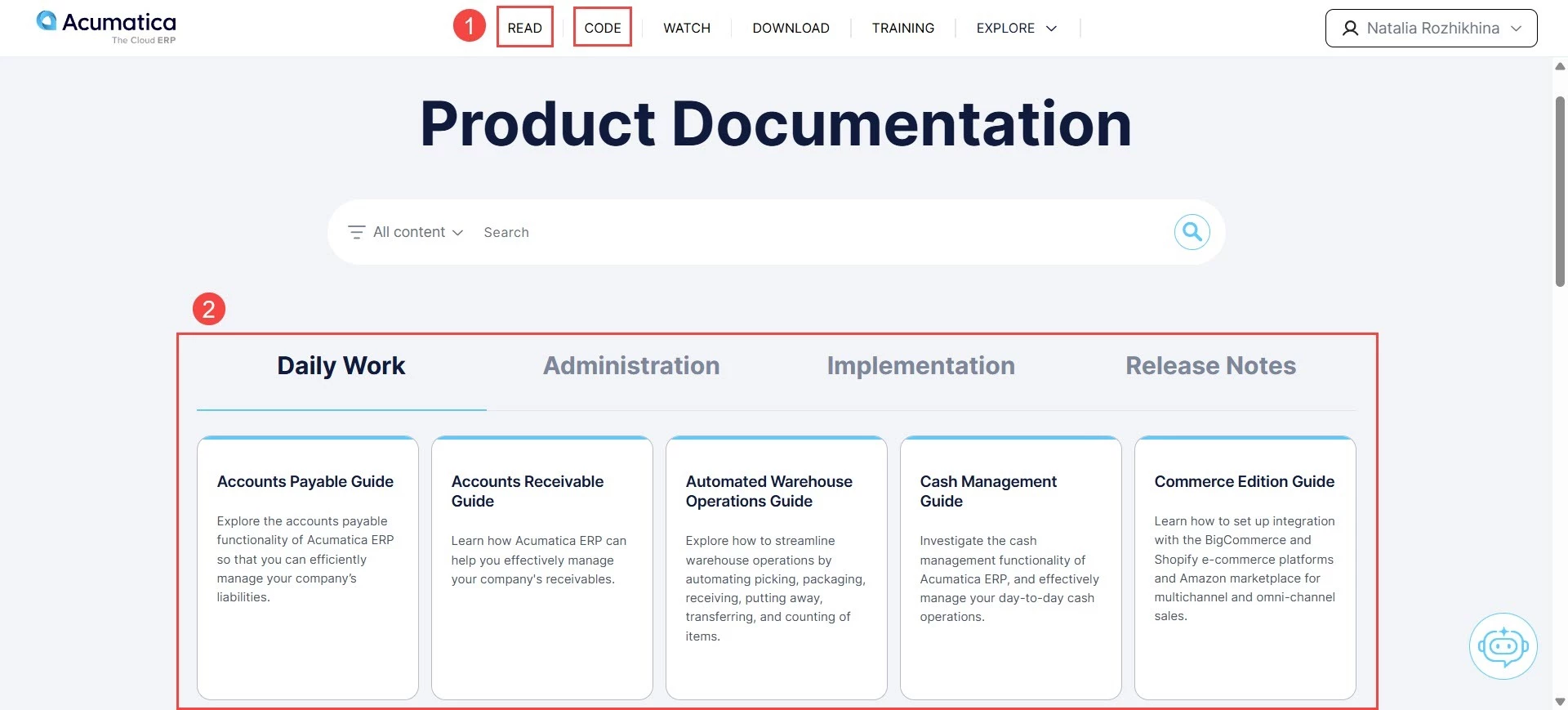
- Click Read or Code to go to the Product Documentation or Developer Resources page.
- Open the guide containing the documentation you want to print or save.
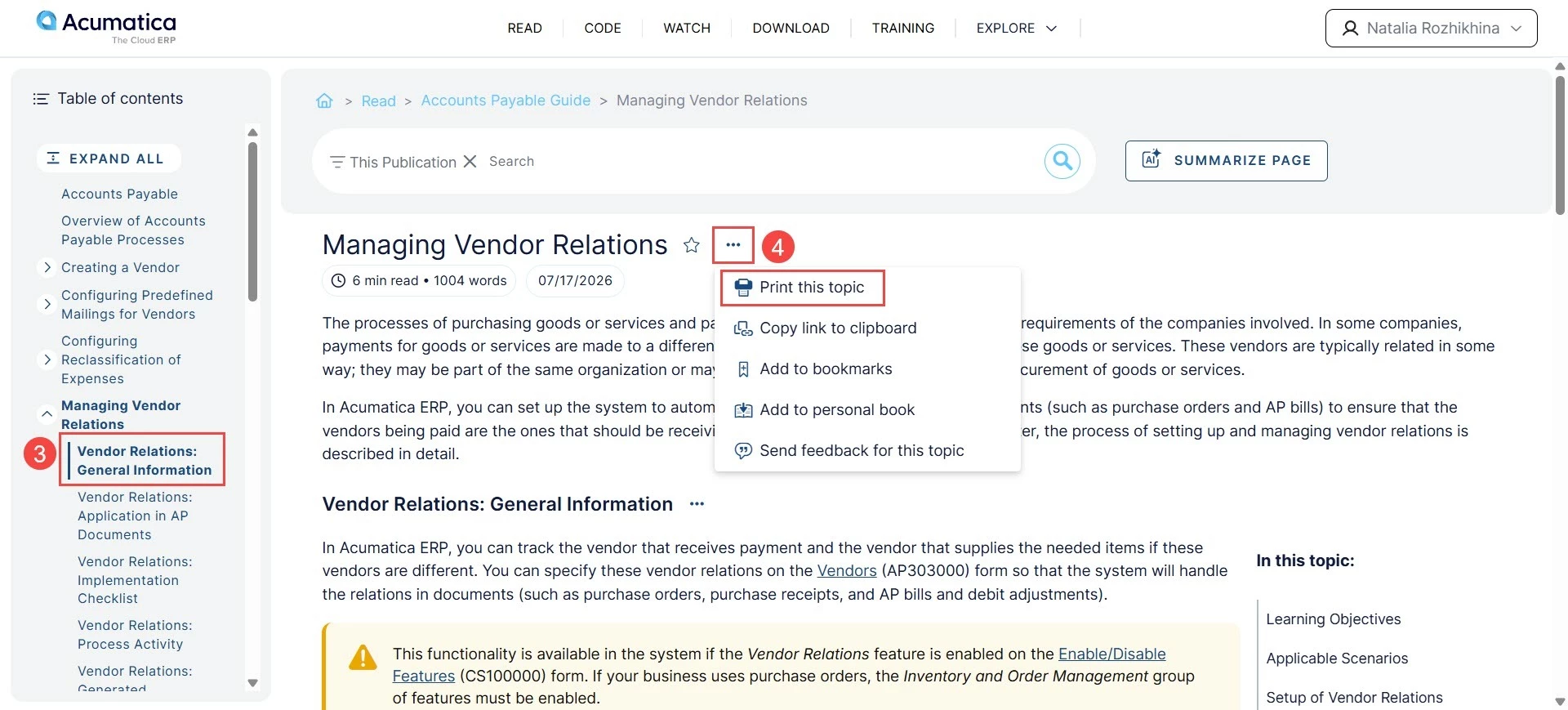
- In the navigation pane, click the topic you want to print or save.
- Click the More button (three dots) next to the topic title and select Print this topic.
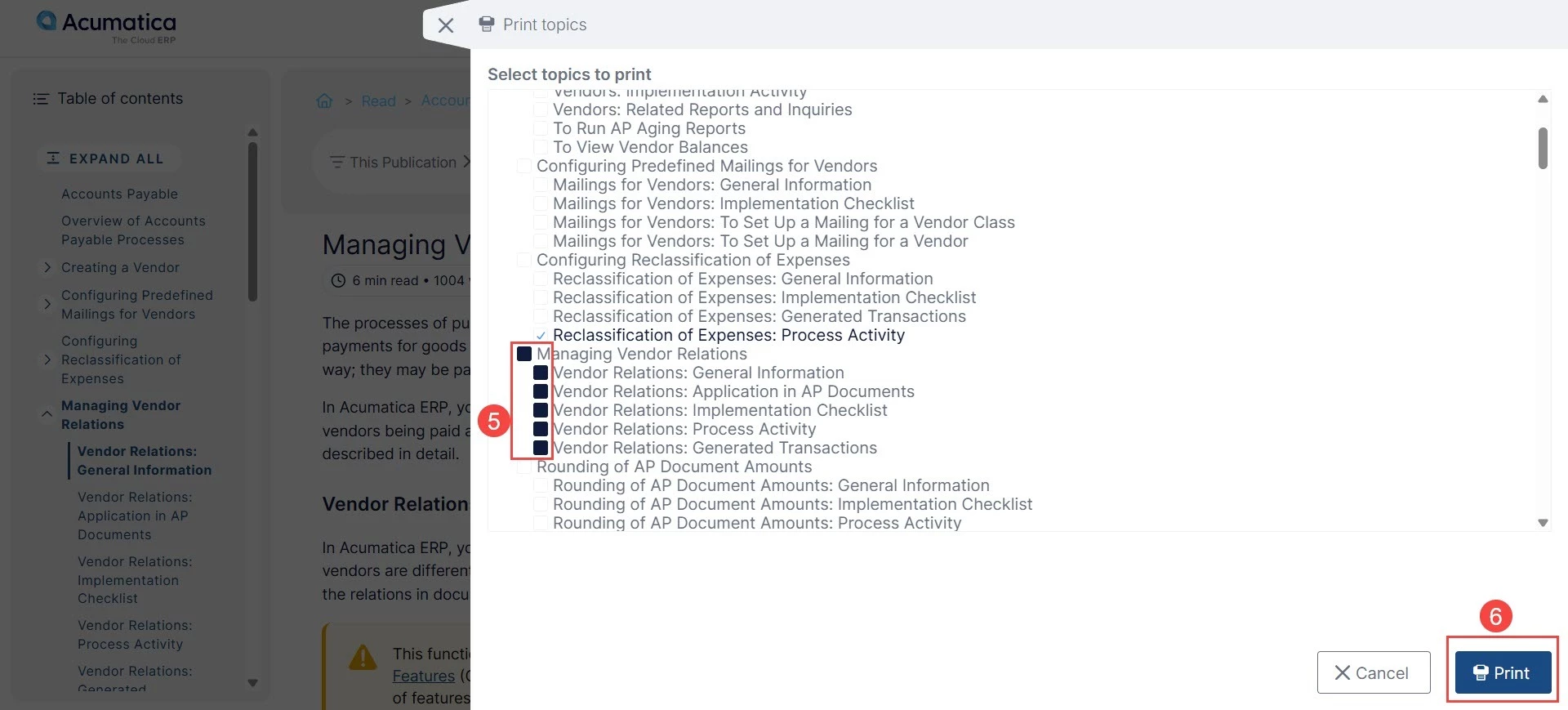
- In the dialog box, select any additional topics you want to include.
- Click Print.
- In the Print dialog box, select the needed option to print the book or save it as a PDF.
Print or save your document.
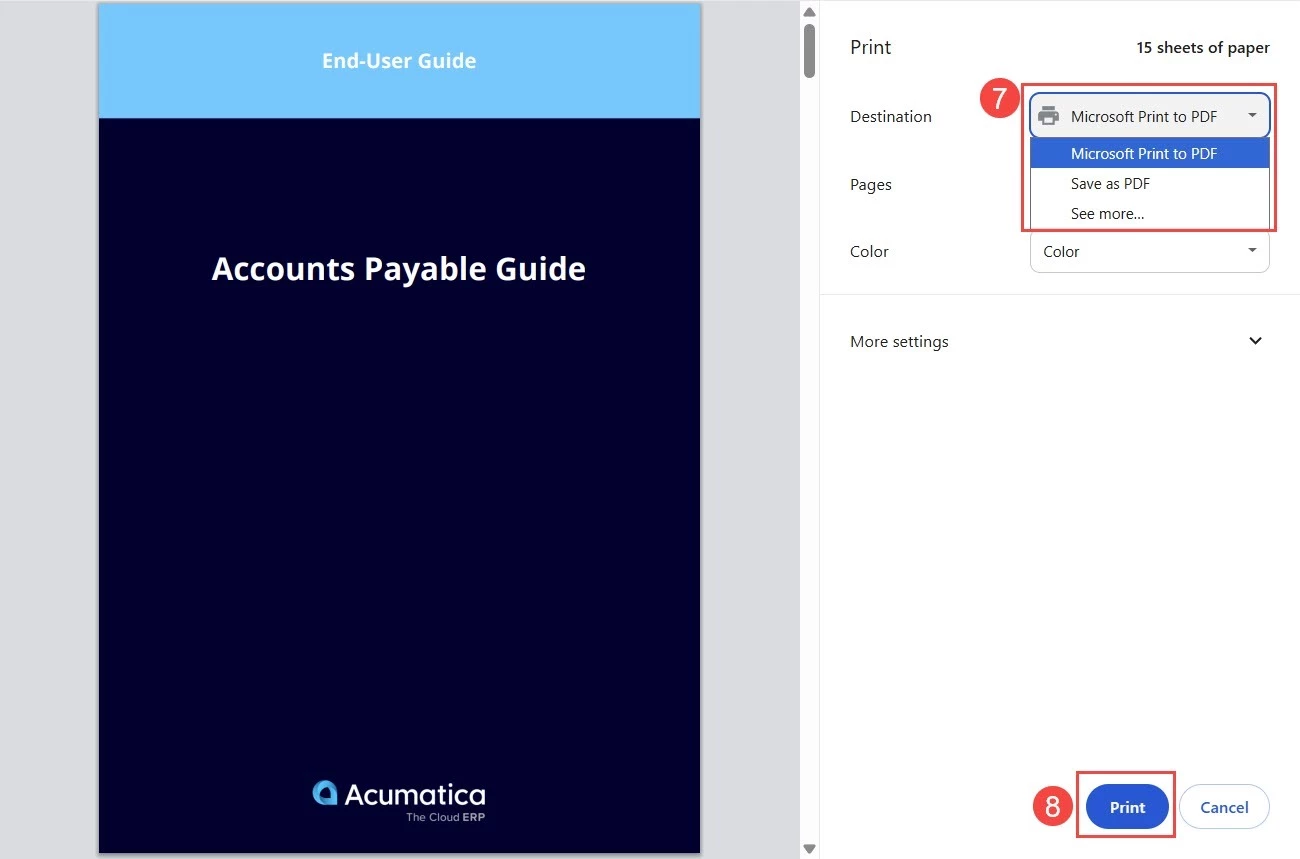
Note: Your dialog box may look different than the one shown below.
Note: Downloading or generating the PDF may take a few moments, especially for larger books.
You've made it easier to access your most-needed content—great job! Stay tuned for more Beacon tips to help you get the most out of the site.