


One of Beacon's most useful features is personal books. You can create your own collection of topics, combine content from the documentation, and even add your own notes and instructions. It's a great way to keep everything you need for your daily work or a specific project in one place.
Ready to get started? Here’s how to create and customize your Personal Books.
Create a Personal Book
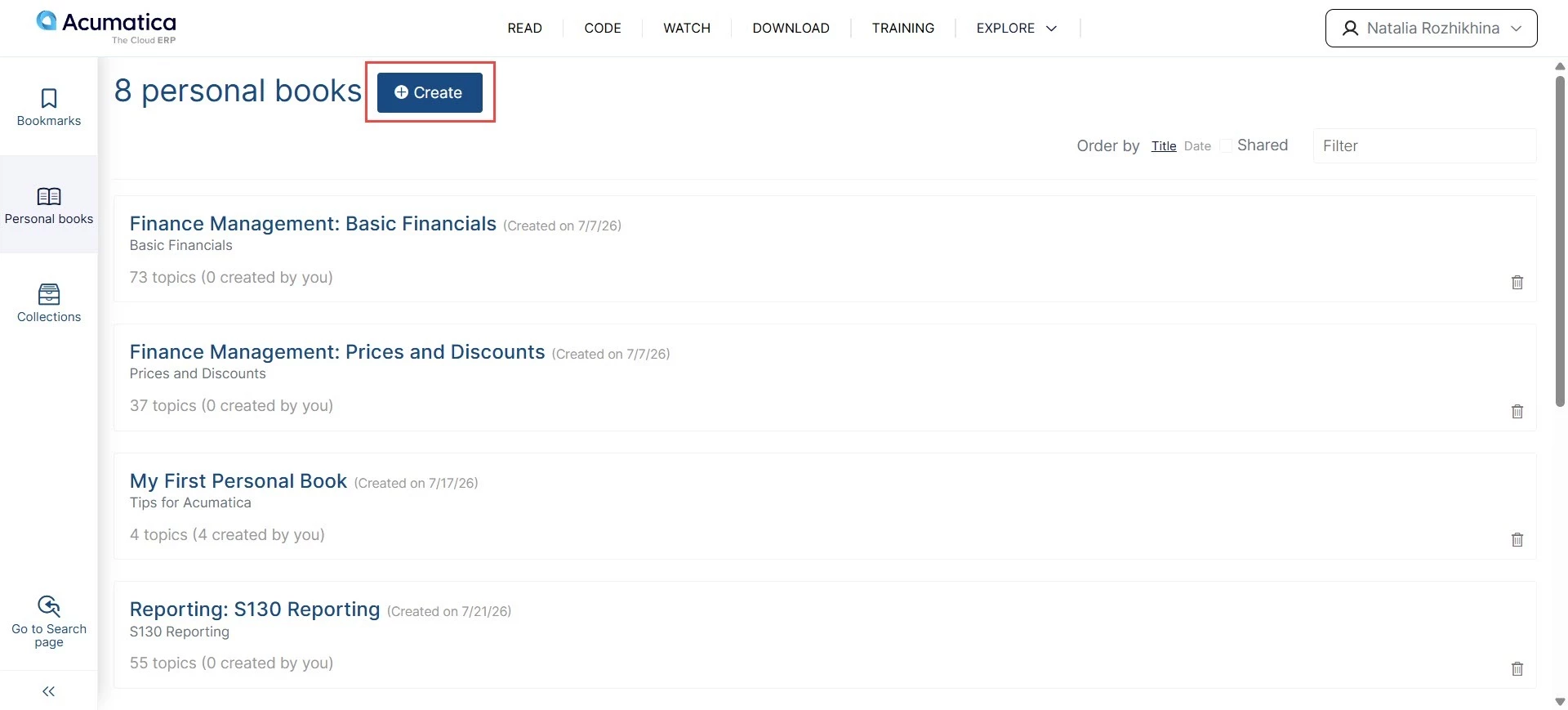
- Sign in to Beacon and open personal books, as described in Step 4 of Beacon Tips: Finding Your Personal Books.
- Click Create.
- Enter a name and an optional description for your book; then click OK.
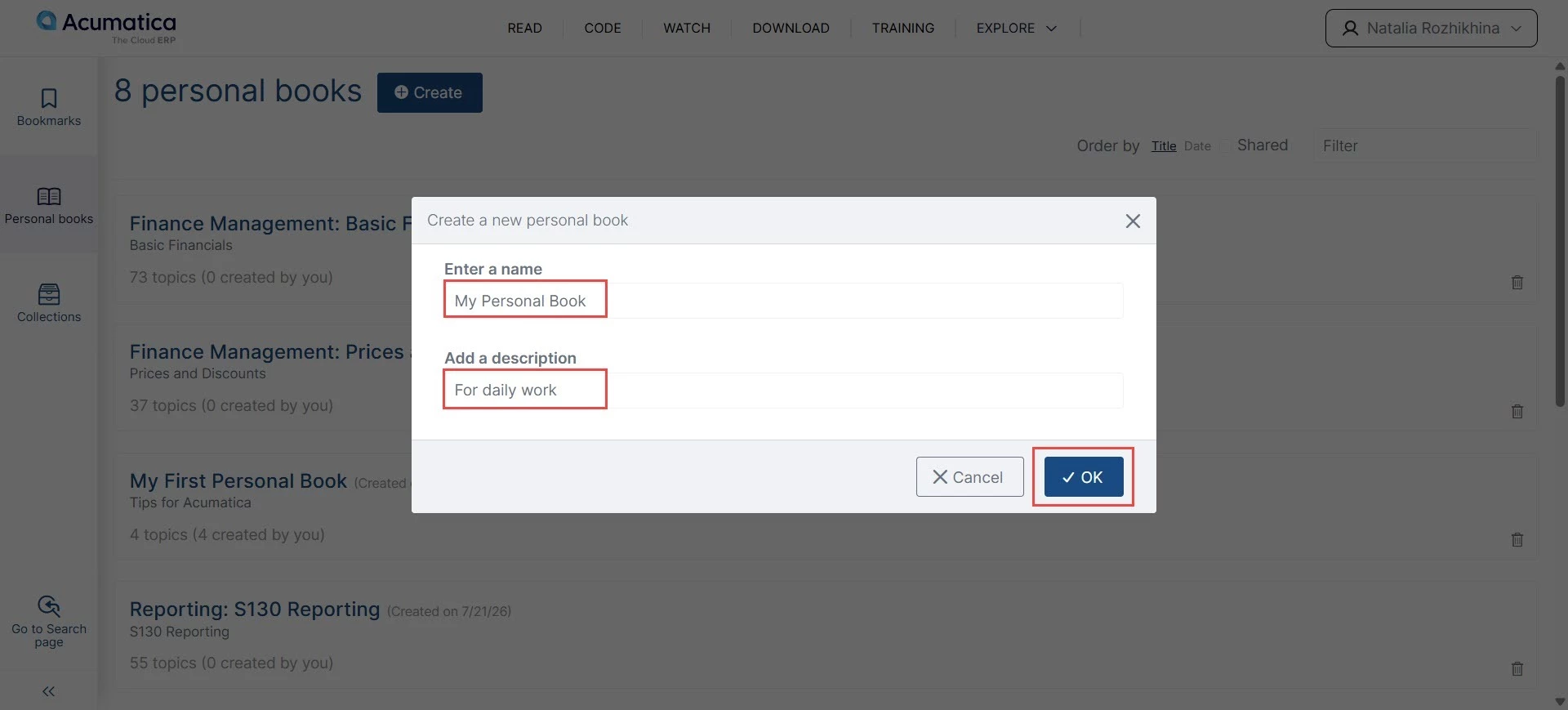
Your personal book is now ready to use.
Add Topics from the Documentation
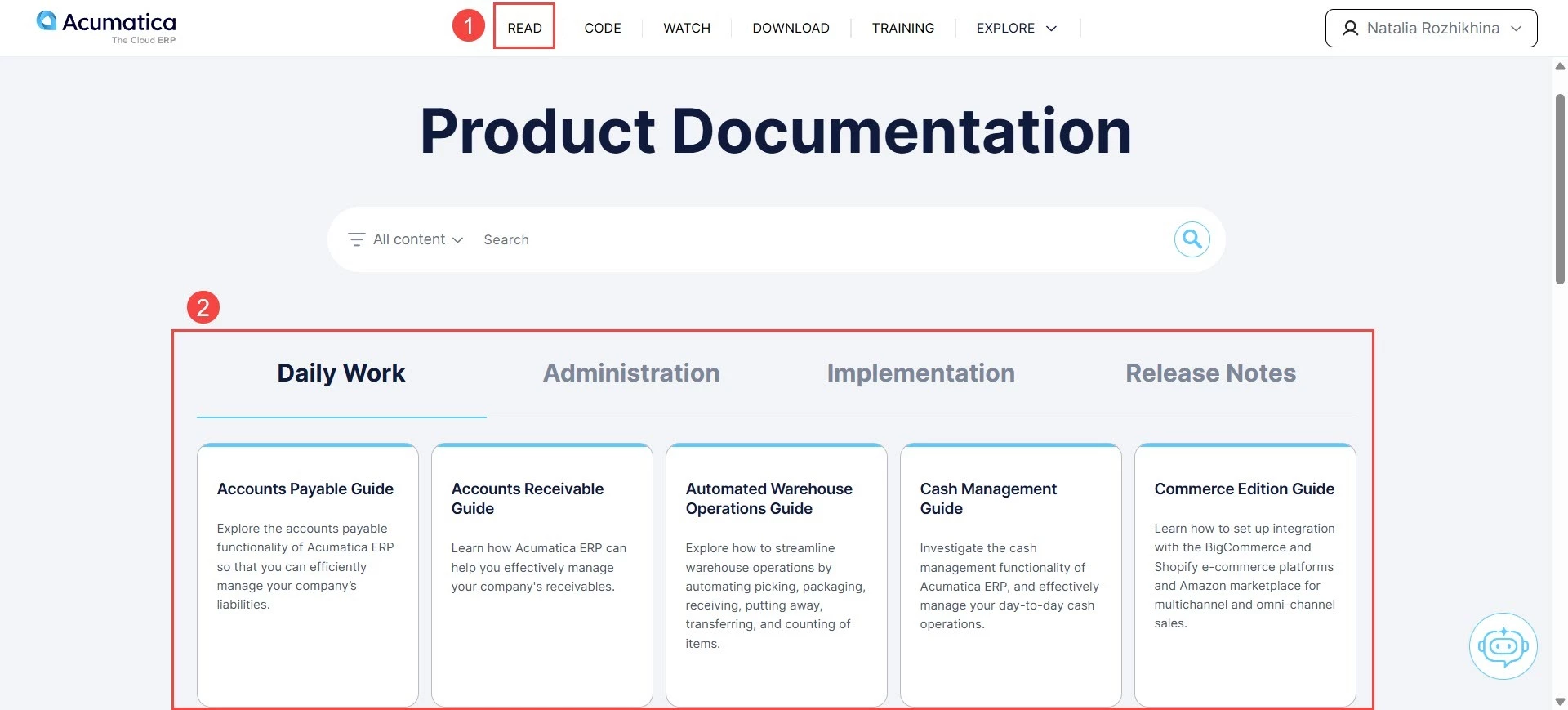
- Click Read or Code to go to the Product Documentation or Developer Resources page.
- Open the documentation you want to use.
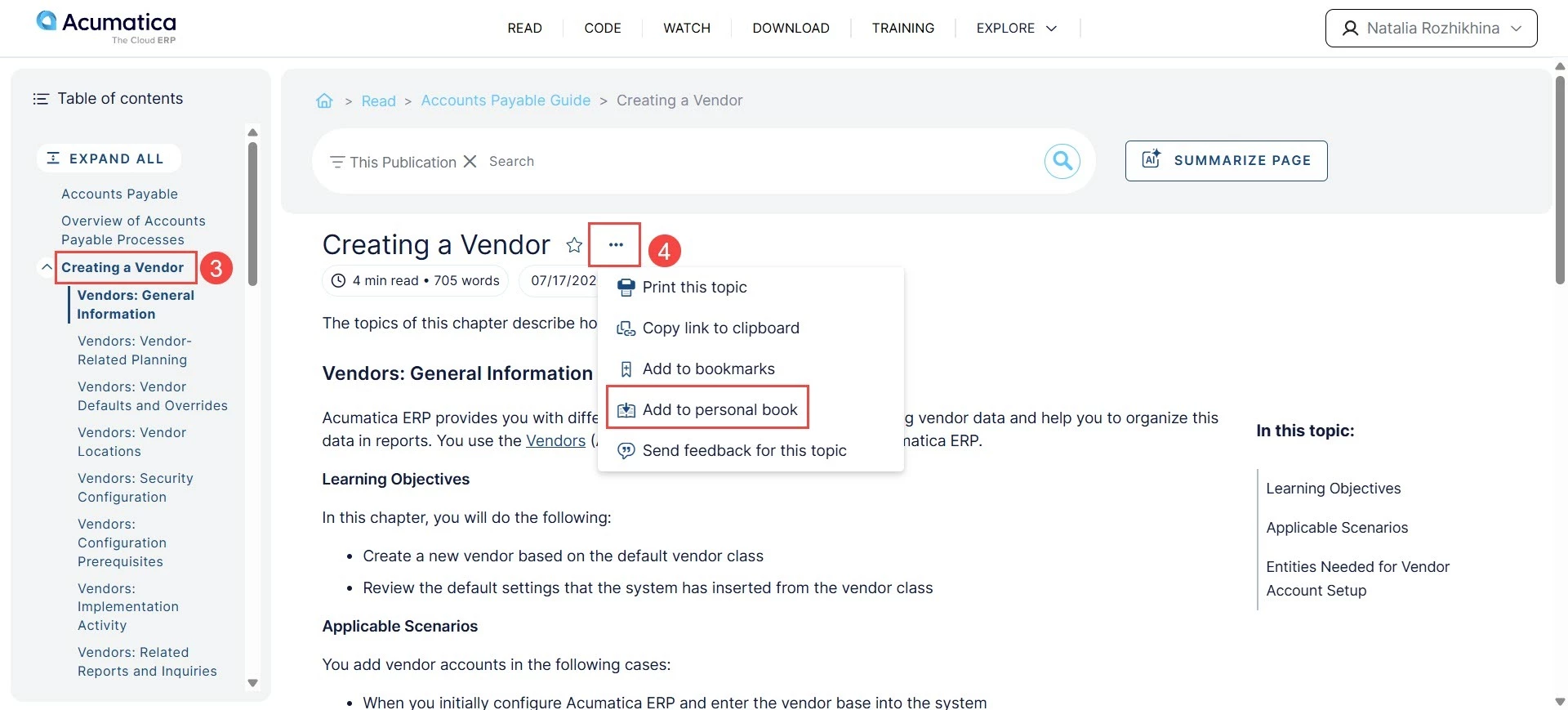
- In the navigation pane, click the name of the topic you want to add.
- Click the More button (three dots) next to the topic title and select Add to personal book.
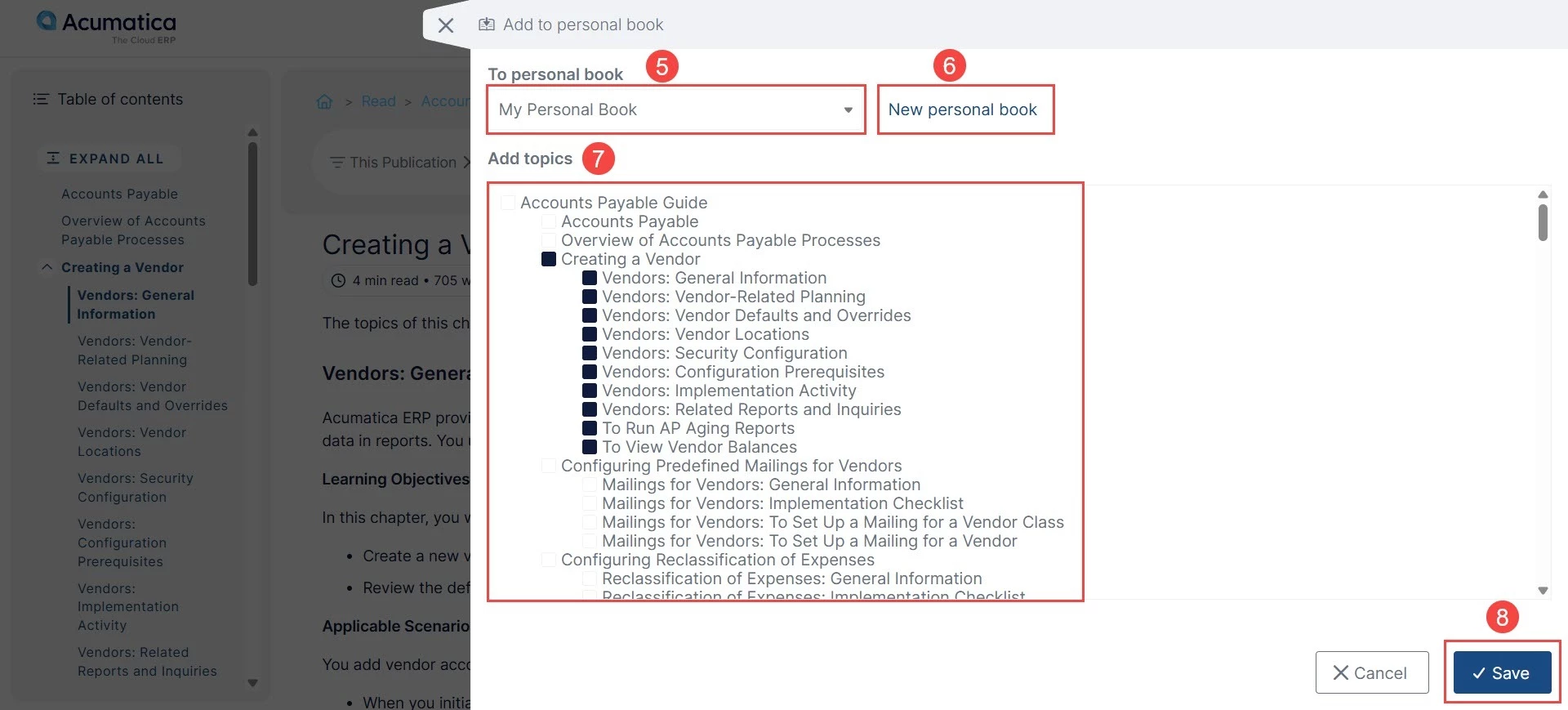
- To add the topic to an existing personal book, in the dialog box, select the personal book.
- If needed, create a new personal book to contain the topic.
- In the Add topics section, select any additional topics you want to include.
- Save your changes.
Add Your Own Topics
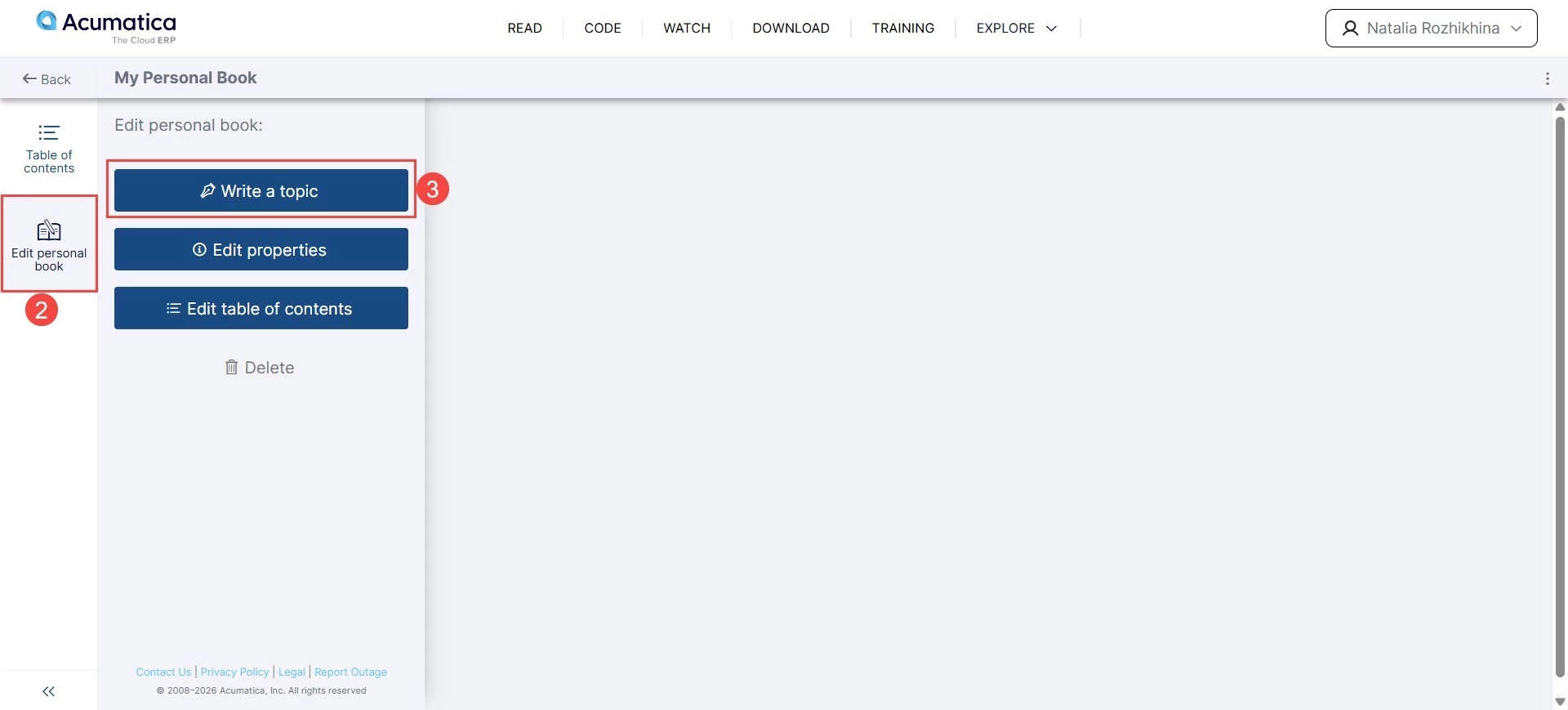
- Open your personal book.
- Go to the Edit personal book tab.
- Click Write a topic and create your own content.
Download or Print a Personal Book
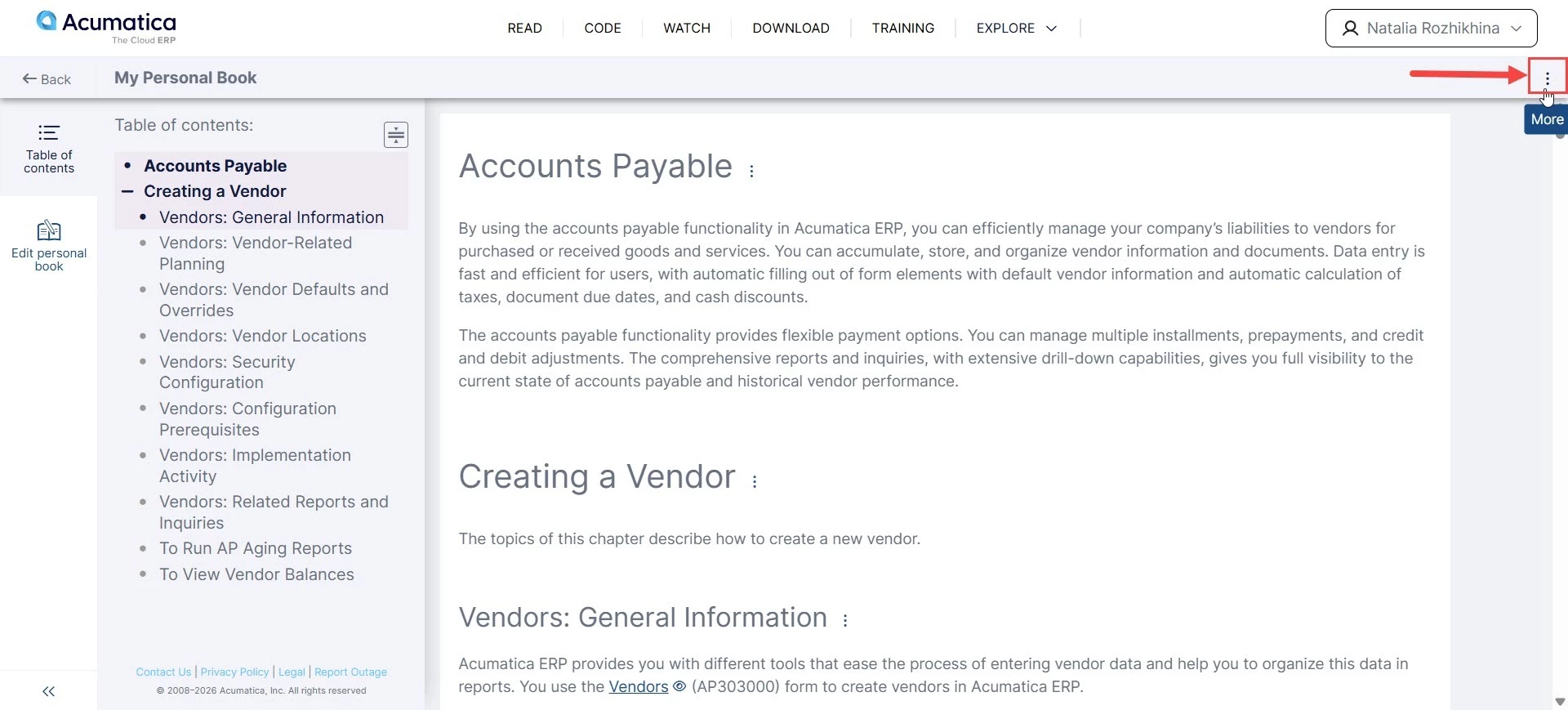
- Open your personal book.
- Click the More button (three dots) in the upper-right corner.
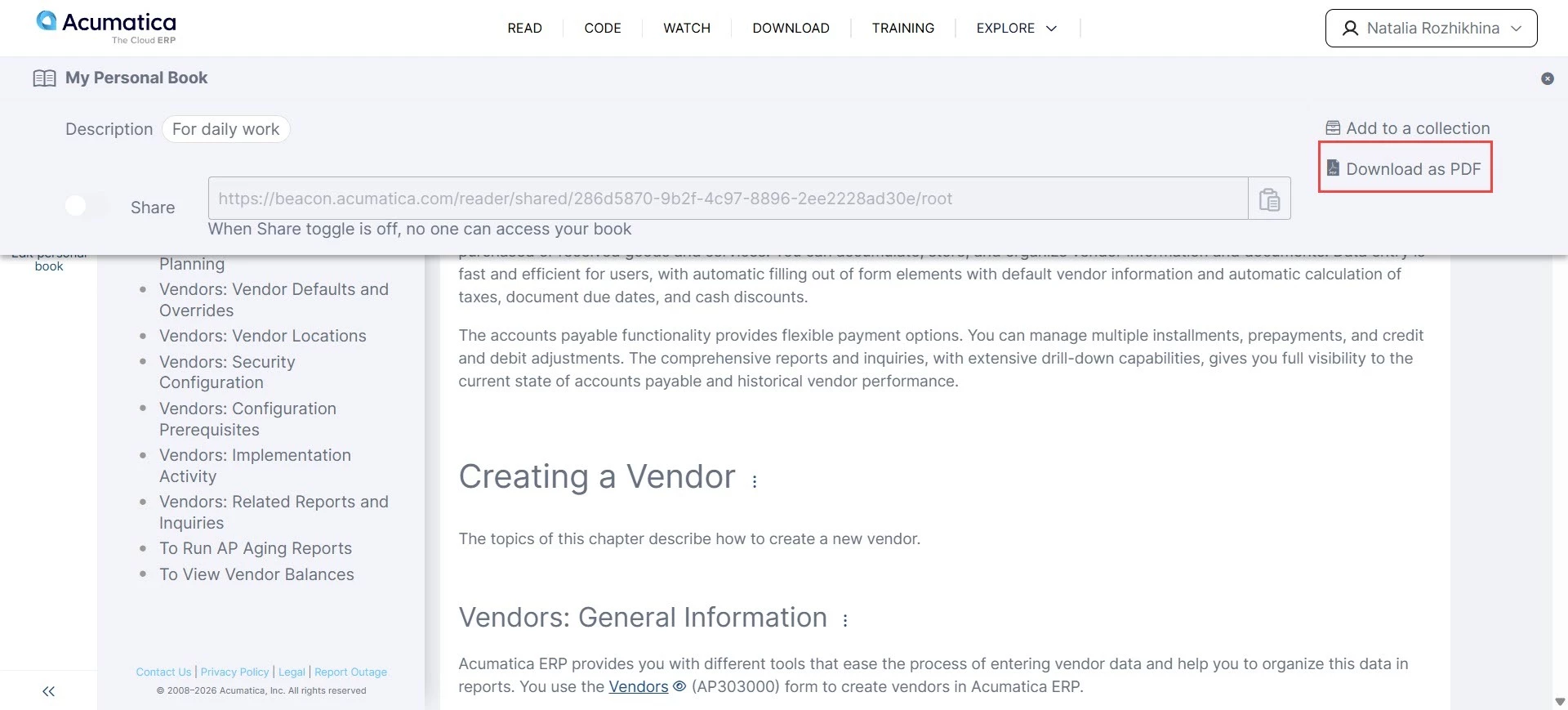
- Select Download as PDF.
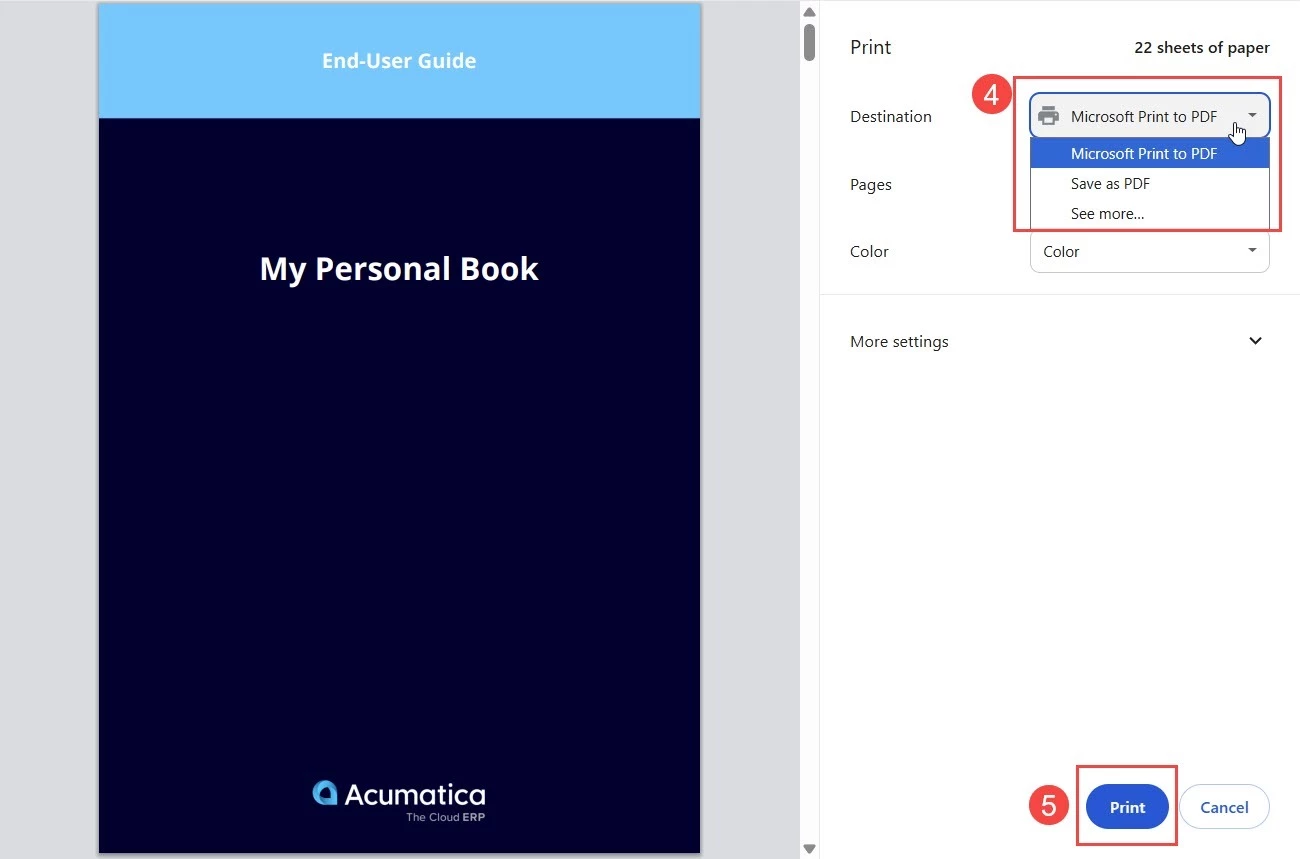
- In the Print dialog box, select the needed option to print the book or save it as a PDF.
- Print or save your book.
Note: Your dialog box may look different than the one shown below.
Note: Downloading or generating the PDF may take a few moments, especially for larger books.