
Collections make it easy to keep complete learning resources together in one place. You can add different types of materials to a collection, including:
- Guides, such as the Accounts Payable Guide or Customization Guide
- PDF guides that are already prepared for you
- Personal Books in your collection can group various topics, including user-authored topics
Before You Begin
Sign in to Beacon to create and manage your collections. The feature is available to authenticated users.
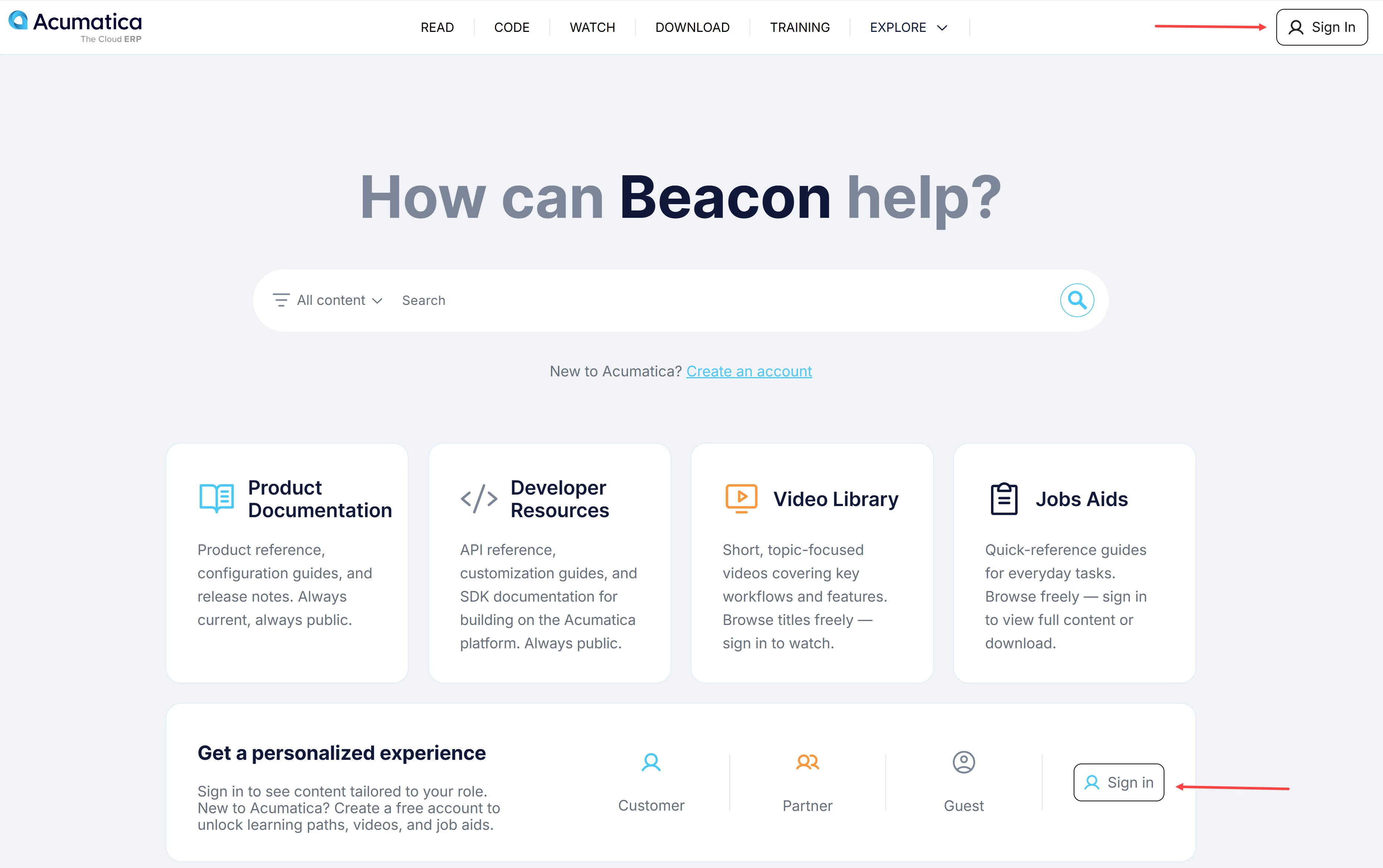
Need help with your account? See Beacon: How to Create an Account.
Collection vs. Personal Book
A collection helps you keep complete resources together. If you want to select individual topics from different guides and combine them into your own customized guide, use a personal book instead.
See our previous topic on Personal Books: Beacon Tips: Create, Customize, and Print Your Personal Books.
How to Create a Collection
- Click the Profile icon (Item 1 below).
- Select No Collection (Item 2).
- Click Create (Item 3).
- Enter a name for the collection (Item 4).
- Optionally, add a description (Item 5).
- Choose a color for the collection (Item 6).
- Click Save (Item 7).
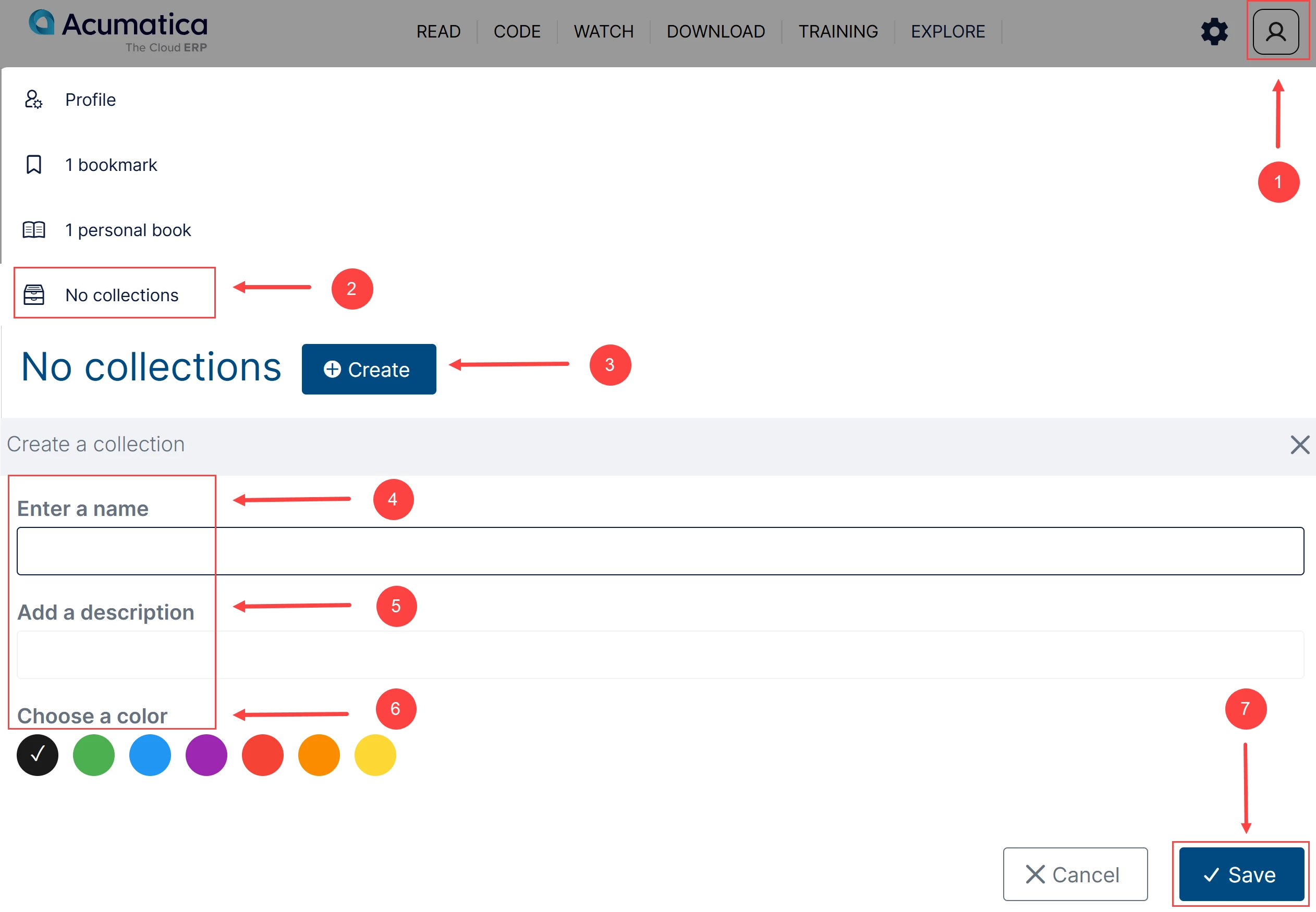
Your new collection is created, and you can start adding PDF documents to it.
How to Add Materials from the Search Page
- Enter any subject area or keyword in the Search box.
- In the search results, find the guide you want to add.
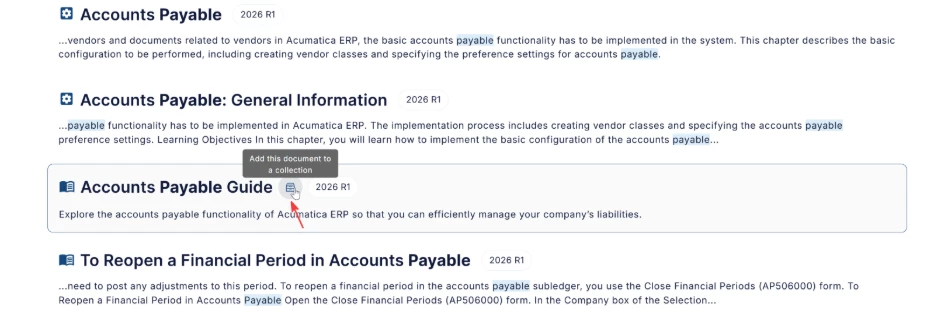
- Click the Add to Collection icon.
- Select the Collection where you want to add the guide.
Below you can see the icon for Acumatica ERP guide:
How to Add a PDF Document to a Collection from View Mode
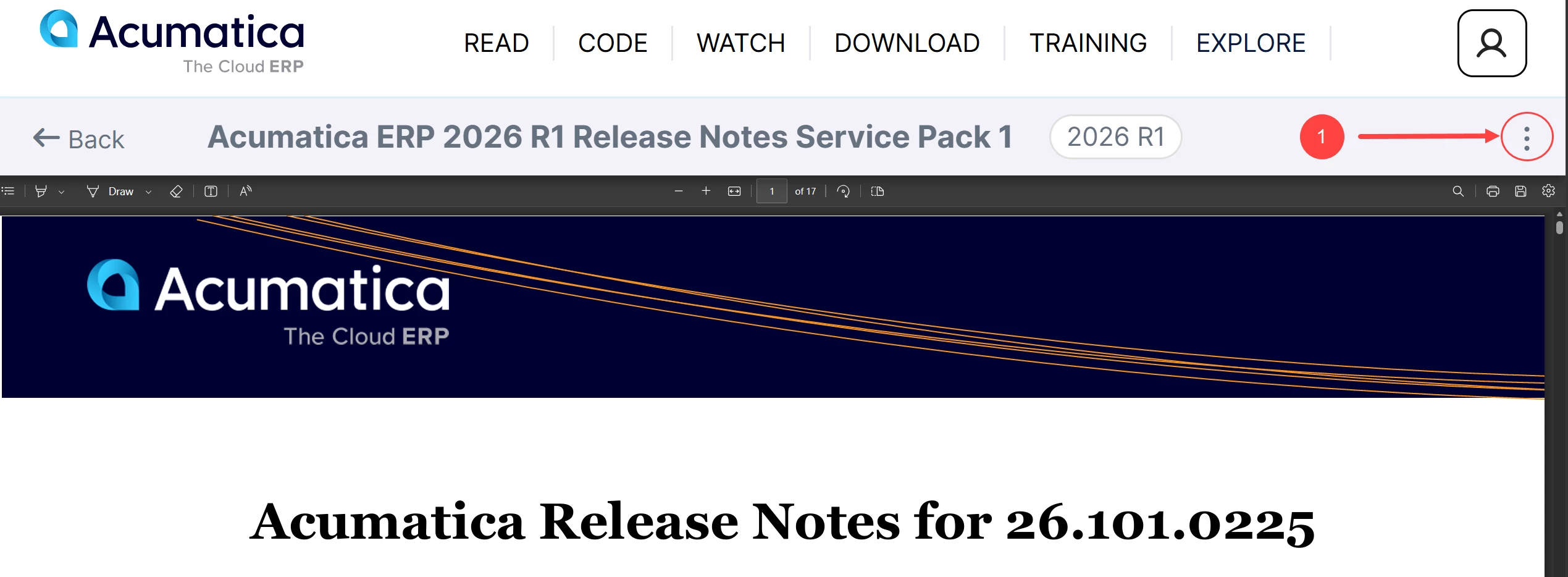
View mode is the screen where you view a PDF document and can access options for managing the document.
- Open the PDF document you want to add.
- Click the More button (three dots) at the top of the page (Item 1 below).
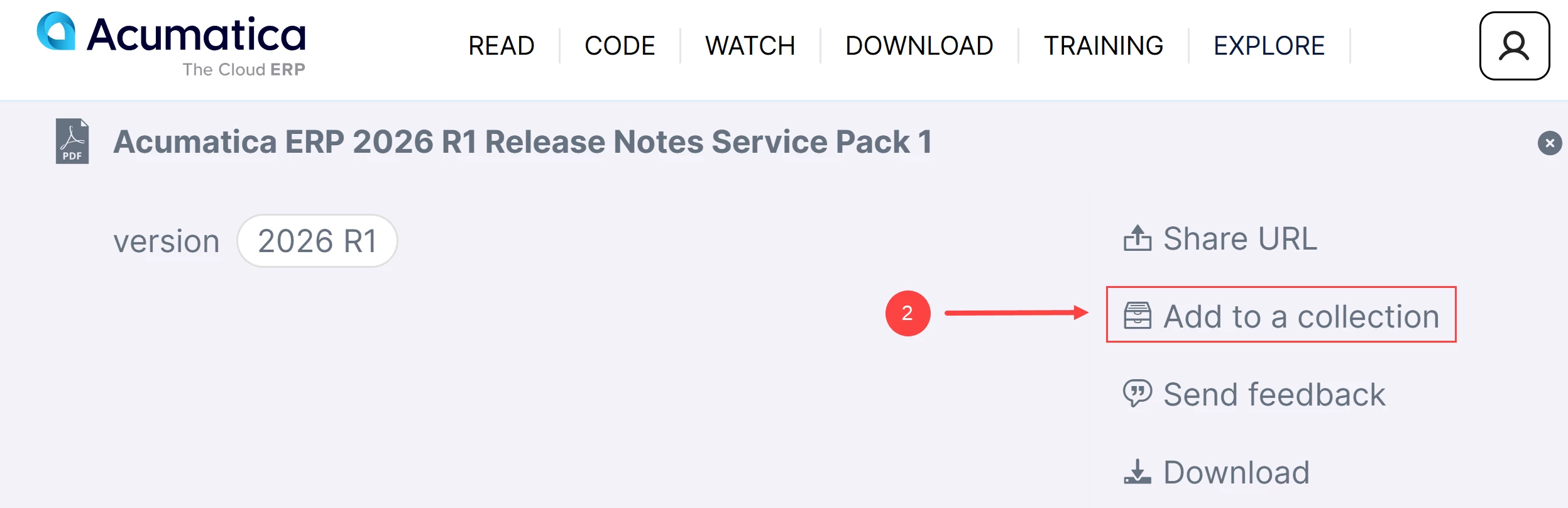
- Select Add to a Collection (Item 2), then select the collection you want to add the PDF to.
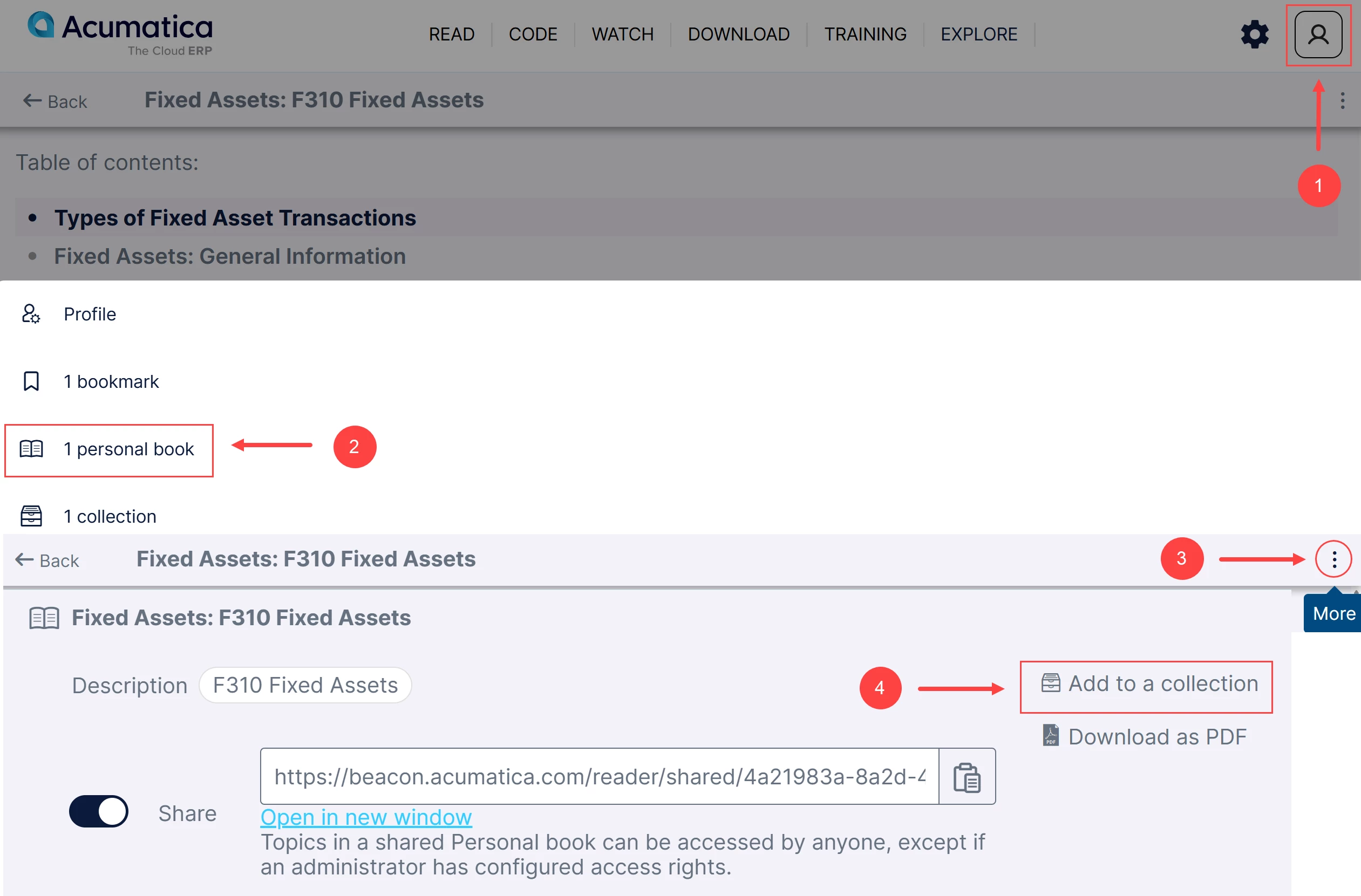
How to Add a Personal Book to a Collection
- Click the Profile icon (Item 1 below).
- Select personal book (Item 2).
- Open the personal book you want to add.
- Click the More button (three dots) at the top of the page (Item3).
- Select Add to a Collection (Item 4), then select the collection you want to add the personal book to.