Question

Page Break after Production Summary

  • May 12, 2026
  • 14 replies
  • 61 views

Forum|alt.badge.img

Hi, I am creating a new layout (attached word doc) for production ticket form. The form shows the production order details. The first page should only be a summary of production/BOM showing production details, operations and work centres.

Then a page break after the first page summary. Second page should show the details of the Operation including its work centres, materials, steps, tools and overhead, if any.

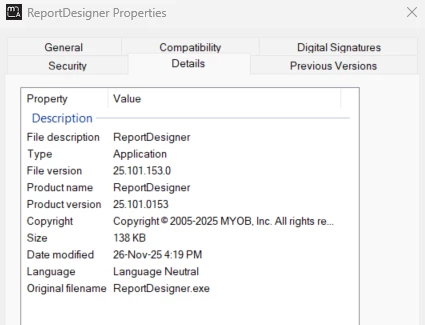
I have attached the layout that I need and the rpx report design in Zip file. The version of rpx is the below snip:
 

14 replies

nhatnghetinh
Captain II
Forum|alt.badge.img+13
  • Captain II
  • May 12, 2026

Hi ​@MarkD 

The report file you attached is .rps. Please reattach the .rpx file.


Best Regards,

NNT


Forum|alt.badge.img
  • Author
  • Varsity I
  • May 12, 2026

It is RPS file when I downloaded the report. Renamed it to .rpx and zipped it. Please see attached


nhatnghetinh
Captain II
Forum|alt.badge.img+13
  • Captain II
  • May 12, 2026

Hi ​@MarkD 

I cannot open your report.rpx file.

You can refer to the posts on how to create page breaks that have answers, such as the links below.


https://www.augforums.com/forums/acumatica-report-designer/adding-page-breaks/


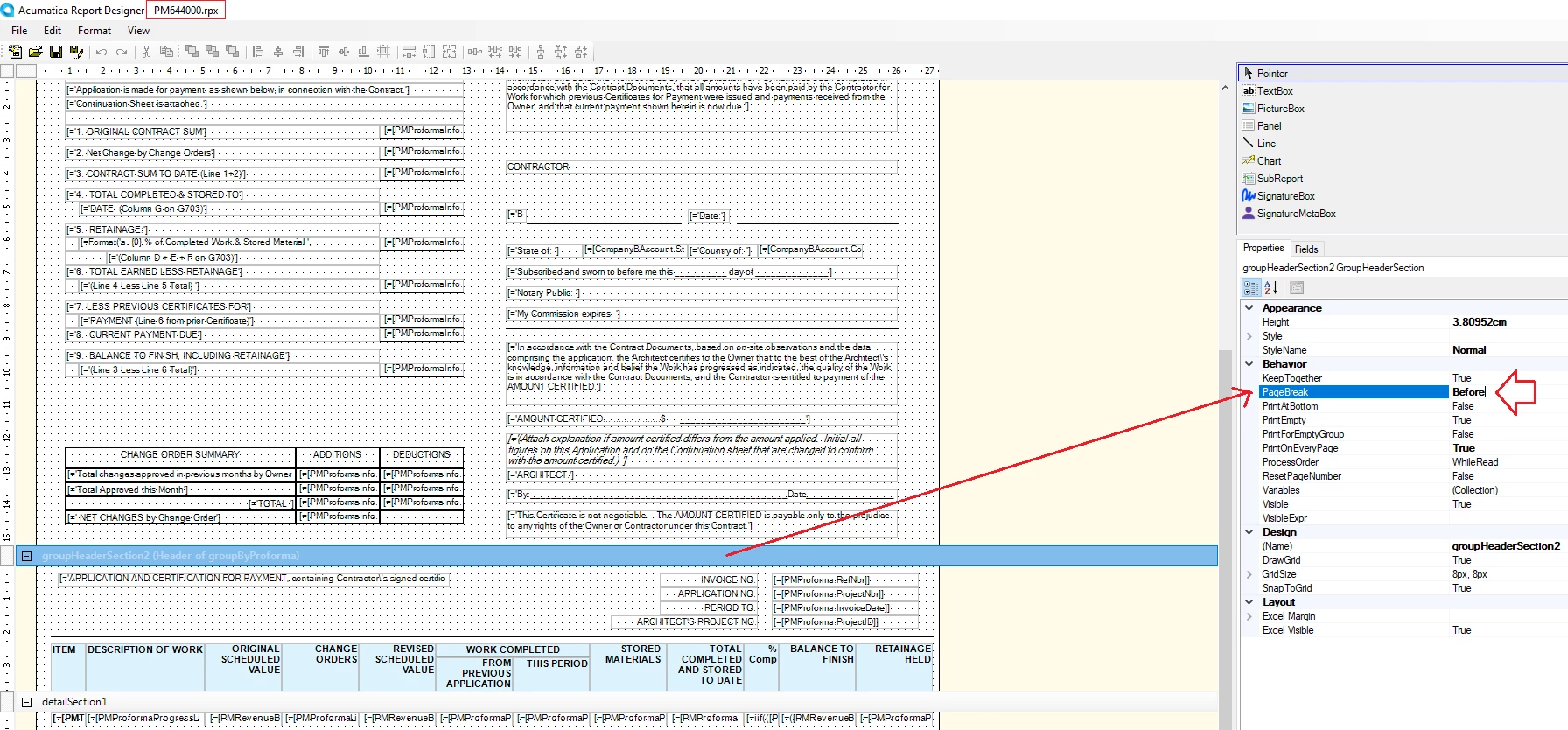
And you can refer to AIA Report-PM644000.rpx available in Acumatica. This report creates a Page Break like your report. I have attached the results of the AIA Report with the Page Break.


Best Regards,

NNT


Forum|alt.badge.img
  • Author
  • Varsity I
  • May 12, 2026

Hi ​@nhatnghetinh - i’ve tried those and it doesn’t seem to work. I maybe doing something wrong. How do I attach the report design here?


Forum|alt.badge.img
  • Author
  • Varsity I
  • May 12, 2026

I’ve attached the report designer app and the design itself both zipped. Can you please try if you can open that?


nhatnghetinh
Captain II
Forum|alt.badge.img+13
  • Captain II
  • May 12, 2026

Hi ​@MarkD 

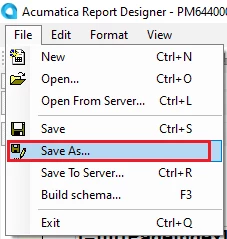
Please reattach your .rpx report file by doing the following: Acumatica Report Designer > File > Save As


Best Regards,

NNT


Forum|alt.badge.img
  • Author
  • Varsity I
  • May 12, 2026

Finally 😅 Please see attached if you can access it now.


Forum|alt.badge.img
  • Author
  • Varsity I
  • May 12, 2026

Hi ​@nhatnghetinh - please note that each operation should show on separate pages just how it looks in the word doc that I’ve attached initially.


nhatnghetinh
Captain II
Forum|alt.badge.img+13

Hi ​@MarkD 

You have used SubReports. Please attach the .rpx files of the SubReports: AM625001.rpx, AM625002.rpx, AM625003.rpx


Best Regards,

NNT


Forum|alt.badge.img
  • Author
  • Varsity I
  • May 12, 2026

Hi ​@nhatnghetinh - AM625003 probably won’t matter. Please see attached AM625001.rpx and AM625002.rpx. Thank you!


KrunalDoshi
Varsity III
Forum|alt.badge.img+1
  • Varsity III
  • May 12, 2026

Hi ​@MarkD,

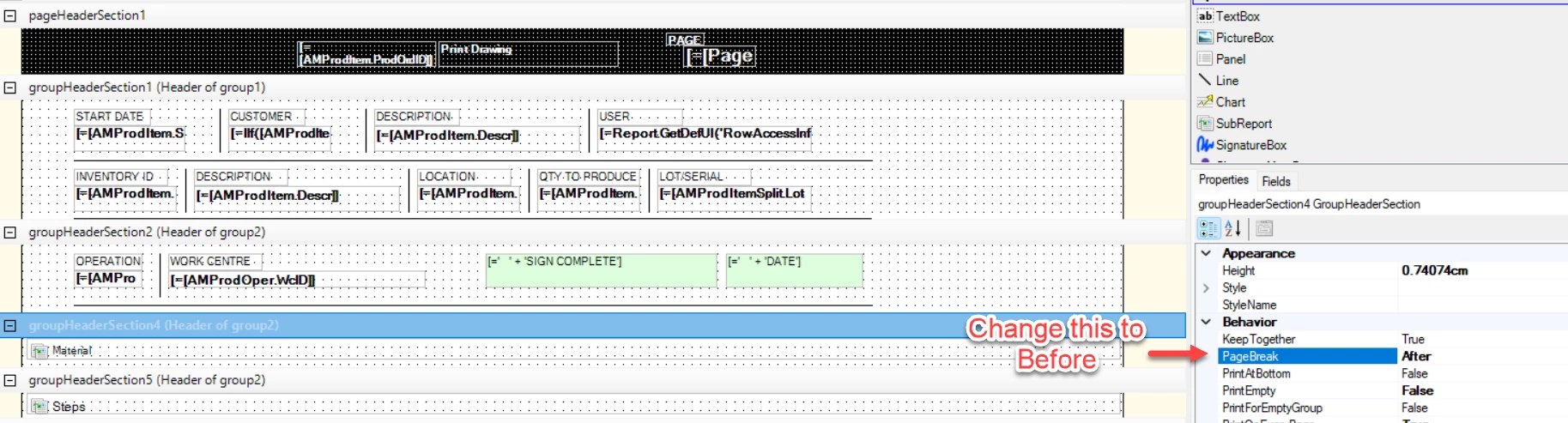
You can try changing the PageBreak property of your group (groupHeaderSection4) to Before. Let me know how it goes. Change PrintOnEveryPage to false unless you need to print it on every page.


Forum|alt.badge.img
  • Author
  • Varsity I
  • May 12, 2026

Hi ​@KrunalDoshi - doing that makes the materials appear on next page as well as the next operation and my first page will be incorrect as I want to show all operations and workcentres in first page.


KrunalDoshi
Varsity III
Forum|alt.badge.img+1
  • Varsity III
  • May 12, 2026

Hi ​@KrunalDoshi - doing that makes the materials appear on next page as well as the next operation and my first page will be incorrect as I want to show all operations and workcentres in first page.

I believe in that case you need to create a sub-report for your Operations/WorkCenter too. Keep that sub-report in groupHeaderSection2 and set PageBreak=After for this section. This should give you the output as you need.


nhatnghetinh
Captain II
Forum|alt.badge.img+13

Hi ​@MarkD 

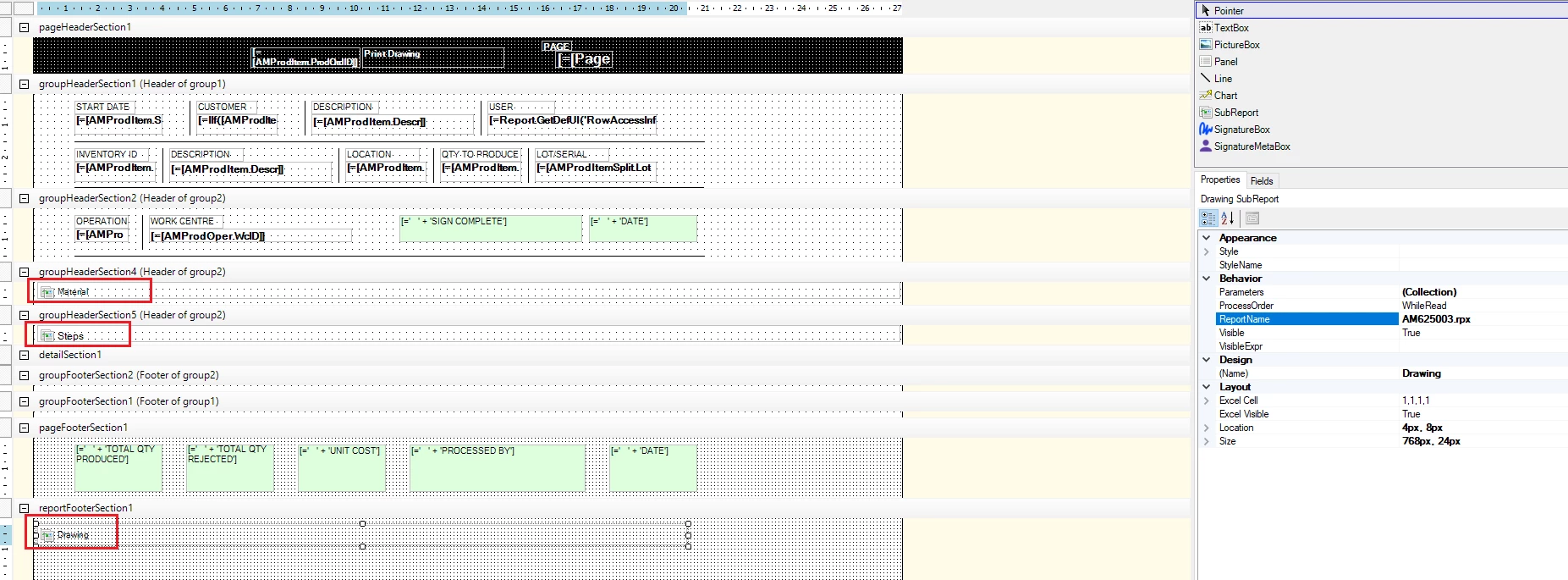
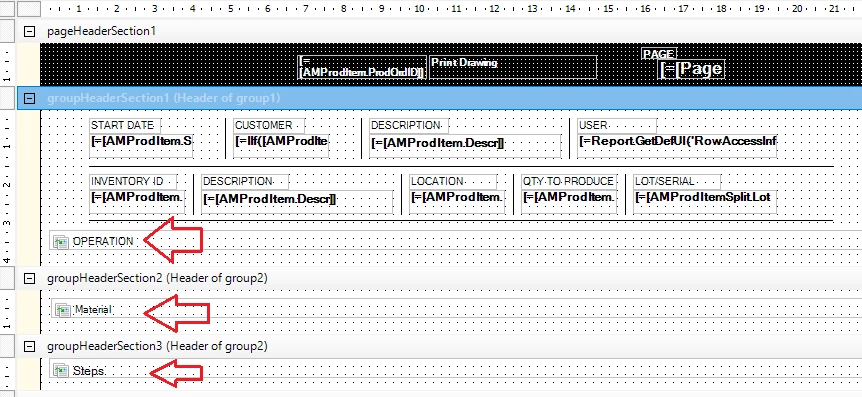
I propose the following approach:
Create 3 Sub-reports:
+ Sub-report 1: OPERATION: belongs to groupHeaderSection1
+ Sub-report 2: MATERIAL: belongs to groupHeaderSection2
+ Sub-report 3: STEPS: belongs to groupHeaderSection3
The arrangement of the Sub-reports will be as follows:


Best Regards,

NNT