We have a regular business need for barcode images (JPGs) of arbitrary lists of items for use on promotional and other sales materials. It could be up to a thousand items so the ability to mass-process is a must. It seemed silly to me to license additional software just for this when we already are printing barcodes internally on reports like the pick list. So I devised a report which gets as close as can be - it still relies on external software like Adobe Acrobat Pro or PDF24 to convert the PDF into images. It uses some clever page setup and join tricks, so I thought I’d share.
Piece 1: Page Setup
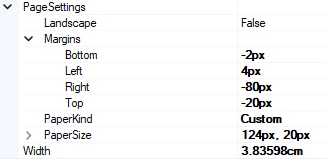
Exported PDFs don’t have individual images embedded and the images don’t export to Excel. The PDF → Image converters can split the document by page, so the goal is to have one barcode per page. A page break after the detail section easily accomplishes this. To save on further processing, I also wanted the page to be exactly what was needed for our materials, that being just a thin strip of barcode with no whitespace above or below it. I set the page size manually to the dimensions I desired. To remove the white space and center the barcode, I set negative margin values, tweaking them to push the header row off of the printed page.
Piece 2: Excel Export
The resulting pages are tiny strips of barcodes. However, we still needed a way to match up which barcode goes to which item. By including fields to the right of the barcode for the item id, UPC, and a calculated value for the resulting file name after the split (filename & ‘_Page_01.jpg’ … ‘_Page_02.jpg’ … etc.), then even though the PDF will crop them off, they are still available for Excel export. The calculated filename leverages a variable to track the page count and lines up the final images with the rows of the Excel sheet.
Piece 3: Mass Item List
The ability to quickly specify an arbitrary list of items is crucial for saving time and frustration and is the big limiting factor for freely available barcode image generators. I cover this trick in detail in another post: A trick to upload a list of IDs as a filter/parameter for a GI (co-opting an Import Scenario) | Community, but to be brief I use a dedicated import scenario as my list. By joining SYData.FieldValues to InventoryItem.InventoryCD, you can filter items by uploading/preparing an import scenario with only one column in the data source. I prefer this method because of how easy it is to clear out the old list and upload a new one. Since that requires a setup not sharable, I added a parameter to specify the name of the import scenario if you choose to use my linked example report.
Use and Other Considerations:
To use this report (after creating the filter import scenario), upload your list and prepare it in the filter. Then put that filter name into the parameter and run the report. It will look in Acumatica like a short line with a barcode, but exporting it as a PDF gets you the trimmed barcode and as Excel gets the data sheet. Slice and dice the PDF with your PDF software and you can turn Acumatica into a mass barcode generator!
The example is set up for UPCA barcodes exclusively. You could, if working with different symbologies, have multiple barcodes on top of one another and only display the appropriate image. It also generates every barcode for each item, so you may have to add additional query logic to get the specific barcode if you store multiple (as we do).
Enjoy and I always love to hear your comments!