I wanted to share a setup I created to be able to use a list of IDs as a filter for GIs. It’s very flexible and can be used for Inventory IDs, Customer IDs, heck, anything, really. The general idea is to create a dedicated Import Scenario that does nothing except provide a place to load a list of records, and then join that list of records with the inquiry to act as a filter.
The Data Provider and Import Scenario
Create a simple data provider that has only one column. I find it convenient to name the tab ‘Data’ so that you can use exports from Acumatica fairly directly.
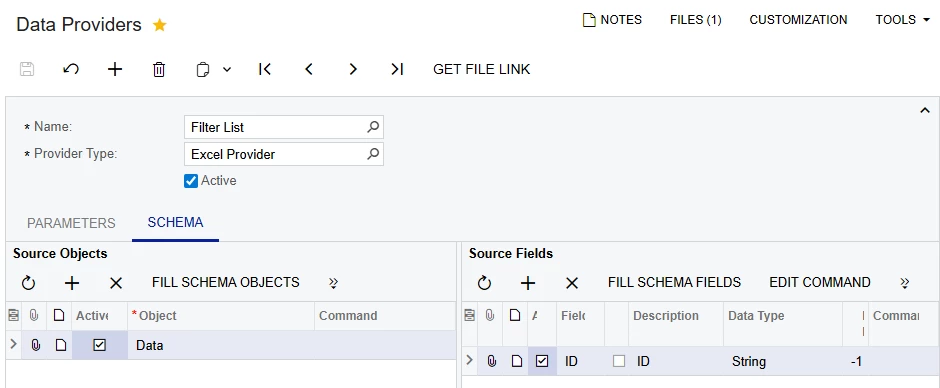
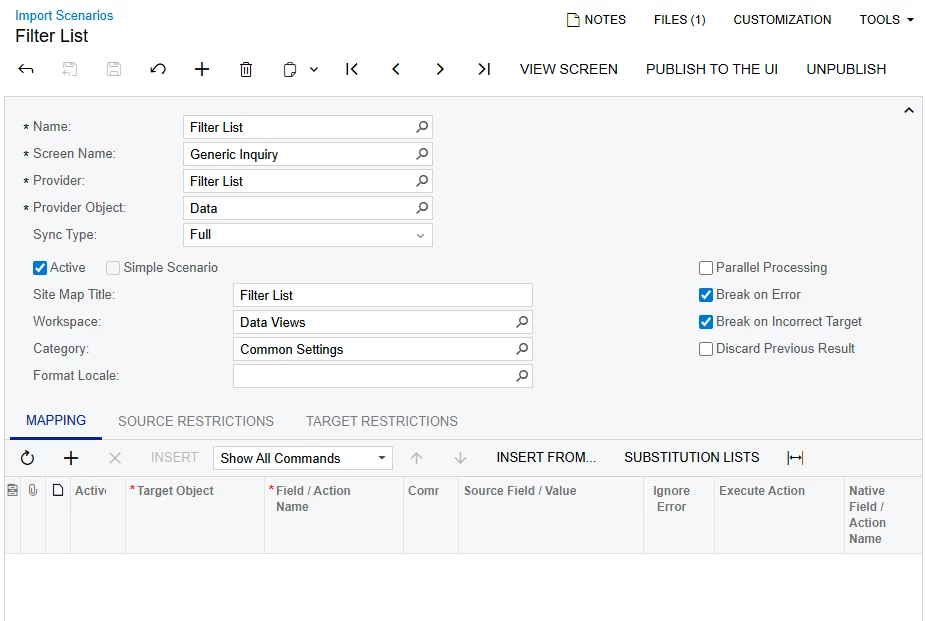
Then create an empty Import Scenario which uses this provider. Publish it as its own screen someplace out of the way if you want finer control over permissions.
The sub-GI
Now that the setup is out of the way, here’s the crux of the trick: PX.Api.SYData. When you prepare an import scenario, those records are loaded and are accessible through this DAC. I made a separate GI to narrow down SYData to the specific import scenario, joining it with SYMapping so I can use the name instead of the unique ID:
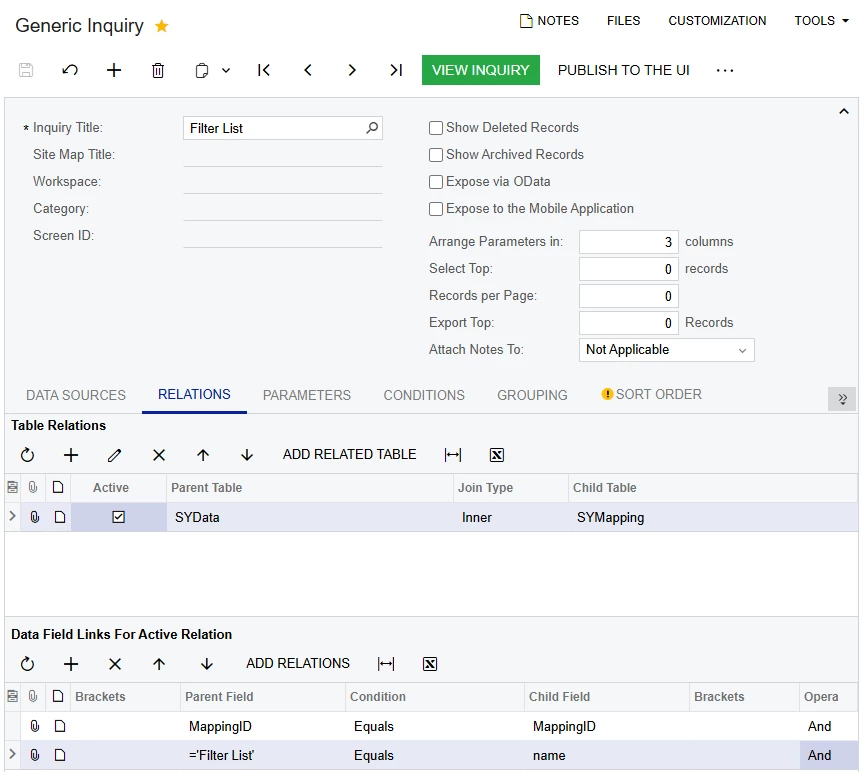

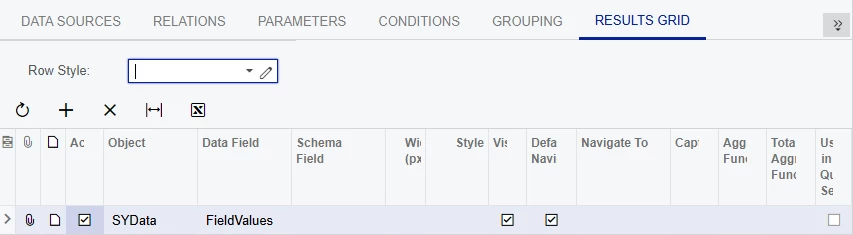
I found performance to be better when creating this as a separate GI to be used as a data source in the GIs you intend to filter, but this is only available after (I think) 24R1. If you aren’t on this version, you’ll have to do this join directly in your GI.
Filtering the main GI
Finally, all is ready to filter a GI by the provided list of values. Add the FilterList GI as a data source and left join it onto the field you want to filter by. For example, let’s assume it’s a list of Inventory CDs for the Stock Items screen.
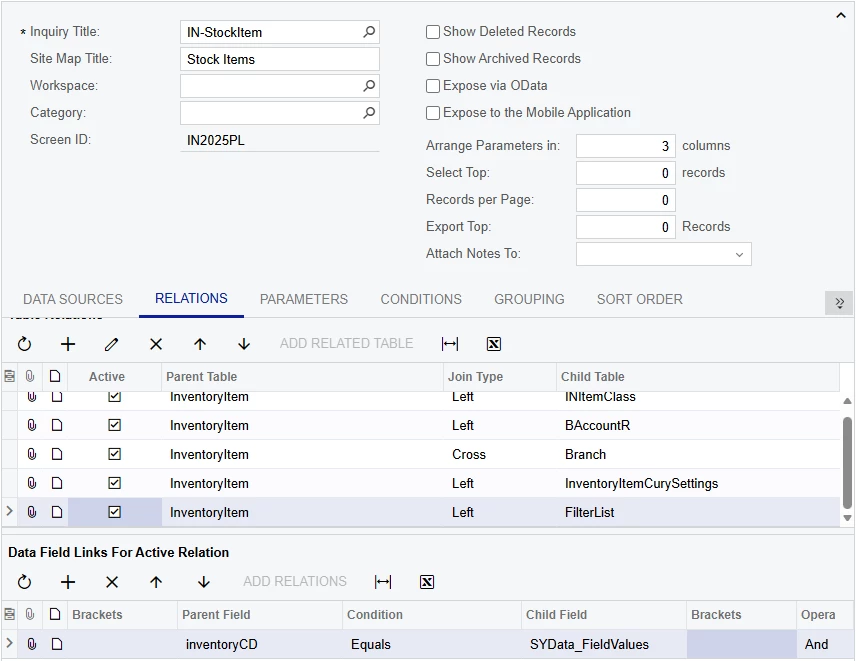
Add the parameter from the FilterList GI (if using) and the conditions to only include items that matched the uploaded list:

Finally, for extra convenience, add the Filter List import scenario that was published earlier as a side panel. This will allow users to upload the filter without leaving the GI screen.
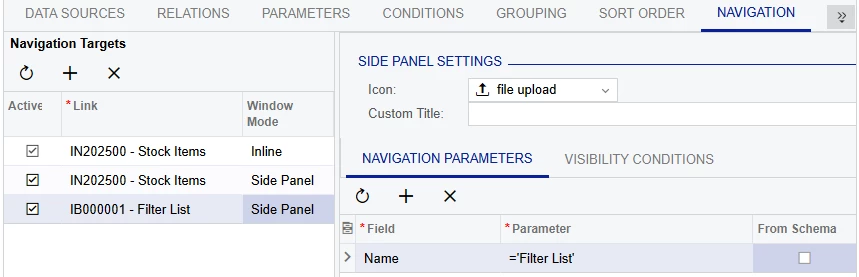
Voilà! There is now a side panel on your GI where users can upload a list of Items via drag and drop (or ‘Upload File Version’ from the ellipsis menu), click prepare, and then check the Filter by List checkbox.
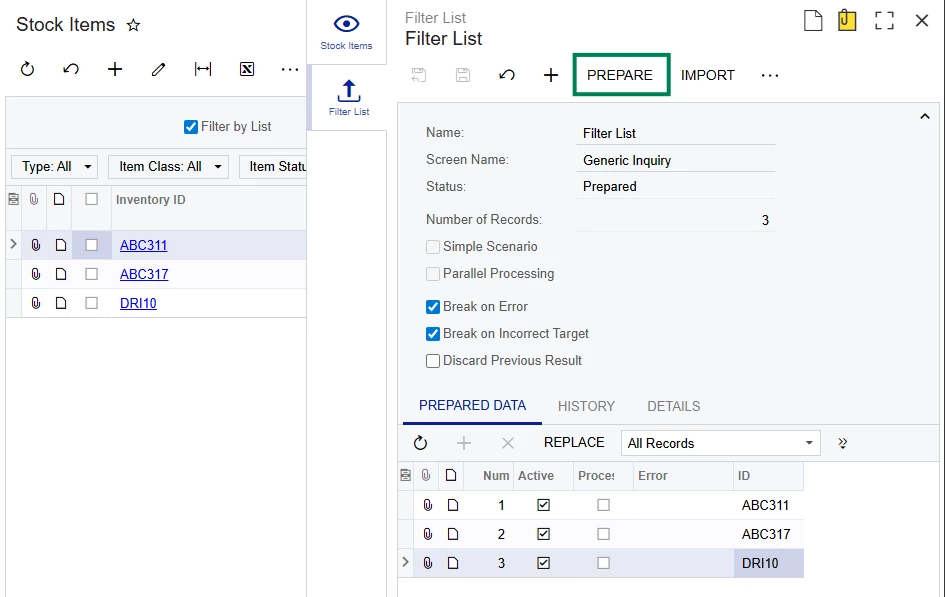
As mentioned before, a large benefit of this method is that it works for filtering any field. It can be an Inventory CD in one GI and then Customer Name in another. It is also a very convenient way to add new lists with a large number of values, since the preparing action in the import scenario clears out old data and replaces it with the new.
Only one list can be uploaded at a time, so be conscious of how many users are going to be using this feature at the same time so they aren’t fighting over the data provider. It may be wise to set up different data providers/import scenarios if you plan on using this trick across multiple GIs.