Answer

Edit Coumn Names on Dashboard Data Table Widget

  • September 30, 2021
  • 2 replies
  • 132 views

xkylewrightx
Varsity III
Forum|alt.badge.img

Hello--

Does anyone know where or how to edit the column names on a Data Table widget?

Right now it derives them automatically from the results of the GI. 


Thank you!!!!

 

Best answer by BenjaminCrisman

Hi @xkylewrightx Currently this is the functionality of using the Data Table type widget, to display the column headers as seen in the GI.

If you need to rename these you can add Captions to the GI results grid which will show in the widget:
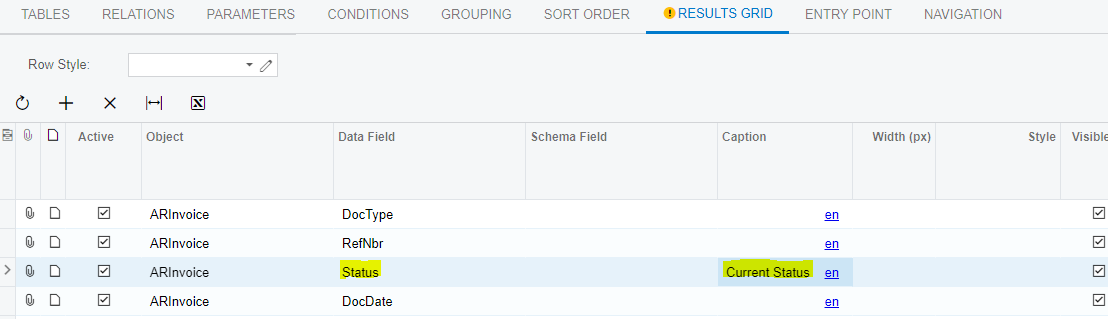
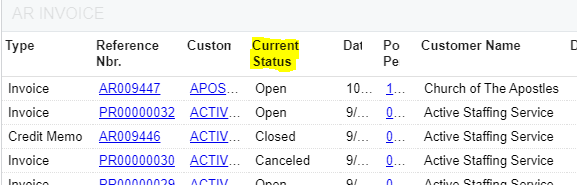
Or if the column header needs to stay the same name, you can copy the GI to a new GI and use captions on this GI in order to keep the integrity of the column headers on the original GI

2 replies

BenjaminCrisman
Acumatica Employee
Forum|alt.badge.img+4
  • Acumatica Support Team
  • Answer
  • October 4, 2021

Hi @xkylewrightx Currently this is the functionality of using the Data Table type widget, to display the column headers as seen in the GI.

If you need to rename these you can add Captions to the GI results grid which will show in the widget:

Or if the column header needs to stay the same name, you can copy the GI to a new GI and use captions on this GI in order to keep the integrity of the column headers on the original GI


xkylewrightx
Varsity III
Forum|alt.badge.img
  • Author
  • Varsity III
  • October 4, 2021

@BenjaminCrisman 

Thank you, exactly what I was looking for.

It is worth noting for others with this same question, this ‘Caption’ column under the GI Results Grid was hidden by default in my instance.  

Clipboard icon to edit the columns

Click this little clipboard icon and move the column from available to selected. 


Thank you again Ben .