Our bank is transitioning to using Payee Address as a field used in Positive Pay for checks.
Does anyone know if there is a report that would yield:
Check number
Amount
Date
Payee Address
Thank you in advance!
Cher
Our bank is transitioning to using Payee Address as a field used in Positive Pay for checks.
Does anyone know if there is a report that would yield:
Check number
Amount
Date
Payee Address
Thank you in advance!
Cher
Best answer by Steve Milner
@cmcquirter39 there's no stock report that gives you all four. The AP Payment Register (AP622500) gets you the check number, date, amount, and vendor name, but it doesn't touch the address at all.
The good news is the address you want is already stored on each payment. When a check is printed, Acumatica doesn't pull the vendor's main address. It prints from a remittance copy attached to that specific payment. That's the address the bank will see on the physical check, so it's the one your positive pay file should carry.
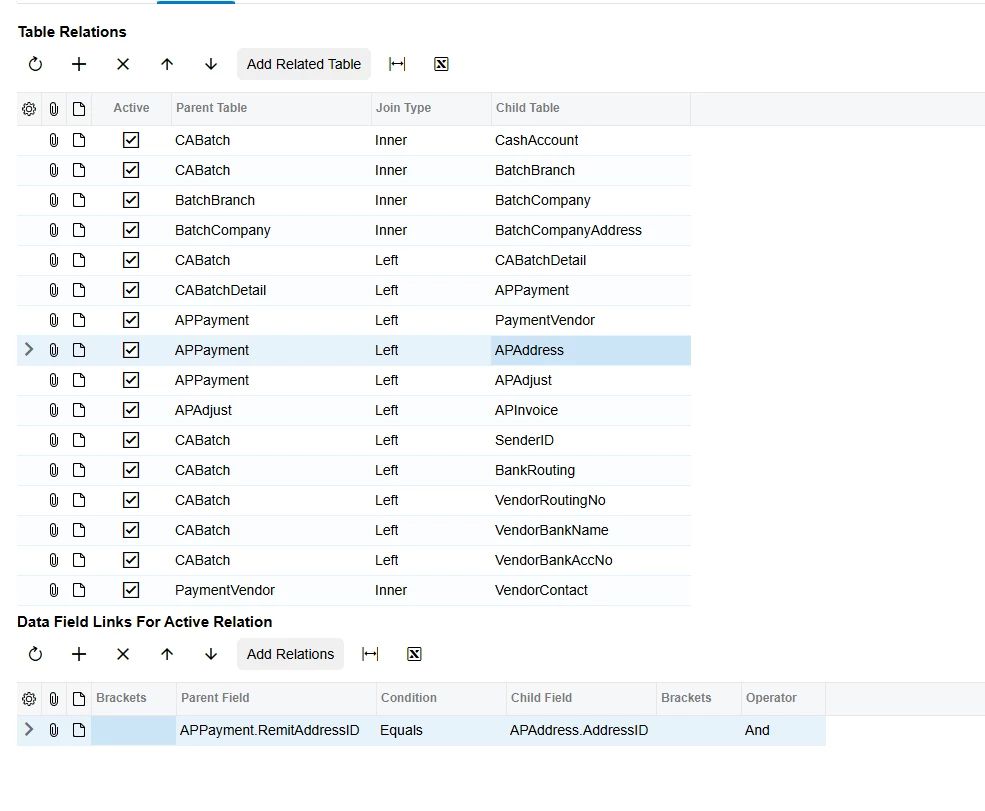
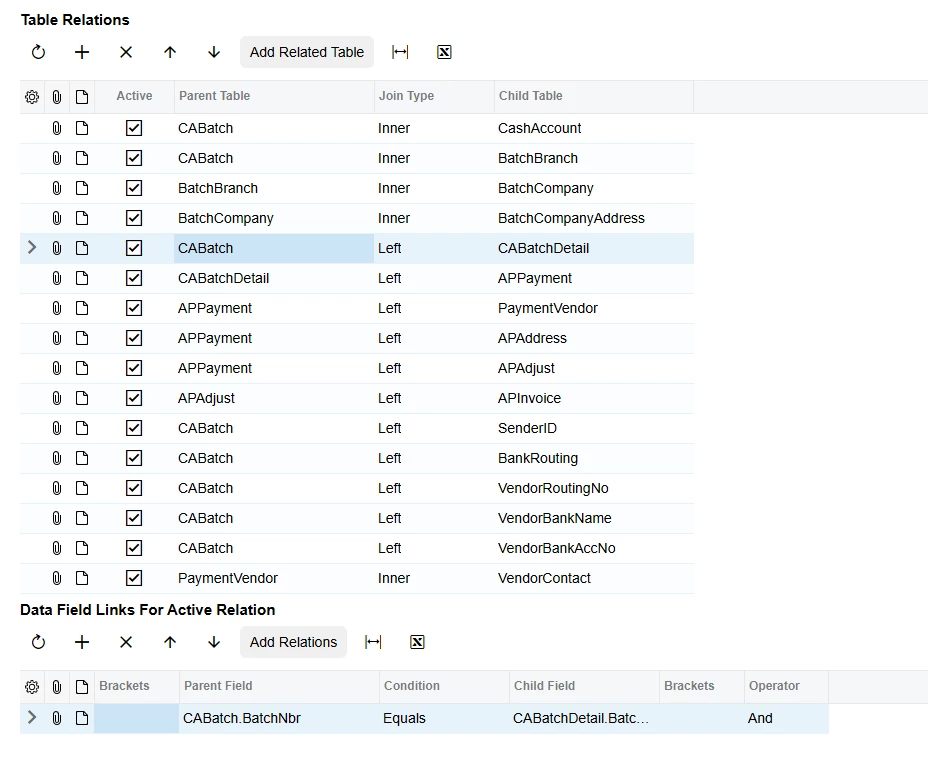
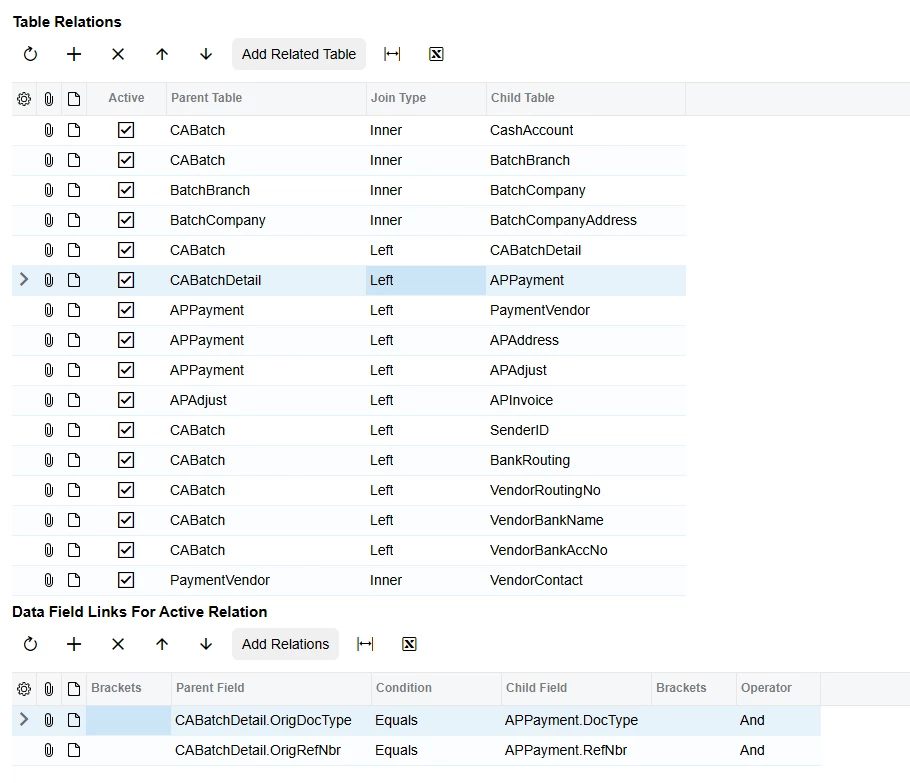
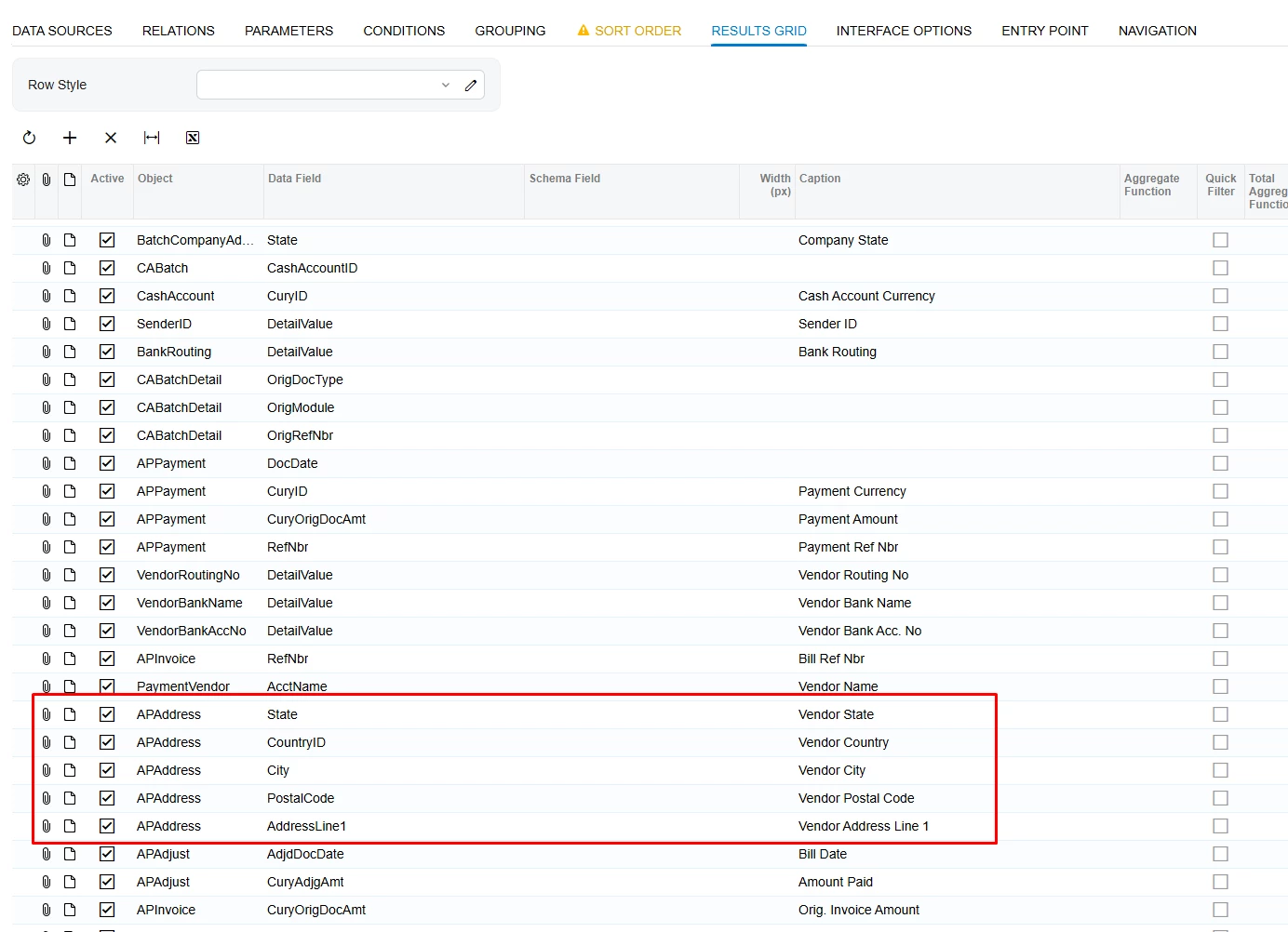
Build a generic inquiry on APPayment and join two tables: APAddress on APPayment.RemitAddressID = APAddress.AddressID, and APContact on APPayment.RemitContactID = APContact.ContactID. Then pull ExtRefNbr (the check number), DocDate, CuryOrigDocAmt, APContact.FullName for the payee, and AddressLine1, AddressLine2, City, State, and PostalCode from APAddress. Filter on DocType = Check, Printed = true, and Voided as your bank requires. That's the same set of fields and joins the stock Check Form with Remittance (AP641000) uses to print the payee block, so the GI will match the checks exactly.
Once the GI looks right, export it to Excel for a manual upload, or wrap it in an export scenario with a CSV provider if you want the bank's exact layout and a scheduled file.
Enter your E-mail address. We'll send you an e-mail with instructions to reset your password.