



Acumatica 2026 R2 can expose an MCP server, and Claude can then query your ERP data from the claude.ai web app and the mobile app. I got this working end to end with a custom connector that lists sales orders from a local Acumatica instance. The hard parts were licensing, OAuth and public HTTPS access, not the MCP feature itself. This post covers the steps in order and the errors I hit along the way.
As a developer, I wanted to try the MCP server features locally first, so everything here runs against a local development instance.
What you need
- Acumatica 2026 R2, installed and running.
- A license that includes the AI functionality, as described in this community thread.
- Administrator access to the Connected Applications (SM303010) and MCP Server (SM302100) screens.
- A public HTTPS address for Acumatica with a certificate from a public certificate authority. Claude's servers make the connection, so http://localhost does not work.
- A Claude plan that allows custom connectors. On Team and Enterprise plans an owner may need to enable them first.
Step 1: Install 2026 R2 and get the license
If you need a local developer instance first, see my post Setting up local developer instances of Acumatica from a few years ago.
Install Acumatica 2026 R2 as usual. The AI functionality needs a license that includes it, so check the community thread before you start.
A non-production license is available to Acumatica Partners (VARs). Contact your Acumatica Partner Account Manager (PAM) for more information.
Step 2: Set up the MCP server (SM302100)
Open MCP Server (SM302100) and define the endpoint that Claude will call. Mine exposes one tool, all-sales-orders, at this path:
https://<public-host>/Acumatica26R2/t/<Tenant>/mcp/my-sales-ordersIn 2026 R2 the MCP server is read-only: Claude can query data through these tools but cannot create, change or delete records.
My server uses these settings:
| Field | Value |
|---|---|
| Server Name | my-sales-orders |
| Server Title | My Company Sales Orders |
| URL | Generated by Acumatica (example below the table) |
| Active | Ticked |
| Tool Type | Generic Inquiry |
| Generic Inquiry | All Sales Orders |
| Shared Filter to Apply | All Records |
| Tool Name | all-sales-orders |
| Tool Title | All Sales Orders |
http://localhost/Acumatica26R2/t/Company/mcp/my-sales-ordersThe URL field shows the local address. Replace the host with your public HTTPS host when you add the connector (Step 4).
Step 3: Create the Connected Application (SM303010)
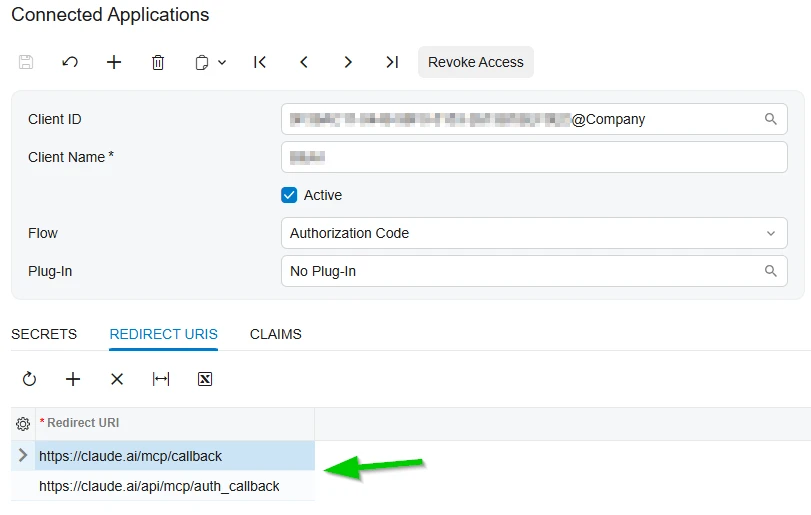
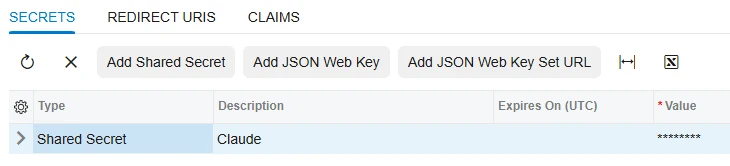
Acumatica's MCP endpoint uses OAuth 2.0, and it has no dynamic client registration, so you register Claude as a client by hand. Save the application after you add the secret, or sign-in fails.
| Setting | Value |
|---|---|
| Client Name | Any name, for example Claude |
| Active | Ticked |
| Flow | Authorization Code |
| Plug-In | No Plug-In |
| Refresh token mode | Absolute Expiration (I used 30 days) |
| Redirect URIs | The two callback URLs below the table |
| Secrets tab | One Shared Secret, with a description and an expiry date |
| Claims tab | Defaults (email, profile, phone) |
Redirect URIs:
https://claude.ai/mcp/callback
https://claude.ai/api/mcp/auth_callback
The Client ID has the form GUID@Tenant. Keep the @Tenant part when you enter it in Claude. Acumatica shows a shared secret only once when you create it, so copy it right away. The server advertises the mcp and offline_access scopes.
Step 4: Make Acumatica reachable over public HTTPS
Claude's servers connect to your endpoint, so it must be public and use a certificate from a public authority. A self-signed or internal certificate fails, and certificate authorities do not normally issue certificates for bare IP addresses.
Port forwarding on your router gets plain HTTP through, which is enough to prove the network path. For HTTPS you have two realistic options: a domain name with a Let's Encrypt certificate bound in IIS, or a tunnel. I used ngrok because it gives a valid certificate with no domain and no inbound ports. I am on a free ngrok account, which includes a static domain. You can get your free ngrok URL from the ngrok Dashboard.
- Create a free ngrok account and add your auth token with
ngrok config add-authtoken <token>. - Start the tunnel on the Acumatica machine:
ngrok http 80 --host-header=localhost --url=https://<your-static-domain>.ngrok-free.dev- Use this as the connector URL:
https://<your-static-domain>.ngrok-free.dev/Acumatica26R2/t/<Tenant>/mcp/<endpoint>- Check discovery works. This URL should return JSON that uses your public host, not localhost:
https://<your-static-domain>.ngrok-free.dev/Acumatica26R2/.well-known/oauth-protected-resource/t/<Tenant>/mcp/<endpoint>To keep the tunnel running after reboots, install it as a Windows service from an Administrator shell with ngrok service install --config <path-to-ngrok.yml>, then ngrok service start. The machine still has to be on for the connector to work.
Optional (I have not tested this yet): to keep the tunnel running after reboots, ngrok can be installed as a Windows service. Add your endpoint to ngrok.yml first, as described in the ngrok agent configuration docs, then run these from an Administrator PowerShell. The machine still has to be on for the connector to work.
ngrok service install --config "$env:LOCALAPPDATA\ngrok\ngrok.yml"
ngrok service start
Step 5: Add the connector in claude.ai and use it on mobile
Add the connector in the browser, because the mobile app does not offer it. Once it is added to your account, it also appears in the mobile app.
- In claude.ai, go to Settings, then Connectors, then Add custom connector.
- Enter a name and the public MCP URL.
-
Under Advanced settings, choose your own OAuth client. Enter the Client ID (with @Tenant) and the shared secret.
- Click Connect, sign in to Acumatica, and approve the consent screen.
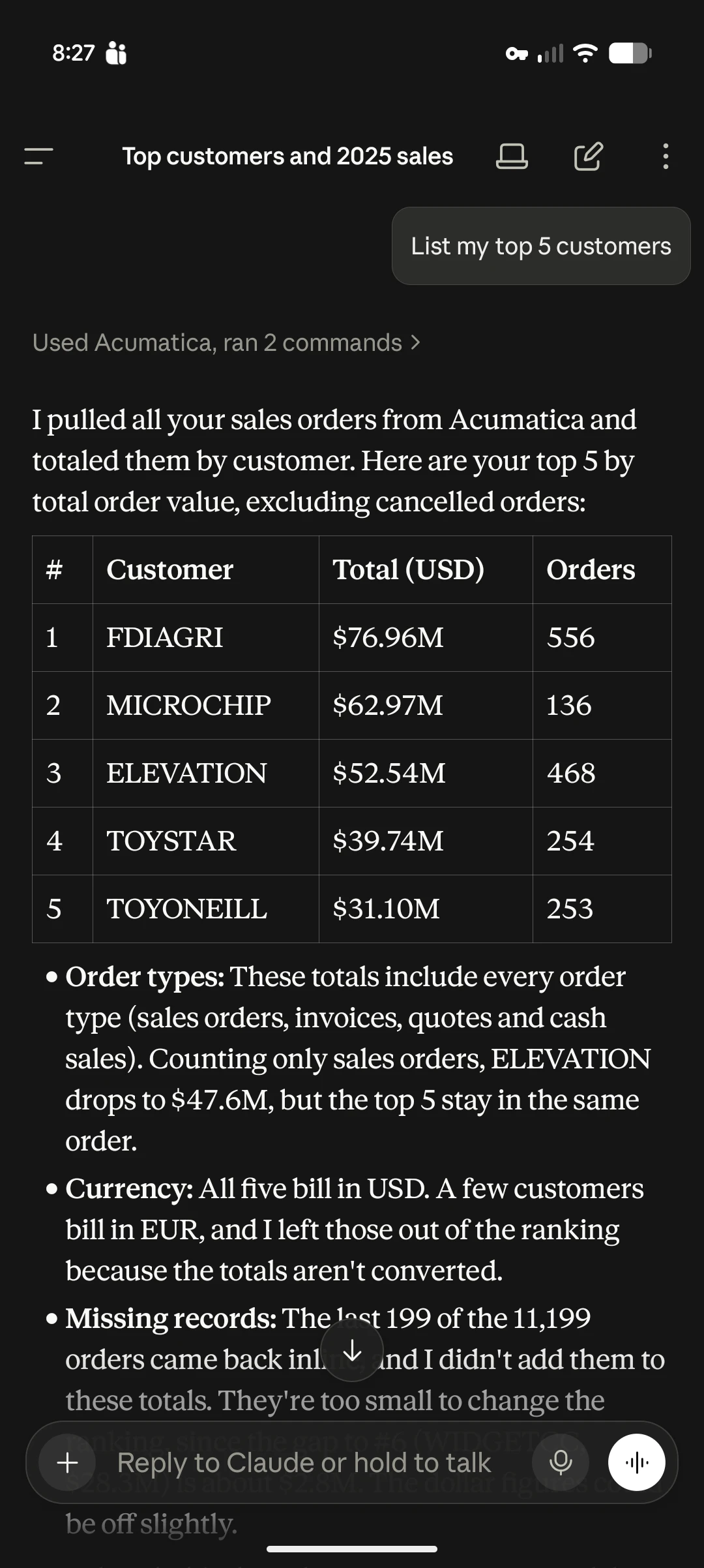
- In a chat, enable the connector and ask, for example, "List my recent sales orders".
In my test, Claude returned a list of my top 5 customers.
Roadblocks and troubleshooting
The ngrok request inspector was the most useful tool. It shows each request Claude makes and how Acumatica answers it. Open it on the machine running ngrok:
http://127.0.0.1:4040| Symptom | Cause | Fix |
|---|---|---|
| "Authorization failed" and 400 invalid_client on /connect/token | The new shared secret was never saved in SM303010 | Save the Connected Application after adding the secret |
| Redirect URI error | Claude's callback URL is not registered | Add both claude.ai callback URIs to the Redirect URIs tab |
| 401 when you open the MCP URL in a script | Expected: the endpoint needs a token | Check the WWW-Authenticate header points to your public host |
| Public IP times out from inside your network | Many routers cannot loop traffic back to their own public address | Test from a phone on mobile data |
| ngrok warning page in responses | Free-tier interstitial | Add the request header ngrok-skip-browser-warning with value 1 on the connector |
| "Acumatica didn't respond" toast after authorizing | Seen once, even though the tool list loaded | Retry in a new chat |
Security considerations and model choice
This setup puts your ERP login on the internet and sends order data through Anthropic and ngrok, so check it against your company's data policy first.
- Rotate shared secrets you have pasted into chats or screenshots, and delete unused ones.
- The 2026 R2 MCP server is read-only, so Claude cannot change data. Re-check this if a later release adds write tools.
- Use a dedicated Acumatica user with limited roles for production, not admin.
- Any current Claude model can call the tools, but my recommendation is Sonnet 5.5 as the default. The 2026 R2 server is read-only, so the work is mostly querying and summarizing, which Sonnet handles quickly and at lower cost. Switch to Opus 5.5 for multi-step analysis, such as comparing customers over time or spotting anomalies across many orders. Verify financial totals in Acumatica, because models can make arithmetic errors on large result sets.