
Solved

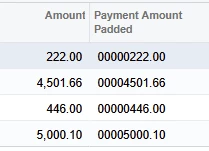
How to format Payment Amount in Positive Pay padded with zeros at left only, to create 10 total characters?

  • March 11, 2026
  • 2 replies
  • 26 views

Laura03
Captain II
Forum|alt.badge.img+20

Hello,

I’m trying to create Payment Amount in a Positive Pay CSV file padded on the left to include 11 total characters like this example:
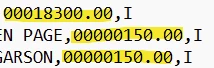
 

I’ve tried several formulas:

=PadLeft(CStr([APPayment.OrigDocAmt]),10,'0')

=PadLeft(CStr([APPayment.OrigDocAmt]),10.2,'0')

=PadLeft(CStr(Round([APPayment.OrigDocAmt],2)),10,'0')
=PadLeft(CStr([APPayment.OrigDocAmt]),12,'0')

The above formulas produce results that are padded at the left but include 2 extra digits on the right.
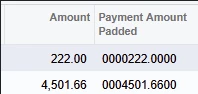
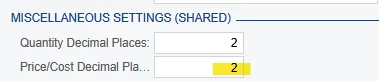
I thought Acumatica might be using Price/Cost Decimal Places field in Miscellaneous Settings section of Companies screen to set Decimal Places to 4…. however when I temporarily changed this setting from 4 to 2, it made no difference in my Positive Pay GI. 
 

Thank you in advance for your help!

Laura

Best answer by bwhite49

Hi Laura,

I think this will do it.

=PADLEFT((LEFT([APPayment.OrigDocAmt], LEN([APPayment.OrigDocAmt])-5)),8,'0')+'.'+LEFT(RIGHT([APPayment.OrigDocAmt],4), 2)

2 replies

bwhite49
Captain II
Forum|alt.badge.img+12
  • Captain II
  • Answer
  • March 13, 2026

Hi Laura,

I think this will do it.

=PADLEFT((LEFT([APPayment.OrigDocAmt], LEN([APPayment.OrigDocAmt])-5)),8,'0')+'.'+LEFT(RIGHT([APPayment.OrigDocAmt],4), 2)


Laura03
Captain II
Forum|alt.badge.img+20
  • Author
  • Captain II
  • March 16, 2026

@bwhite49 ,

Thank you so much for your time!  It worked!

Laura