Solved

How to find out if a screen has a UDF?

  • September 11, 2026
  • 6 replies
  • 51 views

dgodsill97
Varsity I
Forum|alt.badge.img+6

With the Modern UI the User Defined Fields tab is gone (nice enhancement), but is there a way to find out which screens have UDF’s prior to 25R2 and after so we can make sure that catch all of them on an upgrade?

Best answer by Rakshanda

Hi ​@dgodsill97 ,

Can you try below query which results same which you are looking for-

SELECT DISTINCT
    sa.ScreenID,
    sm.Title AS ScreenTitle,
    sm.Url,
    sa.AttributeID,
    a.Description AS UDFDescription,
    sa.TypeValue,
    sa.Required,
    sa.Hidden,
    sa.DefaultValue
FROM CSScreenAttribute sa
LEFT JOIN CSAttribute a
    ON a.AttributeID = sa.AttributeID
LEFT JOIN SiteMap sm
    ON sm.ScreenID = sa.ScreenID
    where sm.CompanyID=3
ORDER BY
    sa.ScreenID,
    sa.AttributeID,
    sa.TypeValue
 

6 replies

Forum|alt.badge.img+6
  • Jr Varsity II
  • September 11, 2026

Hi ​@dgodsill97 ,

Please review below acumatica help
User-Defined Fields

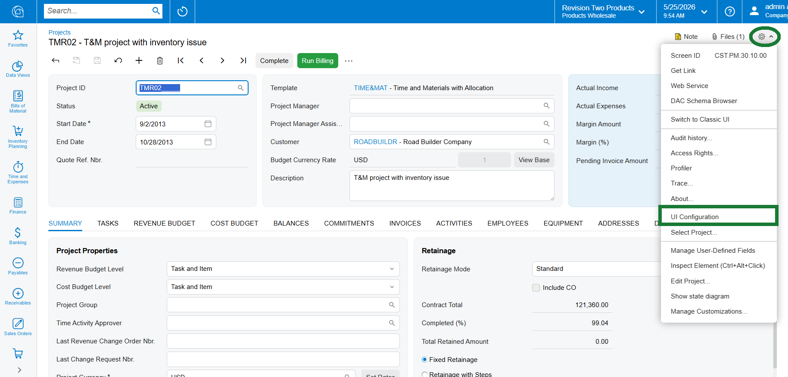
& Below way to add UDF field back in modern UI

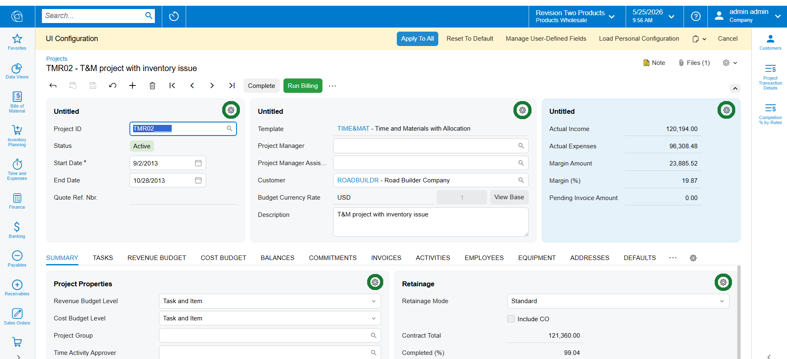
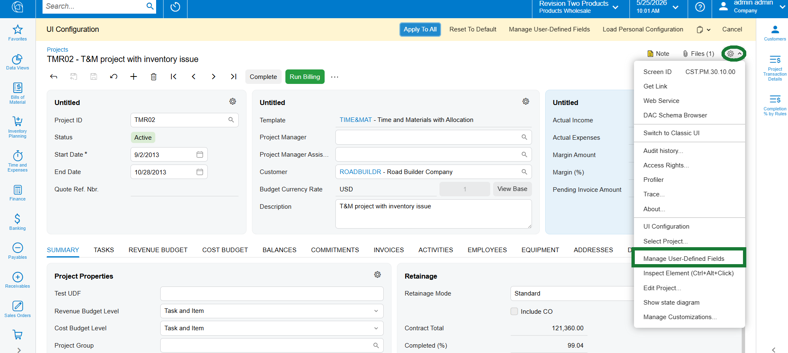
1. On the screen where you would like to add the UDF, select the Tools button and then select Screen Configuration.

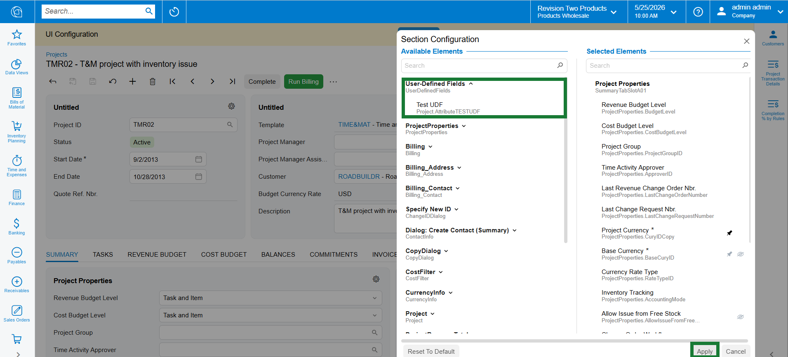
2. Select the Tools icon for the corresponding section of the screen that you would like to add the UDF to.


3. Select the Tools button for that screen area, and then expand the User Defined Fields area to select the specific UDF to add. For example, I will add my UDF to the Project Properties section.

a. From here you can also drag the UDF in the list to appear where you would like in the list order.

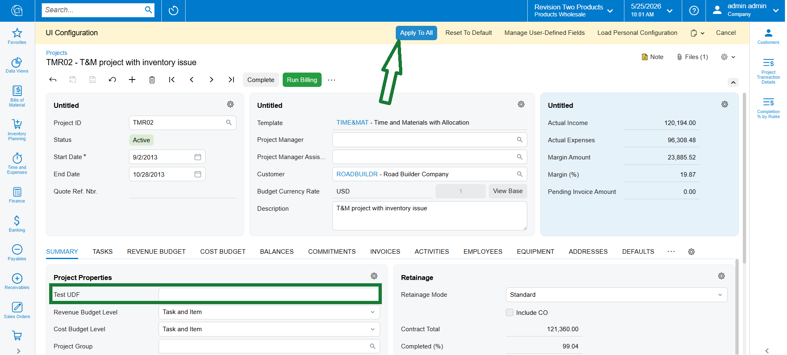
b. Select ‘Apply’ to preview your changes.

ℹ  If you do not see the UDF available to select in the list, proceed to Section 2 below.


4. After previewing the changes, select to Apply to All on the top toolbar to save the changes.

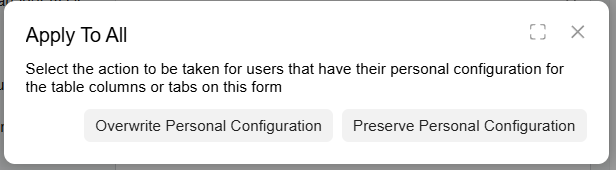
5. The pop up will request if you want to override the personal screen configuration - selecting to overwrite will ensure that the UDF appears for all users, including your own.


Section 2:

If the UDF you are looking for does not appear in the list to add to the screen area, it may not be added to that screen for use. To add an existing UDF to a screen so that you can select it for the Screen Configuration mode, see the steps below.

1. Select Manage User Defined Fields from the Tools menu.

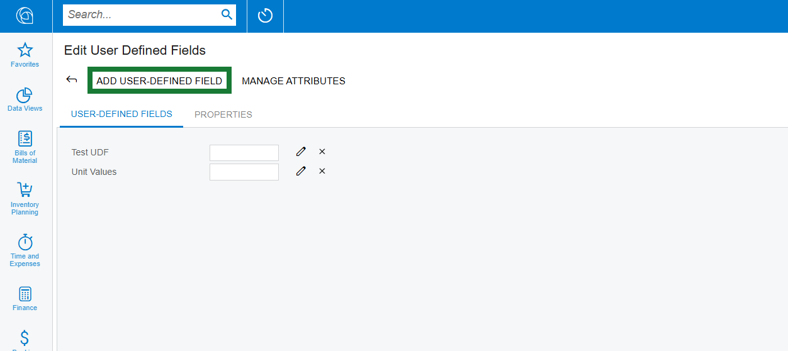
2. On the Edit User Defined Fields screen that opens, select the Add User-Defined Field button

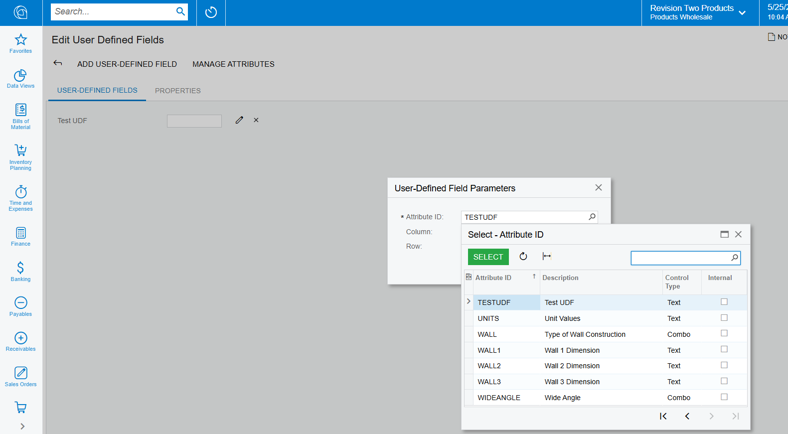
3. In the pop-up for User Defined Field Parameters, search for and select the UDF.

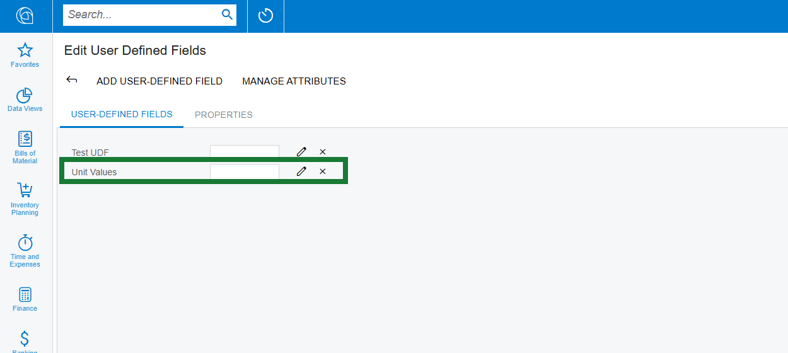
a. In this example, I will add the UNITS (Unit Values) UDF to the Projects screen so that I can manage it using the Screen Configurator.


4. Once added to the screen, proceed with step 1 on this article to add that UDF to a screen area using the Screen Configurator.


Hope above helps!!


dgodsill97
Varsity I
Forum|alt.badge.img+6
  • Author
  • Varsity I
  • September 11, 2026

I appreciate your effort and the long explanation on how to add UDF.s but the question was not how to add UDF’s (which I already knew) but how to identify screens that have UDF’s. The upgrade does not magically move the UDF’s to a screen and unless we are aware of what screens have them our developers, consultants, and end users will be SOL.


Forum|alt.badge.img+5

@dgodsill97 You can try this approach: if you switch to Classic UI or use an older version, you can identify the screens with UDFs. You may need to check the screens one by one. Then you can export those attributes or add them to the UDF section in the Customization Project Editor. This way, they will be included every time you move the package, and you will also have an idea from the package that it contains UDFs.


Forum|alt.badge.img+6
  • Jr Varsity II
  • Answer
  • September 11, 2026

Hi ​@dgodsill97 ,

Can you try below query which results same which you are looking for-

SELECT DISTINCT
    sa.ScreenID,
    sm.Title AS ScreenTitle,
    sm.Url,
    sa.AttributeID,
    a.Description AS UDFDescription,
    sa.TypeValue,
    sa.Required,
    sa.Hidden,
    sa.DefaultValue
FROM CSScreenAttribute sa
LEFT JOIN CSAttribute a
    ON a.AttributeID = sa.AttributeID
LEFT JOIN SiteMap sm
    ON sm.ScreenID = sa.ScreenID
    where sm.CompanyID=3
ORDER BY
    sa.ScreenID,
    sa.AttributeID,
    sa.TypeValue


dgodsill97
Varsity I
Forum|alt.badge.img+6
  • Author
  • Varsity I
  • September 11, 2026

We have a winner!  Thanks to Rakshanda, except for CompanyID=3 could be Company>1.  That’s the good news.  The bad news is you cannot access the DAC in a GI because it is hidden.😴


mohammadnawaz51
Varsity I
Forum|alt.badge.img+7

@Rakshanda do you have a option to identify with out query as DB access will not accessible for many customers.