Solved

Change default sorting field on Process Screen( Print Check screen) 2024r2

  • June 3, 2025
  • 3 replies
  • 73 views

Forum|alt.badge.img+6

Hello,

             Previously, AP505000 (process payments/print checks) are sorted by Reference Nbr. field. Now, we find in 2024R2 ,it changed to sort by Vendor ID/Vendor Name.
             Is there a way to overwrite the default sort ,can we change back to sort by “Reference Nbr.”?

             I prefer the way without code modification, that just using the tool Acumatica provided. But, if code customization is a must, please help.

Best answer by ray20

       I used the following code, and it seems to work. I'm sharing it here for reference. If any experts can help with a code review or point out potential issues, that would be greatly appreciated. Please do not use this code in a production environment without careful consideration.

namespace PX.Objects.AP
{
  public class APPrintChecks_Extension : PXGraphExtension<PX.Objects.AP.APPrintChecks>
  {
    #region Event Handlers
    //in 2024r2 official version first sort by vendor,overwrite it
[PXFilterable]
public PXFilteredProcessingJoin<APPayment, PrintChecksFilter,
    InnerJoin<Vendor, On<Vendor.bAccountID, Equal<APPayment.vendorID>>,
   LeftJoin<CABatchDetail, On<CABatchDetail.origModule, Equal<BatchModule.moduleAP>,
                    And<CABatchDetail.origDocType, Equal<APPayment.docType>,
                        And<CABatchDetail.origRefNbr, Equal<APPayment.refNbr>>>>>>, 
    Where2<
        Where<APPayment.status, Equal<APDocStatus.pendingPrint>,
            And<CABatchDetail.batchNbr, IsNull,
            And<APPayment.cashAccountID, Equal<Current<PrintChecksFilter.payAccountID>>,
            And<APPayment.paymentMethodID, Equal<Current<PrintChecksFilter.payTypeID>>,
            And<Match<Vendor, Current<AccessInfo.userName>>>>>>>,
        And<APPayment.docType, In3<APDocType.check, APDocType.prepayment, APDocType.quickCheck>>>,  
    OrderBy<Asc<APPayment.refNbr>>> APPaymentList;
        #endregion
  }
}

3 replies

Forum|alt.badge.img+6
  • Author
  • Captain II
  • Answer
  • June 3, 2025

       I used the following code, and it seems to work. I'm sharing it here for reference. If any experts can help with a code review or point out potential issues, that would be greatly appreciated. Please do not use this code in a production environment without careful consideration.

namespace PX.Objects.AP
{
  public class APPrintChecks_Extension : PXGraphExtension<PX.Objects.AP.APPrintChecks>
  {
    #region Event Handlers
    //in 2024r2 official version first sort by vendor,overwrite it
[PXFilterable]
public PXFilteredProcessingJoin<APPayment, PrintChecksFilter,
    InnerJoin<Vendor, On<Vendor.bAccountID, Equal<APPayment.vendorID>>,
   LeftJoin<CABatchDetail, On<CABatchDetail.origModule, Equal<BatchModule.moduleAP>,
                    And<CABatchDetail.origDocType, Equal<APPayment.docType>,
                        And<CABatchDetail.origRefNbr, Equal<APPayment.refNbr>>>>>>, 
    Where2<
        Where<APPayment.status, Equal<APDocStatus.pendingPrint>,
            And<CABatchDetail.batchNbr, IsNull,
            And<APPayment.cashAccountID, Equal<Current<PrintChecksFilter.payAccountID>>,
            And<APPayment.paymentMethodID, Equal<Current<PrintChecksFilter.payTypeID>>,
            And<Match<Vendor, Current<AccessInfo.userName>>>>>>>,
        And<APPayment.docType, In3<APDocType.check, APDocType.prepayment, APDocType.quickCheck>>>,  
    OrderBy<Asc<APPayment.refNbr>>> APPaymentList;
        #endregion
  }
}


Chris Hackett
Community Manager
Forum|alt.badge.img
  • Acumatica Community Manager
  • June 3, 2025

Thank you for sharing your solution with the community ​@ray20!


plambert
Semi-Pro III
Forum|alt.badge.img+3
  • Semi-Pro III
  • March 27, 2026

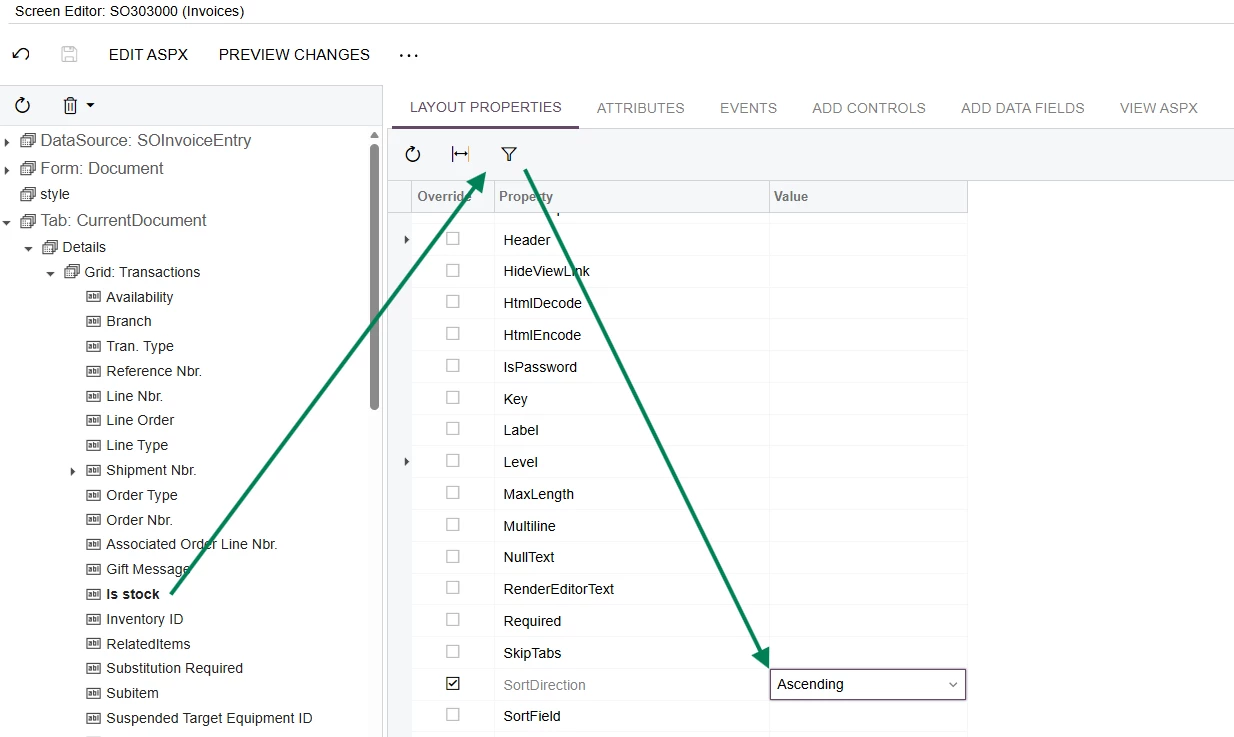
In addition to the code solution, I wanted to share a no-code option that I used for a similar situation. We wanted to sort our Invoice details with any non-stock items first before the stock items.

In the screen editor of a customization project, select the column you want to sort by (I had to add Is Stock beforehand for my use case). Then, in the Layout Properties tab, unhide the Hidden properties by clicking on the filter icon at the top of the grid. Finally, change the SortDirection of that field to be as you like.