Solved

Add Address Field to "Select Parent Account" screen?

  • February 27, 2026
  • 2 replies
  • 50 views

Hi there,

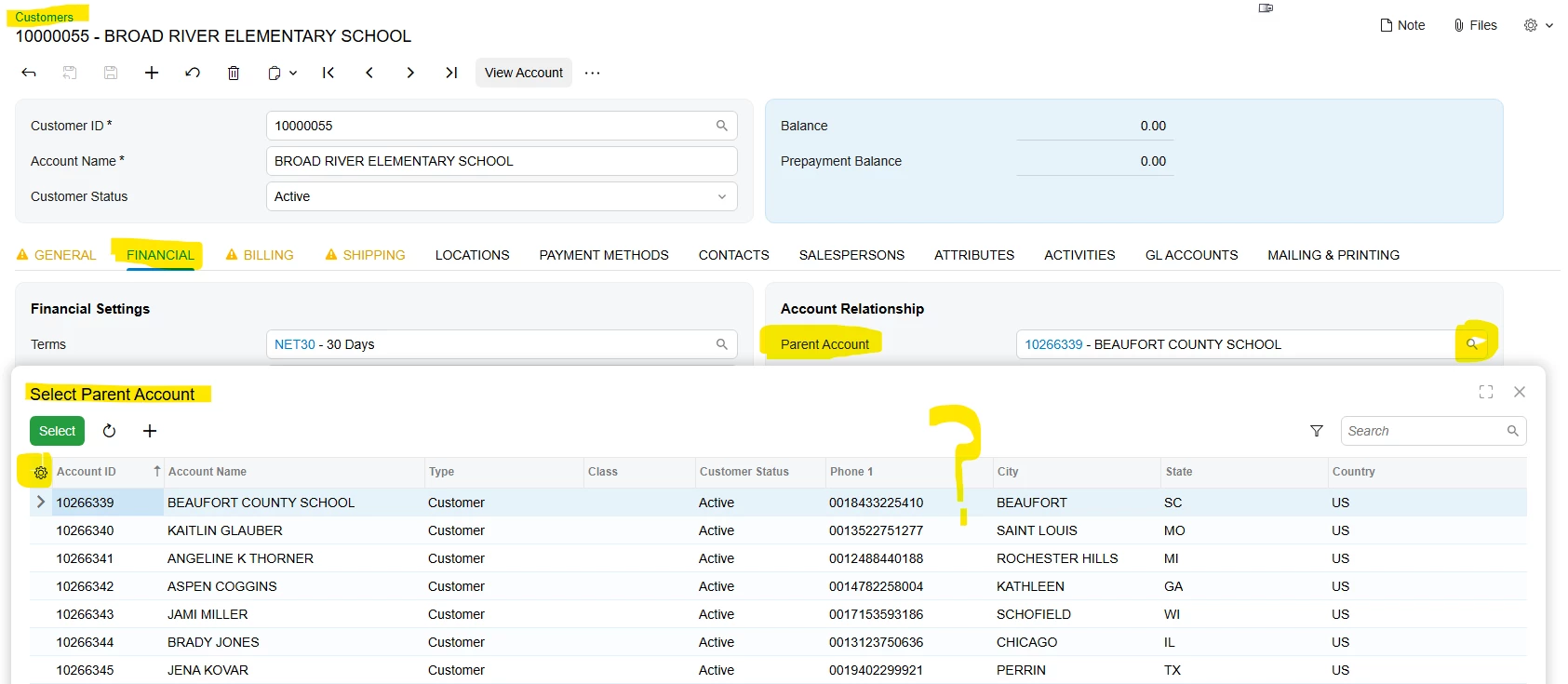
We need to add the Address Line 1, 2 and Postal Code fields to the “Select Parent Account” popup screen. Usually if a field is not available to add (via the Gear icon) I can edit the underlying GI to make the field avaialble but I can’t seem to track that down. Does anyone know the name of the GI for this screen? Or would adding those fields require a customization project? 
Thank you!

Jon Hunsicker

Jones School Supply
Best answer by arpine08

Hi ​@jon12 

You can add Address Line 1, 2, and Postal Code fields to the "Select Parent Account" lookup using a no-code customization in the Customization Project.


Here are the steps:

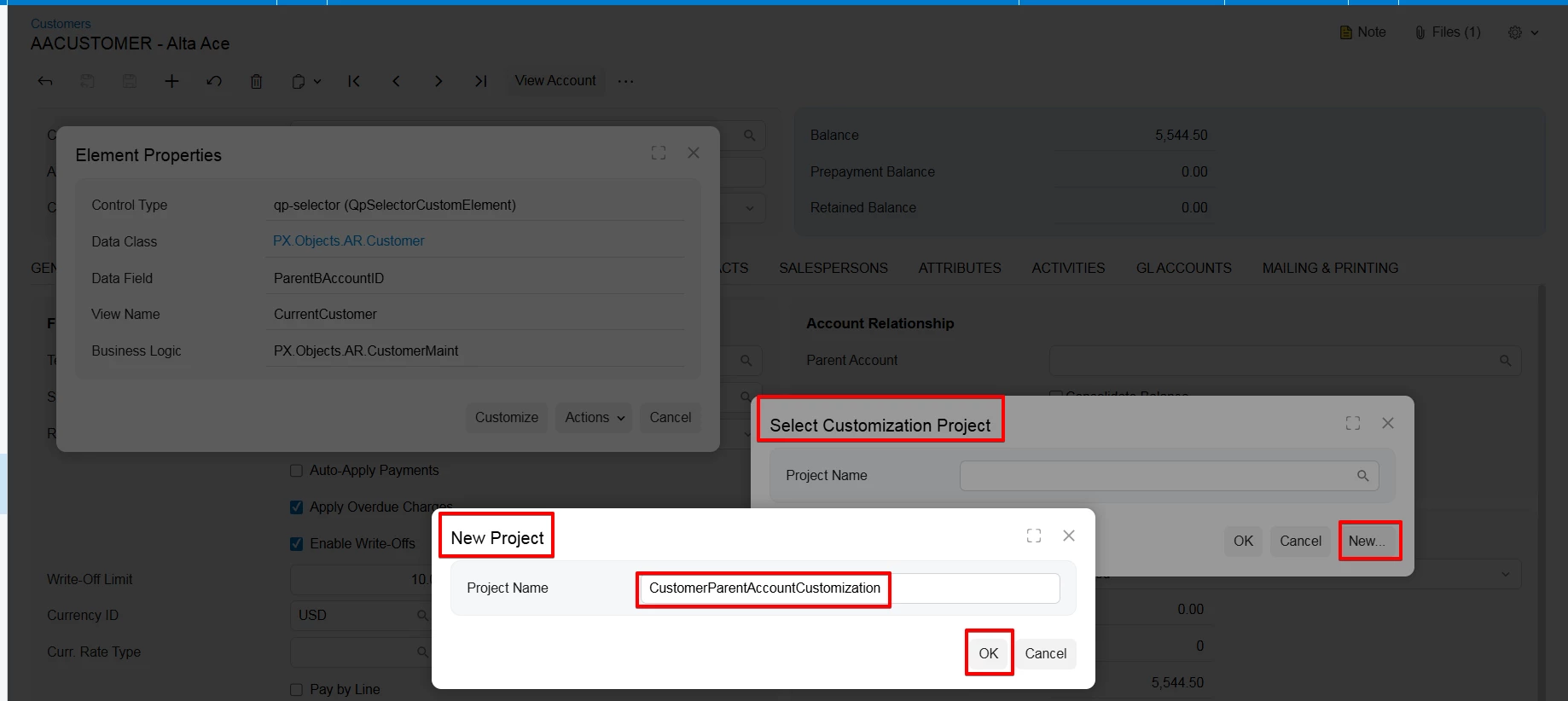
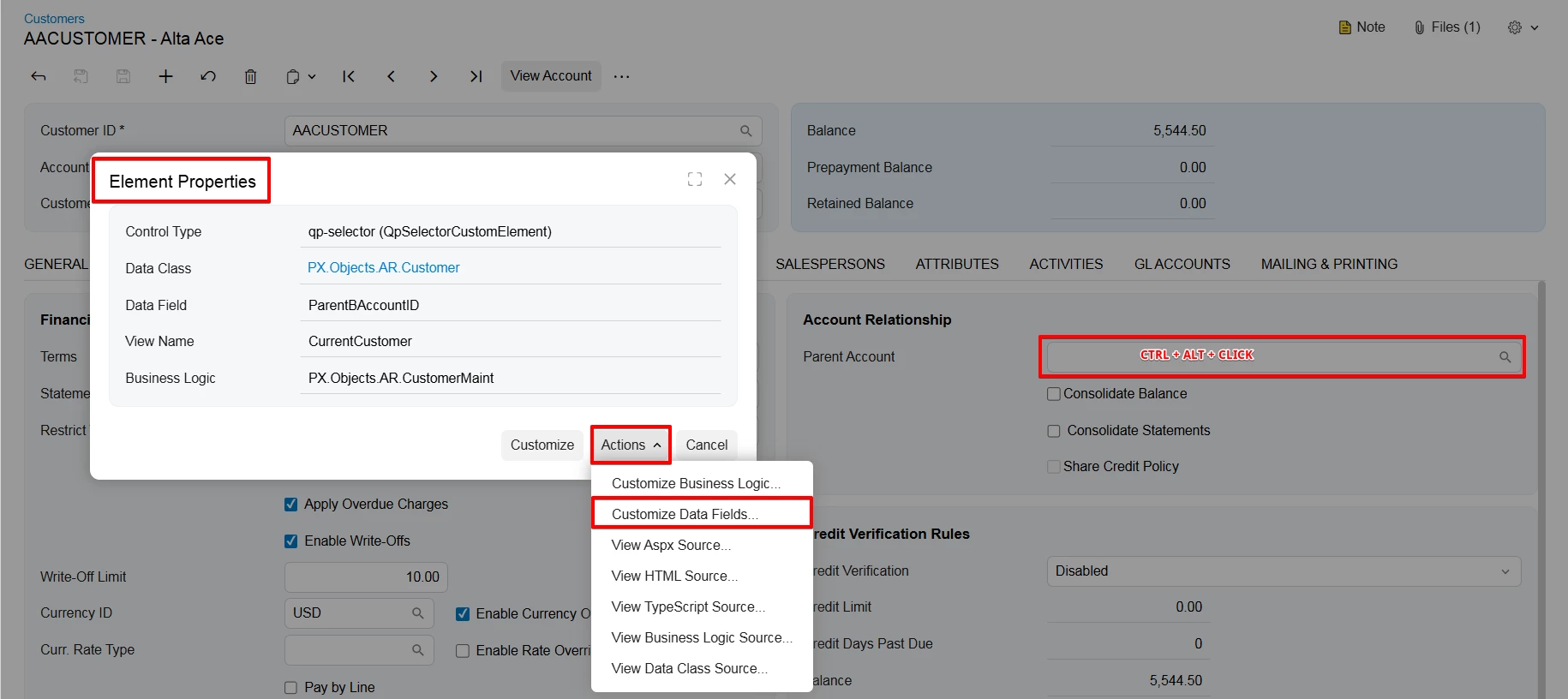
1. Customer screen->Parent Account field→ Press Ctrl+Alt+Click to open the Element Inspector. 

In the Element Properties window, click Actions and select Customize Data Fields...


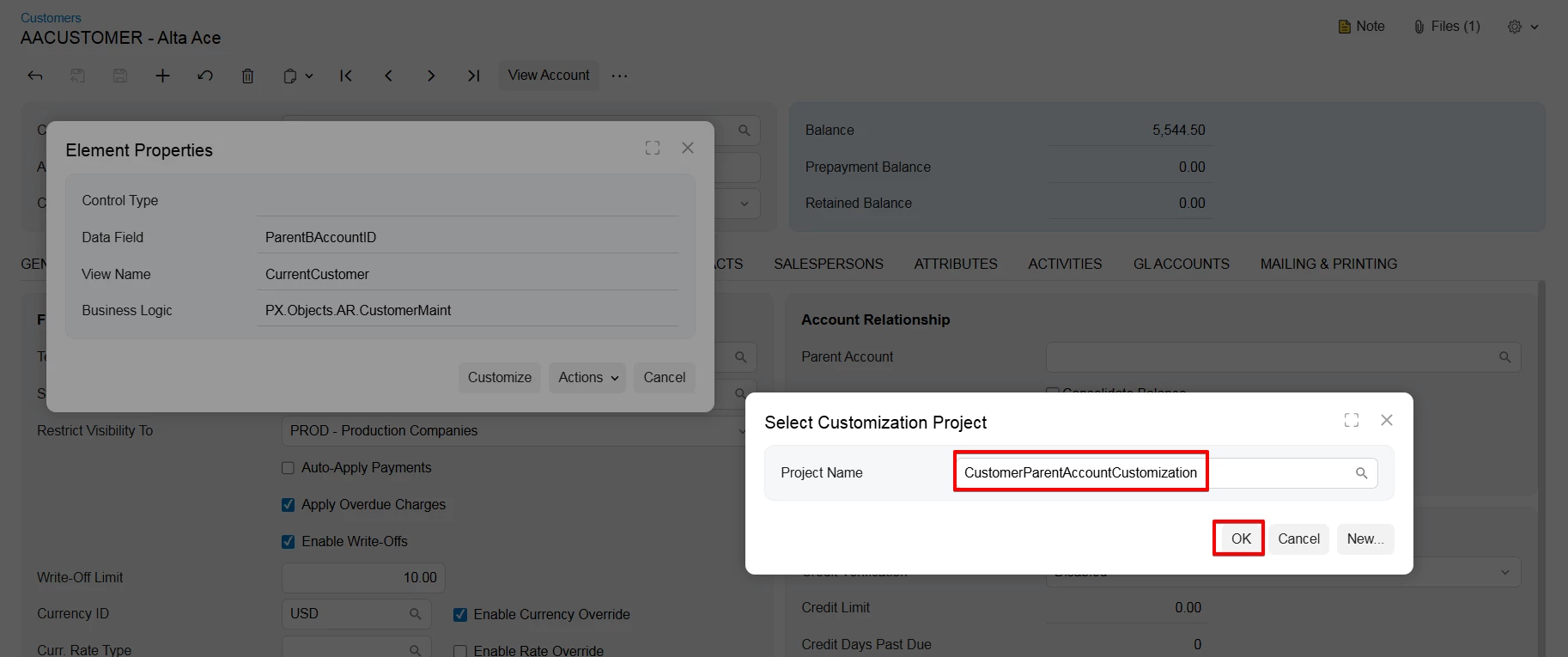
2. Select an existing Customization Project or create a new one, then click OK.


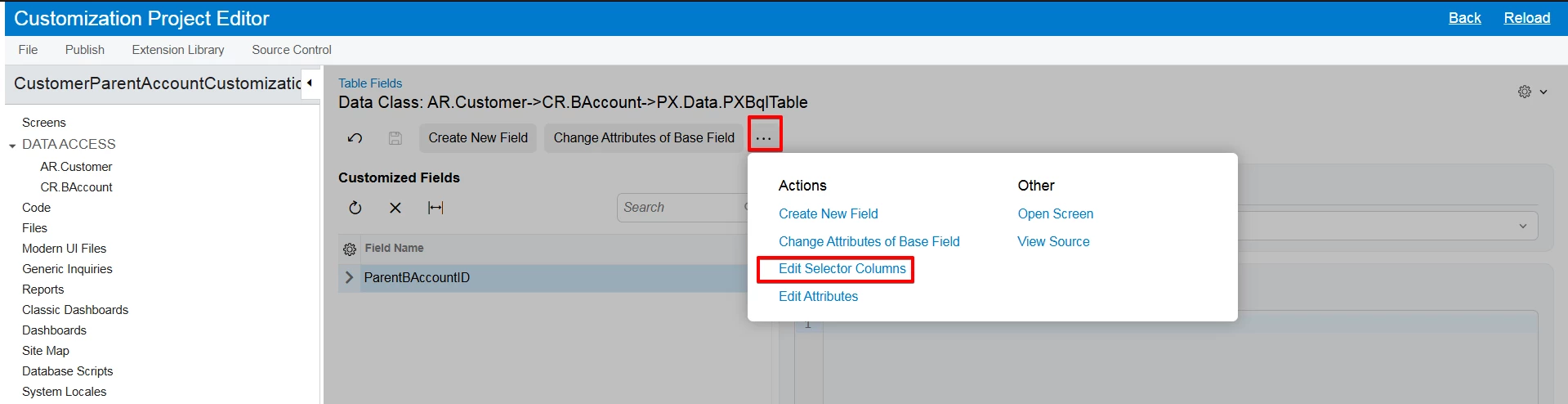
3.In the Customization Project Editor, click on the More Menu (...) and select Edit Selector Columns.


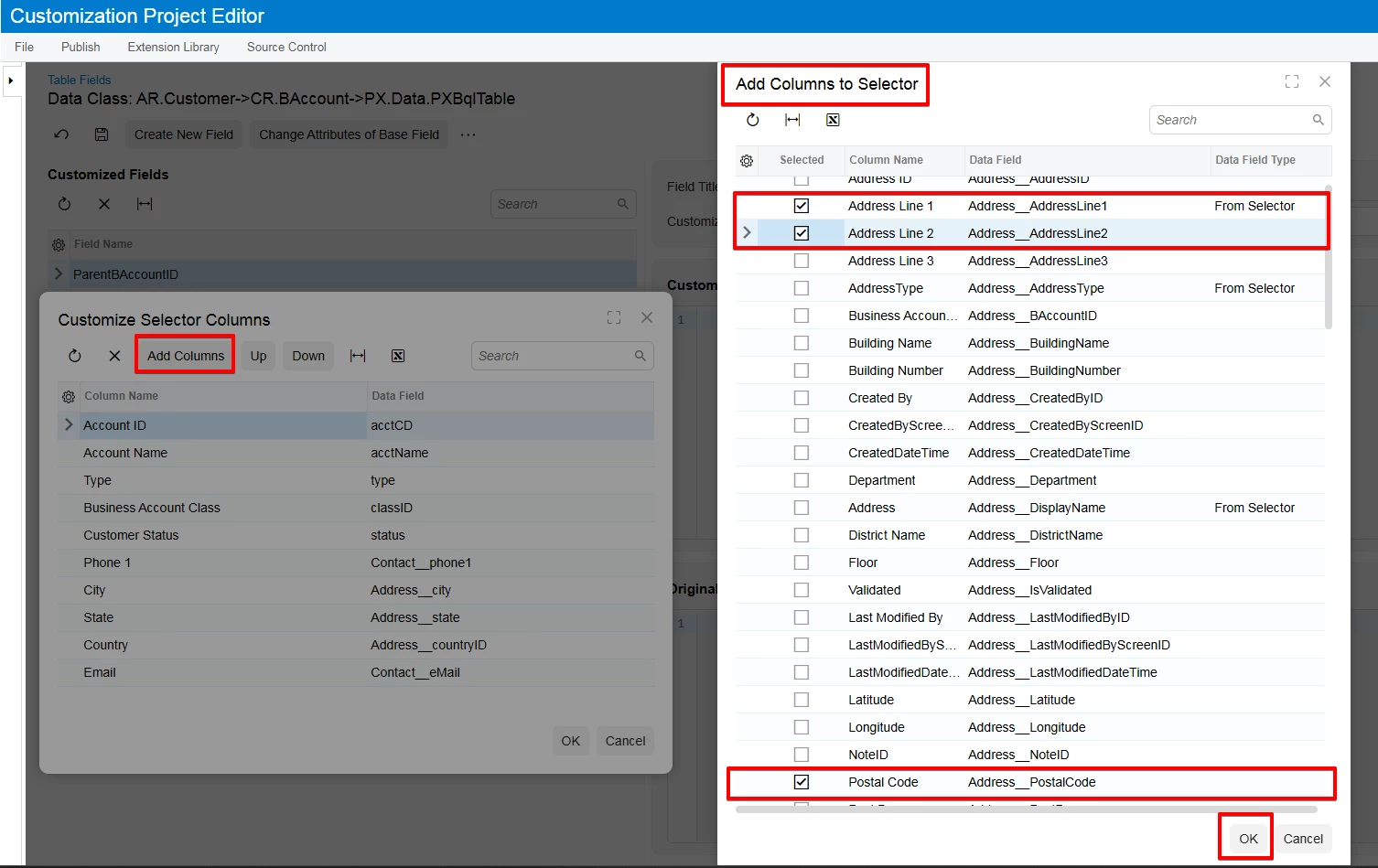
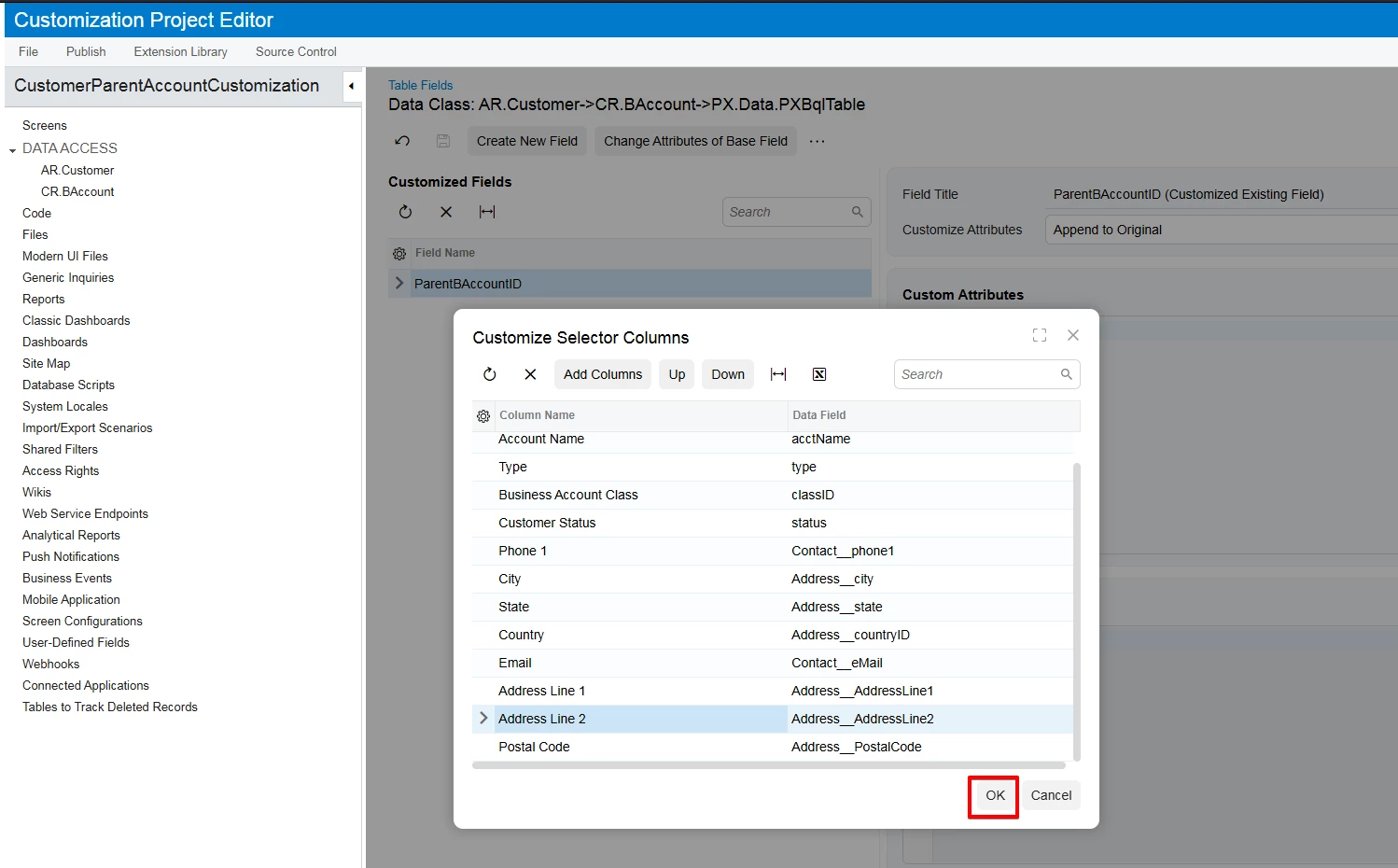
4. Click the Add Columns button, select Address Line 1, Address Line 2, and Postal Code, then click OK.


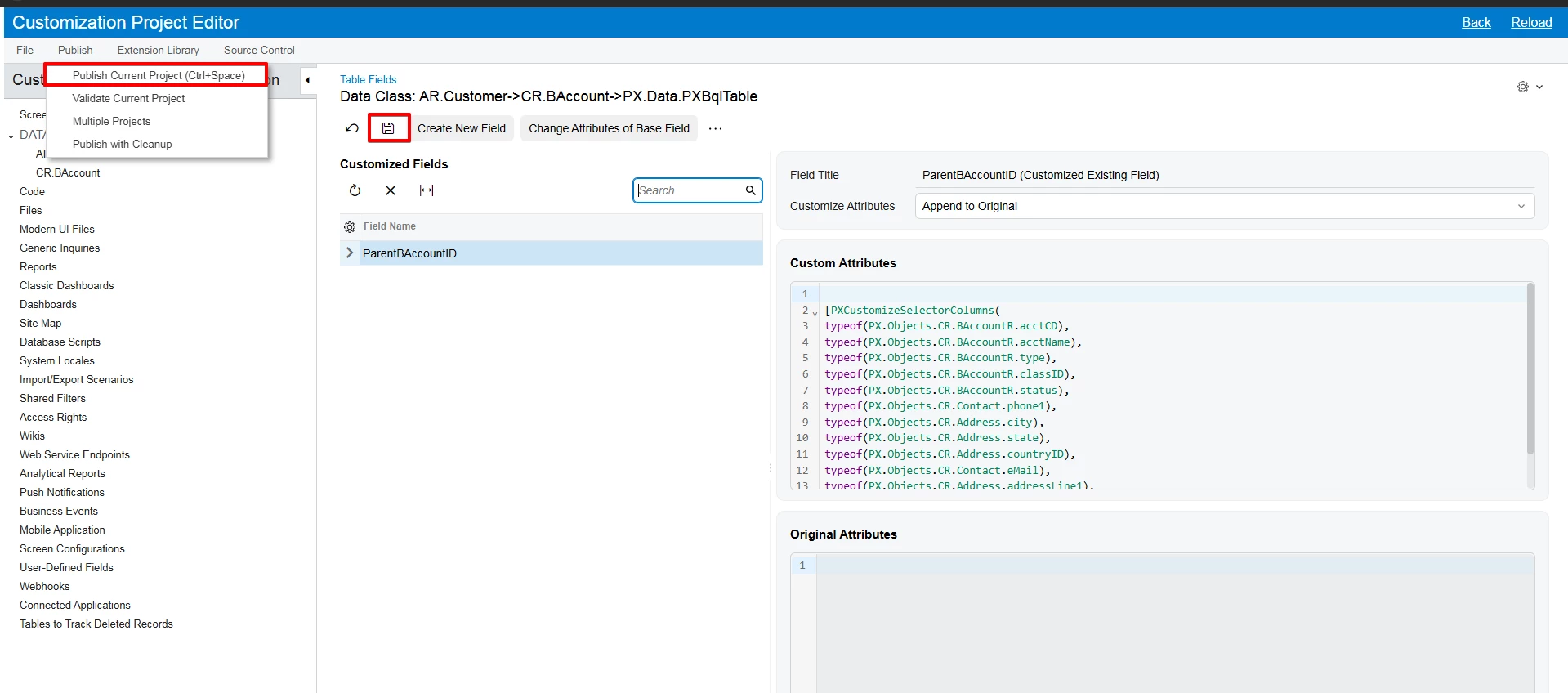
5. Save changes and Publish the project to make the new columns visible in the Parent Account lookup.


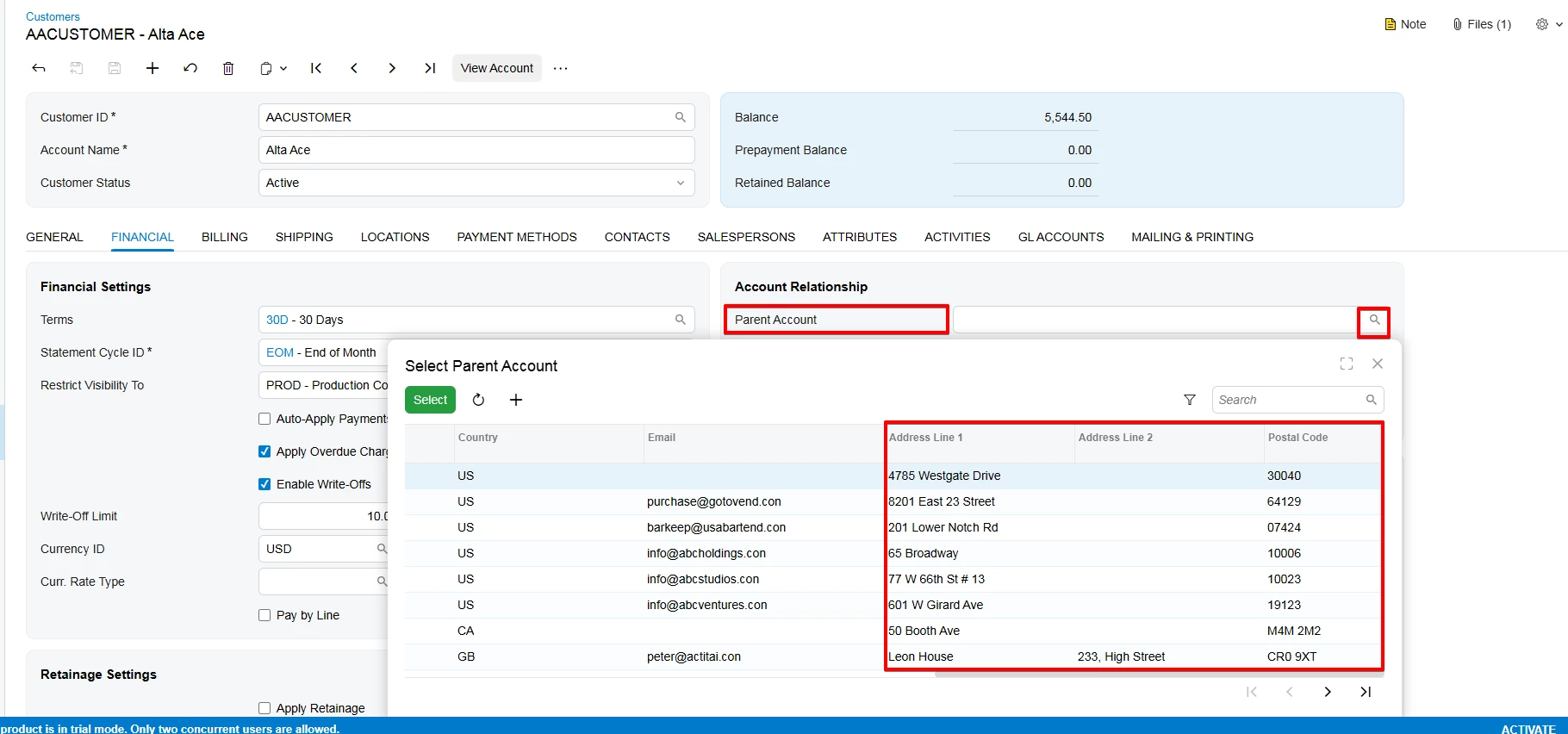
Result:


2 replies

arpine08
Jr Varsity I
Forum|alt.badge.img+1
  • Jr Varsity I
  • Answer
  • February 28, 2026

Hi ​@jon12 

You can add Address Line 1, 2, and Postal Code fields to the "Select Parent Account" lookup using a no-code customization in the Customization Project.


Here are the steps:

1. Customer screen->Parent Account field→ Press Ctrl+Alt+Click to open the Element Inspector. 

In the Element Properties window, click Actions and select Customize Data Fields...


2. Select an existing Customization Project or create a new one, then click OK.


3.In the Customization Project Editor, click on the More Menu (...) and select Edit Selector Columns.


4. Click the Add Columns button, select Address Line 1, Address Line 2, and Postal Code, then click OK.


5. Save changes and Publish the project to make the new columns visible in the Parent Account lookup.


Result:


  • Author
  • Freshman I
  • March 2, 2026

Hi ​@arpine08


This worked perfectly. I really appreciate the details steps.Thank you so much for your help!