

Question

Landed Cost Import scenario issue

  • Nov 13, 2026 2:37 PM UTC
  • 3 replies
  • 20 views
  • Translate All

Forum|alt.badge.img

Hello all,

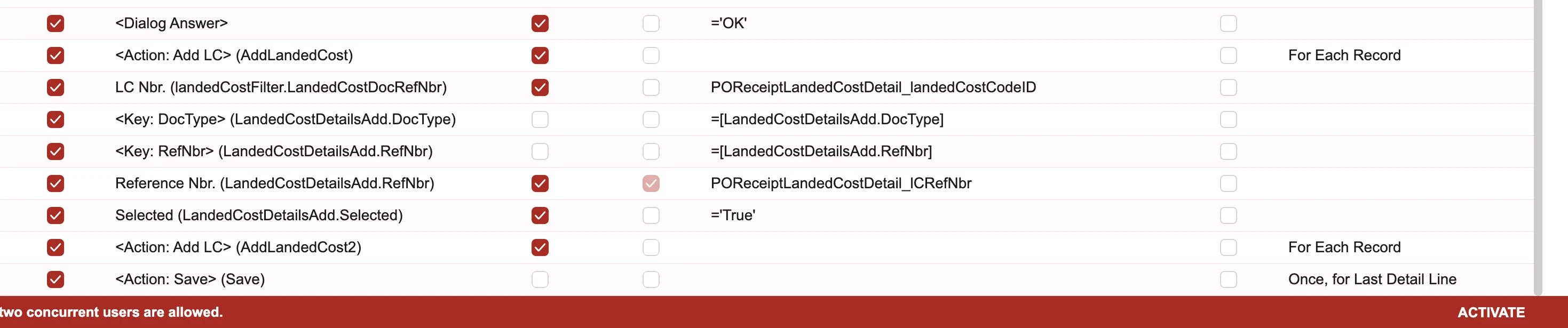
I have been working on an Import scenario to import the Landed costs. The import scenario is working fine however if there are multiple codes in a single LC, then the import scenario is only considering the first line, not all the lines. Upon checking manually, I found that the user has to manually select the LC lines if there are multiple LC Codes in the same LC#. How can I map the import scenario to add multiple LC lines:
 

3 replies

Forum|alt.badge.img+8
  • Jr Varsity III
  • Nov 13, 2026 2:46 PM UTC

Hi ​@Harry ,

This usually happens because Acumatica treats every row in your file as an update to the same detail line, not as a new line. Two settings fix it.

1. Mark the LC number as a Key in the Data Provider

Go to Data Providers (SM206015) → Schema tab → Source Fields and tick Key on the column that holds the LC reference number (for example LCNbr).

With that column marked as a key, Acumatica groups all file rows with the same LC# into one document. Without it, each row is processed on its own and keeps overwriting the first line.

Your file should have one row per LC code, with the header values repeated on each row:

LCNbr Vendor Date LandedCostCode Amount
LC0001 V001 11/13/2026 FREIGHT 500
LC0001 V001 11/13/2026 CUSTOMS 200
LC0001 V001 11/13/2026 INSURANCE 75

2. Make each detail row insert a new line

In Import Scenarios (SM206025) → Mapping, the detail grid needs a key, or Acumatica keeps updating the current row. Before the other detail fields, add one of these:

  • Option A: For the Landed Costs details object, map <Line Number> to a sequence column in your file (1, 2, 3 for each LC#). Add that column to the file if it isn’t there.
  • Option B: Map a field that is unique within the document, such as Landed Cost Code, as the first detail field. Each new code then creates a new line.

Then map the rest in this order:

  1. Header fields
  2. Line key (<Line Number> or Landed Cost Code), with Commit ticked. Committing lets Acumatica fill in the defaults for that code, like the allocation method and accounts.
  3. Description, Amount, and other line fields
  4. Save, once, at the very end, not after each line

Hope this helps !!

Translate

Forum|alt.badge.img
  • Author
  • Semi-Pro III
  • Nov 13, 2026 2:56 PM UTC

Hi ​@Harry ,

This usually happens because Acumatica treats every row in your file as an update to the same detail line, not as a new line. Two settings fix it.

1. Mark the LC number as a Key in the Data Provider

Go to Data Providers (SM206015) → Schema tab → Source Fields and tick Key on the column that holds the LC reference number (for example LCNbr).

With that column marked as a key, Acumatica groups all file rows with the same LC# into one document. Without it, each row is processed on its own and keeps overwriting the first line.

Your file should have one row per LC code, with the header values repeated on each row:

LCNbr Vendor Date LandedCostCode Amount
LC0001 V001 11/13/2026 FREIGHT 500
LC0001 V001 11/13/2026 CUSTOMS 200
LC0001 V001 11/13/2026 INSURANCE 75

2. Make each detail row insert a new line

In Import Scenarios (SM206025) → Mapping, the detail grid needs a key, or Acumatica keeps updating the current row. Before the other detail fields, add one of these:

  • Option A: For the Landed Costs details object, map <Line Number> to a sequence column in your file (1, 2, 3 for each LC#). Add that column to the file if it isn’t there.
  • Option B: Map a field that is unique within the document, such as Landed Cost Code, as the first detail field. Each new code then creates a new line.

Then map the rest in this order:

  1. Header fields
  2. Line key (<Line Number> or Landed Cost Code), with Commit ticked. Committing lets Acumatica fill in the defaults for that code, like the allocation method and accounts.
  3. Description, Amount, and other line fields
  4. Save, once, at the very end, not after each line

Hope this helps !!

Hi ​@Rakshanda ,
Would it be possible if you could share screenshots for the above mentioned steps? As I’m getting confused a bit in between,

Translate

Steve Milner
Varsity III
Forum|alt.badge.img+7
  • Varsity III
  • Nov 13, 2026 7:25 PM UTC

My replies are created in part with the help of proprietary AI, built with my AI skills, curated and maintained myself. Most replies are tested on local instances before they go up, and all are reviewed before posted.

Hi @Harry,

Rakshanda’s steps are aimed at importing the landed cost documents themselves on Landed Costs (PO303000). Your screenshot is the Add LC dialog on Bills and Adjustments (AP301000), so the fix is in the dialog rows.

The Add LC dialog lists one row per LC line, and every line of an LC carries the same Reference Nbr. The dialog also has an LC Code box. You need two changes in those rows.

  1. Map LC Nbr. (landedCostFilter.LandedCostDocRefNbr) from the LC number column, the same one on your Reference Nbr. row. In your screenshot it’s fed from POReceiptLandedCostDetail_landedCostCodeID. When we ran it that way, the first row stopped with “‘LC Nbr.’ cannot be found in the system.”
  2. Add LC Code (landedCostFilter.LandedCostCodeID) right below it, mapped from POReceiptLandedCostDetail_landedCostCodeID, with Commit checked. Each pass then shows only the line for that row’s code.

We tested it on 2026 R2 with a two-line LC (CUSTOMS and TARIFF). With only the LC Nbr. fixed, both rows processed with no error, but the bill got the first line only. With the LC Code row added, one bill came out with both lines. If one LC can carry the same code twice, the LC Code filter won’t tell those two lines apart. Try it in a test tenant before you run it on live bills.

Translate