Question

Is it possible to prompt user for input when processing an import scenario?

  • February 4, 2026
  • 5 replies
  • 57 views

I would like to be able to change values in one column at runtime. Is it possible to do that with a prompt or maybe in the Import by Scenario screen to change all the values in one column in the grid?

AI suggested that this can be done by:

  • Defining a Parameter on the Import Scenario

  • Referencing that parameter in the Mapping (e.g., using a prompt variable)

  • Having Acumatica prompt the user at runtime and inject that value into the mapped column for all rows

It may be hallucinating since I wasn’t able to find any info on that.

5 replies

mohammadnawaz51
Jr Varsity III
Forum|alt.badge.img+6

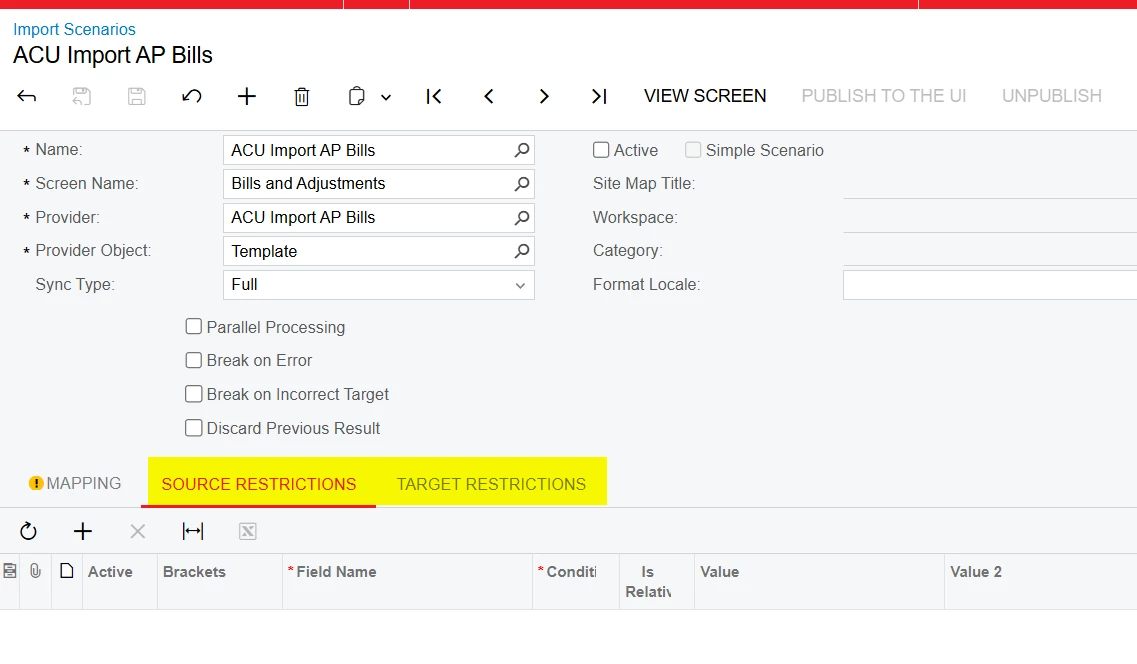
@petar2903k can you check if these will help?

Also in Import by scenario you have replace options


  • Author
  • Freshman I
  • February 4, 2026

I don’t think source and target restriction would enable me to change the value of a column.


Replace could only work if all the values in the column are the same and I replace them with the value I want. If the column contains different values I can’t do the Replace.


Chris Hackett
Community Manager
Forum|alt.badge.img
  • Acumatica Community Manager
  • July 1, 2026

Hi ​@petar2903k were you able to find a solution? Thank you!


Forum|alt.badge.img+9
  • Captain II
  • July 2, 2026

@petar2903k 


You are not able to prompt the user for input during an import scenario. 


The way to get around this is to add a the highlighted row into your import scenario:

This line should be placed before your action, and the value should be adapted to suit the buttons that your dialogue box has.


valentynbeznosiuk
Jr Varsity I
Forum|alt.badge.img+4

Hi ​@petar2903k ,

Correct me if I'm wrong, but your goal is to insert a new value into a column in the final import result.

If that's right, you have a few options:

  1. Add a column with the needed values in your source (Excel sheet, GI, etc.)
  2. On the Import by Scenario screen, after preparing the data and before running the import, you can review and manually adjust values in the needed column line by line
  3. In the Import Scenario, instead of pulling a field from your source, you can hardcode the value by entering it manually, or write a formula that sets one value or another depending on other import values