Answer

Import scenario to replace default salesperson on customer account

  • November 23, 2022
  • 15 replies
  • 811 views

Forum|alt.badge.img

I’m trying to create an import scenario that replaces the current default salesperson on the customer account with a new salesperson, sets the new salesperson as the default, and still works even if there is no current default salesperson assigned.

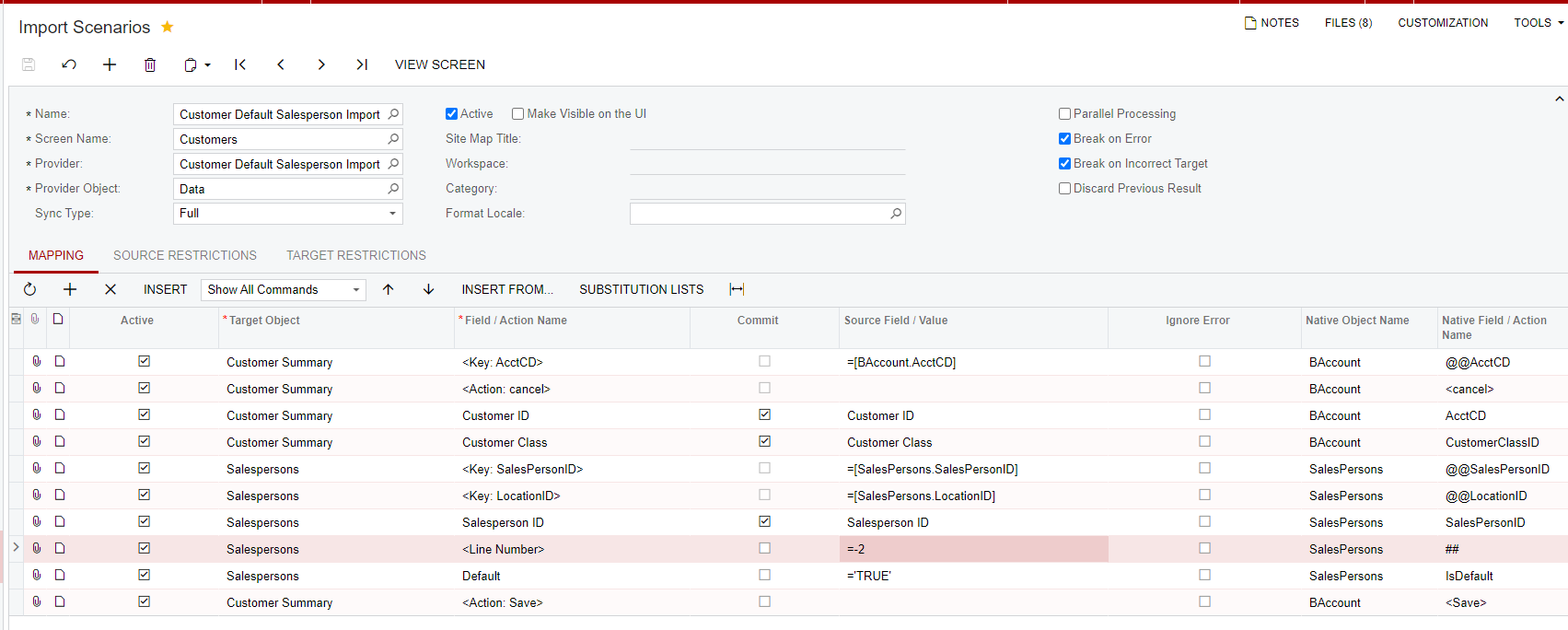
This is what I have so far, but it currently only adds the new salesperson and sets them as default; I’m not sure how to remove the original default salesperson if there is one:
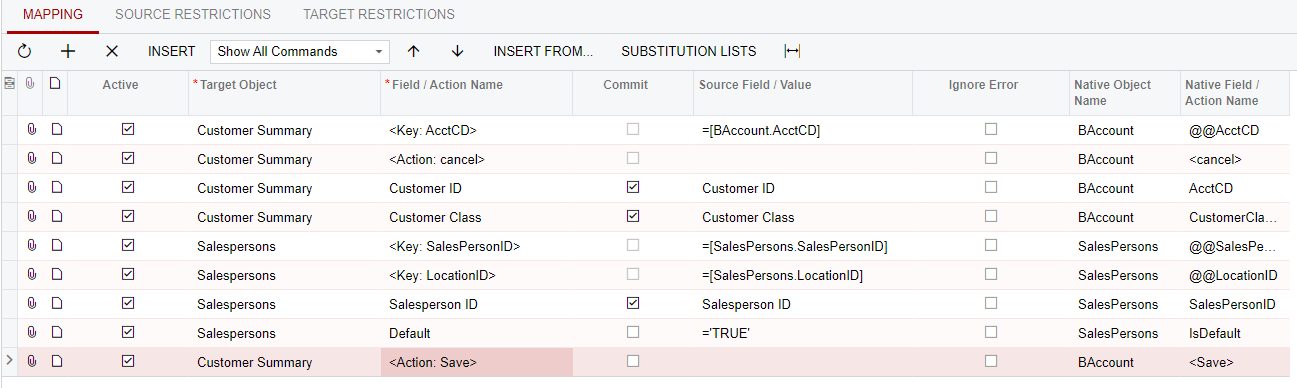
 

Best answer by michaelho

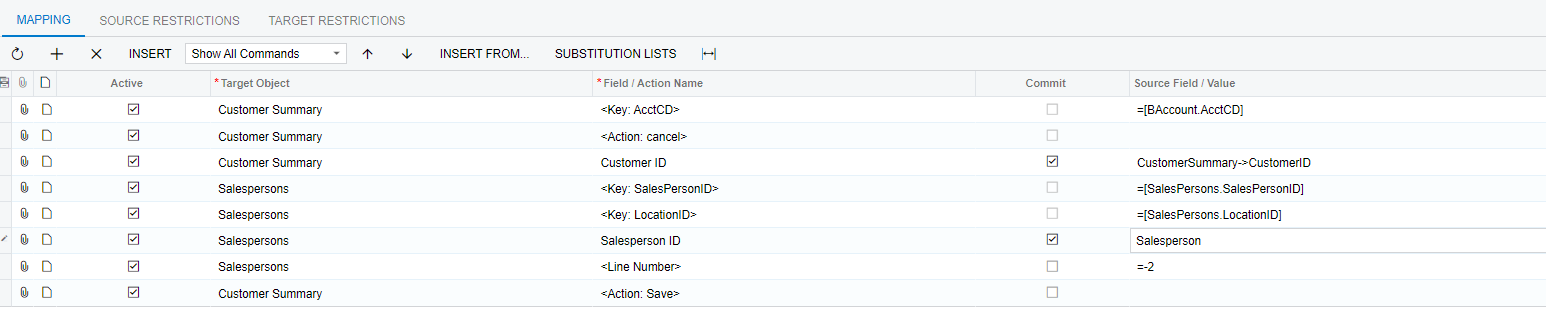
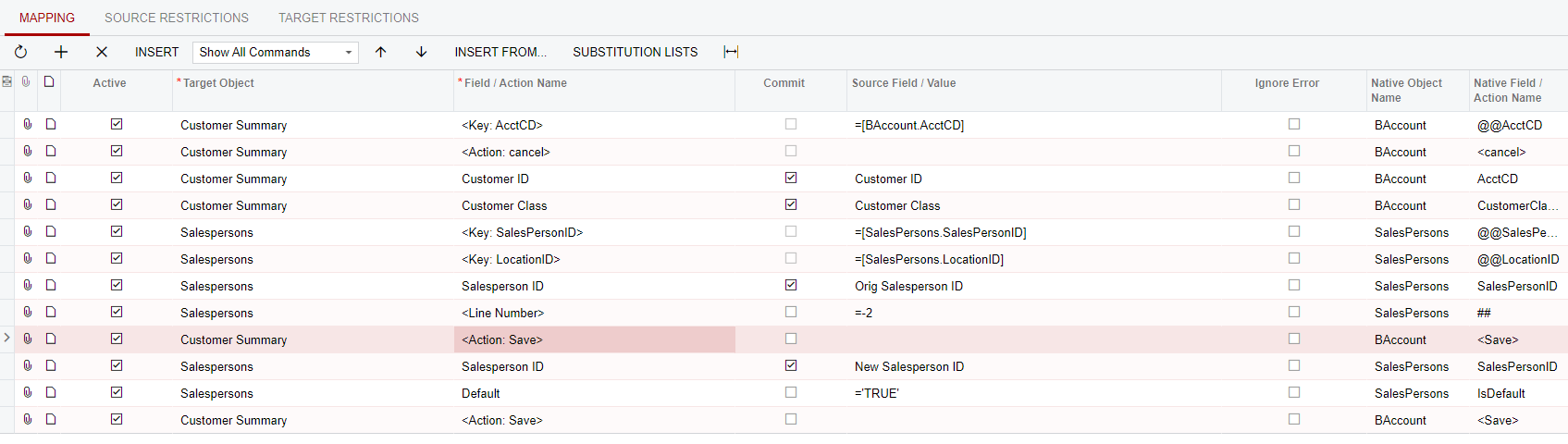
Thanks, everyone! I was actually able to get it to work in one import scenario by inserting a <Save> after deleting the original salesperson ID:


15 replies

riglesias
Acumatica Employee
Forum|alt.badge.img+2
  • Acumatica Employee
  • November 23, 2022

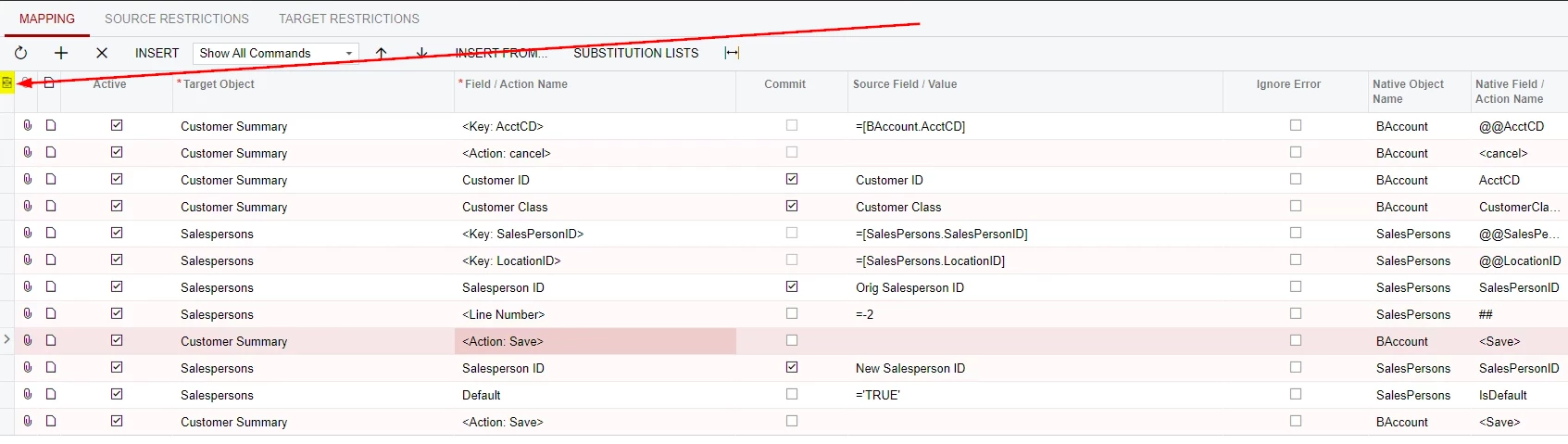
Hello Mike, to delete a line from a grid you need to map <Line Number> line to =-2. Here’s a link where you can find an example on how to map this type of scenario (min 57:58): 


Hope it helps. 


Kandy Beatty
Captain II
Forum|alt.badge.img+17
  • Captain II
  • November 23, 2022

Hi @mikeho 

Here is another thread that might help.


https://community.acumatica.com/import-and-export-scenarios-117/import-scenario-2020r-updating-salesperson-and-general-information-11947


@laura01  had a good solution on here as well. 


darylbowman
Captain II
Forum|alt.badge.img+15

Disregard; can’t delete


Forum|alt.badge.img
  • Author
  • Semi-Pro II
  • November 23, 2022

@riglesias - Am I correct in understanding that I’d need to set the Field/Aciton name to @@SalesPersonID in order to do this? Because Acumatica doesn’t allow me to do this (the row disappears after I type that into the field).


@kbeatty21 - I don’t see a solution from @laura01 on that post (only a question), can you clarify?


Kandy Beatty
Captain II
Forum|alt.badge.img+17
  • Captain II
  • November 23, 2022

Hi @mikeho 

I tagged her on accident. I meant to tag @riglesias. You need to do the -2 to delete then add the new salesperson. 


riglesias
Acumatica Employee
Forum|alt.badge.img+2
  • Acumatica Employee
  • November 23, 2022

@riglesias - Am I correct in understanding that I’d need to set the Field/Aciton name to @@SalesPersonID in order to do this? Because Acumatica doesn’t allow me to do this (the row disappears after I type that into the field).

Hello@mikeho 

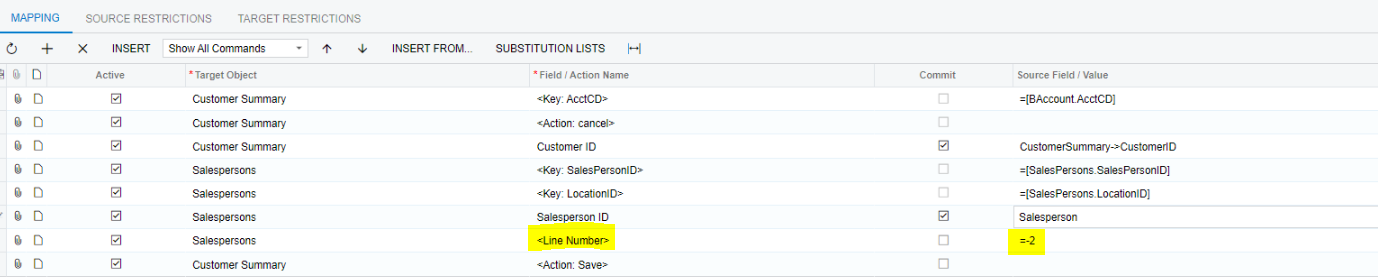
That is correct, the @@ notation is used to setup a custom key. In this case, since Salesperson ID it’s a key field the system automatically adds the key lines and you just need to map the field to the one from your data provider and map below <Line Number> mapped to =-2. Like this:


Forum|alt.badge.img
  • Author
  • Semi-Pro II
  • November 23, 2022

@kbeatty21 & @riglesias - I’ve added the -2 but now it’s not making any changes at all:


Just to clarify - are you saying I need to add a field for the original default salesperson ID that needs to be removed, and use the -2 to delete that ID first, then add the new Salesperson ID? If so, is there a way to do this without having to include the original salesperson ID and just have Acumatica delete what is there regardless before adding the new salesperson ID?


Forum|alt.badge.img
  • Author
  • Semi-Pro II
  • November 23, 2022

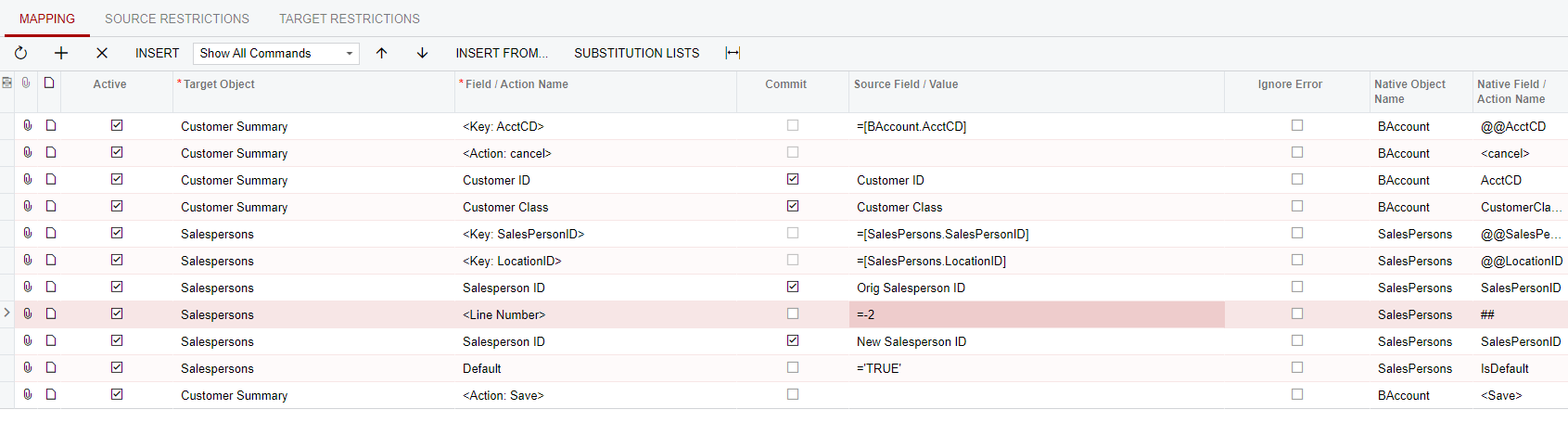
@kbeatty21 & @riglesias - I tried adding a separate line for the original salesperson ID (to delete) but when I run the import scenario it is just adding the new salesperson ID and setting it as default, leaving the original salesperson ID on the account as well:


riglesias
Acumatica Employee
Forum|alt.badge.img+2
  • Acumatica Employee
  • November 23, 2022

@mikeho I would recommend you to run two separate scenarios. One to add or set the default salesperson you need (this one should not have <Line Number> line mapped to =-2). Then another scenario to delete the salesperson/s you need. Notice that in the screenshot I sent <Line Number> line is mapped below Salesperson ID: 


Forum|alt.badge.img
  • Author
  • Semi-Pro II
  • Answer
  • November 25, 2022

Thanks, everyone! I was actually able to get it to work in one import scenario by inserting a <Save> after deleting the original salesperson ID:


Chris Hackett
Community Manager
Forum|alt.badge.img
  • Acumatica Community Manager
  • November 28, 2022

Thank you for sharing your solution with the community @mikeho !


  • Freshman II
  • November 21, 2025

I’m facing the same issue, but I’m quite new and I don’t understand why I dont see the last two columns. Is there any user permission or license type that I need to check? Can someone please enlighten me on this issue?

Thank you


Forum|alt.badge.img
  • Author
  • Semi-Pro II
  • November 21, 2025

@meet1504 you may need to open the Column Configurator and add those columns if you wish to view them.


  • Freshman II
  • November 23, 2025

Thank you ​@michaelho 😄


  • Freshman II
  • November 23, 2025

How can I modify the above import scenario to delete the existing Salesperon and add the new Salesperson while keeping my data format same. My current data format includes Customer ID, Customer Name, New Salesperson ID, Salesperson Name, Location, IsDefault. I just want to delete the existing one and replace the new one. Currently, the import scenario makes the new salesperson default, but I want to delete the salesperson. What changes I should do to the import scenario?