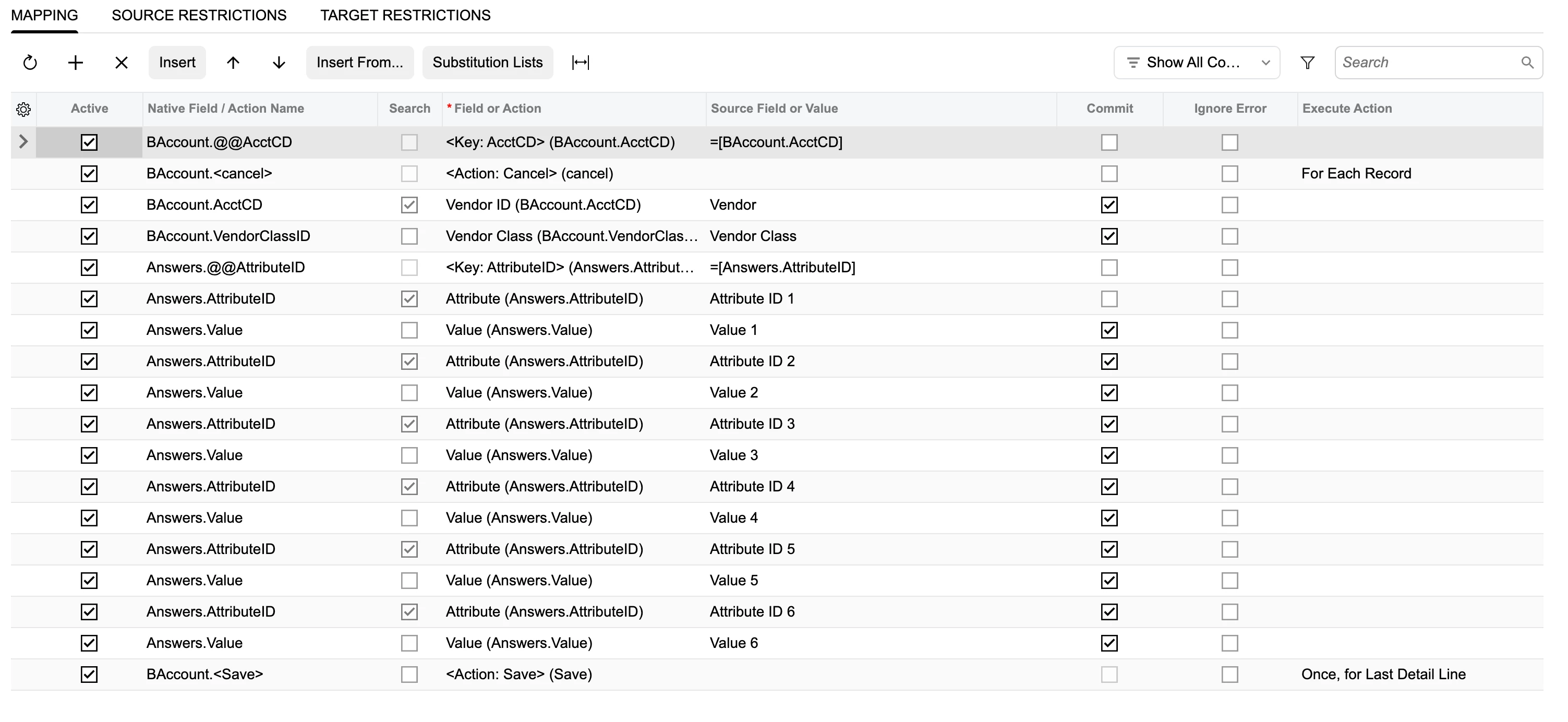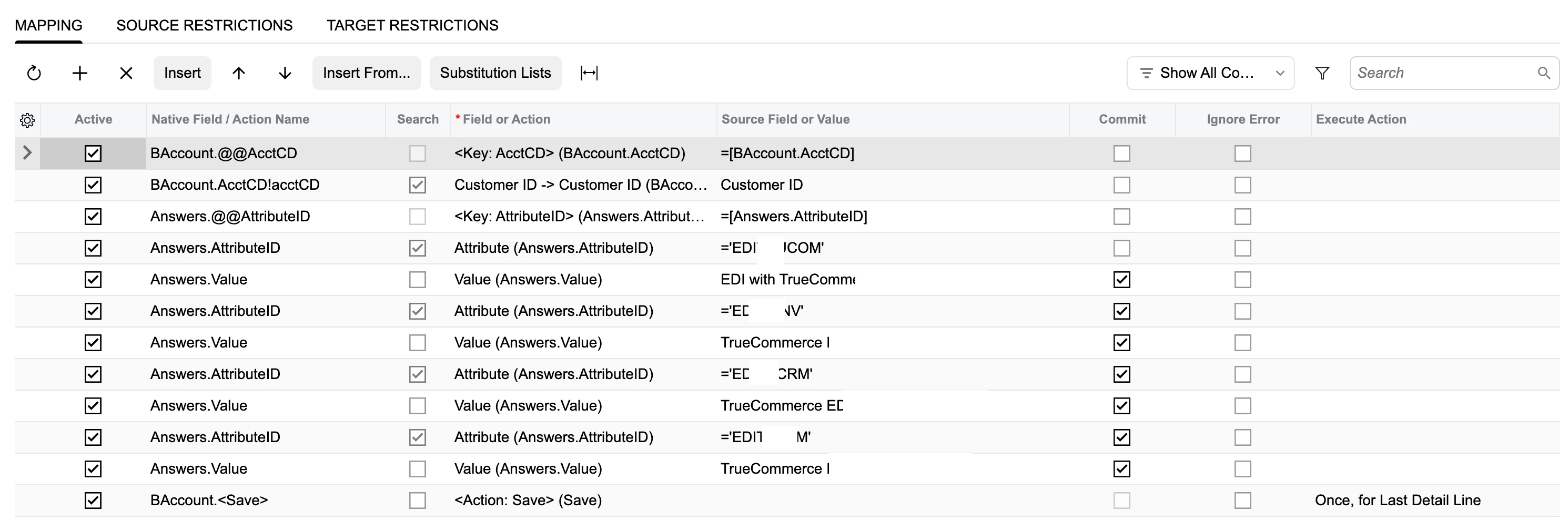



Hi All,
In the olden days with the classic ui, I would take this approach in my import scenarios to adding a value to a screen where I have added an attribute.

Suppose I added an attribute with the modern UI. How is this done?
Hi All,
In the olden days with the classic ui, I would take this approach in my import scenarios to adding a value to a screen where I have added an attribute.
Suppose I added an attribute with the modern UI. How is this done?
Best answer by Steve Milner
@PatrickBacon, which way you map it depends on how TRAVELZONE got onto the form.
If it shows on the Attributes tab because it comes from the class, Harshita's layout is the answer. The Modern UI scenario still uses the same Answers.AttributeID and Answers.Value pairs you used in Classic.
If you added it straight to the form through Settings > UI Configuration > Manage User-Defined Fields, it's a user-defined field, and the scenario doesn't put those in Answers. It lists it as its own field under the same object as the form's header fields, using the attribute's description as the name. The native field name is Attribute plus the attribute ID, so AttributeTRAVELZONE. Typing either one into the Field or Action lookup's search finds it. Here's a user-defined field on Leads in 2026 R1:
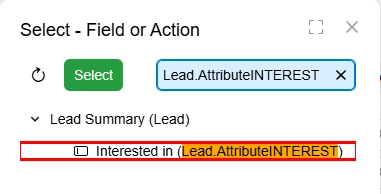
Map your source column to that one field. There's no AttributeID/Value pair to set up.
Dan's best answer on an older thread says the same thing: https://community.acumatica.com/import-and-export-scenarios-117/user-defiend-fields-using-import-scenario-in-invoice-and-memo-fields-11230
Enter your E-mail address. We'll send you an e-mail with instructions to reset your password.