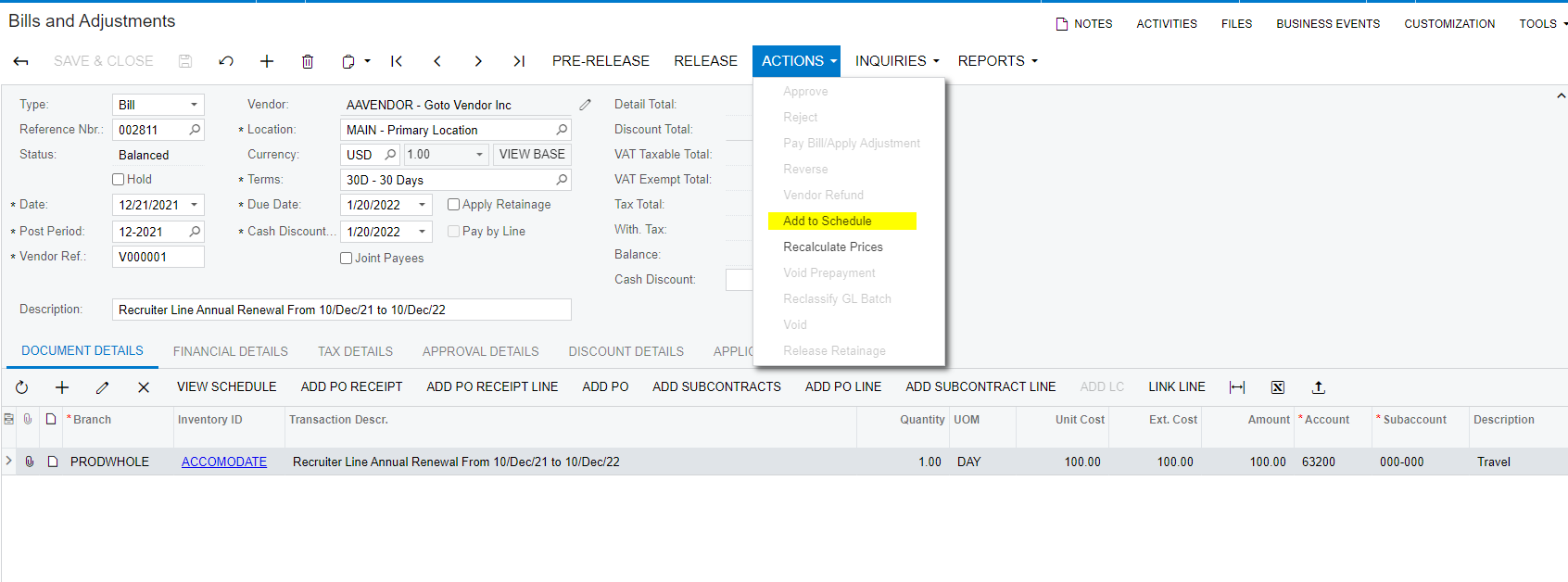
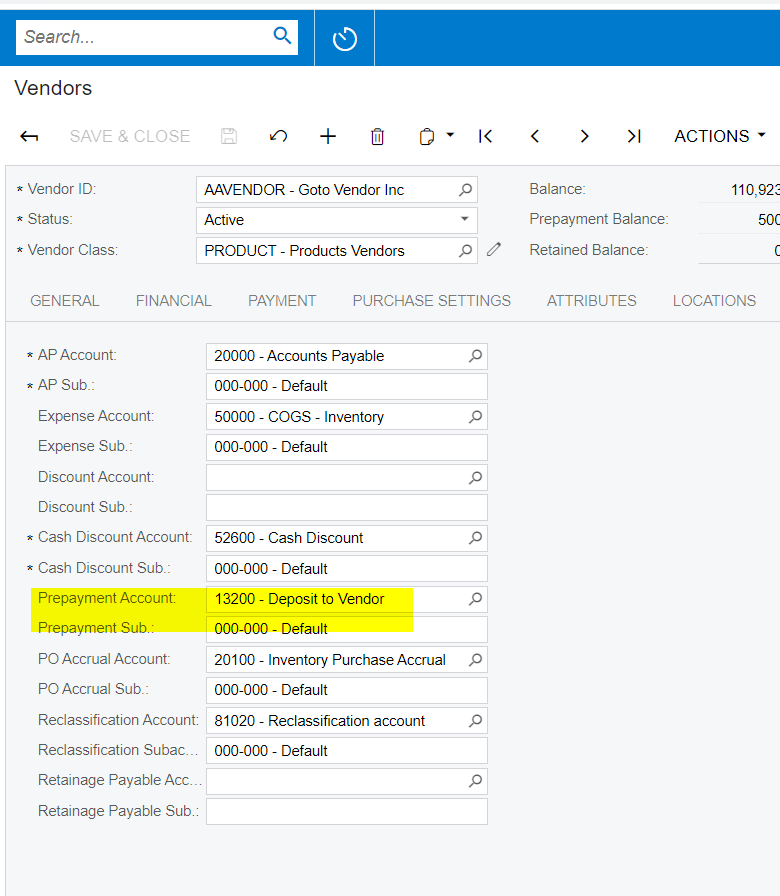
Our company purchased a service that has a validation for 1 year, from DEC 10 2021 to DEC 10 2022 (as shown in the picture below). And I want to record the amount into “Paid in Advance” account, then amortize it monthly.
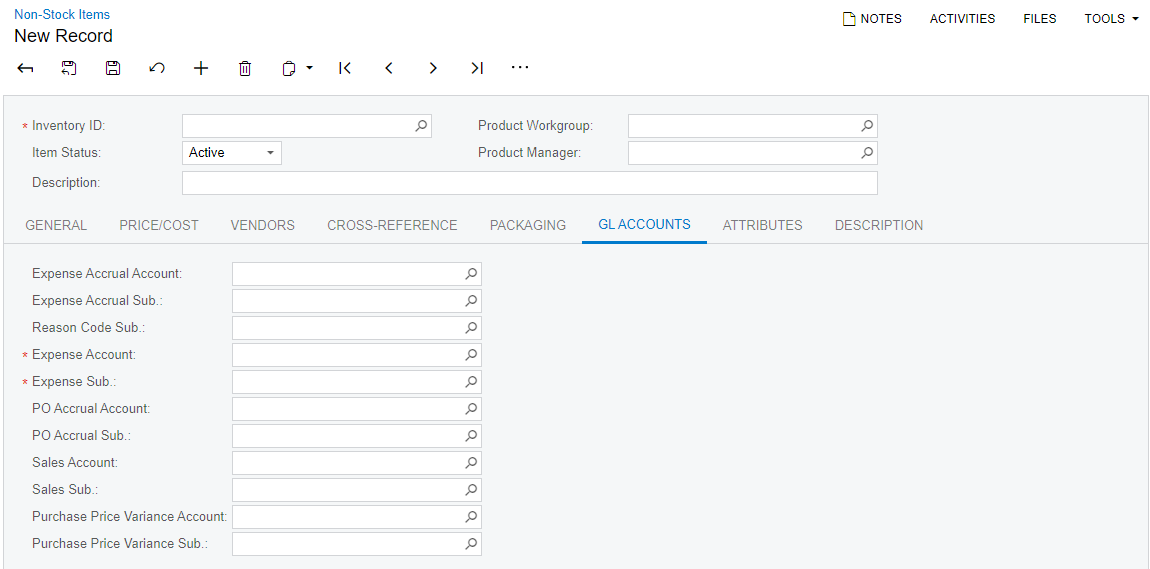
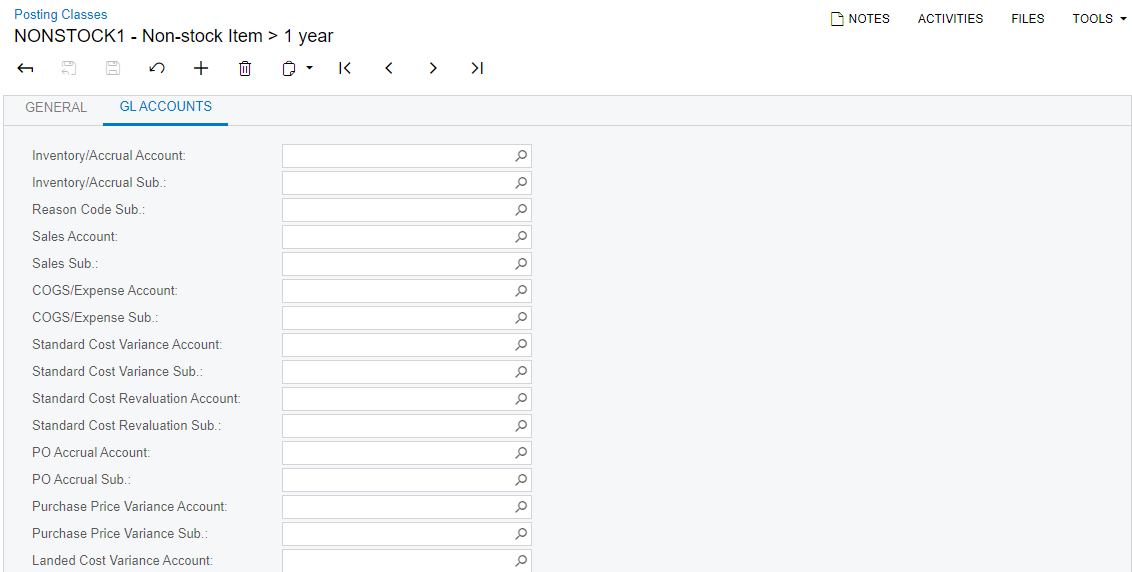
The problem is, I couldn’t find anywhere to set it. I tried to set it by creating a new “Non-stock Item” or a new “Posting Class” (shown below), but I’m not sure where to key in the “Paid in Advance” account. Could anyone please tell me how to do it, or if I’m using the wrong form here? Many thanks.
Best regards,
Shuang.
Best answer by ChandraM
Hi @shuang57 Here is the steps to create a recurring transactions in payables. Kindly review and let us know for any queries.
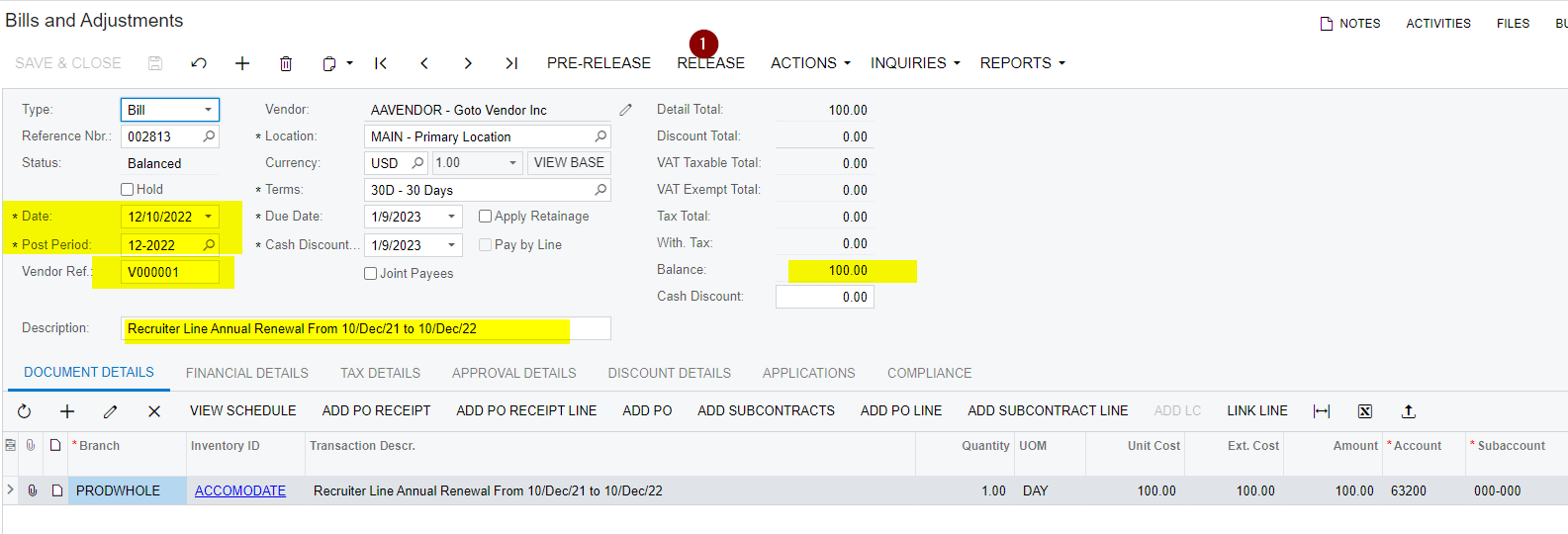
Create Bill. Do not release it. This will be the source template for Recurring Bills every month
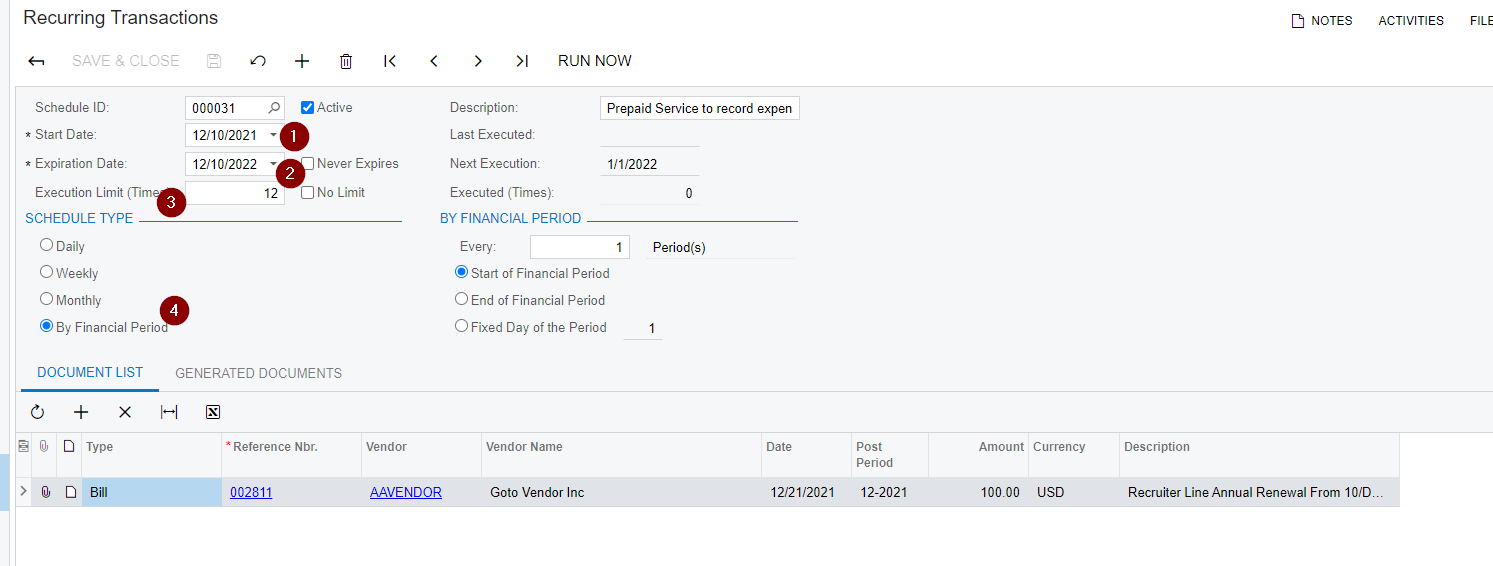
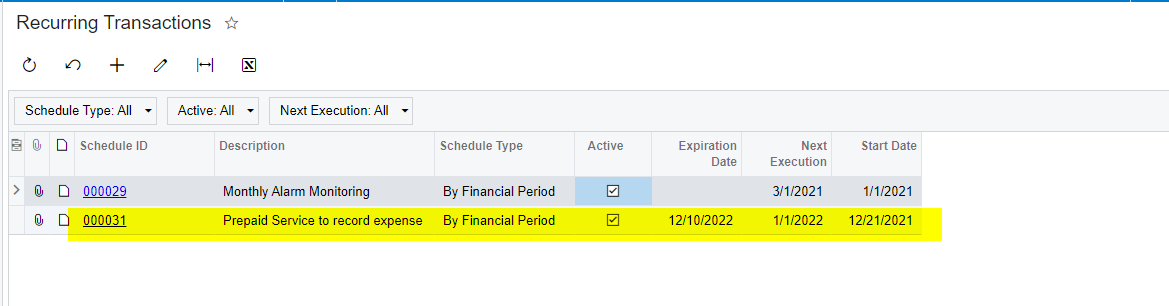
Add Schedule to convert the above AP bills to recurring
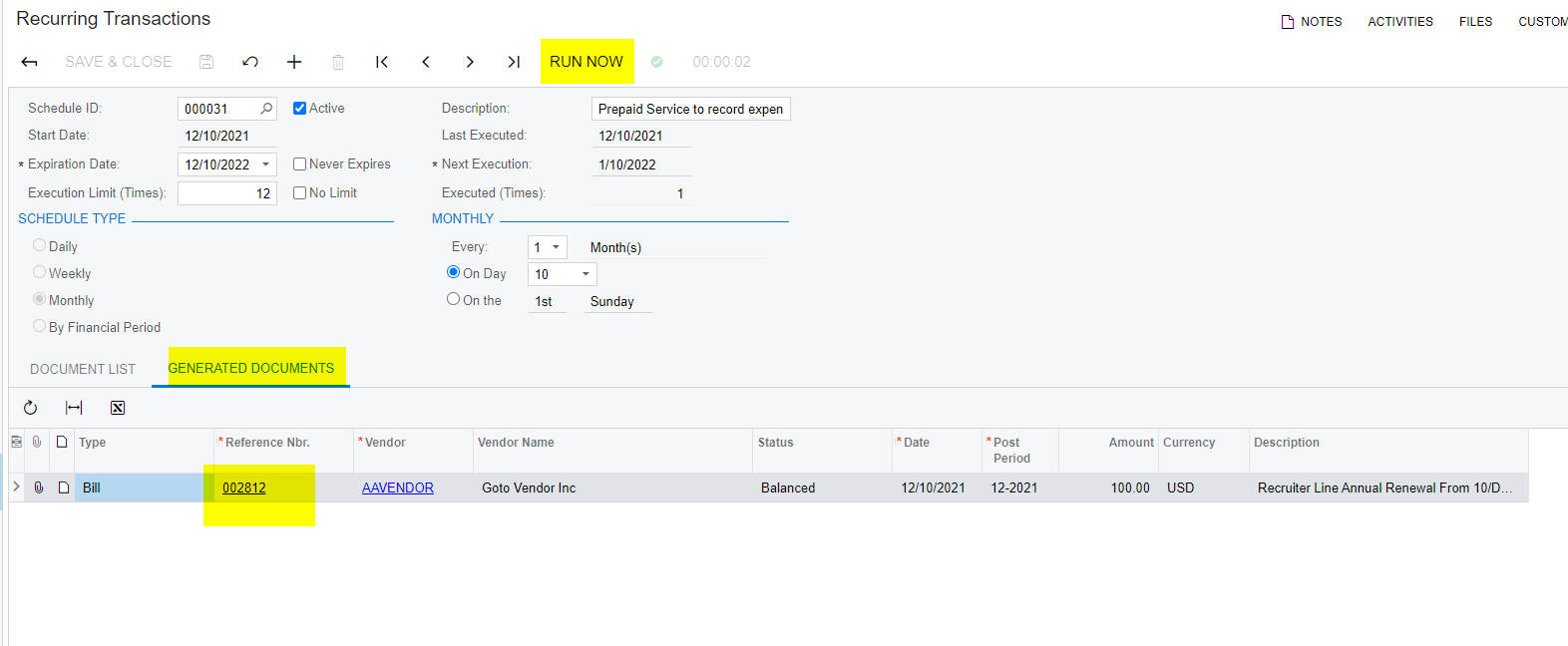
Every Month. to generate the recurring bill, goto the Recurring Transaction screen and selected the transaction to run/generate the bill for the month. Open recurring transaction and click on “Run Now”. This process can be automated in Automation schedule to run every month.
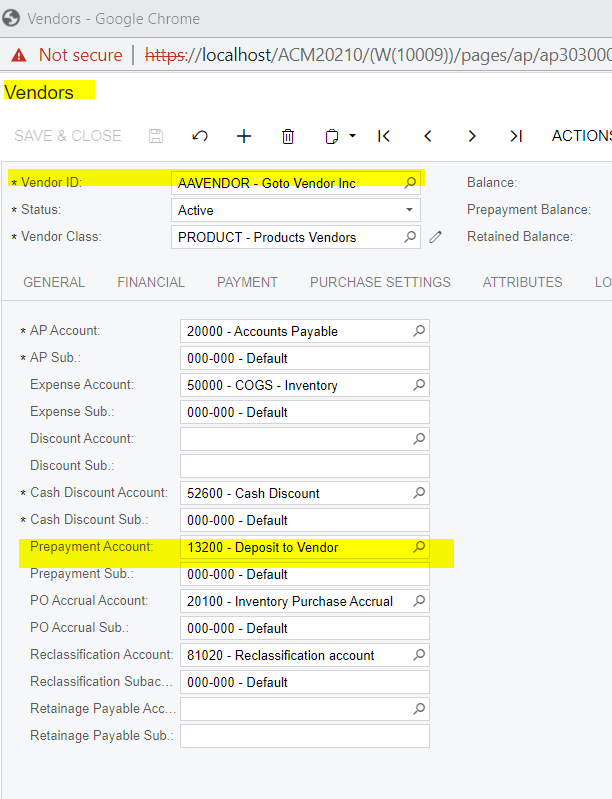
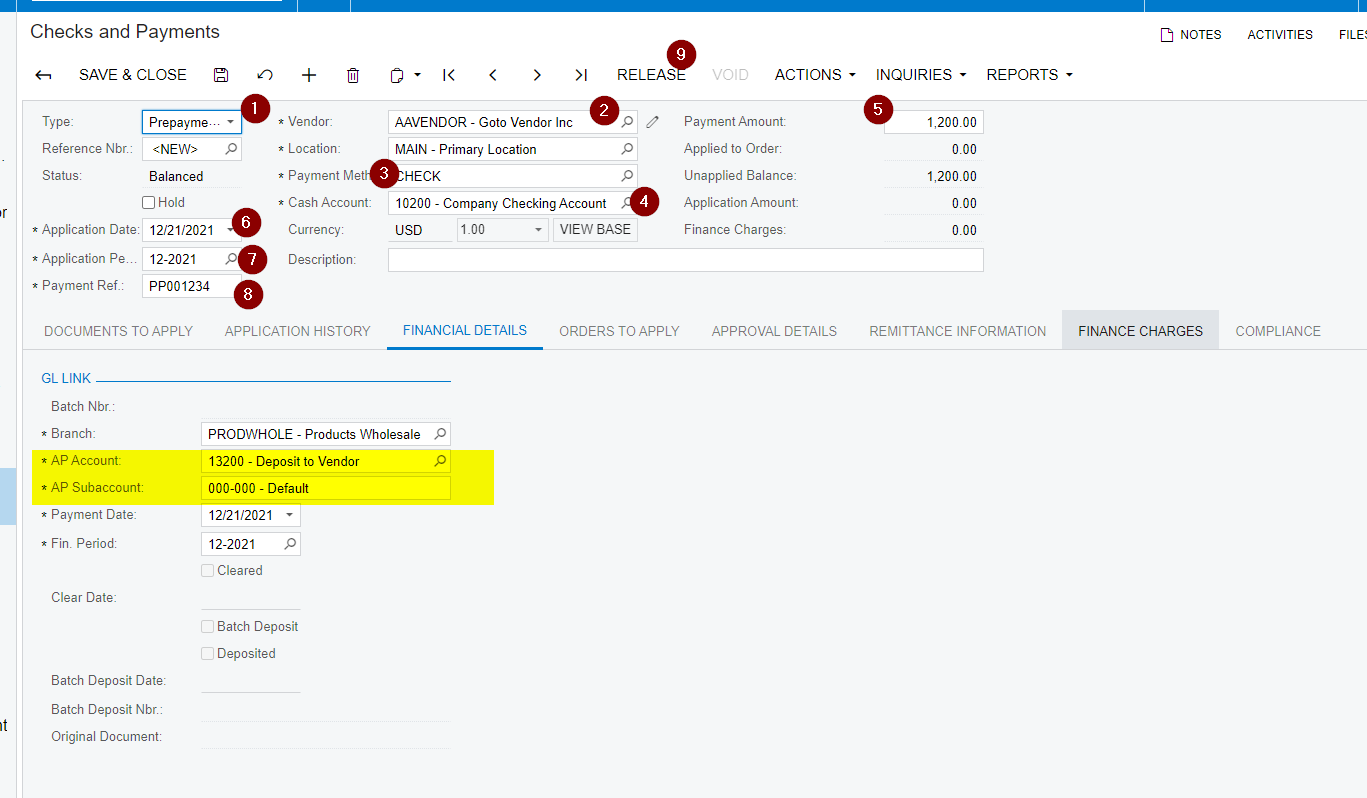
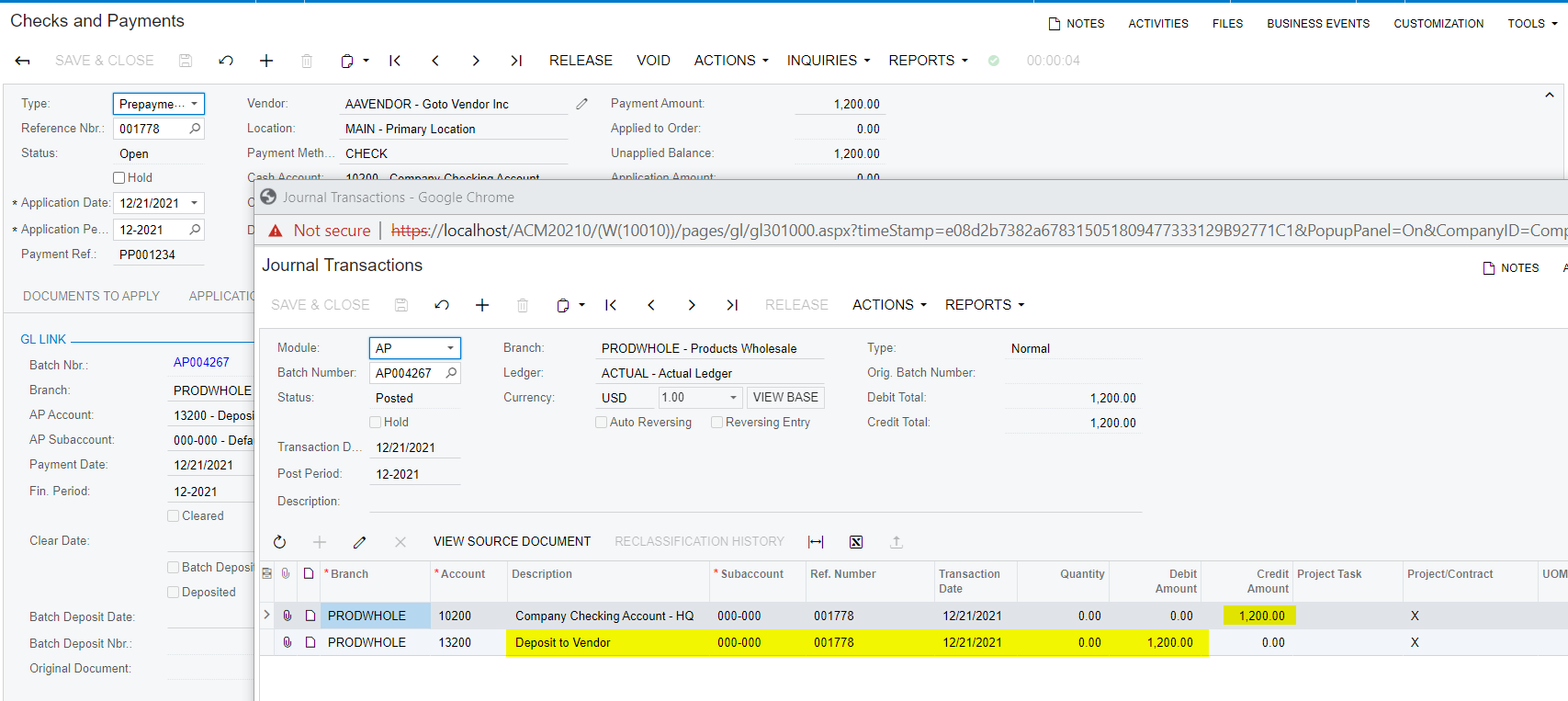
The new Bill generated can be released and applied to the Prepayment that created before.
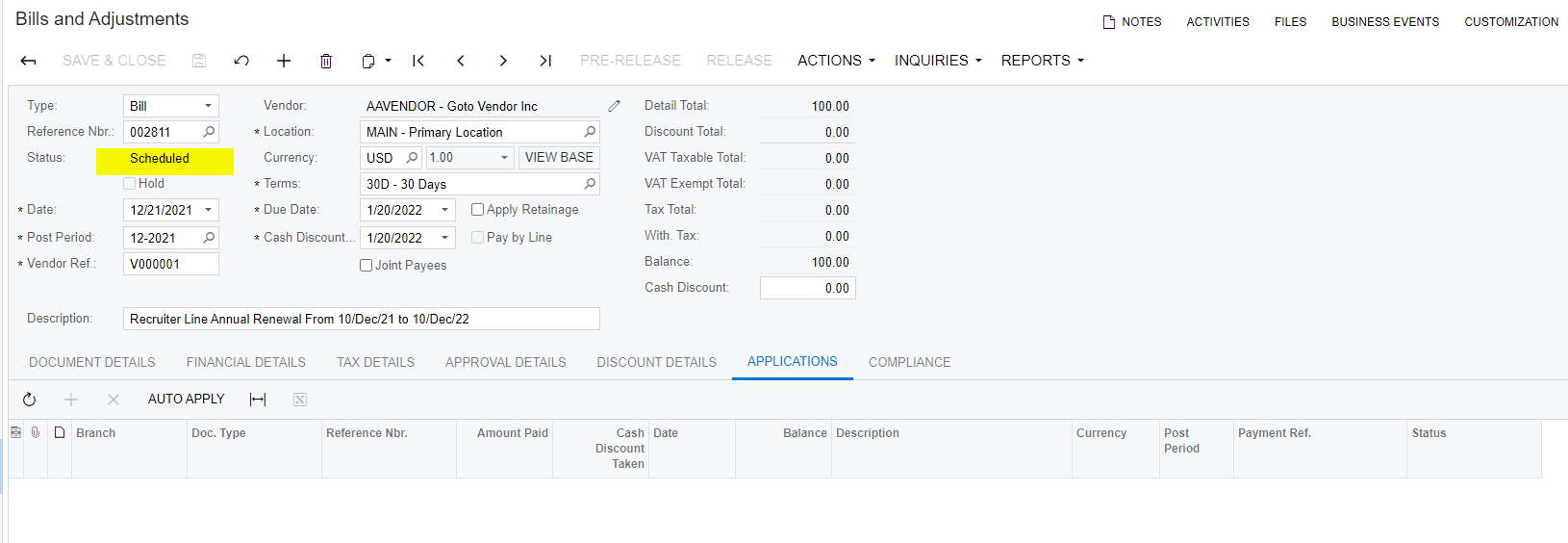
Note: The original AP bill template will show as Scheduled. (Screenshot below)
Hi @shuang57 If this is very frequent scenario, then you can have the Deferred Revenue Module in Acumatica. This Module takes care of both Deferred revenue(AR) and Expense(AP).
Hi @ChandrasekharM Thank you for your answer for different scenarios. For now it is the only case I have, and I’d appreciate it if you could specify on how to generate a Prepayment and then a recurring AP Bill. For the 4 steps you mentioned, could you please reply with an exemple using screenshot demonstration? Thank you very much.
Hi @shuang57 Here is the steps to create a recurring transactions in payables. Kindly review and let us know for any queries.
Create Bill. Do not release it. This will be the source template for Recurring Bills every month
Add Schedule to convert the above AP bills to recurring
Every Month. to generate the recurring bill, goto the Recurring Transaction screen and selected the transaction to run/generate the bill for the month. Open recurring transaction and click on “Run Now”. This process can be automated in Automation schedule to run every month.
The new Bill generated can be released and applied to the Prepayment that created before.
Note: The original AP bill template will show as Scheduled. (Screenshot below)
Deferred expense feature works better in this scenario. I did notice that @ChandrasekharM has mentioned this on this thread.
Here is how it works.
Lets take Insurance as an example, paid for full year on 1st Jan
Expense need to be spread across 12 periods (equal installment in this case)
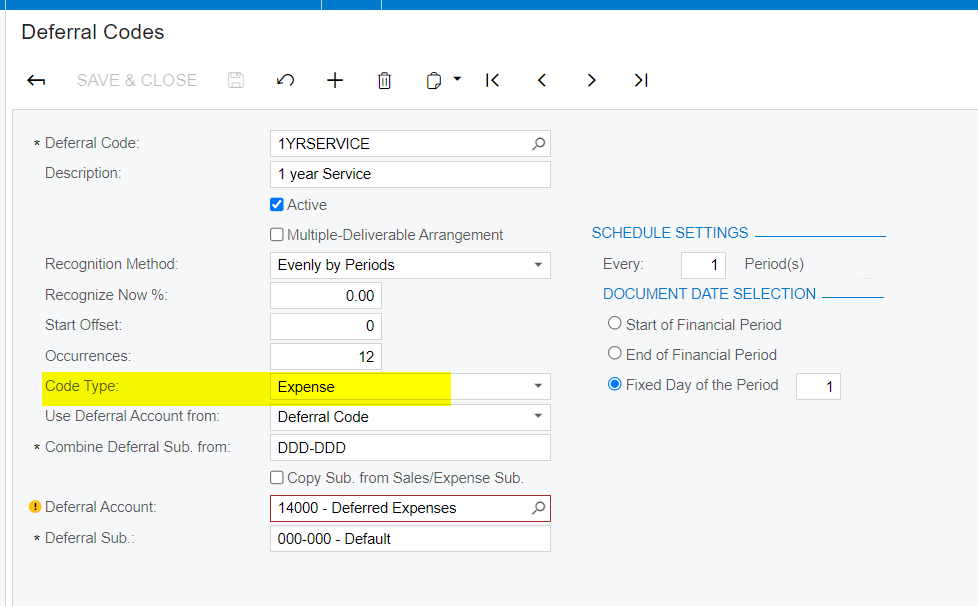
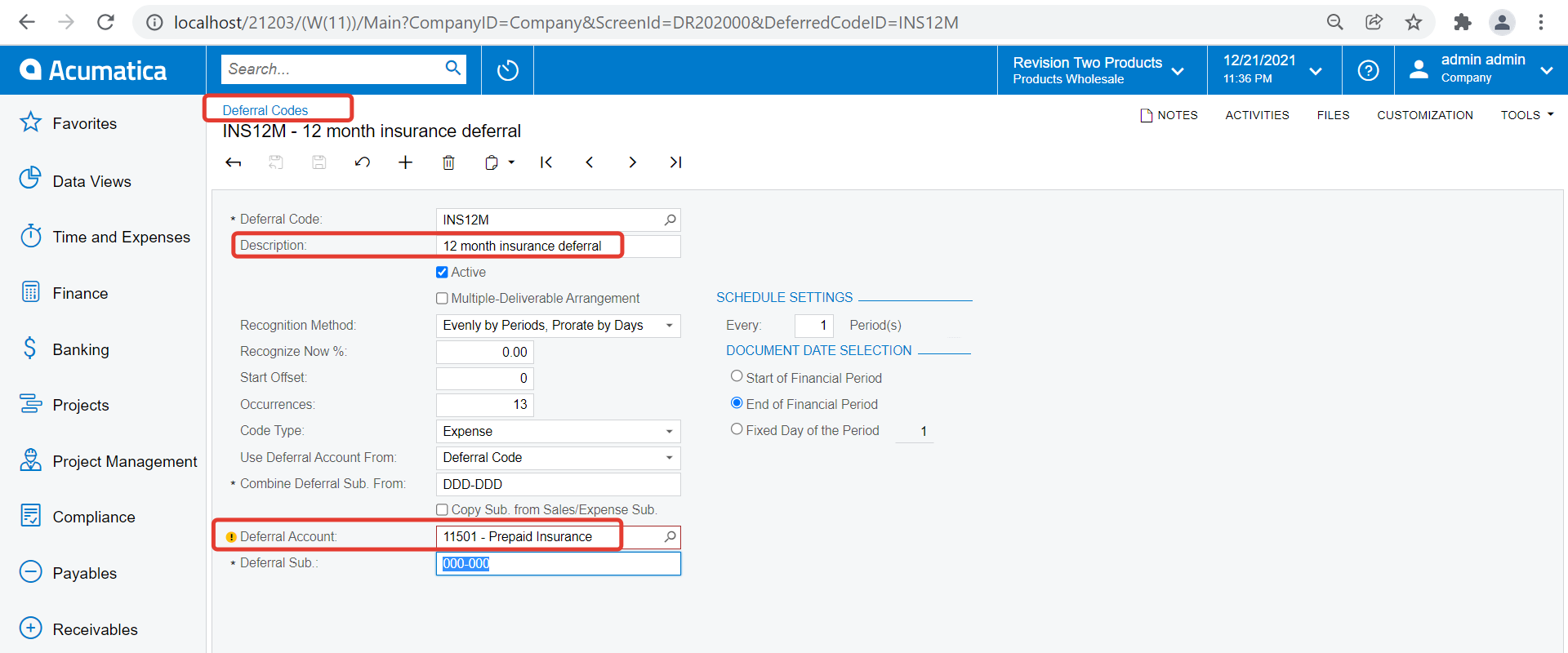
Create a Deferral schedule for Insurance expense
Note I have setup an asset account ‘Prepaid insurance’ on the schedule
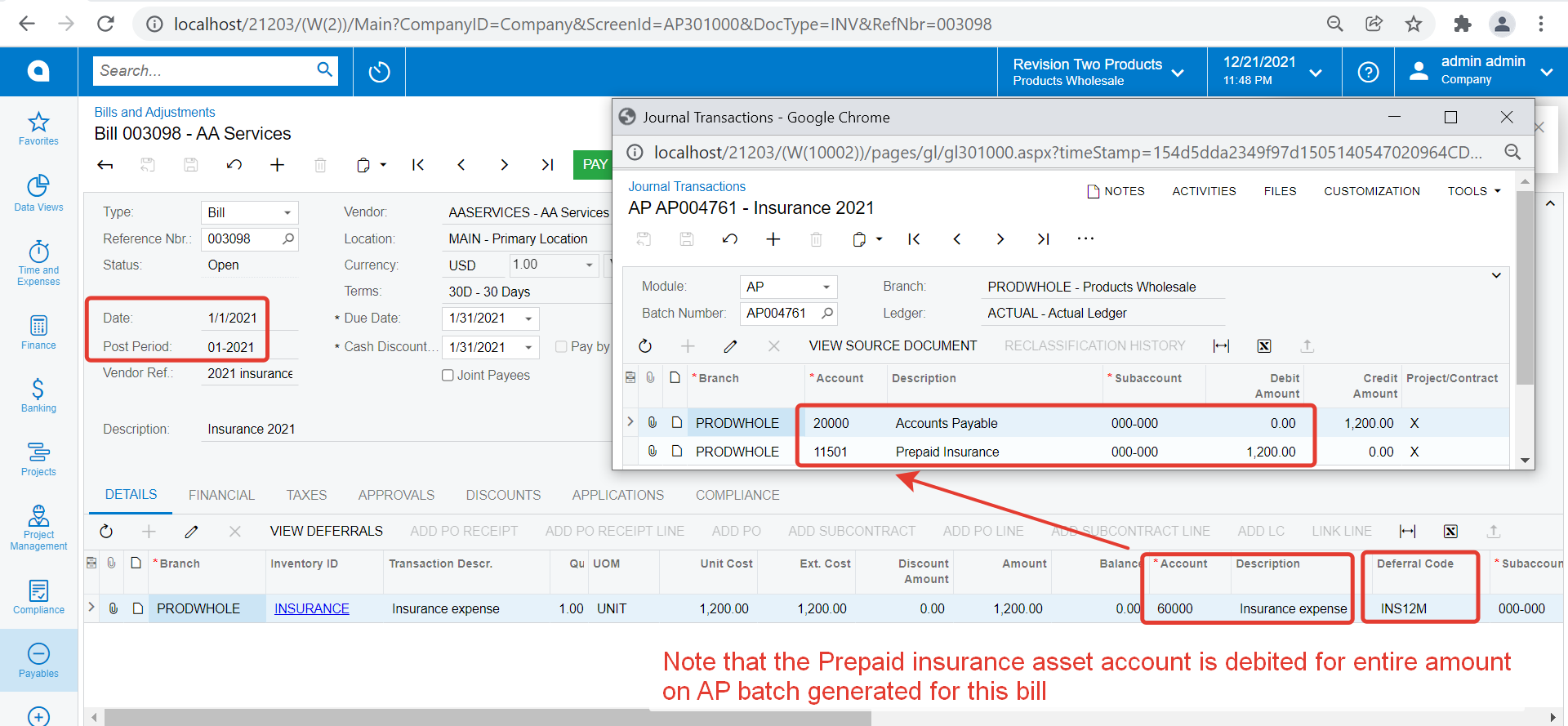
Create an AP bill for Insurance expense. Select deferral schedule code on detail line
On release of AP bill, it debits Prepaid Insurance asset account instead of Expense account linked to the non stock item I have selected for Insurance on AP bill
Note the amount is debited to ‘Prepaid insurance’ account linked to the deferral schedule and not above Insurance expense account
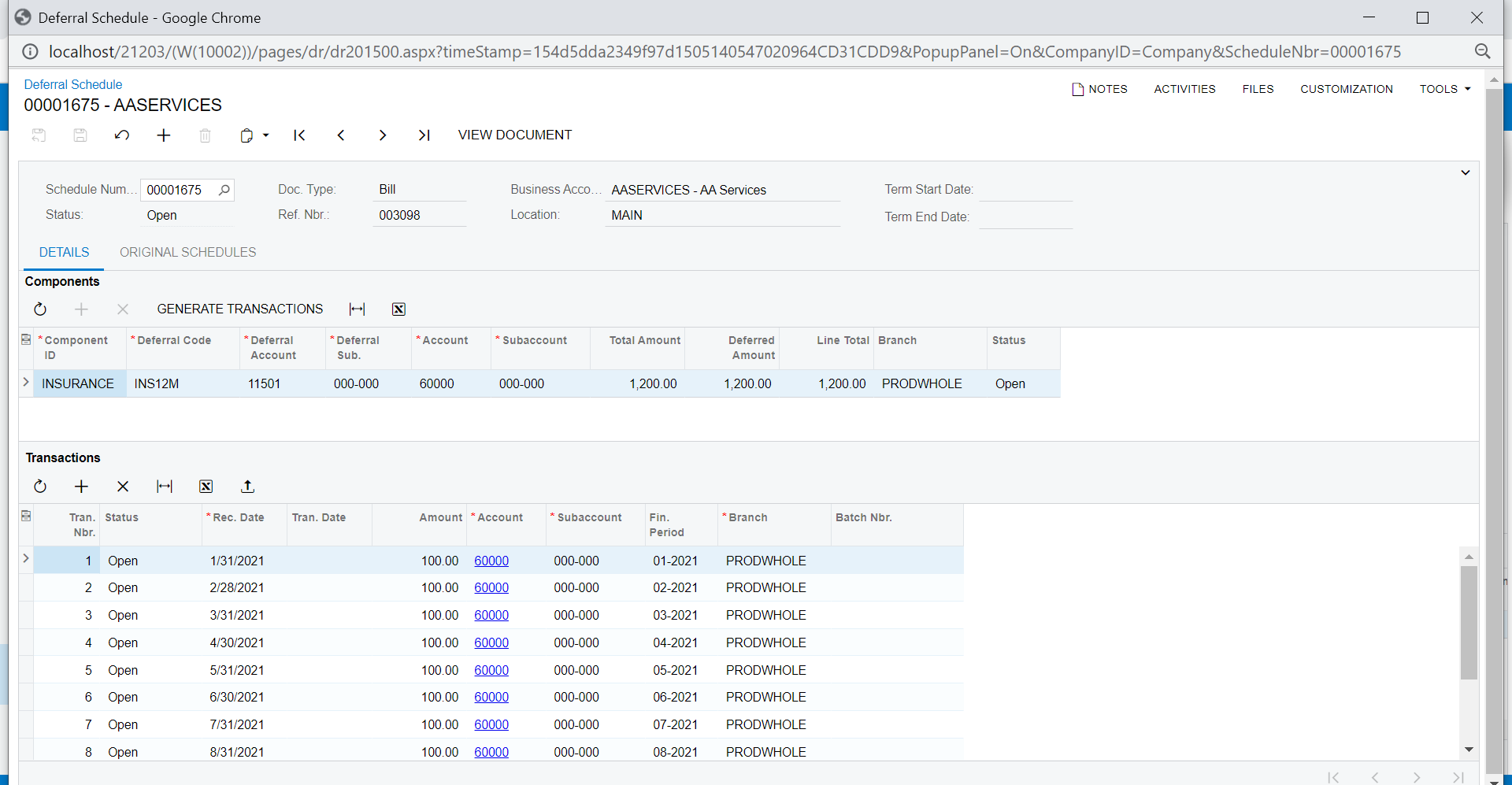
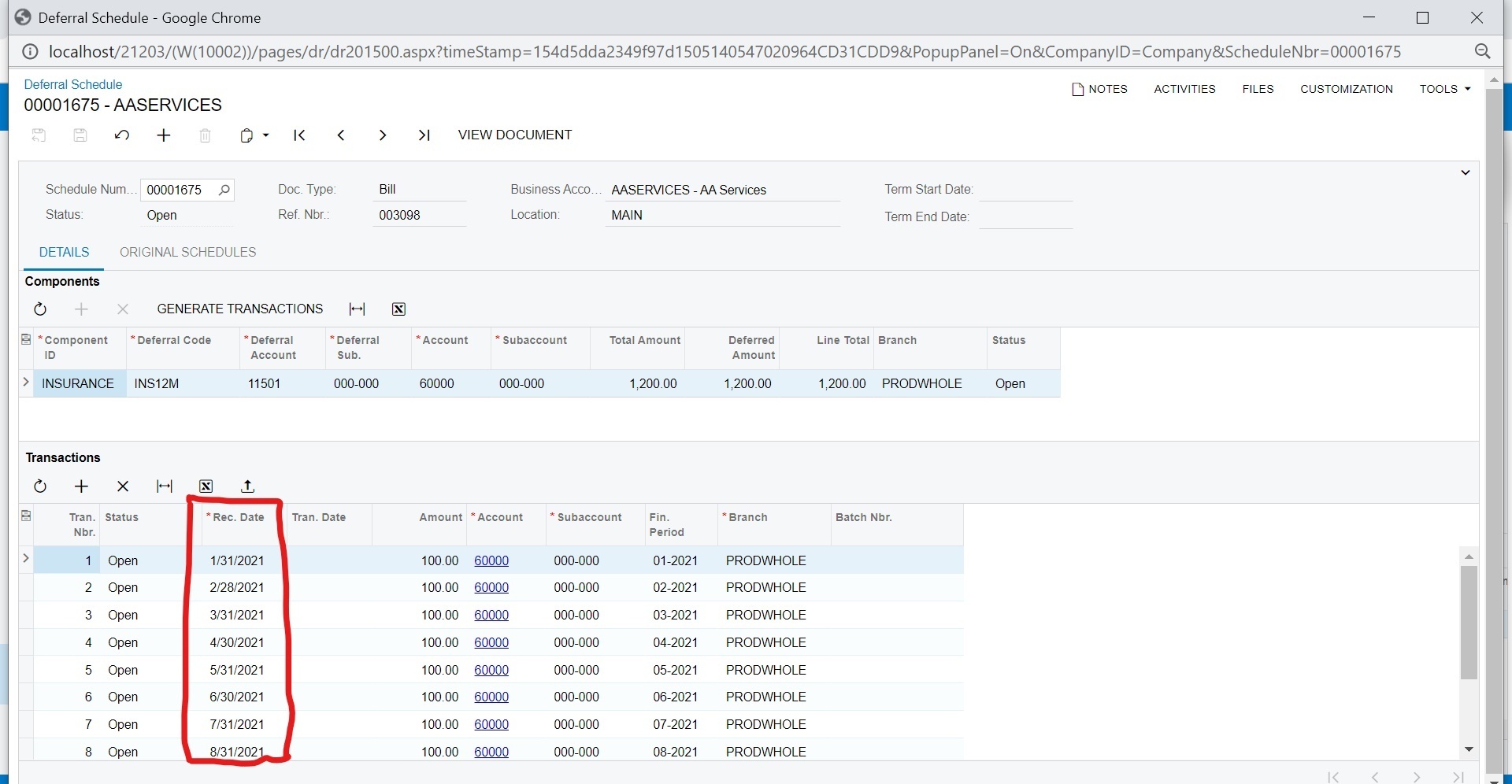
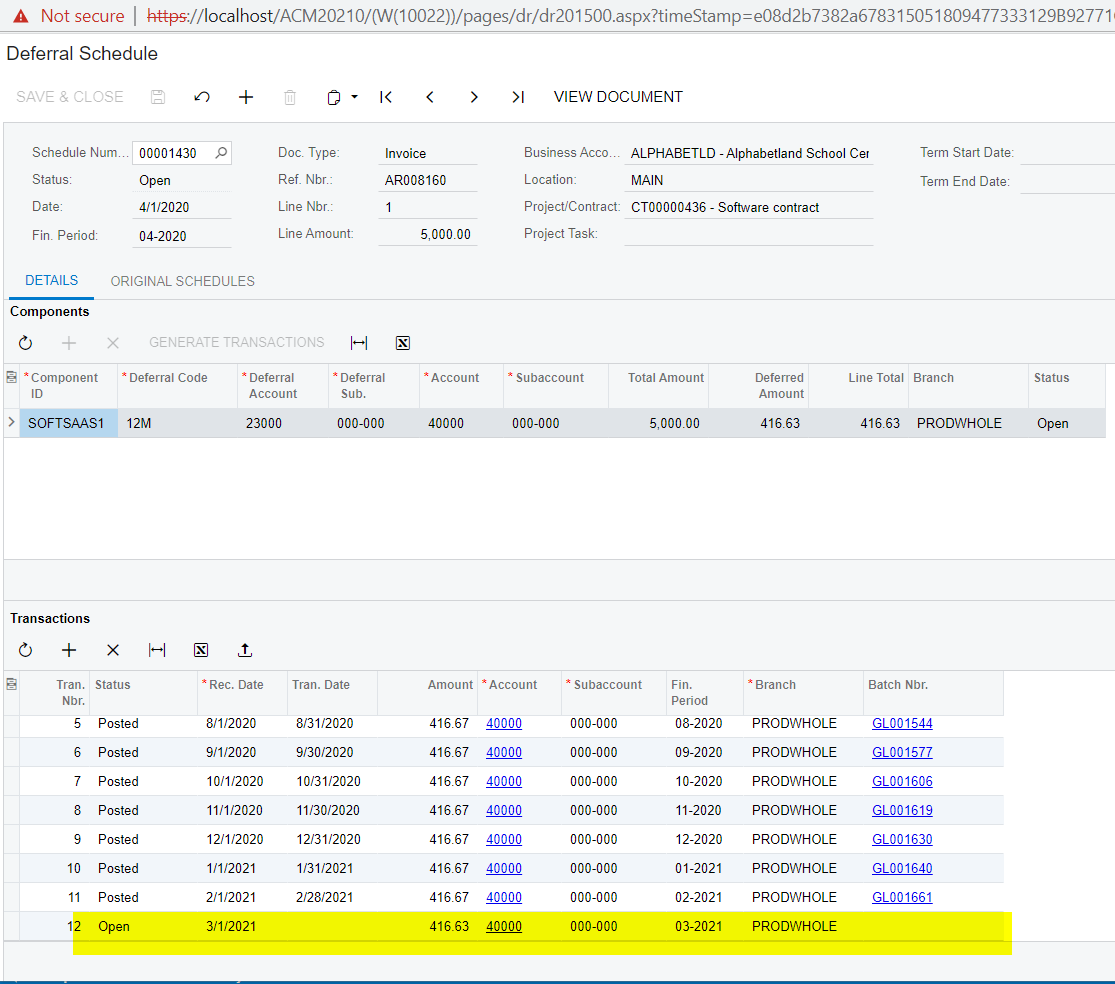
Click on ‘view deferrals’, it opens the schedule and reflects the date and amount that would be moved to ‘insurance expense’ account.
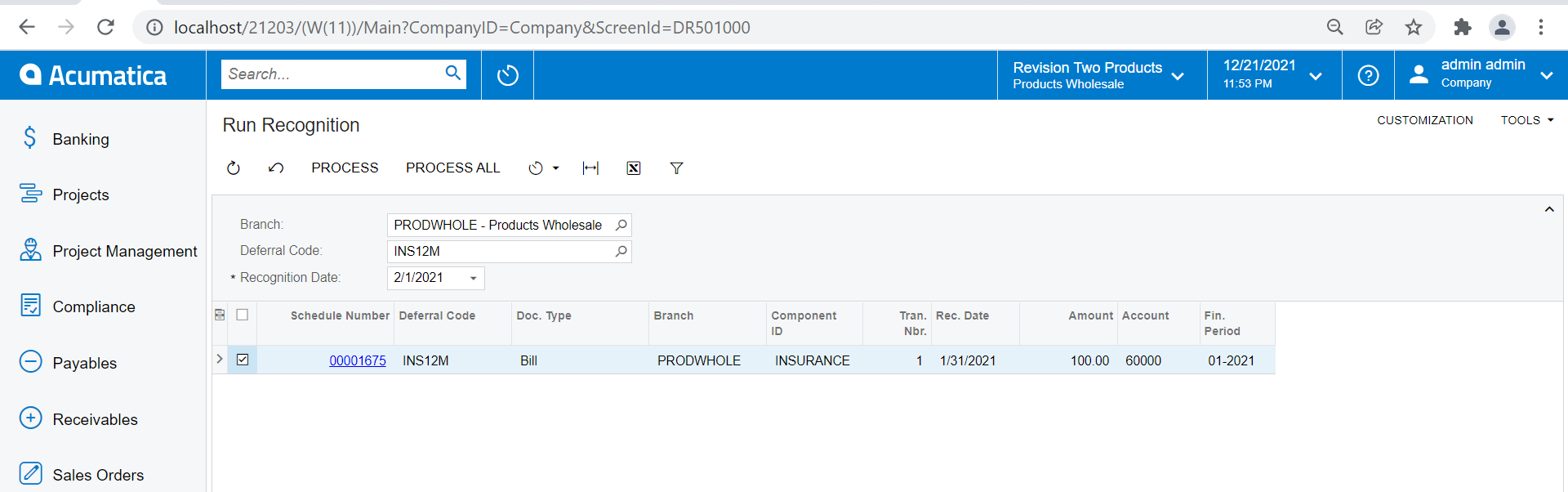
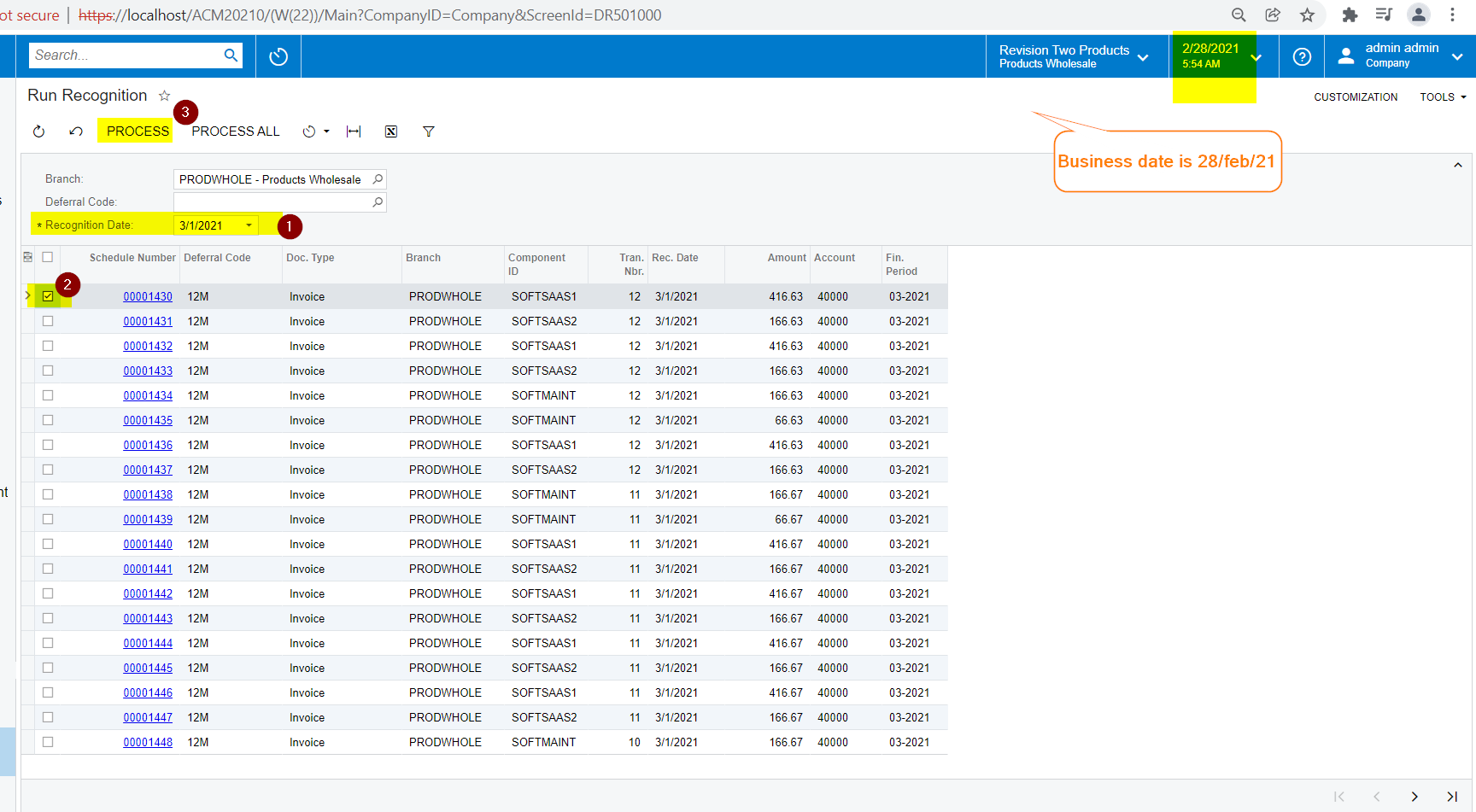
Run recognition for each period
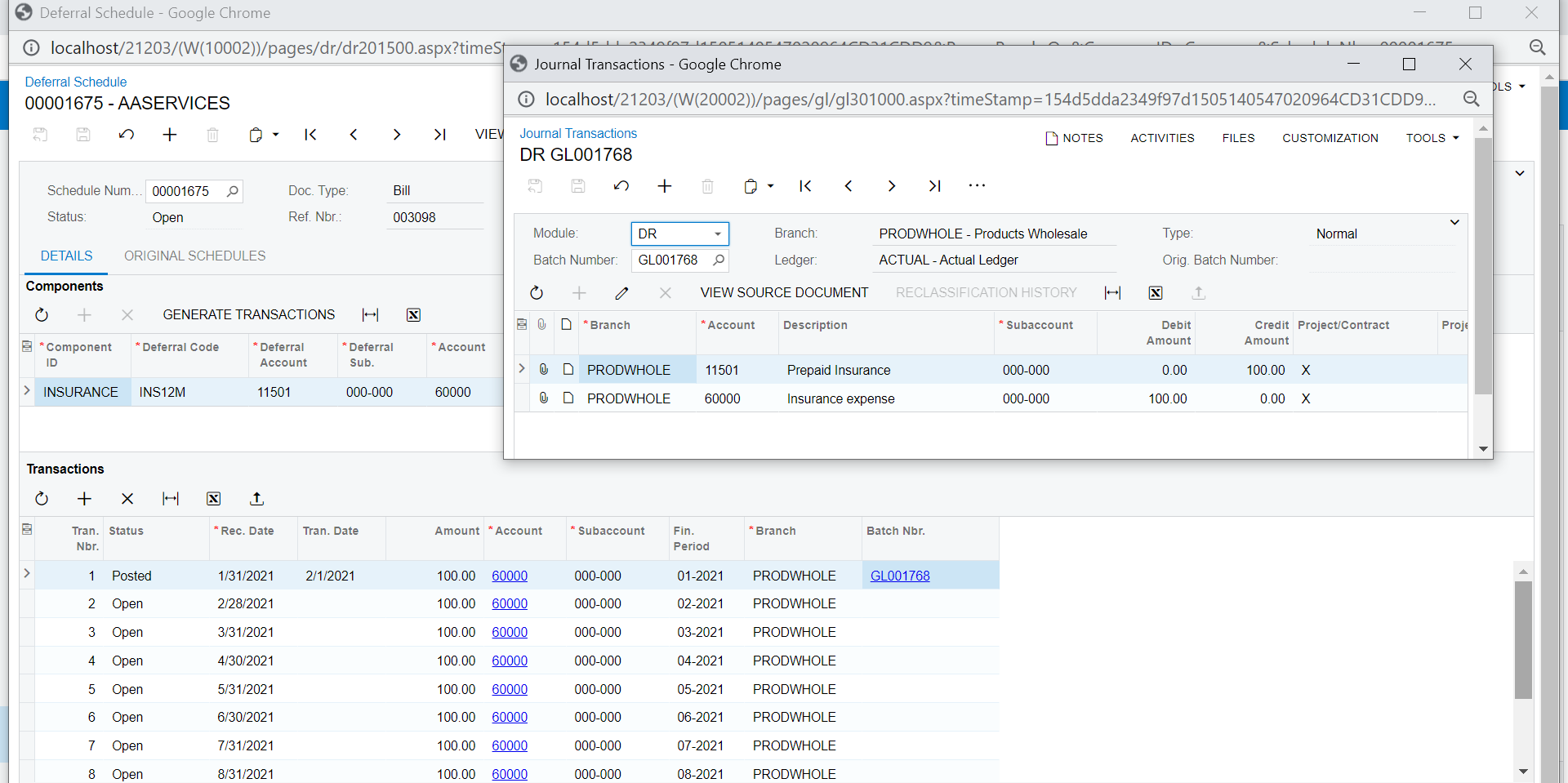
Here is the document linked GL batch generated to recognize the expense for first period
Thanks a lot for the help @ChandrasekharM@vkumar. I can get the logic for both methods.
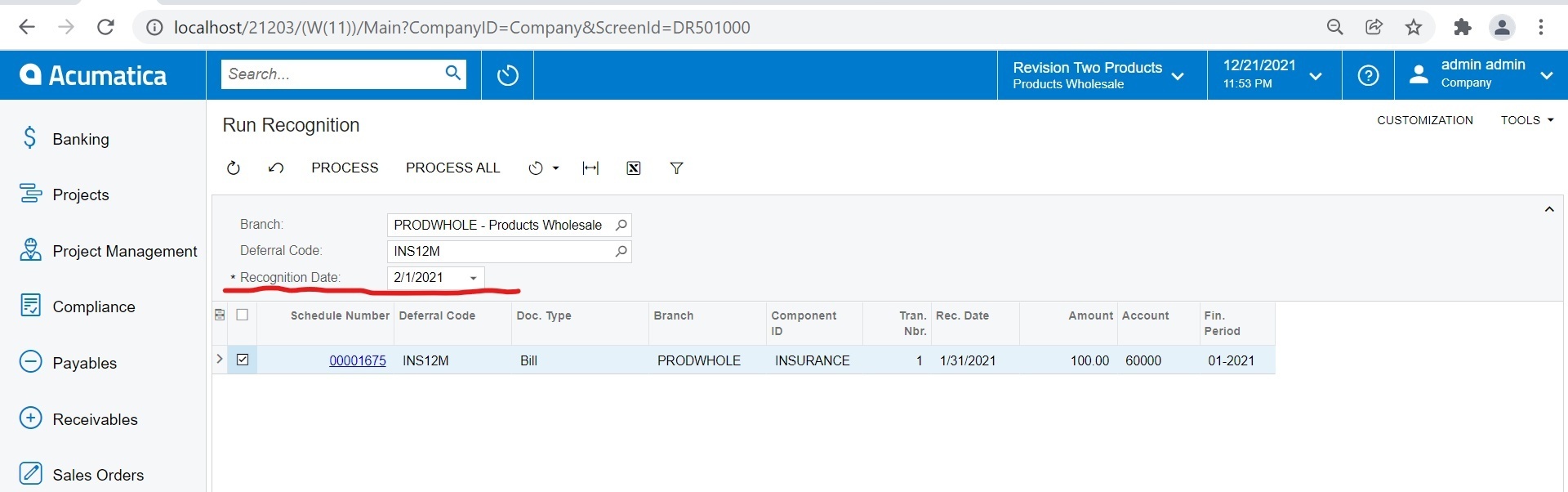
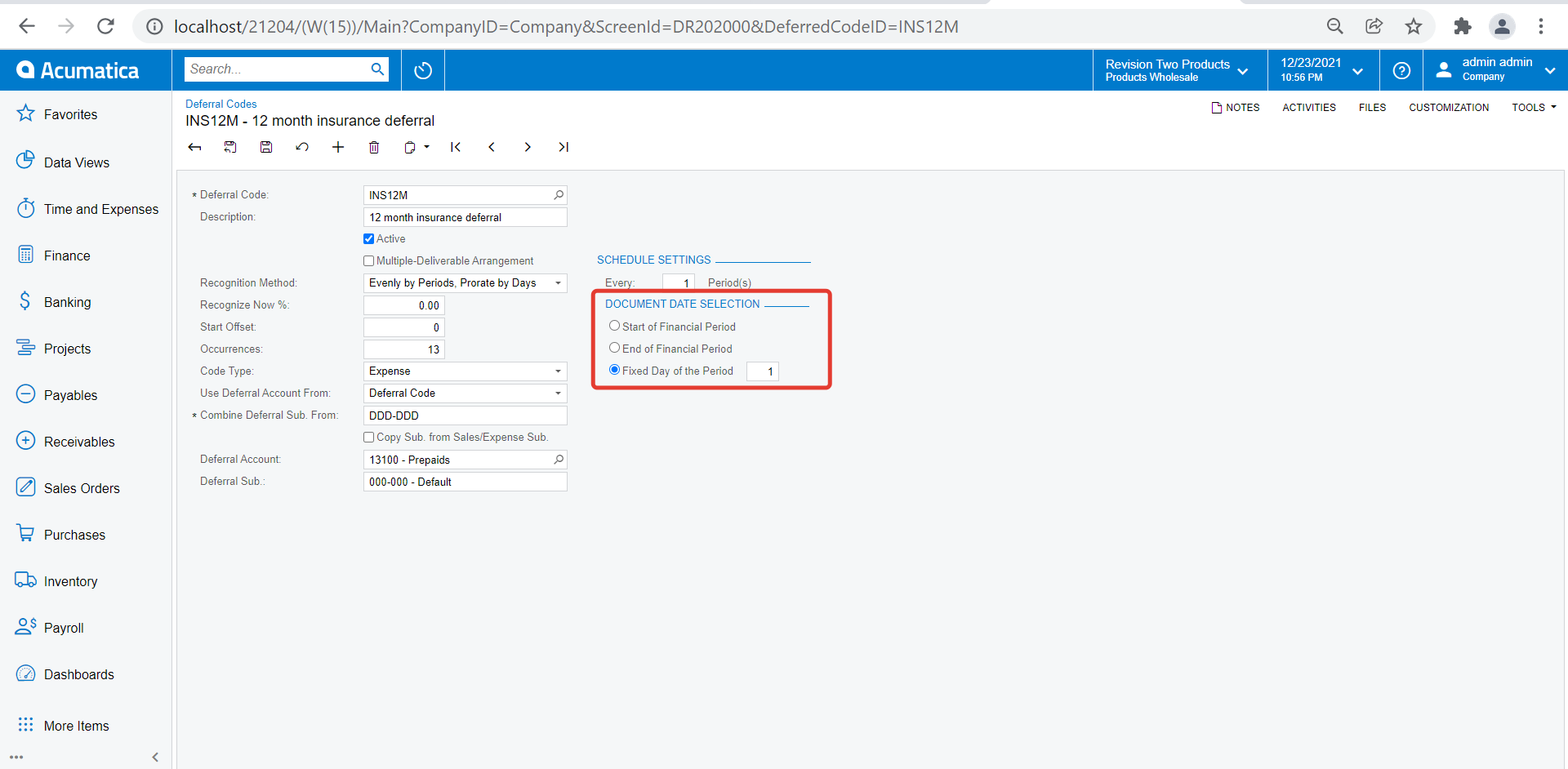
Just another question for @vkumar pelase. I noticed that you ran recognition on the date of FEB 1. But is it possible to set this date at JAN 31(could I run recognition at the end of each month/period)? Becasue in the Deferral Schedule page I saw the Rec.Date is JAN 31, FEB 28...so I’m a bit confused here. Thanks again.
You can select the method of date selection for deferral document generated on Deferral code profile. Its not possible to select Jan 31st for recognition document generated for Feb. Here are the options available :