Solved

How to Configure GST tax (Jersy)

  • September 22, 2026
  • 2 replies
  • 19 views

Hello!

I have a scenario where I am required to calculate GST 5% applicable for Jersey Island. 

Can someone please let me know how to configure GST in Acumatica. 

Thank You

Best answer by nickcerri32
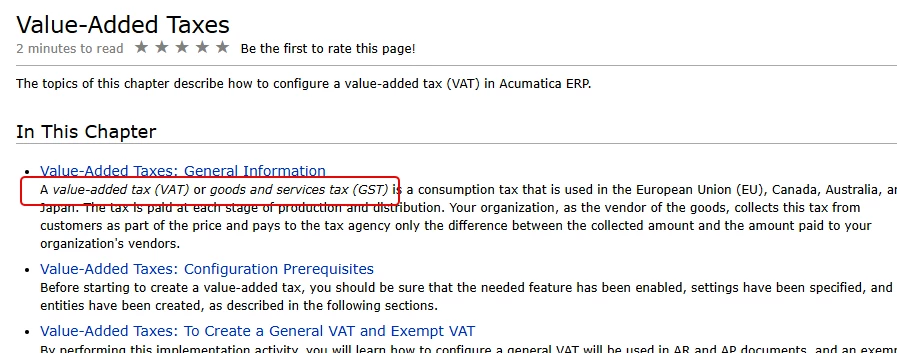
@apallawala22 You can config this the same way you would a VAT.  Here’s the 25R2 help

Value-Added Taxes


2 replies

nickcerri32
Captain II
Forum|alt.badge.img+7
  • Captain II
  • Answer
  • September 22, 2026

@apallawala22 You can config this the same way you would a VAT.  Here’s the 25R2 help

Value-Added Taxes


Eric Ratté
Jr Varsity I
Forum|alt.badge.img+1
  • Jr Varsity I
  • September 22, 2026

Hi,


You have to:

0- Activate the VAT feature.

1- Create a vendor for tax reporting (select the option Is a Tax Agency).

2- Create the tax of VAT type and assign GL accounts, asset for claimable and liability for payable as well as the tax agency created (vendor). For the rate, enter 2 lines with the rate: 1 for input (claimable - the tax that you are paying to vendros) and the other Output (payable - the tax that your collect form customers).

3- Create a tax zone and assign it to your customers and vendors that this tax should apply to, The tax zone will contain the tax that you will create. You can also create a vendor and/or a customer class and assign the tax zone to it so that when you create a new customer or vendor, the tax zone will be defaulted.

4- Create a tax category and assign it to the items you which to sell. In the tax zone, add the tax. If you already have other taxes and a tax category TAXABLE, add the tax to it. Please not that there is an option to exclude taxes listed from the tax category. If it is selected, do not add the tax into it.

Acumatica will calculate the tax for a document when the tax is present at both: the tax zone at the summary level - tax tab defaulted by the vendor or customer and the tax category defined at the detail level defaulted from the item selected.