Solved

Payables Linked to Service Orders

  • August 7, 2026
  • 2 replies
  • 36 views

Forum|alt.badge.img

It would greatly improve the ease of getting all costs onto our service orders if we could link an AP bill directly to a service order.  We do use the PO system for most of this, but still have expenses come in that we have to manually add to our service orders because there is not currently a way to link the bill in AP to the service order where we want the cost to show.

Best answer by vdiaz

@MFarnsworth10 Hi!

Acumatica offers this functionality out if the box:

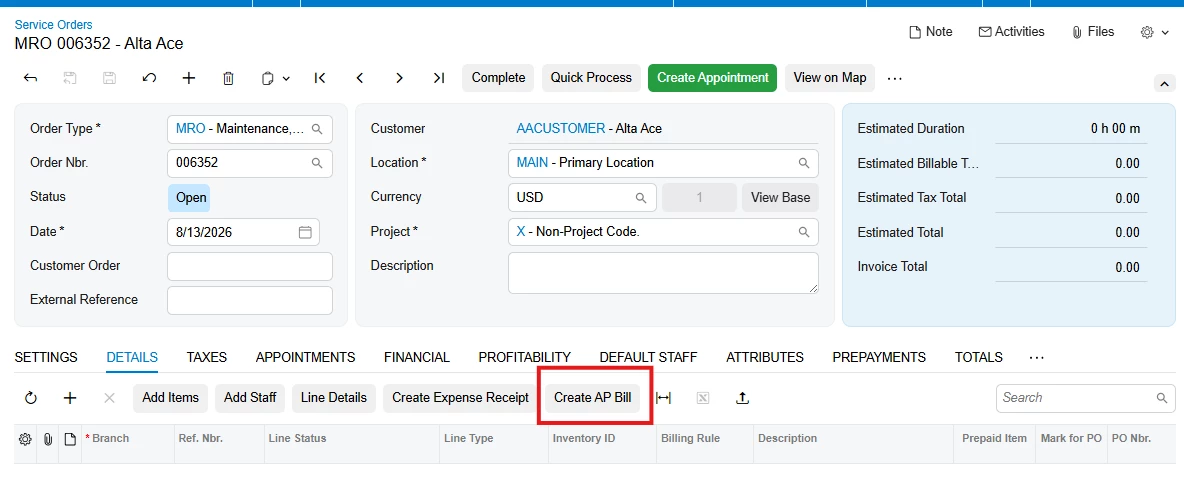
  • Starting from the Service Orders screen: Button Create AP Bill → this opens the Bills and Adjustments screen. Fill out the required fields (Vendor, Terms, etc), start adding new detail lines, and they will be automatically linked to the service order (review the columns Related Srv. Doc. Type and Related Svc. Doc. Nbr. to verify the linked service order).
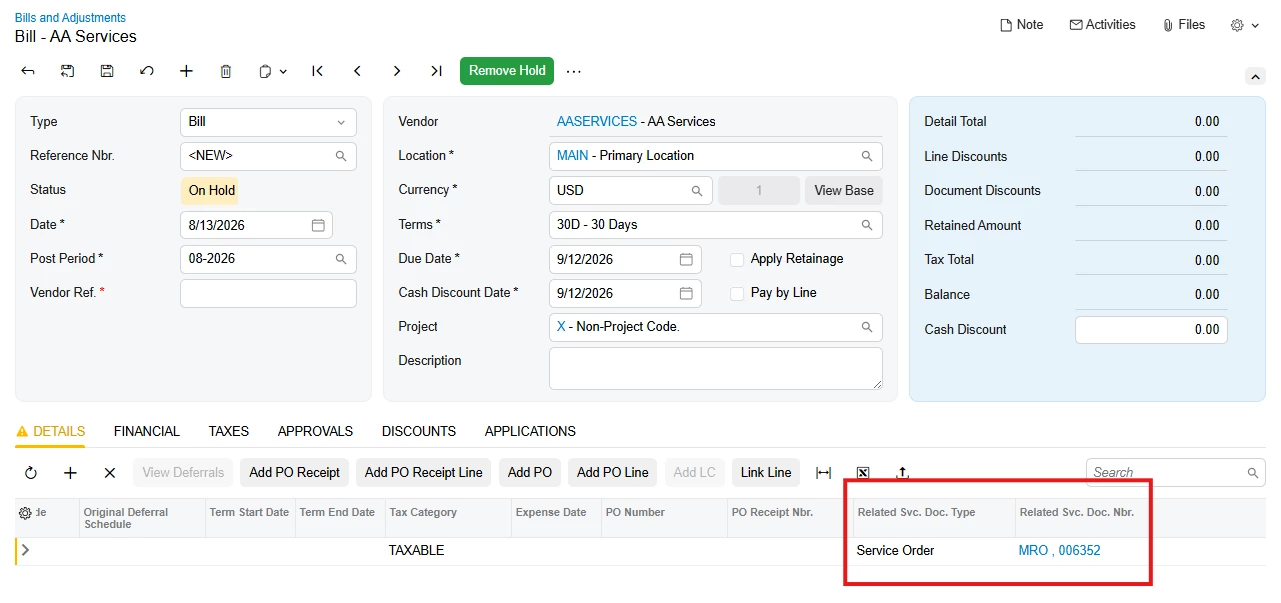
     

  • Starting from the Bills and Adjustments screen: start adding details and select ‘Service order’ or ‘Appointment’ on the Related Srv. Doc. Type the column and the number of the document Related Svc. Doc. Nbr. and save the bill.
  • Note: Appointments work in a similar way as service orders.

Restrictions:

  • The AP bill line must have an Inventory ID, and it must be a non-stock item — stock items cannot be linked (deferred to a future phase).
  • There is no line-to-line linking. Linking always creates a new line on the service order/appointment; you cannot attach an AP bill to a pre-existing detail line.
  • The item must not be a Stock Item.

There is no need to customize or expose any field to the UI. 

@Rakshanda , your comment suggests that a customization is needed to support the scenario, which is not accurate. Please review the comments posted on this forum with care.

2 replies

Forum|alt.badge.img+4
  • Jr Varsity II
  • August 9, 2026

HI ​@MFarnsworth10 ,

Can you check below,

The Acumatica Field Service module already provides this infrastructure. No custom development is needed — only configuration and UI exposure.
Technical Details
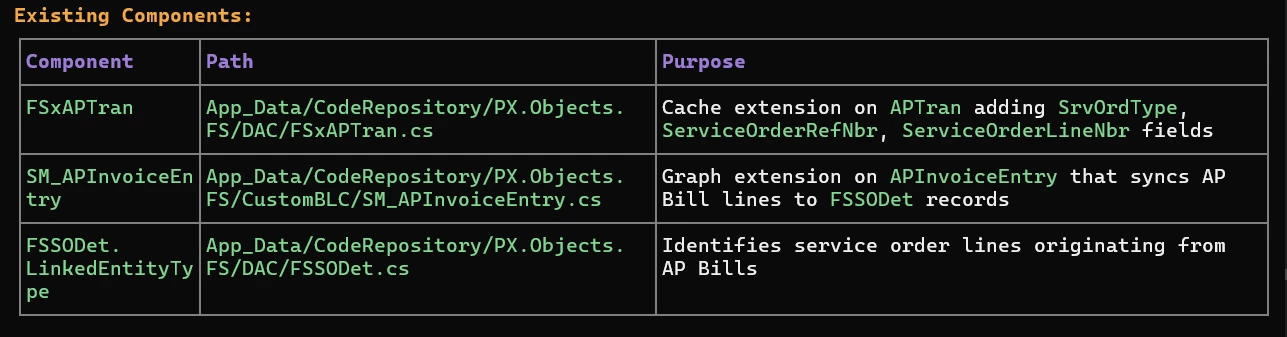
Existing Components:


Key Fields on AP Bill Lines (via FSxAPTran):
SrvOrdType          — string(4), FK to FSSrvOrdType
ServiceOrderRefNbr  — string(15), FK to FSServiceOrder
ServiceOrderLineNbr — int, FK to FSSODet.LineNbr
AppointmentRefNbr   — string(20), optional appointment link
RelatedDocNoteID    — Guid, NoteID of linked service order
Implementation Steps
1. Verify Feature Activation
   - Navigate to Enable/Disable Features (CS100000)
   - Confirm Service Management module is active
   - Confirm Field Service in AP Bills (or equivalent sub-feature) is enabled
2. Expose Fields on AP Bill Screen (AP301000)
   - Open the AP Bill screen in the Customization Project Editor
   - On the Document Details grid, add the following columns if not already visible:
     - FSxAPTran.SrvOrdType (label: "Service Order Type")
     - FSxAPTran.ServiceOrderRefNbr (label: "Service Order Nbr.")
   - Publish the customization
3. Validate Data Flow
   - Create an AP Bill with a line item
   - Select a Service Order Type and Ref Nbr on the line
   - Save and release the bill
   - Open the referenced Service Order and confirm a new detail line appears with LinkedEntityType = APBill
   - Verify cost amounts match
4. Permissions / Access Rights
   - Ensure relevant AP Clerk and Field Service roles have access to the FSxAPTran fields
   - If using restriction groups, confirm service order visibility for AP users


Hope above helps!


vdiaz
Acumatica Moderator
Forum|alt.badge.img+2
  • Acumatica Moderator
  • Answer
  • August 13, 2026

@MFarnsworth10 Hi!

Acumatica offers this functionality out if the box:

  • Starting from the Service Orders screen: Button Create AP Bill → this opens the Bills and Adjustments screen. Fill out the required fields (Vendor, Terms, etc), start adding new detail lines, and they will be automatically linked to the service order (review the columns Related Srv. Doc. Type and Related Svc. Doc. Nbr. to verify the linked service order).


  • Starting from the Bills and Adjustments screen: start adding details and select ‘Service order’ or ‘Appointment’ on the Related Srv. Doc. Type the column and the number of the document Related Svc. Doc. Nbr. and save the bill.
  • Note: Appointments work in a similar way as service orders.

Restrictions:

  • The AP bill line must have an Inventory ID, and it must be a non-stock item — stock items cannot be linked (deferred to a future phase).
  • There is no line-to-line linking. Linking always creates a new line on the service order/appointment; you cannot attach an AP bill to a pre-existing detail line.
  • The item must not be a Stock Item.

There is no need to customize or expose any field to the UI. 

@Rakshanda , your comment suggests that a customization is needed to support the scenario, which is not accurate. Please review the comments posted on this forum with care.