

Question

Calendar Board – hide appointments that don’t match the filter instead of graying them out

  • Nov 9, 2026 10:29 PM UTC
  • 1 reply
  • 9 views
  • Translate All

Forum|alt.badge.img+1

Hi everyone,

We’re on 2025 R2 (25.201.0213.8) using the new Calendar Board (FS300300).

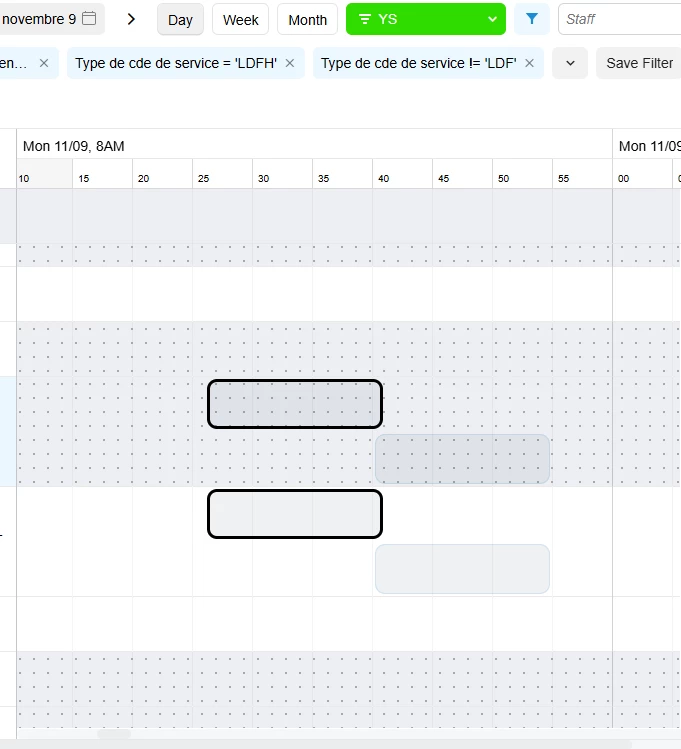
When I filter the calendar by service order type (for example Type = LDFH, or Type != LDF), the appointments that don’t match still show up on the staff rows, just grayed out. I’d like them to not show at all.

We have several crews sharing the same employees, and each dispatcher only cares about their own order types. With the grayed tiles everywhere, the board gets cluttered fast and it’s hard to see what actually needs attention.

Is there already a way to do this that I’m missing? If not, I’ll add it as an idea.

Thanks!
 

1 reply

Steve Milner
Varsity III
Forum|alt.badge.img+7

@raphrf There's no setting for this. The gray tiles are by design.

When you filter by order type, the board still loads every appointment for the staff rows it shows. SchedulerMaint flags each one that misses the filter (IsFilteredOut on SchedulerAppointmentEmployee), and the board draws flagged tiles in light gray with the text and icons blanked out. Acumatica's help describes this with branch filters: appointments outside the filter stay on the board in gray so they don't get double-booked. The code does the same for every filter that isn't a staff filter, order type included.

I checked 25.200.0248, 26.101 and 26.200. The logic is the same in all three.

With crews sharing employees, you're in the double-booking case. The gray tile is how your LDFH dispatcher sees that a tech is already on an LDF job. Hiding the tiles would take a customization, and it would remove that cue too.

Go ahead and post the idea. If you ask for it as an option on the saved filter tab, each dispatcher could hide them in their own view and the gray tiles would stay everywhere else.

Translate