Hi @Avishka ,
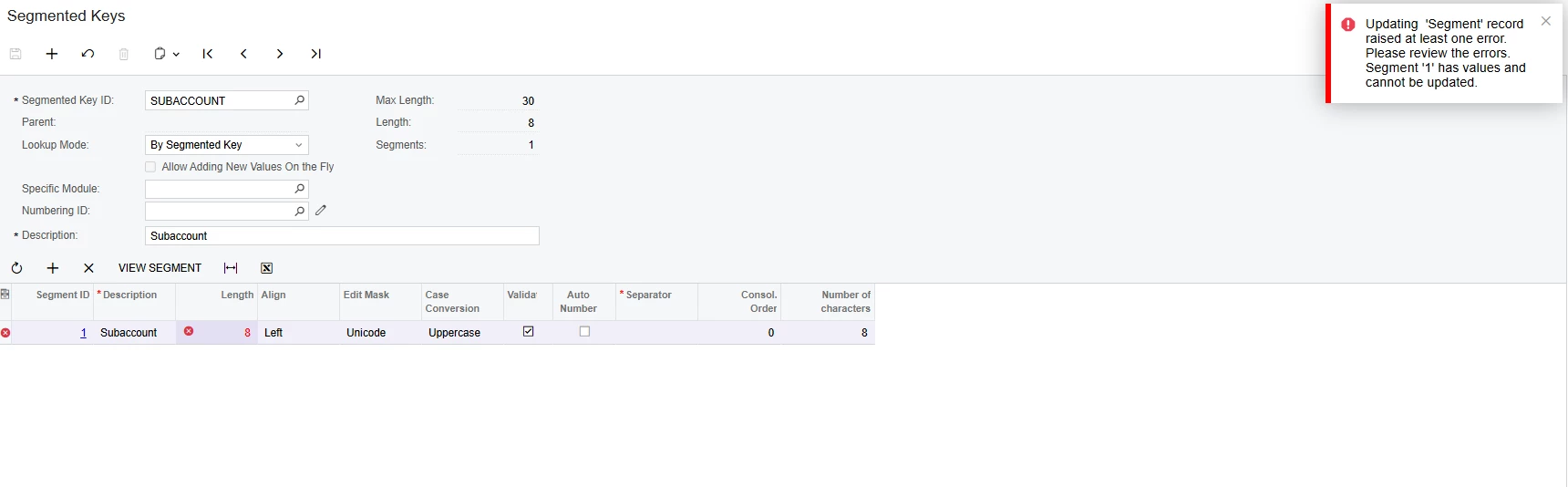
Acumatica deliberately restricts changing the length of an existing segment via the UI because:
- Existing Segment Values (
SegmentValue table): Values already exist for DimensionID = 'SUBACCOUNT' and SegmentID = 1. - Existing Subaccounts (
Sub table): Subaccount IDs are stored as segmented strings (or mapped to specific segment positions). Changing segment length alters parsing and key formatting for all existing subaccount records.
Recommended Solutions
Depending on whether this is an active production environment or a development/testing environment, you have a few ways to resolve or work around this:
Option 1: Add a New Segment Instead of Increasing Length (Recommended Best Practice)
If business requirements allow:
- Navigate to Segmented Keys (
CS202000). - Select Dimension ID:
SUBACCOUNT. - Keep Segment
1 as it is, and click + (Add Row) to add Segment 2 (or a subsequent segment) to cover the extra length needed. - Save and configure segment values for the new segment.
Option 2: Remove Existing Segment Values (Only if No Transactions Exist)
If this is a new setup, sandbox, or subaccount values were entered by mistake and no GL transactions / history reference these subaccounts:
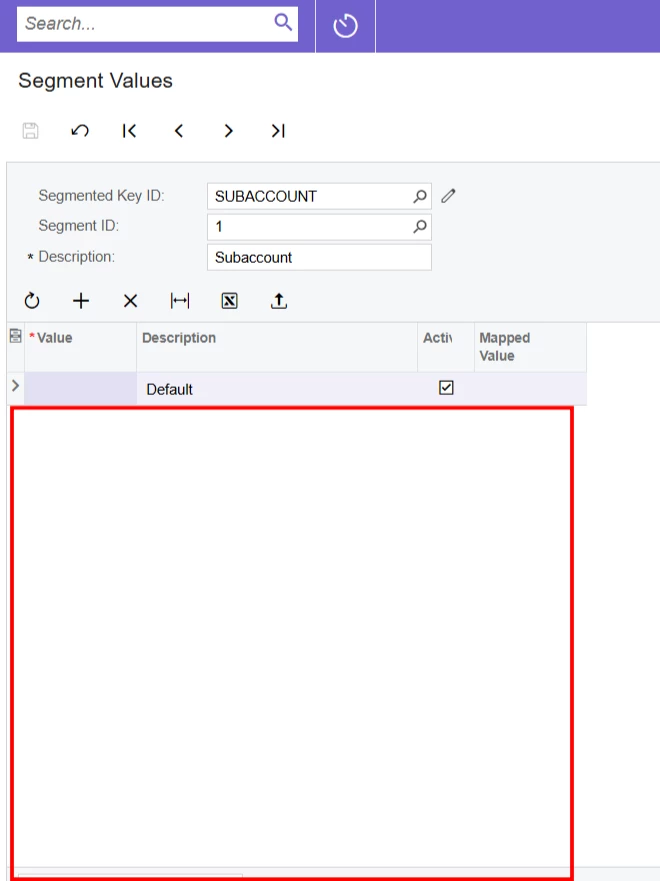
- Go to the Segment Values (
CS203000) screen. - Select
SUBACCOUNT and Segment 1. - Delete all defined segment values for Segment 1.
- Go to Subaccounts (
GL203000) and verify no subaccount records exist (delete them if empty/unused). - Return to Segmented Keys (
CS202000), select SUBACCOUNT, and update the length. - Re-add the required Segment Values and Subaccounts.
Hope above helps!!