Question

Error on Approval Owner ID Email

  • September 29, 2026
  • 11 replies
  • 86 views

Forum|alt.badge.img

Hi,

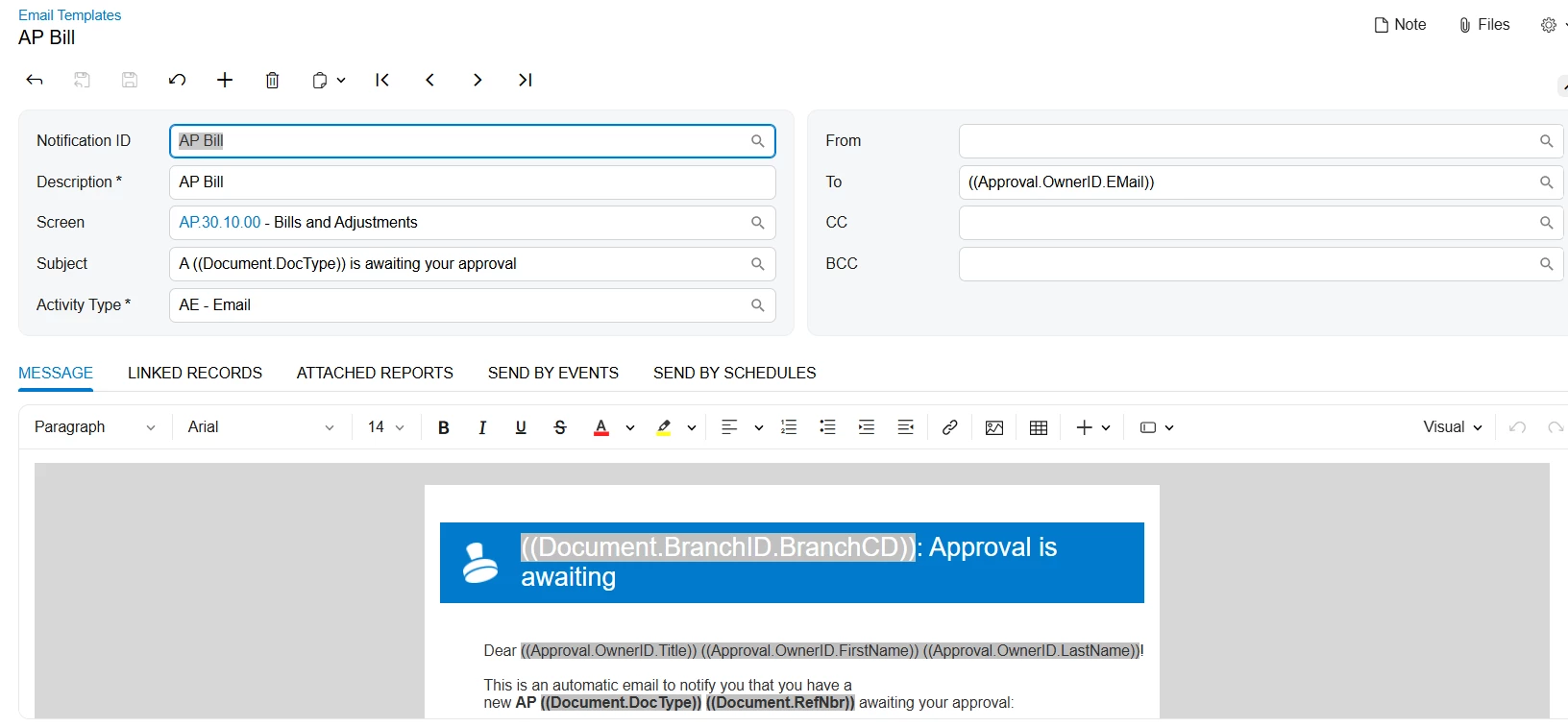
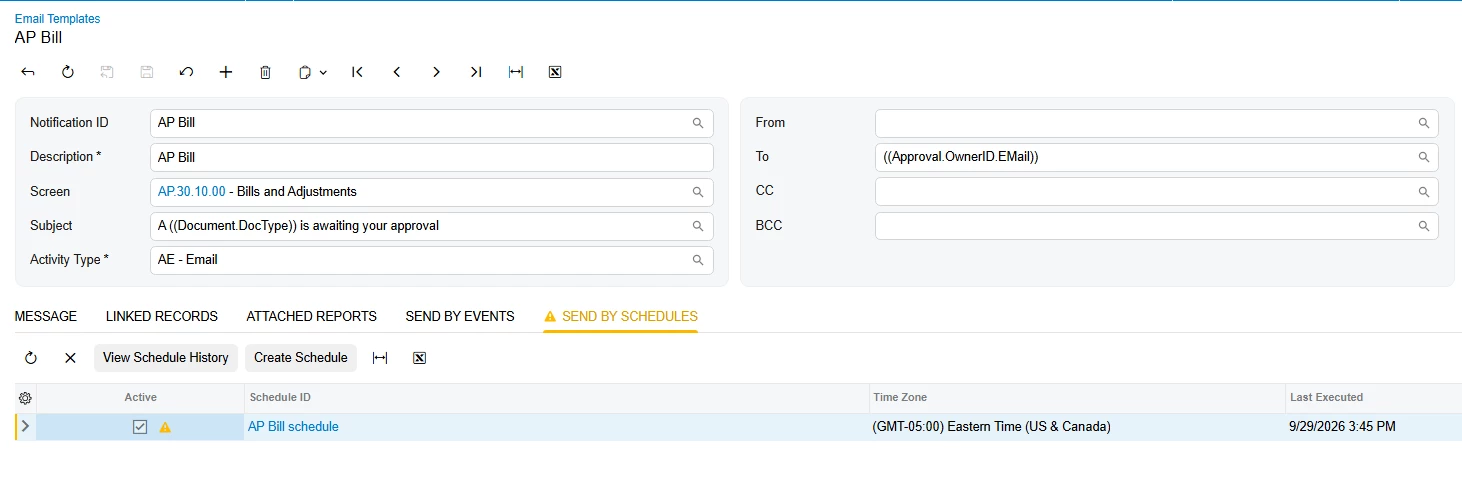
We have created a schedule to run the AP Bill Approval email notification. However, the schedule appears to be failing with the following error:

span style="color:red">Approval.OwnerID.EMail</span>

It seems the issue is related to the Approval Owner ID Email field.

which field I should use to retrieve the approval owner’s email address and achieve the expected result?

I also tried using ((EPApproval_ownerID!EMail)), but it resulted in an “Incorrect Email” error.
 

Thanks!


11 replies

elijahr83
Jr Varsity II
Forum|alt.badge.img
  • Jr Varsity II
  • September 30, 2026

Hey ​@MichelleW,

Try using:

((Approval.OwnerID.EMail))

in the To field of the notification template.

OwnerID on the Approval record represents the employee currently assigned to approve the document, and the EMail selector should resolve to that employee’s email address.

I would use the Approval object exposed by the notification template rather than referencing EPApproval directly.

Also, I’d verify that the AP Bill has an approver populated on the Approvals tab and that the employee/user has a valid email address configured.

Hope this helps!


Manikanta Dhulipudi
Captain II
Forum|alt.badge.img+16

((Approval.OwnerID.EMail));


((Approval.OwnerID.EMail))((Approval.DocumentOwnerID.EMail));


Please try this.


Forum|alt.badge.img+3
  • Jr Varsity III
  • September 30, 2026

​@MichelleW ,Hi can you please try below suggestion.


  1. Clear the To box completely on the notification template (or the mailing setup on the notification/schedule) and retype it as plain text. Don't paste from another field or an earlier template.
  2. Use the field syntax for the To/CC/BCC boxes, not the body syntax. ((EPApproval_ownerID!EMail)) is body/subject token syntax, so the To box rejects it. In those boxes, use the field picker (the lookup next to the box) or a formula-style reference such as =[Approval.OwnerID.EMail], using the exact path the picker generates.
  3. Check the path segments. They are case-sensitive, and the last segment is the Contact email field (EMail, capital M). OwnerID on an approval record points to a Contact, so OwnerID.EMail is a valid navigation only if the notification's source entity actually exposes the approval record.

Likely root cause to check

If your notification's source is the Bill (Bills and Adjustments), then Approval isn't part of that entity, so the token can't resolve and stays red. In that case, one of these usually works:

  • Base the notification on a source that includes the approval record (for example an approval-based entity or a generic inquiry that joins EPApproval to the Contact), or
  • Use an approval-map-driven notification, where the approver's email is resolved for you, instead of scheduling a separate one.

Forum|alt.badge.img
  • Author
  • Freshman I
  • September 30, 2026

((Approval.OwnerID.EMail));


((Approval.OwnerID.EMail))((Approval.DocumentOwnerID.EMail));


Please try this.

​@Manikanta Dhulipudi , tried the both. Didn’t work :’(


Forum|alt.badge.img
  • Author
  • Freshman I
  • September 30, 2026

Hey ​@MichelleW,

Try using:

((Approval.OwnerID.EMail))

in the To field of the notification template.

OwnerID on the Approval record represents the employee currently assigned to approve the document, and the EMail selector should resolve to that employee’s email address.

I would use the Approval object exposed by the notification template rather than referencing EPApproval directly.

Also, I’d verify that the AP Bill has an approver populated on the Approvals tab and that the employee/user has a valid email address configured.

Hope this helps!

Hi ​@elijahr83 This is the field which was there bydefault too. This field giving the error.


Forum|alt.badge.img
  • Author
  • Freshman I
  • September 30, 2026

​@MichelleW ,Hi can you please try below suggestion.


  1. Clear the To box completely on the notification template (or the mailing setup on the notification/schedule) and retype it as plain text. Don't paste from another field or an earlier template.
  2. Use the field syntax for the To/CC/BCC boxes, not the body syntax. ((EPApproval_ownerID!EMail)) is body/subject token syntax, so the To box rejects it. In those boxes, use the field picker (the lookup next to the box) or a formula-style reference such as =[Approval.OwnerID.EMail], using the exact path the picker generates.
  3. Check the path segments. They are case-sensitive, and the last segment is the Contact email field (EMail, capital M). OwnerID on an approval record points to a Contact, so OwnerID.EMail is a valid navigation only if the notification's source entity actually exposes the approval record.

Likely root cause to check

If your notification's source is the Bill (Bills and Adjustments), then Approval isn't part of that entity, so the token can't resolve and stays red. In that case, one of these usually works:

  • Base the notification on a source that includes the approval record (for example an approval-based entity or a generic inquiry that joins EPApproval to the Contact), or
  • Use an approval-map-driven notification, where the approver's email is resolved for you, instead of scheduling a separate one.

​@noorula77  I’m trying to figure out which tables to use. How can I check whether the approval is not a party of Bills entity.


mohammadnawaz51
Varsity I
Forum|alt.badge.img+8

​@noorula77 Can you share the Email template for this?


Forum|alt.badge.img
  • Author
  • Freshman I
  • September 30, 2026

​@mohammadnawaz51 , This is the Standard email template by Acumatica for AP Bills.


Forum|alt.badge.img+3
  • Jr Varsity III
  • October 1, 2026

​@MichelleW 
 

I did something similar previously, but in this case the email is not available directly because the person who clicks Remove Hold is the owner, and the approval is triggered after the hold is removed.

For this customization, I added custom fields to the SOOrder DAC to capture the user who removed the hold and their email/name:

  • UsrRemovedHoldBy

  • UsrRemovedHoldEmail

  • UsrRemovedHoldFirstName

  • UsrRemovedHoldLastName

I used the RowUpdated<SOOrder> event to detect the Hold → Open transition. When the user removes the hold, I capture the current logged-in user's information using PXAccess.GetUserID() and the Users table, and store it in the custom fields.

I then created a GI and added these custom fields to it. The email field from the GI was then used in the Email Template.

You can also try using the custom field directly in the email template without creating a GI, depending on how the email template is configured.

The important part is that the user who clicks Remove Hold is captured at that moment, so their email can be used later when the approval email is triggered.

 protected virtual void _(Events.RowUpdated<SOOrder> e)
{
if (e.Row == null || e.OldRow == null)
return;

var order = e.Row;

// Detect Hold → Open transition
if (e.OldRow.Hold == true && e.Row.Hold == false)
{
bool isApprovalRequired = IsApprovalRequired(order);

if (isApprovalRequired)
{
Guid? userID = PXAccess.GetUserID();
EPEmployee emp = PXSelect<
EPEmployee,
Where<EPEmployee.userID, Equal<Current<AccessInfo.userID>>>>
.Select(Base);

if (emp == null || emp.SupervisorID == null)
{
throw new PXException(Descriptor.Messages.ApprovalRequired);
}
}
}
if (e.OldRow.Hold == true && e.Row.Hold == false)
{
var ext = e.Row.GetExtension<SOOrderExt>();

ext.UsrRemovedHoldBy = PXAccess.GetUserID();

PX.SM.Users currentUser = PXSelect<PX.SM.Users,
Where<PX.SM.Users.pKID, Equal<Required<PX.SM.Users.pKID>>>>
.Select(Base, PXAccess.GetUserID());

if (currentUser != null)
{
ext.UsrRemovedHoldEmail = currentUser.Email;
ext.UsrRemovedHoldFirstName = currentUser.FirstName;
ext.UsrRemovedHoldLastName = currentUser.LastName;
}
}
#endregion
if (e.OldRow.Approved != true
&& e.Row.Approved == true)
{
// Find all remaining pending approvals
var approvals = PXSelect<
EPApproval,
Where<
EPApproval.refNoteID,
Equal<Required<EPApproval.refNoteID>>,
And<
EPApproval.status,
Equal<EPApprovalStatus.pending>>>>
.Select(Base, e.Row.NoteID);

foreach (EPApproval approval in approvals)
{
approval.Status = EPApprovalStatus.Approved;
Base.Caches<EPApproval>().Update(approval);
}
}

}


Forum|alt.badge.img
  • Author
  • Freshman I
  • October 1, 2026

​@noorula77 , Thanks for this. In my scenario, a separate user will create the document and whoever assigned to for the approval should get notified.


Forum|alt.badge.img+3
  • Jr Varsity III
  • October 1, 2026

​@MichelleW ,
​@mohammadnawaz51 
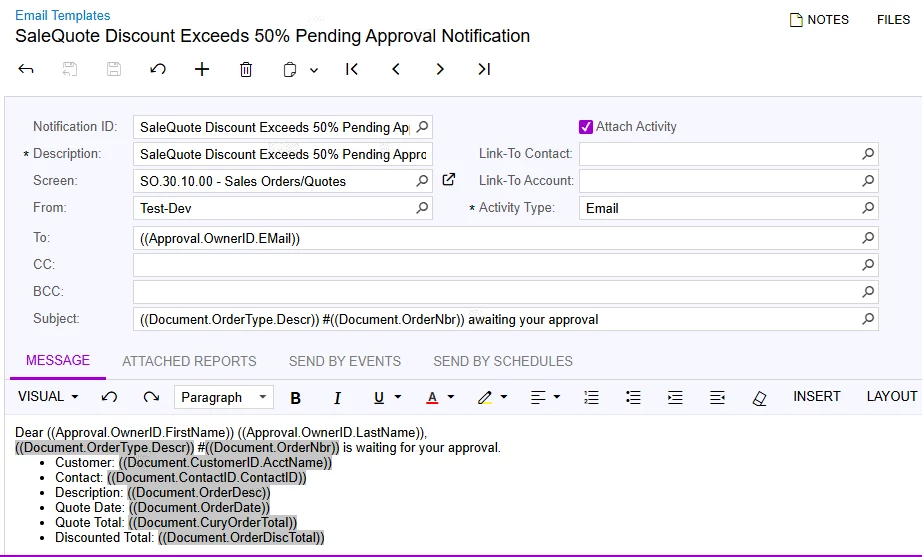
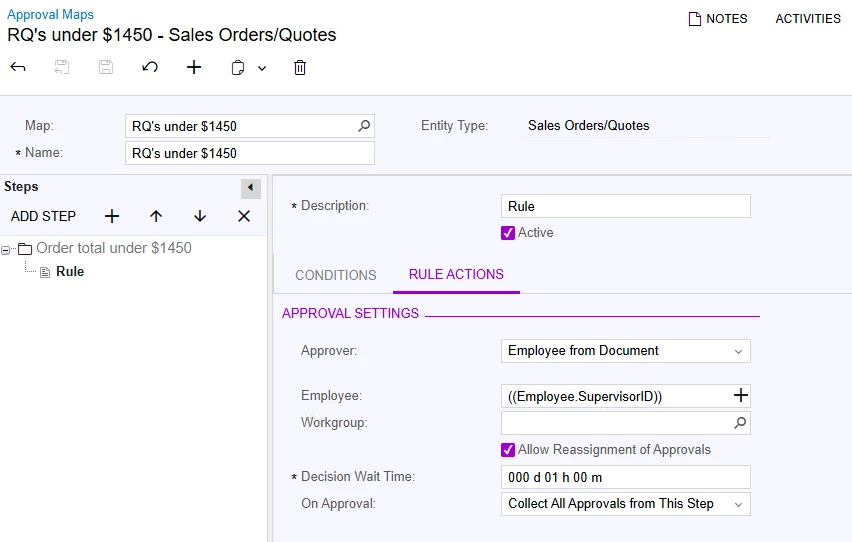
i have attached here my email template and site map screen shot. Hope it will work for you.
please check in your system Email Preference properly configured then only email will work.