


Hi Team , Do you know how to modify the original Purchase Order Report to list the items in the order were originally added and not list them alphabetically by Inventory ID? The system currently does it for Sales Order Report but not for Purchase Orders.
Solved
Purchase Order lines without Alphabetical Order by Inventory ID
Best answer by Laura03
Hello
To change the sort order on the Purchase Order lines, open the report in Acumatica report Designer in your Testing tenant. Click File, Build Schema.
In the Schema Builder, go to the Sorting and Grouping tab and click on GroupPoLine in the upper-right corner. Change the Grouping Field Formula to replace Inventory ID with [POLine.LineNbr].
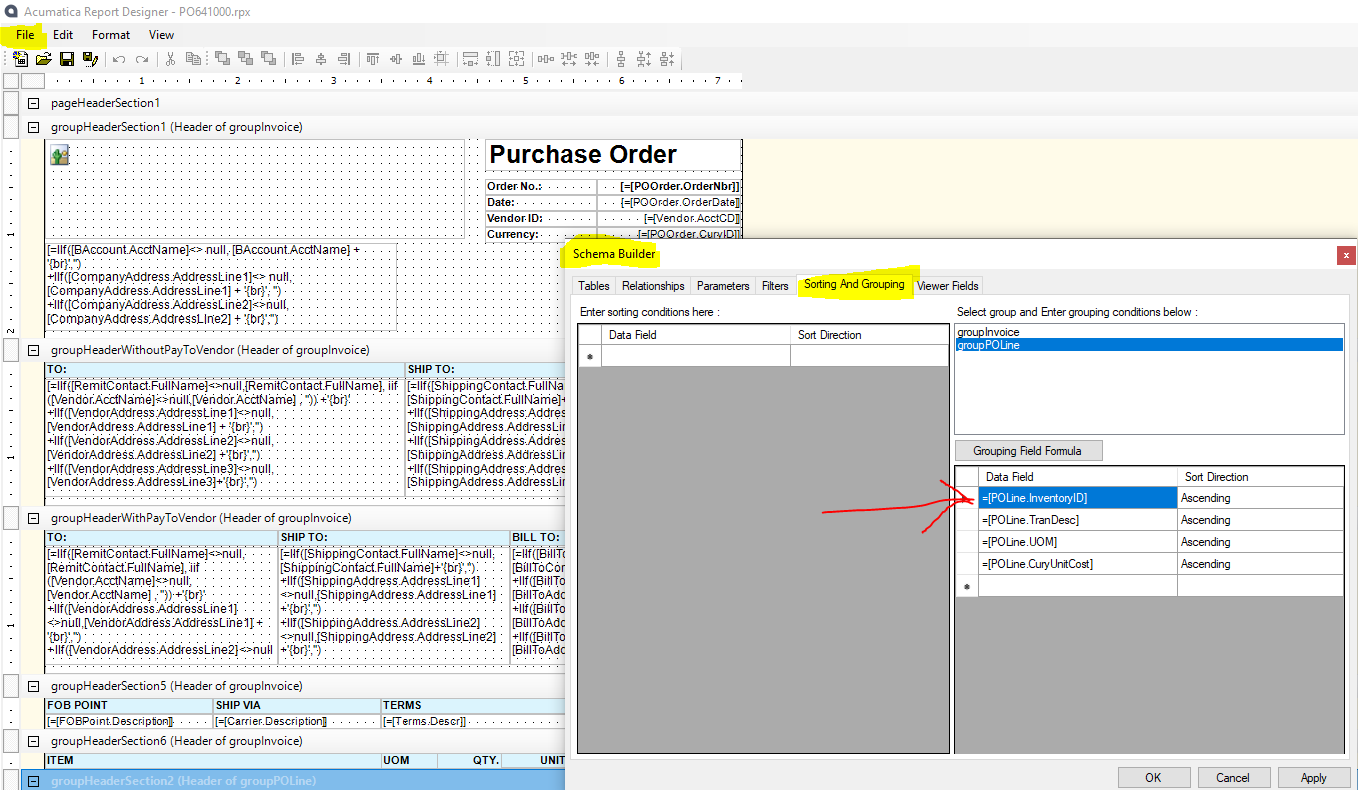
Save your changes as a new version of the PO Report. Test a good number of Purchase orders to verify results, then save the report over to your Live tenant, again with a new report version and name.




Login to the community
No account yet? Create an account
Social Login
Login with your Acumatica accountEnter your E-mail address. We'll send you an e-mail with instructions to reset your password.