Solved

How to change label text color in Modern UI?

  • March 9, 2026
  • 6 replies
  • 226 views

Hello Acumatica team

I am displaying a note/label message at the top of a screen in the Classic UI, where the message appears with a specific text color. However, in the Modern UI, I am unable to apply the same color formatting to the label message.

Could you please advise where this can be handled in the Modern UI, or share the recommended approach/logic to implement colored text for the label message?
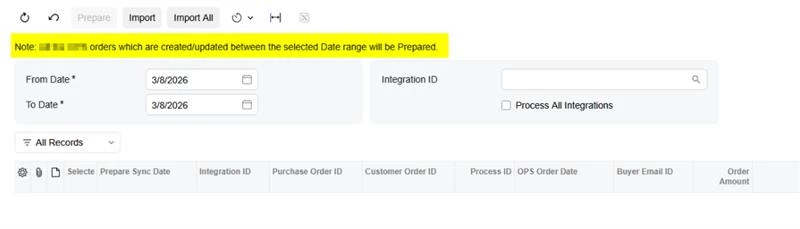
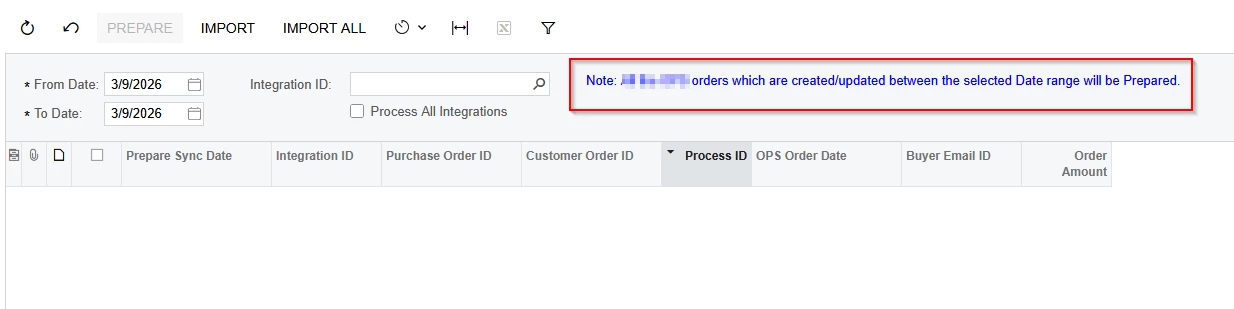
Any guidance would be helpful.

Thank you.
Best answer by arpine08

mboddepalli10,

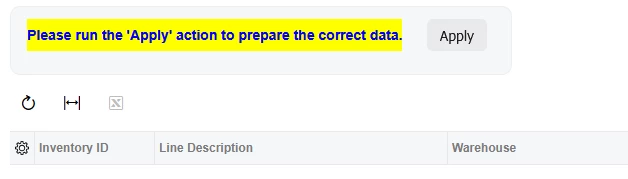
Following up on my previous post — Here is an example of qp‑label colors:

HTML:

<template>

<style>
.myclass label {
background-color: yellow !important;
color: blue !important;
font-weight: bold;
}
</style>
..............................

<qp-label caption="Please run the 'Apply' action to prepare the correct data." class="col-10 myclass"></qp-label>

..............................
</template>

Result:


6 replies

arpine08
Jr Varsity I
Forum|alt.badge.img+1
  • Jr Varsity I
  • March 9, 2026

Hi mboddepalli10,

You can use the following example to implement text field coloring in the Modern UI:

HTML:

<template>
<style>
.myclass input {
background-color: yellow !important;
color: blue !important;
font-weight: bold;
}
</style>
.........................

<field name="DACFieldName" class="myclass"></field>

...........................
</template>

Result:


Another example -> Changing field colors on standard screens: Example for Opportunities: CR304000 → Description (Subject) field.

HTML:

<template>
<style>
.lemonChiffon textarea {
background-color: #fffacd !important;
}
</style>
<field modify="#phF_form_PXLayoutRule8 [name='Subject']" class="lemonChiffon"></field>
</template>

Result:


arpine08
Jr Varsity I
Forum|alt.badge.img+1
  • Jr Varsity I
  • Answer
  • March 9, 2026

mboddepalli10,

Following up on my previous post — Here is an example of qp‑label colors:

HTML:

<template>

<style>
.myclass label {
background-color: yellow !important;
color: blue !important;
font-weight: bold;
}
</style>
..............................

<qp-label caption="Please run the 'Apply' action to prepare the correct data." class="col-10 myclass"></qp-label>

..............................
</template>

Result:


Forum|alt.badge.img

In Modern Ui, Styling cannot be controlled in the Dac or PXlabel like class UI.

The UI is rendered with HTML+TypeScript , so the css can be applied through css class in  the html layout.

.noteTextColor {
    color: #0066ff;
    font-weight: 500;
}


In the Html screen file:

<div class="form-section">
<div class="note-message">
Note: All orders which are created/updated between the selected Date range will be prepared.
</div>

<px-date-field formControlName="fromDate"></px-date-field>
<px-date-field formControlName="toDate"></px-date-field>
<px-selector formControlName="integrationID"></px-selector>

</div>

Try to rebuild the screen,

npm run build-dev --- --env customFolder=development screenIds=


  • Author
  • Freshman I
  • March 10, 2026

@arpine08  ​@tareshpatil51  Thank a lot, I will test and let you know.


Forum|alt.badge.img

darylbowman
Captain II
Forum|alt.badge.img+16

This may be helpful (for dynamic coloring based on field values)