Question

How restrict certain basic or master data by company

  • March 18, 2026
  • 3 replies
  • 23 views

Forum|alt.badge.img+2

I’m working on a requirement in Acumatica ERP where I need to restrict certain basic or master data by company. By default, this data is shared across companies, but in my case, it needs to be company specific.

There are multiple instances where this applies, not just the examples below:

  • Salespersons → used in Sales Orders / Invoices

  • Staff → used in Appointments / Service Orders

My current approach is to add a Company ID field to each of these master records and then modify filters in the relevant screens using PXRestrictor to only show data for the current company.

However, since this logic needs to be implemented in many places, I’m looking for a more centralized or scalable approach to handle this requirement.

Is there a recommended way in Acumatica to control or restrict shared data by company without having to manually filter it in every screen?

3 replies

nhatnghetinh
Captain II
Forum|alt.badge.img+13

Hi ​@PDharmasena10 

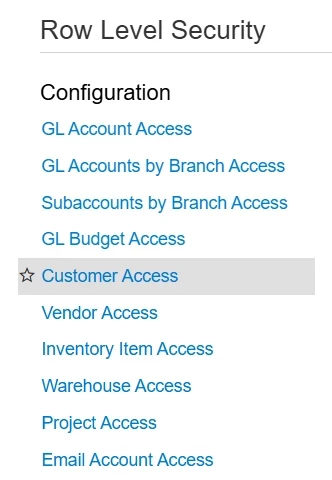
Acumatica provides basic features to restrict users by groups, such as Customer, Vendor, Inventory Item, Warehouse, and so on, within Row-Level Security. Have you explored these standard restriction groups yet?


Best Regards,

NNT


Forum|alt.badge.img+2
  • Author
  • Semi-Pro II
  • March 18, 2026

Hi ​@nhatnghetinh;
We have implemented row level security and it does not cover the requirement. Row level security looks at only specified data, does not cover the staff and the sales persons. 


kbibelhausen
Freshman I
  • Freshman I
  • March 18, 2026

To restrict basic or master data by company in Acumatica, you have several approaches depending on your specific requirements:


## Company Mask and Group Mask

The most common method is using **CompanyMask** and **GroupMask** fields on your DAC records. These control data visibility across companies:


```csharp

[PXDBInt]

[PXUIField(DisplayName = "Company Mask")]

public virtual int? CompanyMask { get; set; }


[PXDBInt]

[PXUIField(DisplayName = "Group Mask")]

public virtual int? GroupMask { get; set; }

```


## Access Rights Framework

Configure access rights through the system's built-in security:

- Navigate to **System Management > Access Rights > Restriction Groups**

- Create restriction groups that limit access to specific records

- Assign users to appropriate restriction groups

- Apply these restrictions to your master data screens


## Custom Restrictions via Graph Extensions

For more granular control, implement custom filtering in graph extensions:


```csharp

public class YourMasterDataMaint_Extension : PXGraphExtension

{

public override void Initialize()

{

Base.YourView.WhereAnd>>>();

}

}

```


## Branch-Level Restrictions

If using multi-branch setup, leverage branch restrictions:

- Add `BranchID` fields to your DACs

- Use `[Branch]` attribute for automatic branch filtering

- Configure branch access in user profiles


The key is determining whether you need company-level isolation (separate data per company) or shared data with controlled access. Company masks work well for shared master data with controlled visibility, while separate company databases provide complete isolation.


Choose the approach that aligns with your business requirements and compliance needs.


---

Drafted by AcuDev (AI) · Reviewed by Kevin Bibelhausen, Studio B

AcuOps — AI-powered environment management for Acumatica · b.studio