Answer

ERROR (HTTP STATUS CODE = FORBIDDEN) WHEN ATTEMPTING TO SYNCHRONIZE ON CONSOLIDATION SCREEN

  • October 3, 2024
  • 3 replies
  • 143 views

Forum|alt.badge.img

 H Everyone.

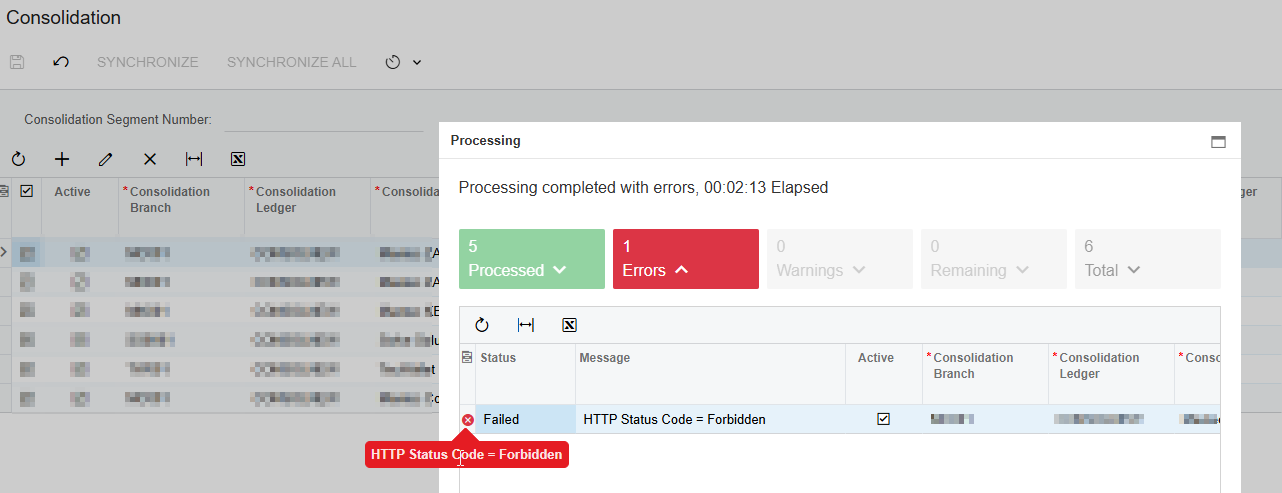
i setup a consolidation tenant to consolidate 5 tenants. I was able to synchronize with 4 tenants. The 5th one throws this error. This occurs when I try to synchronize this tenant
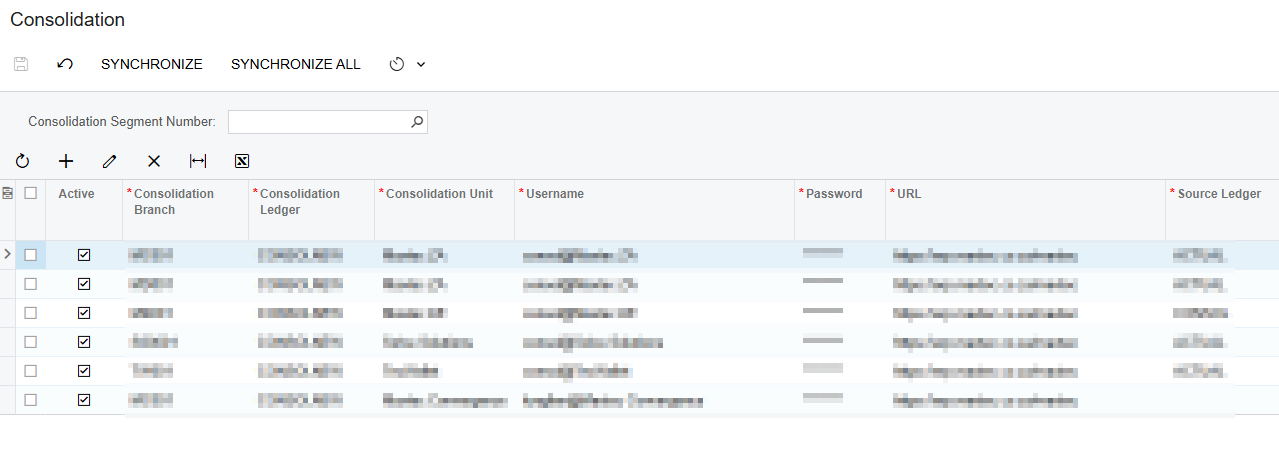
 

LIST OF TENANTS
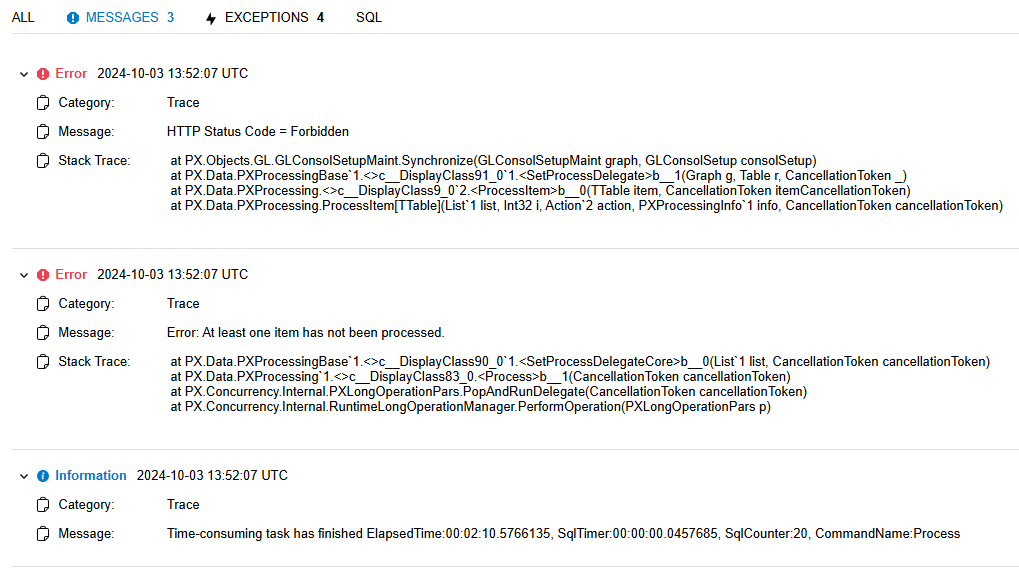
ERROR WHEN I SYNCHRONIZE


Best answer by aiwan

HI ​@LungileNjakazi37 


Do you have any customisations on that screen?

It looks like a failed API call.


Aleks

3 replies

Forum|alt.badge.img
  • Jr Varsity I
  • December 10, 2024

Hi there, have you solved your issue? I couldn’t find anything and just raised a support case. If you have any update, please share. Thanks.


Forum|alt.badge.img+8
  • Captain II
  • Answer
  • December 10, 2024

HI ​@LungileNjakazi37 


Do you have any customisations on that screen?

It looks like a failed API call.


Aleks


Forum|alt.badge.img
  • Jr Varsity I
  • March 26, 2025


 H Everyone.

i setup a consolidation tenant to consolidate 5 tenants. I was able to synchronize with 4 tenants. The 5th one throws this error. This occurs when I try to synchronize this tenant
 

LIST OF TENANTS
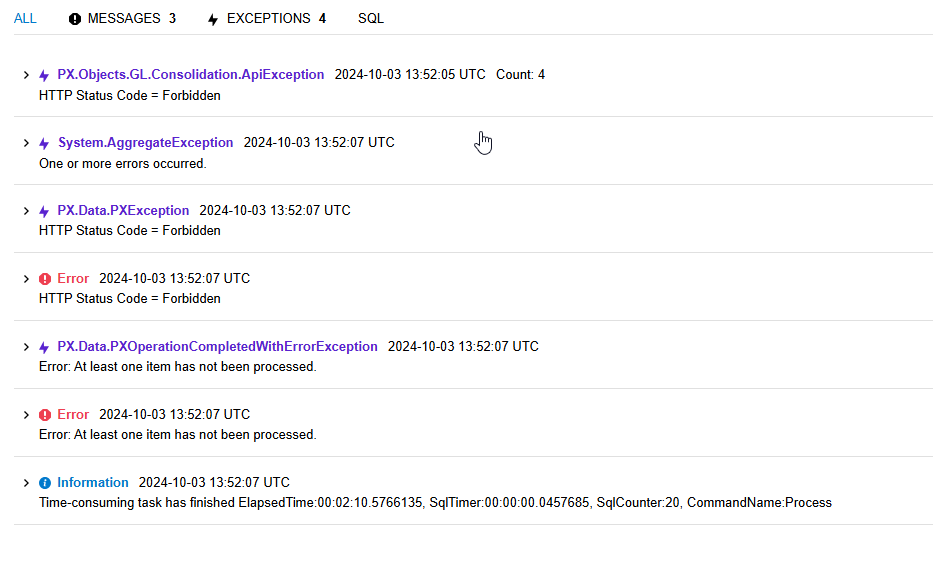
ERROR WHEN I SYNCHRONIZE


Please kindly find the workaround Acumatica suggested,


It's necessary to manually grant the rights for the Administrator role for the following hidden screens in all the tenants, source and destination:

  • Open the Access Rights by Role screen (SM201025)
  • Select the Administrator role
  • Click the Hidden category (last one) in the tree control at left
  • Find the following screens in the grid at right:
    • Consolidation Accounts
    • Consolidation Branches
    • Consolidation Companies
    • Consolidation Data
    • Consolidation Ledgers
  • Grant the Delete rights to each screen of above mentioned ones (they have Delete right on the screen by default but it's glitch, it's important to set the proper rights manually):
    • Select the Insert rights for each screen
    • Save
    • Select the Delete rights for each screen again
    • Save
  • Do the previous steps in all the tenants