Question

Customer Portal Screen – Green Primary Action Button

  • May 28, 2026
  • 5 replies
  • 31 views

HristinaP77
Freshman I
Forum|alt.badge.img

Hi all,

We have a custom Customer Portal screen with a toolbar button we want to style green, like a workflow primary action button (e.g. "Release"). Has anyone found a way to achieve this on a portal screen? Thanks!

5 replies

rkenna
Captain II
Forum|alt.badge.img+3
  • Captain II
  • May 28, 2026

Hi ​@HristinaP77,

This has to be done in a Customization Project; however, it is very easy to do.

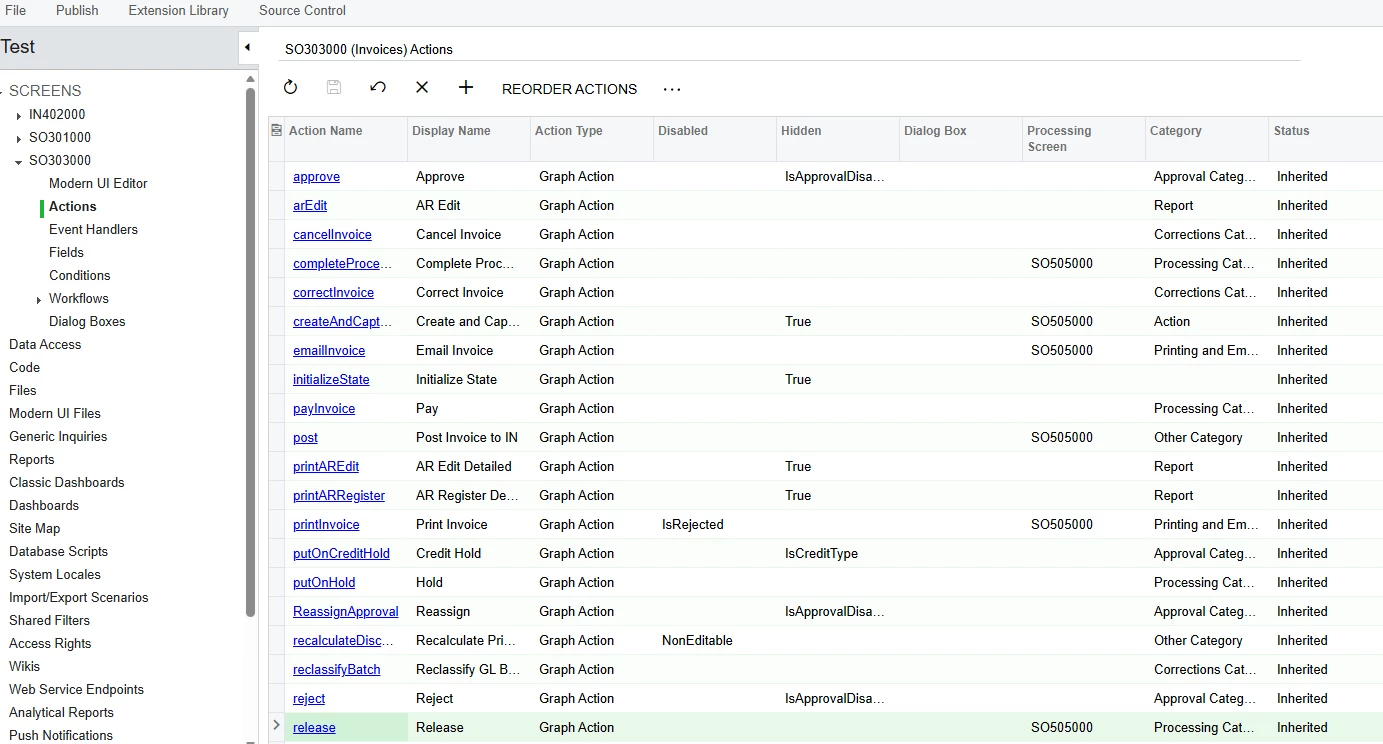
Create a new Customization Project (or go into an existing Project), add the screen, then under that screen’s Actions, select the one you would like.


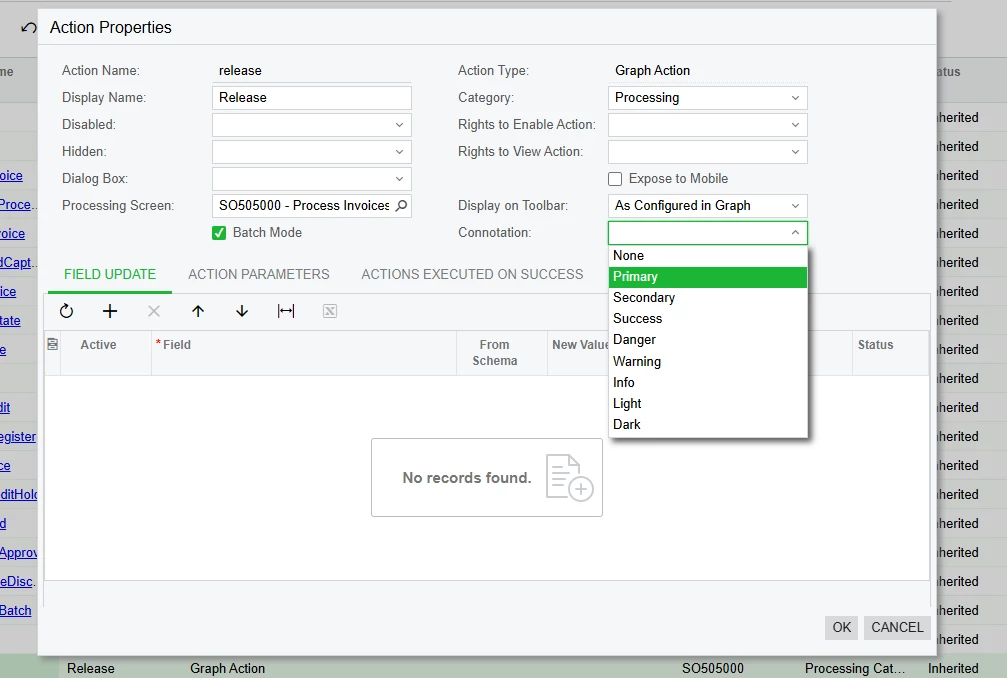
Then under Connotation, that is where you can select your color. The Display on Toolbar might need changed as well if this is an action that does not usually display on the toolbar.


Cheers,

RJ


  • Jr Varsity I
  • May 28, 2026

Building on RJ's answer (which is the right approach):

The value you want in the Connotation dropdown is Success. That's the same one Acumatica itself uses for the standard green "Release" and "Approve" buttons across its built-in screens, so picking it will match the look.

One thing to keep in mind: the Connotation set under Actions is the action's default. If your screen has a formal workflow with states (like Sales Orders or AR Invoices), each state can override the action's connotation, and the state override wins. I tested that: changing releaseFromHold to Warning under Actions on SO301000 didn't change the color, because the workflow's On Hold state explicitly applies Success to that action. For a screen with a workflow, the equivalent change has to be done inside the Workflows node by overriding the action at the relevant state. If your custom Portal screen doesn't have a workflow, the Actions-node setting is enough.

If you'd prefer to handle the styling in code (or for future reference), Acumatica offers three patterns depending on your scenario:


1. As an attribute on the action (most common, set once

public PXAction<MyPrimaryDAC> MyAction;
[PXButton(Connotation = PX.Data.WorkflowAPI.ActionConnotation.Success)]
[PXUIField(DisplayName = "My Action")]
protected virtual IEnumerable myAction(PXAdapter adapter) { ... }


2. Dynamically, when the color should depend on row state:

// Inside a RowSelected handler:
MyAction.SetConnotation(PX.Data.WorkflowAPI.ActionConnotation.Success);


3. Through the Workflow API, if your screen has a formal workflow:

// Inside a RowSelected handler:
MyAction.SetConnotation(PX.Data.WorkflowAPI.ActionConnotation.Success);


One Portal-specific note worth checking on your side: Customer Portal is deployed as a separate Acumatica site instance, so if your customization is currently published only to the ERP site, you'll want to make sure it's also applied to the Portal site so the new styling shows up there.

Best,


HristinaP77
Freshman I
Forum|alt.badge.img
  • Author
  • Freshman I
  • May 29, 2026

Hi ​@HristinaP77,

This has to be done in a Customization Project; however, it is very easy to do.

Create a new Customization Project (or go into an existing Project), add the screen, then under that screen’s Actions, select the one you would like.


Then under Connotation, that is where you can select your color. The Display on Toolbar might need changed as well if this is an action that does not usually display on the toolbar.


Cheers,

RJ


Thank you so much for your help, RJ! This solution works great for me!


HristinaP77
Freshman I
Forum|alt.badge.img
  • Author
  • Freshman I
  • May 29, 2026

Building on RJ's answer (which is the right approach):

The value you want in the Connotation dropdown is Success. That's the same one Acumatica itself uses for the standard green "Release" and "Approve" buttons across its built-in screens, so picking it will match the look.

One thing to keep in mind: the Connotation set under Actions is the action's default. If your screen has a formal workflow with states (like Sales Orders or AR Invoices), each state can override the action's connotation, and the state override wins. I tested that: changing releaseFromHold to Warning under Actions on SO301000 didn't change the color, because the workflow's On Hold state explicitly applies Success to that action. For a screen with a workflow, the equivalent change has to be done inside the Workflows node by overriding the action at the relevant state. If your custom Portal screen doesn't have a workflow, the Actions-node setting is enough.

If you'd prefer to handle the styling in code (or for future reference), Acumatica offers three patterns depending on your scenario:


1. As an attribute on the action (most common, set once

public PXAction<MyPrimaryDAC> MyAction;
[PXButton(Connotation = PX.Data.WorkflowAPI.ActionConnotation.Success)]
[PXUIField(DisplayName = "My Action")]
protected virtual IEnumerable myAction(PXAdapter adapter) { ... }


2. Dynamically, when the color should depend on row state:

// Inside a RowSelected handler:
MyAction.SetConnotation(PX.Data.WorkflowAPI.ActionConnotation.Success);


3. Through the Workflow API, if your screen has a formal workflow:

// Inside a RowSelected handler:
MyAction.SetConnotation(PX.Data.WorkflowAPI.ActionConnotation.Success);


One Portal-specific note worth checking on your side: Customer Portal is deployed as a separate Acumatica site instance, so if your customization is currently published only to the ERP site, you'll want to make sure it's also applied to the Portal site so the new styling shows up there.

Best,


Hello, denisperez28, thank you so much for the information!

My screen does not have a workflow, so I tested the option with an attribute set on an action, and it works for me!


rkenna
Captain II
Forum|alt.badge.img+3
  • Captain II
  • May 29, 2026

Hi ​@HristinaP77, awesome! Thanks for letting me and the community know! Feel free to mark Best Answer for which response was the solution, in order for future members of the community with a similar issue easily find the solution.

Cheers,

RJ