Answer

Allow Load Records from File on an Attributes tab

  • June 18, 2025
  • 6 replies
  • 114 views

Hi community, 
Has anyone tried adding the Excel export/import functionality on the Attributes tab? 
I am trying to enable this on the Projects form but the Attribute column is not visible and so,  the import does not update the records
This is what I have done 

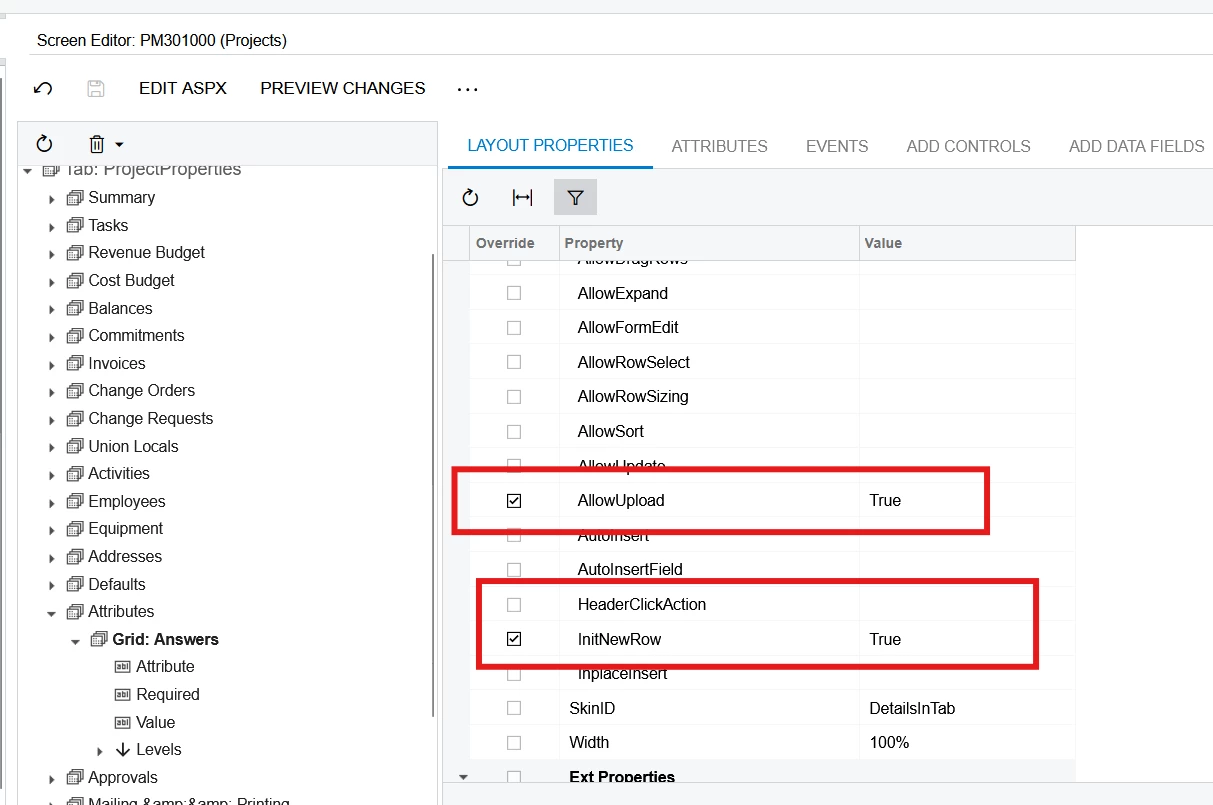
  • On the Customization project, set AllowUpload true and InitNewRow True
  • To allow importing and expose the AttributeID I added the following code 
public class ProjectEntry_Ext : PXGraphExtension<PX.Objects.PM.ProjectEntry>
{
#region Event Handlers

[PXImport(typeof(PMProject))]
[PXViewName(Messages.ProjectAnswers)]
public CRAttributeList<PMProject> Answers;

public void PMProject_RowSelected(PXCache cache, PXRowSelectedEventArgs e)
{
PXUIFieldAttribute.SetVisible<CSAnswers.attributeID>(Base.Answers.Cache, null, true);
}

#endregion
}

but still the Attribute is not shown on the import settings 
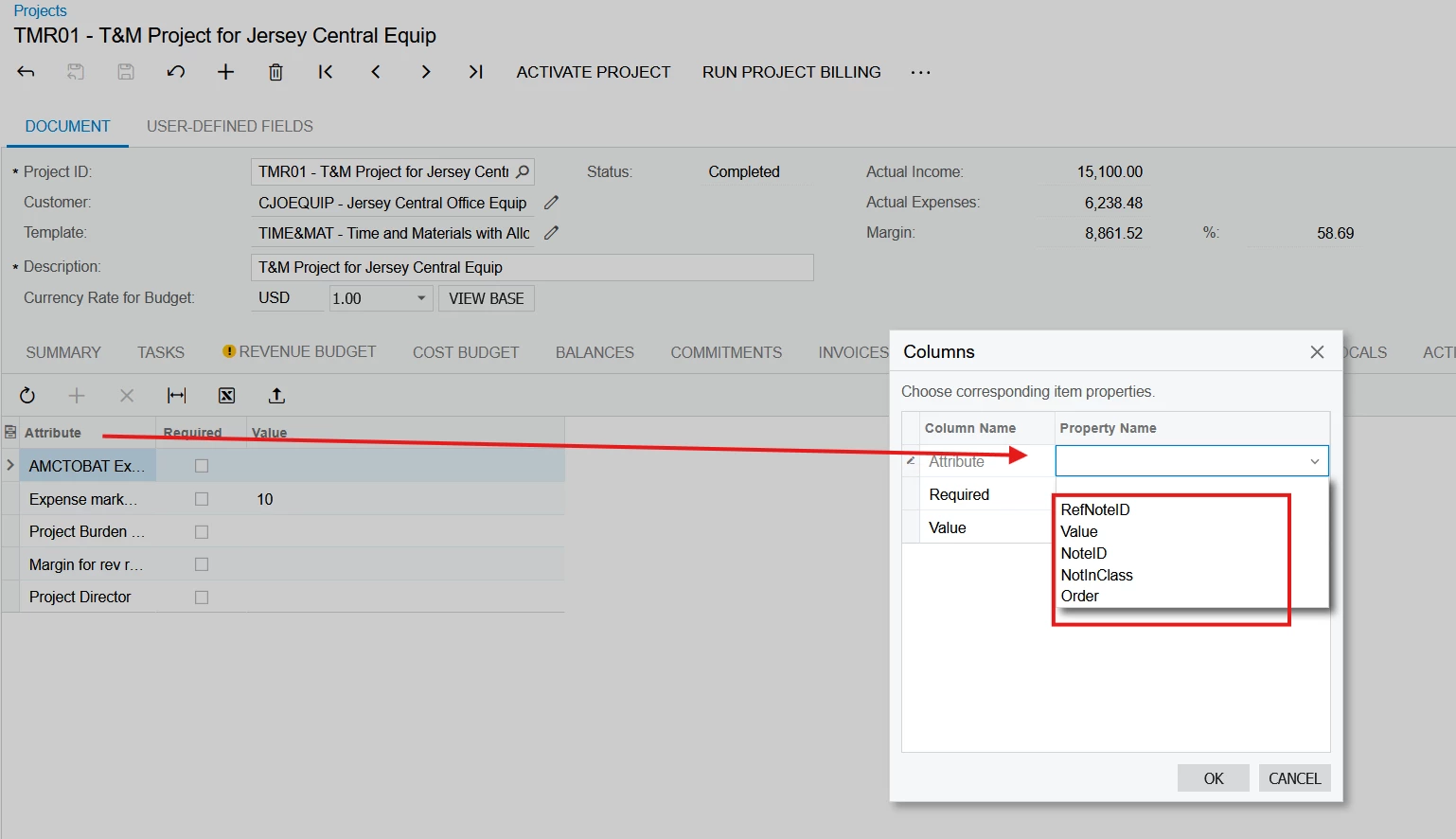
 

Attached is the customization if anyone wants to take a peek
(I am testing on 24R1)

Best answer by DrewNisley

Somebody else had a similar issue here with a different screen, but it was fixed by Acumatica since it was an out of the box functionality. I’m not sure how one would add the proper column to that list.

6 replies

darylbowman
Captain II
Forum|alt.badge.img+15

This feels like a really silly suggestion, but isn’t the dropdown in your screenshot the available Excel columns?


CherryStreet
Jr Varsity I
Forum|alt.badge.img
  • Jr Varsity I
  • June 19, 2025

We are testing our new AI Assistant and ran your scenario through it, let me know if it helps:

You're doing nearly everything right, and you're very close — the issue you're encountering (not being able to expose the Attribute column for import/export in the Attributes grid on the Projects screen (PM301000)) is a known limitation in how Acumatica handles generic attribute (Answers) grids, because the AttributeID field is not natively marked visible, editable, or importable unless explicitly exposed.


Goal Recap:

Enable Excel import/export (including the Attribute ID) on the Attributes tab of the PM301000 screen.


🚨 Root Cause:

By default, Acumatica's CSAnswers.AttributeID field is:

  • Not visible in the UI
  • Not editable
  • Not marked with [PXImport], so it's skipped during import/export mapping

Your layout properties (AllowUpload = True, InitNewRow = True) are correct ✅
Your event handler is partially effective, but to fully expose AttributeID for import, you need:


Solution Checklist:

🔹 Step 1: Use PXImportAttribute on the Graph

[PXImport(typeof(PMProject))]

[PXViewName(Messages.ProjectAnswers)]

public CRAttributeList<PMProject> Answers;

✅ You've done this — perfect.


🔹 Step 2: Make AttributeID Visible and Editable

In your RowSelected or FieldSelecting event:

public void PMProject_RowSelected(PXCache cache, PXRowSelectedEventArgs e)

{

    PXUIFieldAttribute.SetVisible<CSAnswers.attributeID>(Base.Answers.Cache, null, true);

    PXUIFieldAttribute.SetEnabled<CSAnswers.attributeID>(Base.Answers.Cache, null, true);

}

Add SetEnabled too — this is critical for allowing AttributeID to appear as a column for import/export mapping.


🔹 Step 3: Mark the Field as Importable

Acumatica only includes fields in the Excel import/export if they are visible and editable.

To enforce this at the DAC level (if needed), you can add this in a DAC extension (if not already controlled by the base behavior):

[PXUIField(DisplayName = "Attribute", Visible = true, Enabled = true)]

public virtual string AttributeID { get; set; }

If Acumatica's CSAnswers DAC isn't behaving, extend it with a DAC extension and apply the visibility/enabled flags there.


🔹 Step 4: Regenerate the Import Scenario

After doing the above:

  1. Go to Import Scenarios
  2. Create new or edit existing scenario for PMProject
  3. On the mapping step:
    • You should now see AttributeID as an option
    • You can map Column → AttributeID, Value, etc.
 

🧪 Confirm It Works

Go to the Attributes grid on PM301000:

  • Click Export to Excel: Attribute, Value, etc. should now export
  • Try importing a test row with a known AttributeID and value — it should apply correctly
 

💡 Pro Tips

💡 Tip: If your import is failing even after this, make sure the Attribute is already defined in the class-level attribute group assigned to the Project (otherwise it will silently fail to bind).

💡 Tip: You can create a default Import Scenario template just for Attributes and make it available from the screen using the Import Scenarios for Screen setup.


Summary

Step

Description

Status

✅ 1

Set AllowUpload and InitNewRow

Done

✅ 2

Use PXImport on Graph

Done

✅ 3

Expose AttributeID via SetVisible and SetEnabled

Add SetEnabled

✅ 4

DAC extension (if needed)

Optional but best-practice

✅ 5

Rebuild Import Scenario

Required after changes


.


DrewNisley
Pro I
Forum|alt.badge.img+3
  • Pro I
  • June 19, 2025

As ​@darylbowman said, that screen is how you map your columns. You should have two columns in your excel sheet; one that matches the name of said attribute and one that has the value you want to assign that attribute.


darylbowman
Captain II
Forum|alt.badge.img+15

I was wrong. The Excel columns show up on the left. The data fields on the right.


DrewNisley
Pro I
Forum|alt.badge.img+3
  • Pro I
  • June 19, 2025

Oh, you are right. That didn’t even occur to me.


DrewNisley
Pro I
Forum|alt.badge.img+3
  • Pro I
  • Answer
  • June 19, 2025

Somebody else had a similar issue here with a different screen, but it was fixed by Acumatica since it was an out of the box functionality. I’m not sure how one would add the proper column to that list.