Answer

Adding an Attribute so that it can be seen in the main Contact Screen

  • May 22, 2025
  • 5 replies
  • 234 views

Forum|alt.badge.img

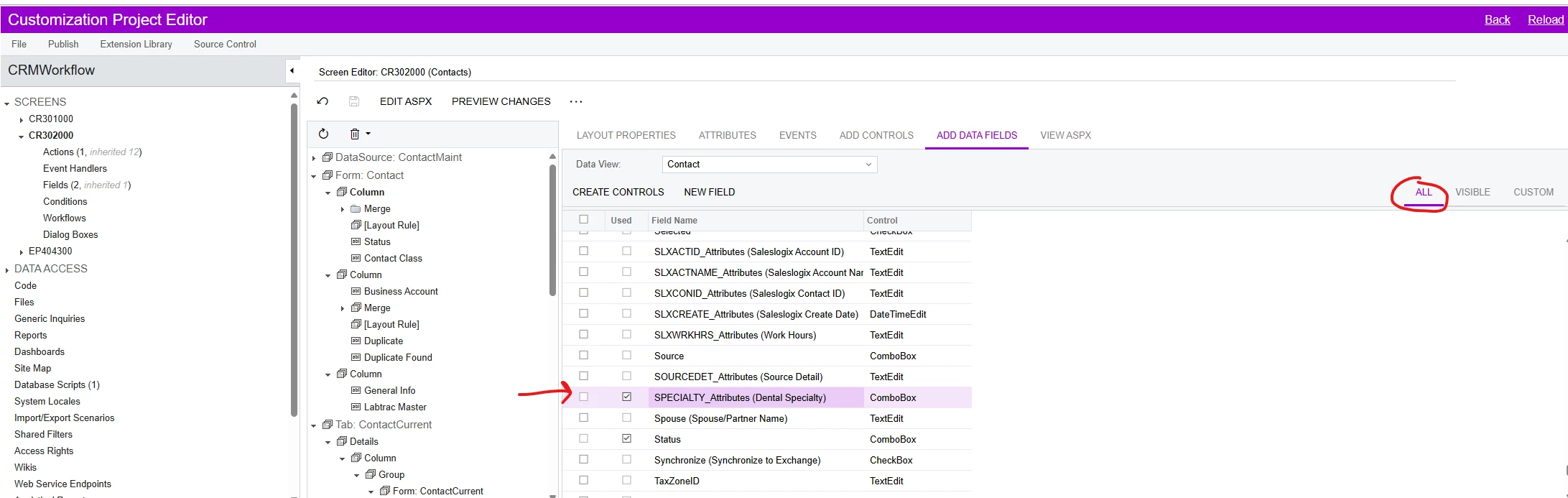
I have an attribute that we created a while back and until recently users were fine with having to go to the Attributes tab on the contacts screen to see the attribute and its value. I now have a request that seems simple enough, which is to make it so the attribute shows up at the top of the Contact screen right under Status. The attribute in question is a combo box attribute with some values that the user can select from. I open the customization project for the screen in question (302000) and go to the Add Data Fields and I can see the Attribute field in question under that All section. is isn’t visible in the Visible or Custom views.  Not if that is significant or not.
 

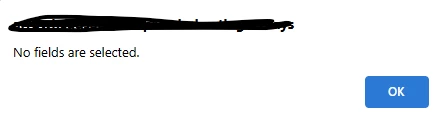
 When I highlight the field and click the Create Controls button I get an error that says “No fields are selected” which is preventing me from adding it to the Form Column.
 

Not sure if I am trying to do something that isn’t supported but it seems like a simple enough type of customization. I don’t even need to be able to have users use the combo box feature I really just need the value of this particular attribute to show up on the main Contact screen. Any help on this particular question would be greatly appreciated.

Best answer by DipakNilkanth

Hi ​@mtcook,

I believe that adding attributes directly through the Customization Editor may not work as expected in this case. Instead, you may need to create a custom dropdown field under the Status field and populate it with the same values used in the attribute.

If your goal is to display the selected attribute value for the contact (as maintained on the Attributes tab), Please go through the below link


Hope, it helps!

5 replies

bcoutermash09
Jr Varsity III
Forum|alt.badge.img
  • Jr Varsity III
  • May 27, 2025

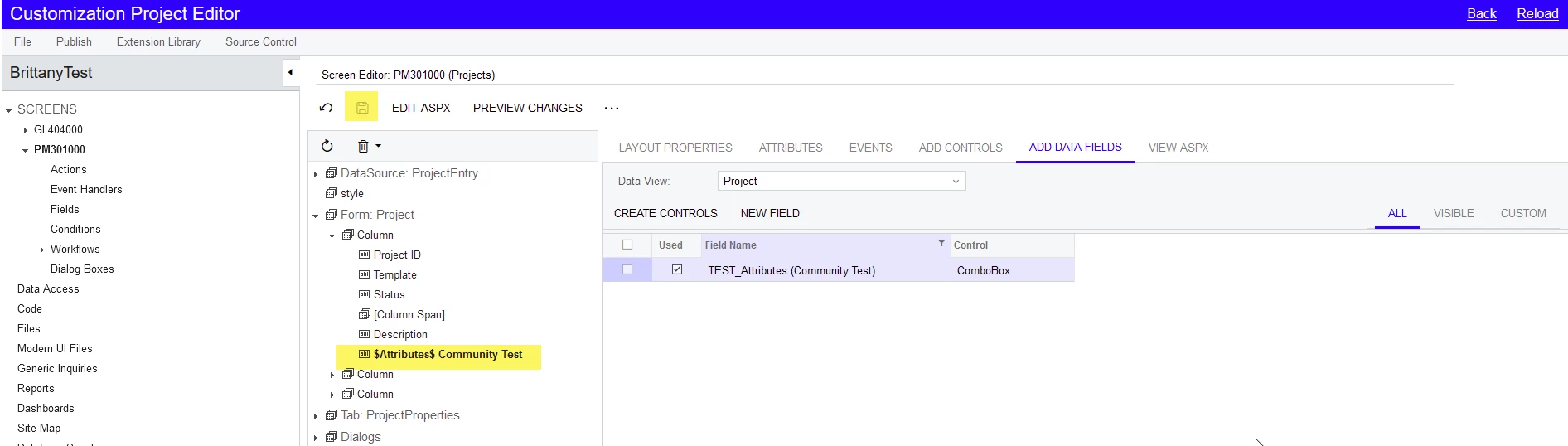
Hi mtcook! You should not have an issue getting the Attribute to display on the Projects screen. In the Customization Project Editor, select the Checkbox for your Attribute on the “Add Data Fields” tab just like you were doing. You can then click on the node on the tree where you want it to display beneath and click on the save icon. You can then publish your customization. 


  • Freshman I
  • May 27, 2025

And if the attribute is not listed here?  We have some that are listed and some that are not and can’t see what the difference is. 


bcoutermash09
Jr Varsity III
Forum|alt.badge.img
  • Jr Varsity III
  • May 27, 2025

Mtcook - Sorry, I used Projects in my example instead of Contacts, but you should have the same result.

Csmith - What screen are you working on? Are all of the Attributes you wish to see added to either the Project Attributes screen or the [Insert Entity] Classes screen? (Ex: Customer Classes, Employee Classes, etc.)


DipakNilkanth
Pro III
Forum|alt.badge.img+13

Hi ​@mtcook,

I believe that adding attributes directly through the Customization Editor may not work as expected in this case. Instead, you may need to create a custom dropdown field under the Status field and populate it with the same values used in the attribute.

If your goal is to display the selected attribute value for the contact (as maintained on the Attributes tab), Please go through the below link


Hope, it helps!


dcomerford
Captain II
Forum|alt.badge.img+15
  • Captain II
  • May 28, 2025

As ​@Nilkanth Dipak suggested you cannot move the attribute on the Contact to the main form. You will instead need to create a customisation to add this field as a ‘Usr’ field with a dropdown selector. You can then place it where ever you want. Its one of the limitation of attributes