Solved

Inventory ID Segmented Key Error

  • October 13, 2025
  • 5 replies
  • 162 views

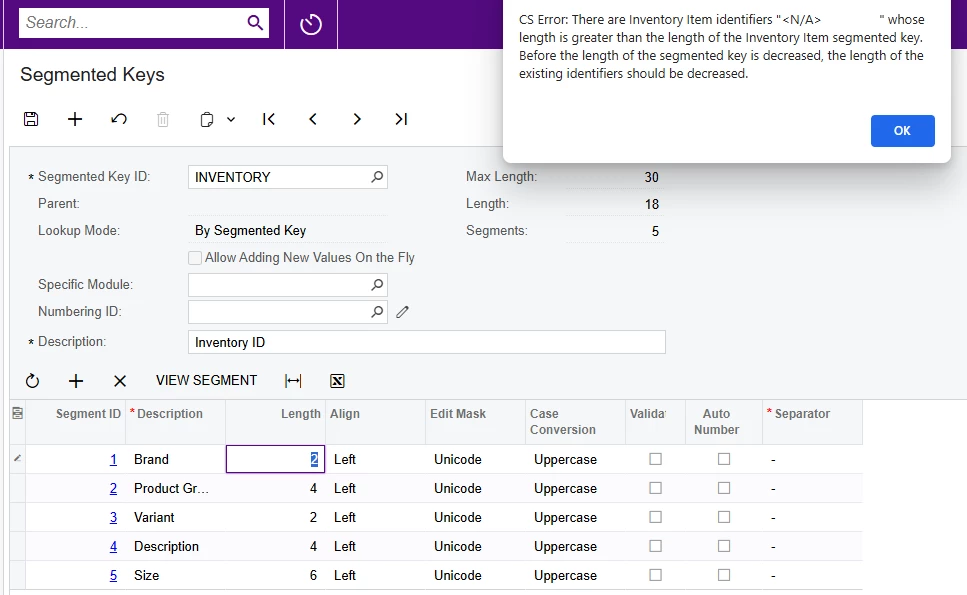
We are implementing Acumatica and want an Inventory ID with 5 Segments. We have no Items created yet. The system will not allow me to reduce the first segment to 2 digits (see below). Can anyone help?
 

Best answer by utjipueja320

Hi,

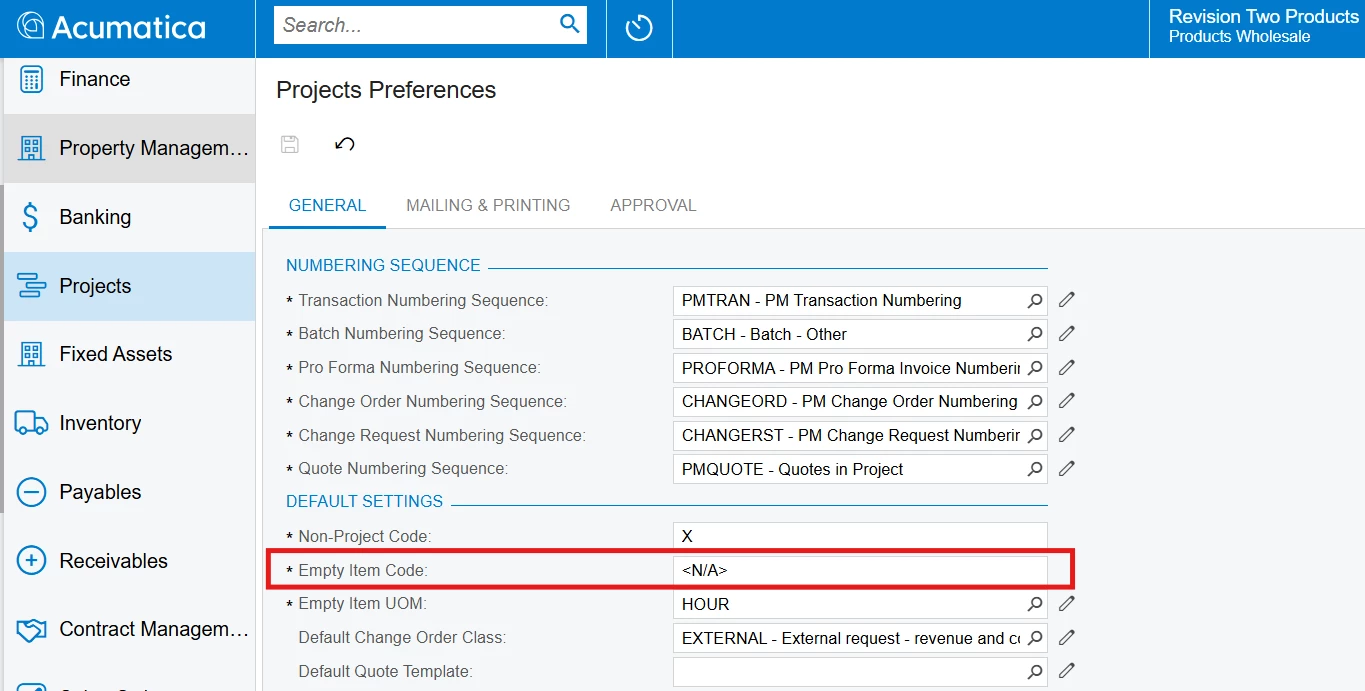
I’ve picked up on the Projects Preference screen, there’s an empty item code field that Acumatica inserts by default. Once you specify a “0” or any amount of characters shorter than what was intended, you’d be able to save your inventory segmented key. 


5 replies

Forum|alt.badge.img
  • Semi-Pro I
  • October 13, 2025

@mbillnz This AI generated answer hope it’s useful

  • Go to:

    • Screen: Inventory → Inventory → Manage → Stock Items

    • Search for "<N/A>" in the Inventory ID field.

  • Edit the <N/A> record:

    • Change its Inventory ID temporarily to something shorter, for example:
      NA or XX.

  • Save the record.

  • Now go back to:

    • Screen: System Management → Configuration → Segmented Keys

    • Select INVENTORY.

  • Try reducing the segment length again (e.g., make “Brand” length 2).

  • Once the change is saved successfully,

    • Go back to Stock Items and rename the item back to <N/A> if needed.


  • Author
  • Freshman I
  • October 13, 2025

Thanks. There are no Inventory Items set up yet, so searching for "<N/A>" returns nothing.


Forum|alt.badge.img
  • Semi-Pro I
  • October 13, 2025

@mbillnz 

Option 1: Safest fix — recreate the Inventory segmented key

Since you have no items created yet, the cleanest and safest method is to delete and recreate the INVENTORY segmented key:

  1. Go to System Management → Configuration → Segmented Keys.

  2. Locate and delete the INVENTORY key (trash-can icon).

    • Acumatica will warn you, but since there are no items, it’s safe.

  3. Recreate a new key:

    • Segmented Key ID: INVENTORY

    • Description: Inventory ID

    • Add your 5 segments with the desired lengths (e.g. Brand = 2, etc.).

  4. Save.

This forces Acumatica to rebuild the default <N/A> record with your new segmentation setup — and resolves the error completely.

Option 2: Fix the existing <N/A> record (if you can’t delete the key)

If deleting isn’t allowed:

  1. Go to Configuration → Segmented Keys for INVENTORY.

  2. Increase the total length temporarily (for example, to 30).

    • Save the record.

  3. Now go to Configuration → Data Views → Generic Inquiry, and create a quick GI on the INItem table to locate the <N/A> record:

    • Table: INItem

    • Fields: InventoryCD, InventoryID

    • Filter: InventoryCD = <N/A>

  4. Once you find it, open it in Stock Items via the hyperlink (or note its ID and open it manually) and rename <N/A> to NA.

  5. Return to Segmented Keys and now reduce the length as desired.

  6. Rename NA back to <N/A> later if you wish.

Option 3: Use SQL (sandbox only!)

If you’re in a test environment and have DB access:


UPDATE INItem SET InventoryCD = 'NA' WHERE InventoryCD = '<N/A>';

Acumatica automatically inserts <N/A> as a default “null” inventory ID, so it still validates its length even though it’s not user-visible until you start using inventory.


utjipueja320
Freshman II
  • Freshman II
  • May 4, 2026

Hi ​@mbillnz 

Were you able to find a solution for this? 
I’m currently experiencing the same dilemma.


utjipueja320
Freshman II
  • Freshman II
  • Answer
  • May 7, 2026

Hi,

I’ve picked up on the Projects Preference screen, there’s an empty item code field that Acumatica inserts by default. Once you specify a “0” or any amount of characters shorter than what was intended, you’d be able to save your inventory segmented key.