Question

Stock item quantity synchronization mismatch issue

  • July 3, 2025
  • 14 replies
  • 146 views

mindweb
Jr Varsity II
Forum|alt.badge.img

I have 4 store locations in Acumatica and Shopify. I want to sync “AVAILABLE” stock quantity from Acumatica to Shopify.

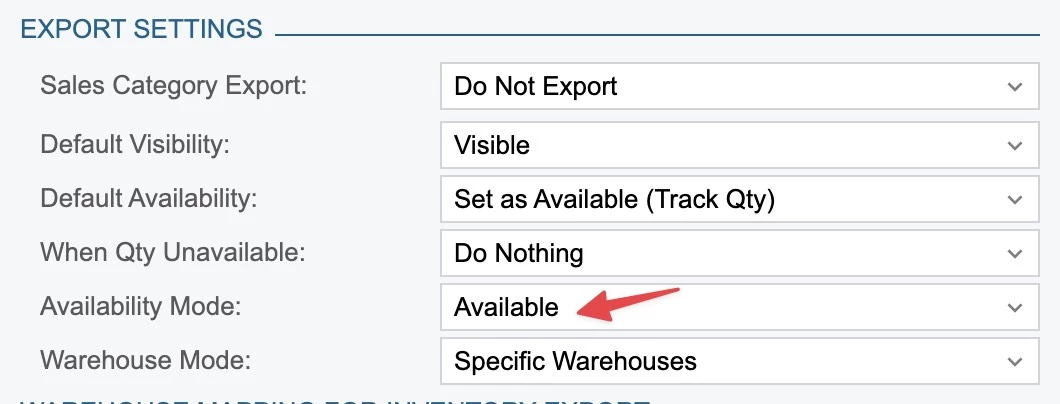
This is the export settings in the connector, where the availability mode is set to AVAILABLE.
 

Stock quantity in Acumatica:
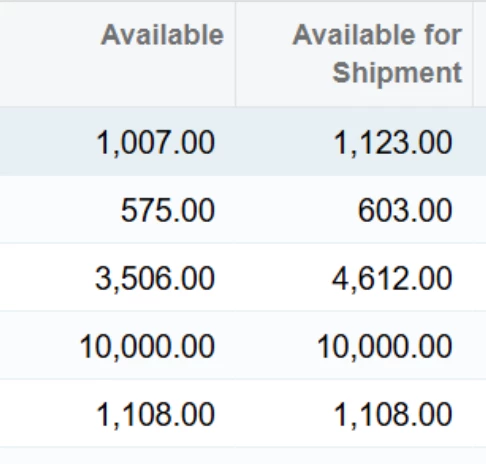
After syncing stock quantity to Shopify:
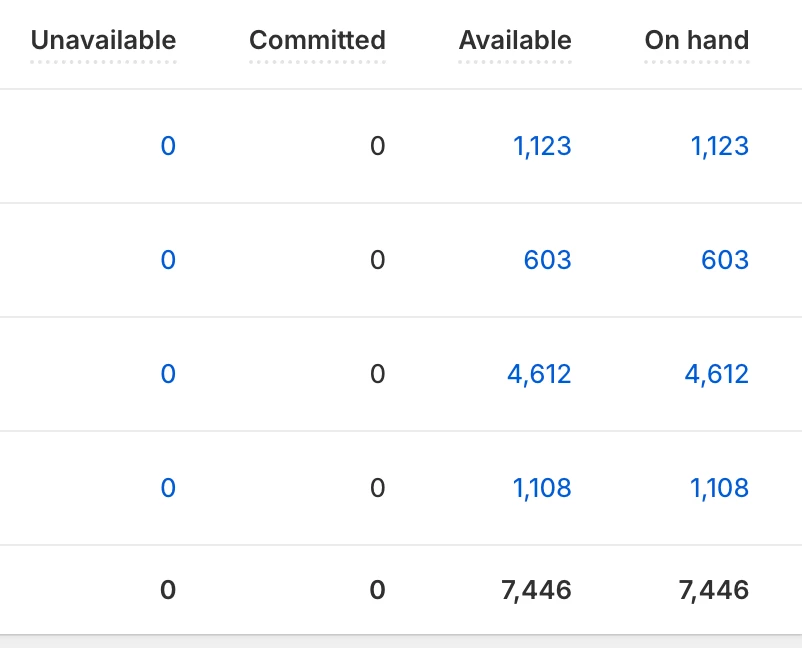
 

As you can see “AVAILABLE FOR SHIPMENT” quantity is synced instead of “AVAILABLE”. What am I missing here to make it work? Thank you!

14 replies

Forum|alt.badge.img+1

Hi ​@mindweb:

Was the Availability Mode changed recently in the Inventory tab of the Store Settings form? If yes, then the product availability entity will need to be prepared in Full mode and then resynchronized to Shopify. 

For Ref: https://help.acumatica.com/Wiki/(W(1))/ShowWiki.aspx?pageid=b37a41a4-1992-4306-b8ed-1aa42e3ce4fd


mindweb
Jr Varsity II
Forum|alt.badge.img
  • Author
  • Jr Varsity II
  • July 3, 2025

Hi ​@mindweb:

Was the Availability Mode changed recently in the Inventory tab of the Store Settings form? If yes, then the product availability entity will need to be prepared in Full mode and then resynchronized to Shopify. 

For Ref: https://help.acumatica.com/Wiki/(W(1))/ShowWiki.aspx?pageid=b37a41a4-1992-4306-b8ed-1aa42e3ce4fd

Thank you! I already did a FULL preparation and process. I even tried it one more time now. Yet, the old quantities show.

I even turned off Track quantity, reenabled it, full prepare and process. Still no change.


Yuri Karpenko
Captain II
Forum|alt.badge.img+6

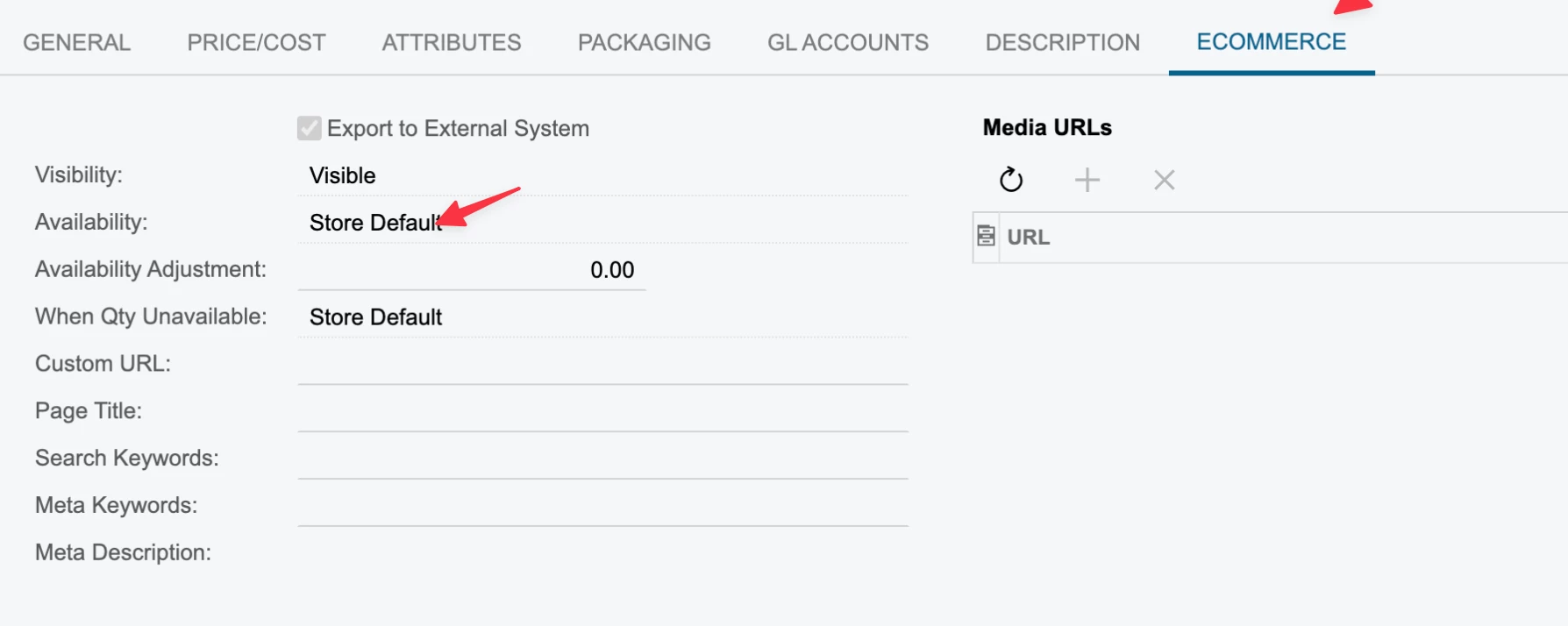
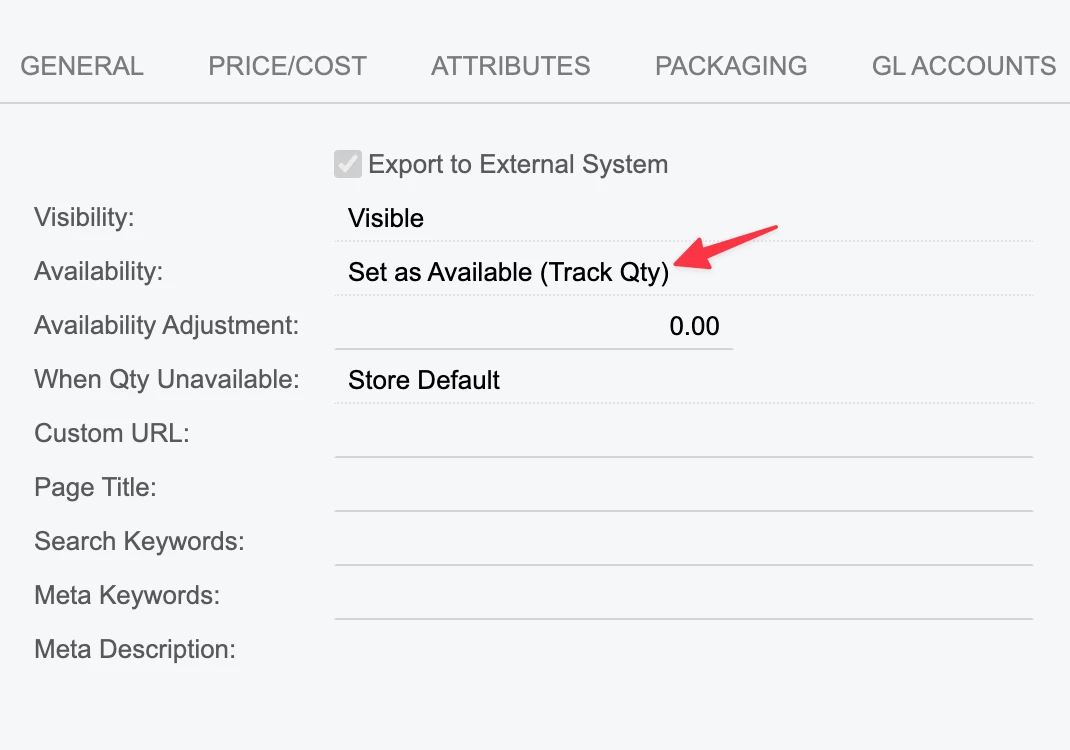
@mindweb , check the specific item’s settings. On the Shopify Stores you set up the default, but on the Stock Items screen, you could have changed those settings - check the ECOMMERCE tab.


mindweb
Jr Varsity II
Forum|alt.badge.img
  • Author
  • Jr Varsity II
  • July 3, 2025

@mindweb , check the specific item’s settings. On the Shopify Stores you set up the default, but on the Stock Items screen, you could have changed those settings - check the ECOMMERCE tab.

This one? Thank you!


Yuri Karpenko
Captain II
Forum|alt.badge.img+6

@mindweb , yes, that one. The only other thought I have is: are we talking about Matrix Items - i.e. is this product a variant in Shopify or is it a standalone product with no variants?


mindweb
Jr Varsity II
Forum|alt.badge.img
  • Author
  • Jr Varsity II
  • July 3, 2025

Thank you Yuri. These are just stock items (standalone with no variants), not template items.


Yuri Karpenko
Captain II
Forum|alt.badge.img+6

@mindweb , I’d probably change the Available in Acumatica (create an order something like that - something that does change the availability), then prepare Product Availability entity - if this item is added to the stream, then process the data. Then go to Shopify, and there is a button called adjustment history (right above your inventory numbers). Click that button and see if anything came down from Acumatica. Of course, it’d be easier to troubleshoot if we could jump on a call, but the overarching idea is - try to cause those numbers to change to confirm that you’re actually getting Available for Shipment quantities, and not Available. I would also recommend overriding the settings on the item level (from Store Default to Available), but those fields are grayed on your screen, which is also somewhat concerning.


mindweb
Jr Varsity II
Forum|alt.badge.img
  • Author
  • Jr Varsity II
  • July 4, 2025

Thank you! It was greyed out due to permission issue. 

Step 1: I modified the Availability of a product from DEFAULT to SET AS AVAILABLE

Step 2: Deleted inventory numbers for all locations for their specific product in Shopify

Step 3: I then did a full prepare and process, yet only AVAILABLE FOR SHIPPING stock quantity is shown in Shopify.


Forum|alt.badge.img+1

@mindweb:

One last workaround that you can attempt is to deleted an affected sync record from the Sync History (BC301000) form [by selecting the record →  Delete action from More menu], and then prepare in full mode and when the sync record appears, to process the sync record and see if the correct quantity appears.

If still, the correct quantity does not appear, it would be best if you could create a case with support, so we can have a look at this issue and aid in assisting.  


mindweb
Jr Varsity II
Forum|alt.badge.img
  • Author
  • Jr Varsity II
  • July 4, 2025

@mindweb:

One last workaround that you can attempt is to deleted an affected sync record from the Sync History (BC301000) form [by selecting the record →  Delete action from More menu], and then prepare in full mode and when the sync record appears, to process the sync record and see if the correct quantity appears.

If still, the correct quantity does not appear, it would be best if you could create a case with support, so we can have a look at this issue and aid in assisting.  

Thank you! This issue is impacting all records. I’m currently troubleshooting with one product to pinpoint the problem. For this test, I deleted the product from the sync history, removed it from Shopify, resynced it without inventory tracking, then enabled inventory tracking and then ran a full prepare and process. However, the AVAILABLE FOR SHIPPING quantity is still being pushed to Shopify.


Forum|alt.badge.img+1

@mindweb:

Could you please create a support case for this issue. We would need to check the data to identify the root cause.


mindweb
Jr Varsity II
Forum|alt.badge.img
  • Author
  • Jr Varsity II
  • July 7, 2025

@mindweb:

Could you please create a support case for this issue. We would need to check the data to identify the root cause.


Can you guide me where I can create support case with Acumatica? Thank you!


Chris Hackett
Community Manager
Forum|alt.badge.img
  • Acumatica Community Manager
  • July 7, 2025

Hi ​@mindweb - Your support should be through the partner who sold you the product. 


mindweb
Jr Varsity II
Forum|alt.badge.img
  • Author
  • Jr Varsity II
  • July 8, 2025

Hi ​@mindweb - Your support should be through the partner who sold you the product. 

Thank you!