We currently import 2-3k orders per day from Shopify.
They import at a rate of about 360/hour or 10 seconds per order.
This usually keeps up, but with order updates and sales we can fall behind.
What rates are you seeing on your system?
Ideas are welcome, but trying to start with what are realistic expectations and what is possible.
Best answer by simonliang91
@bryanb39, if you don’t use parallel sync mode, there are only 2 threads to process the sync records.
If you run the sync process in a schedule mode, I suggest you enable the parallel sync mode, it will use up to 8 threads to process the sync records, based on our testing, it can import 4000 - 6000 orders per hour.
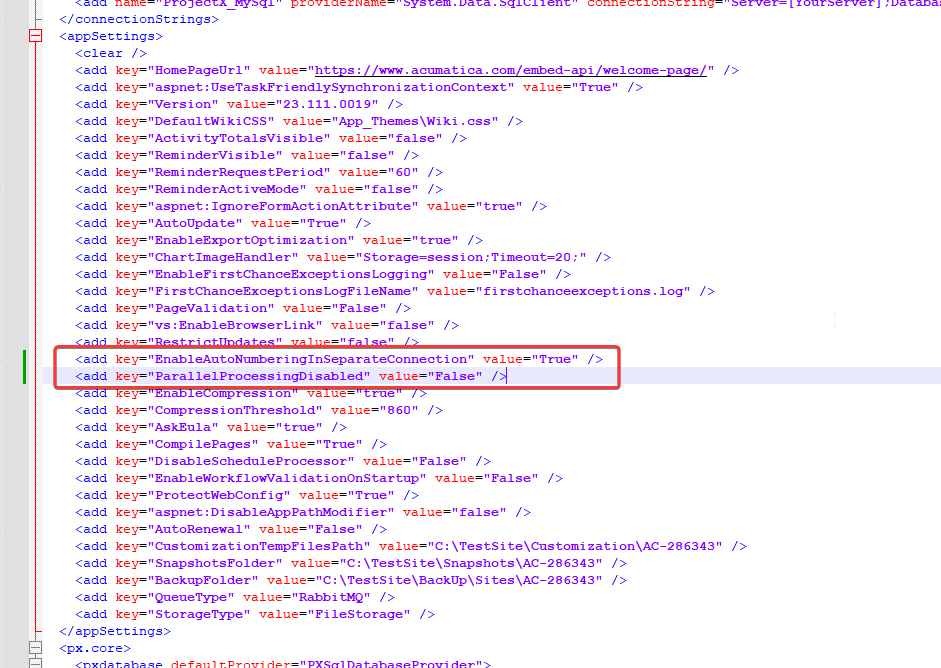
The steps to enable the parallel mode:
You have a valid license in your Acumatica instance
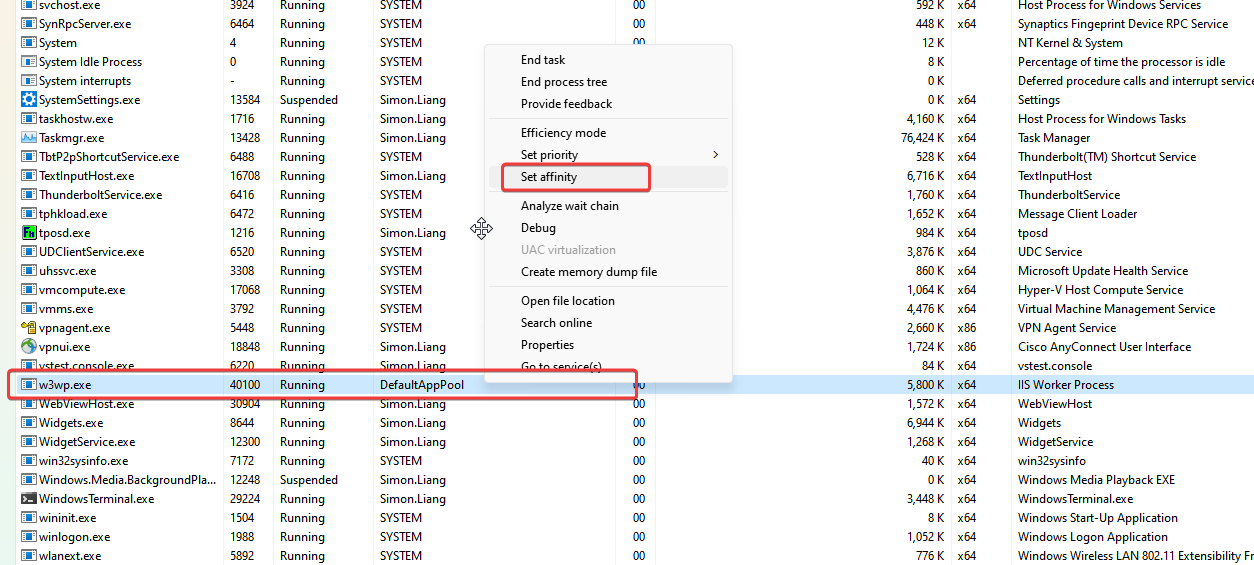
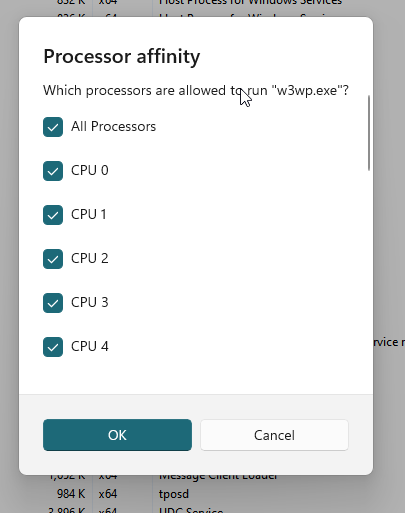
Change the processor affinity for “w3wp.exe” in Task Manager, you may have multiple “w3wp.exe”, find the one with the same name as the name of the Application pool that uses in your site.
@bryanb39, if you don’t use parallel sync mode, there are only 2 threads to process the sync records.
If you run the sync process in a schedule mode, I suggest you enable the parallel sync mode, it will use up to 8 threads to process the sync records, based on our testing, it can import 4000 - 6000 orders per hour.
The steps to enable the parallel mode:
You have a valid license in your Acumatica instance
Change the processor affinity for “w3wp.exe” in Task Manager, you may have multiple “w3wp.exe”, find the one with the same name as the name of the Application pool that uses in your site.
Thank you! Our Sys admin is working on the parallel processing settings. Your 4-6K figure really helps us know what’s possible so even with that on we can have an idea if our hardware config and other settings are appropriate.
@bryanb39 , the parallel mode is only active in the “Process All” mode in the “Process Data” screen, and we process the sync records by batch, each 50 records is a batch.
@bryanb39, if you don’t use parallel sync mode, there are only 2 threads to process the sync records.
If you run the sync process in a schedule mode, I suggest you enable the parallel sync mode, it will use up to 8 threads to process the sync records, based on our testing, it can import 4000 - 6000 orders per hour.
The steps to enable the parallel mode:
You have a valid license in your Acumatica instance
Change the processor affinity for “w3wp.exe” in Task Manager, you may have multiple “w3wp.exe”, find the one with the same name as the name of the Application pool that uses in your site.
Run the process data with “Process All” mode.
Thanks, Simon! We’ve been trying to figure this out for far too long! Haha
To make sure I understand this correctly, it looks like from the test I just ran that if there are fewer than 50 pending, it’ll still use a single thread, but if there’s 150 it’ll use 3 threads.
Will this affect all parallel processing activities within the server? If not, are there other keys we can add to increase performance from the application server and/or processing node via the web.config file or tweaks in IIS that we should be doing?
This is great! A game changer for sure! @simonliang91 - Can we get this to work for other screens, like reports with extensive post processing times after data retrieval? Like profitability reports and AR Aging, etc?