Solved

Vendor specific PO template (PDF)

  • February 13, 2026
  • 9 replies
  • 0 views

dpruckus
Freshman I
Forum|alt.badge.img

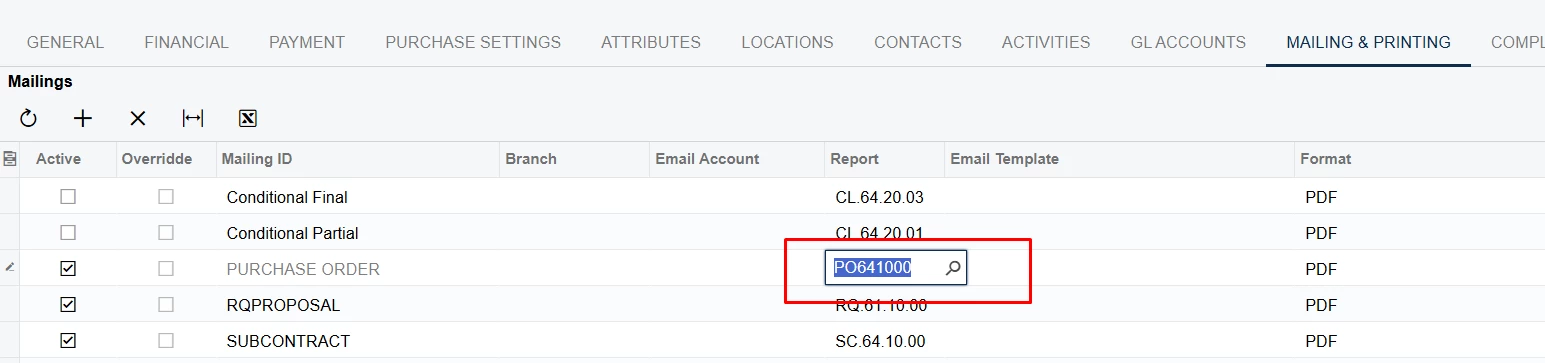
Hey guys, I found a place to assign a vendor specific PO report. however the dropdown list is not showing my custom report that i uploaded via Report designer. Also overrride box is greyed out. how do I solve this?



Best answer by BenjaminCrisman

Two things, if you navigate to the report and click Tools > Access Rights… it will take you directly to that node.

Other thing is you can hover over the title and it will show you what screenID you are hovered over:
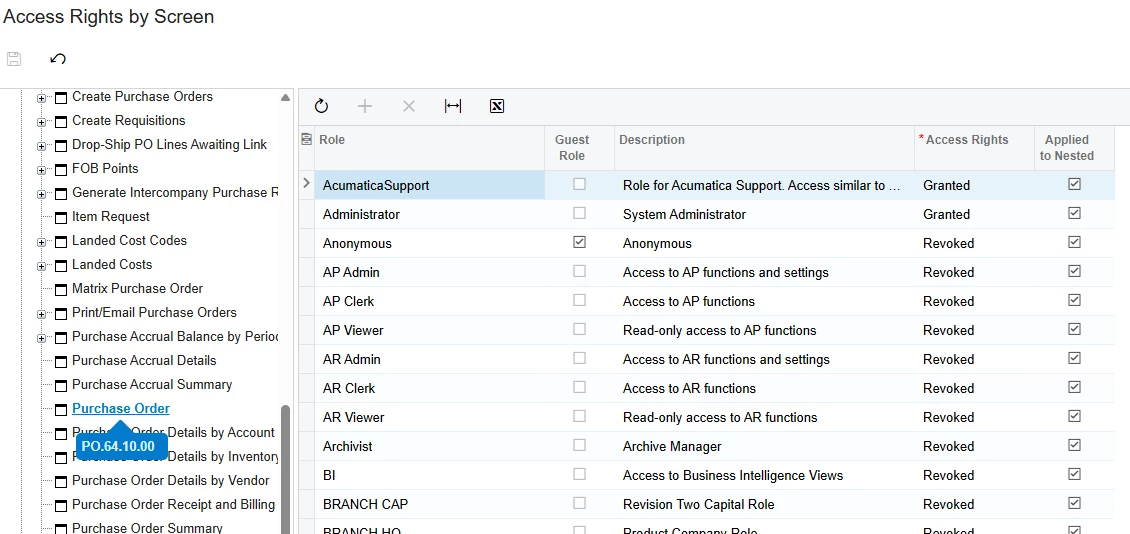
If you didn’t assign a specific Workspace and Category for the report you added to the site map, it will be in the Hidden folder and you can find it by the site map title you gave it.

I don’t see the report in your screenshot, was it removed from the site map?

9 replies

BenjaminCrisman
Acumatica Employee
Forum|alt.badge.img+4
  • Acumatica Support Team
  • February 13, 2026

@dpruckus Pretty sure you need to make sure the report starts with PO, does your custom report start with this prefix?


dpruckus
Freshman I
Forum|alt.badge.img
  • Author
  • Freshman I
  • February 13, 2026

@dpruckus Pretty sure you need to make sure the report starts with PO, does your custom report start with this prefix?

Yes, its name PO641000Vendor.rpx


BenjaminCrisman
Acumatica Employee
Forum|alt.badge.img+4
  • Acumatica Support Team
  • February 13, 2026

What is the Site Map screenID for the report?


dpruckus
Freshman I
Forum|alt.badge.img
  • Author
  • Freshman I
  • February 13, 2026

What is the Site Map screenID for the report?

I didnt have it in my site map :) Now its showing up on Vendor`s list to select. However gives me no access error if try to print. How to set the same access as original report?


BenjaminCrisman
Acumatica Employee
Forum|alt.badge.img+4
  • Acumatica Support Team
  • February 13, 2026

@dpruckus Once added to the site map it will default access to revoked. You need to go to Access Rights by Screen and update the access for the roles that need to be able to run it


dpruckus
Freshman I
Forum|alt.badge.img
  • Author
  • Freshman I
  • February 13, 2026

@dpruckus Once added to the site map it will default access to revoked. You need to go to Access Rights by Screen and update the access for the roles that need to be able to run it


I hate AC roles! (after the summit I know im not alone, lol). How do I find which ones are required (same as old PO report) to be added?


BenjaminCrisman
Acumatica Employee
Forum|alt.badge.img+4
  • Acumatica Support Team
  • February 13, 2026

You can just look at the roles for one report and then set the custom report to the same roles. Just open Access Rights by Screen and then look under Purchases and you’ll see the report there, click it and screenshot the roles or open a new tab and just match them


dpruckus
Freshman I
Forum|alt.badge.img
  • Author
  • Freshman I
  • February 13, 2026

You can just look at the roles for one report and then set the custom report to the same roles. Just open Access Rights by Screen and then look under Purchases and you’ll see the report there, click it and screenshot the roles or open a new tab and just match them

Thousands of screens and not possible to filter by screenname to find original report po641000.rpx


BenjaminCrisman
Acumatica Employee
Forum|alt.badge.img+4
  • Acumatica Support Team
  • Answer
  • February 13, 2026

Two things, if you navigate to the report and click Tools > Access Rights… it will take you directly to that node.

Other thing is you can hover over the title and it will show you what screenID you are hovered over:

If you didn’t assign a specific Workspace and Category for the report you added to the site map, it will be in the Hidden folder and you can find it by the site map title you gave it.

I don’t see the report in your screenshot, was it removed from the site map?