Answer

Using a Generic Inquiry condtion to filter for a specific customer name or customer number

  • November 5, 2024
  • 4 replies
  • 204 views

Forum|alt.badge.img+1

Is there a way to use a condition in a Generic Inquiry to bring up the records associated with one specific customer name or their account ID? The data will be used in an Excel worksheet and emailed out to the sales rep and the customer in question. I have tried using Customer.ParentID = 123456 BAccountR.ParentBAccountID_description = Disney World Travel in the conditions tab but the GI still brings over everything including customers and accounts numbes not needed.

 

Best answer by Laura03

Hello,

I think we can best answer your question if we see a screen shot of your current GI,  the results when it’s exported to Excel, along with a screen shot of what you WANT it to look like in Excel and in the Email.

Acumatica Community has some really clever pivot table experts that will help guide you. 🙂 

If you don’t want to use a Parameter, individual columns may be filtered by clicking in the Column header before exporting to Excel.

Laura

4 replies

Laura03
Captain II
Forum|alt.badge.img+19
  • Captain II
  • November 5, 2024

Hello,

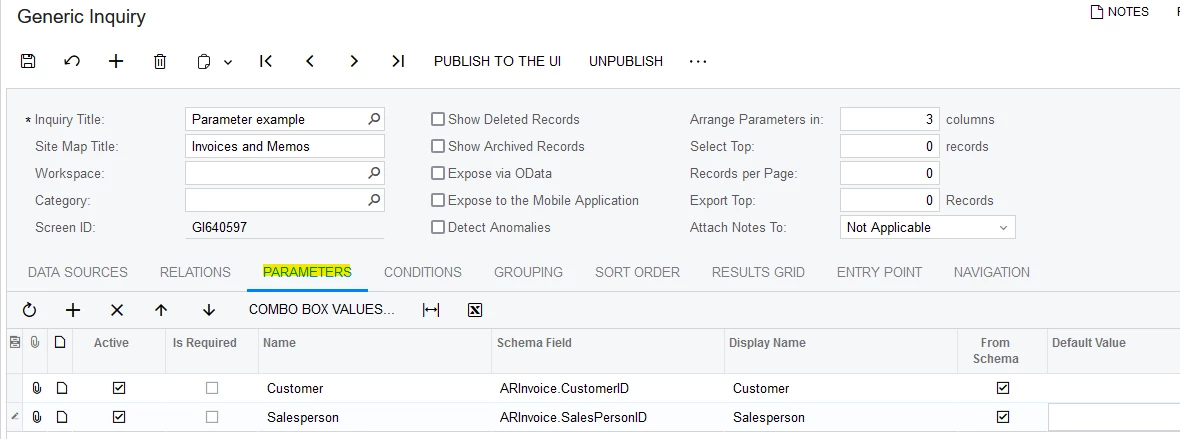
Please add Parameters to your Generic Inquiry, as in this example:

With related Conditions like this:

When viewing the Generic Inquiry, you can select customer or select salesperson, then Export appropriate records to Excel.

Laura


Forum|alt.badge.img+1
  • Author
  • Semi-Pro I
  • November 5, 2024

This works, but, and I accept full responsibility as I may not have been too clear, the GI is also being used in an Excel workbook so that the data associated with the specific customer/account number will be can be pulled into a pivot table and emailed out.


Laura03
Captain II
Forum|alt.badge.img+19
  • Captain II
  • Answer
  • November 7, 2024

Hello,

I think we can best answer your question if we see a screen shot of your current GI,  the results when it’s exported to Excel, along with a screen shot of what you WANT it to look like in Excel and in the Email.

Acumatica Community has some really clever pivot table experts that will help guide you. 🙂 

If you don’t want to use a Parameter, individual columns may be filtered by clicking in the Column header before exporting to Excel.

Laura


Forum|alt.badge.img+1
  • Author
  • Semi-Pro I
  • November 12, 2024

We’ve decided to go another route instead of the Excel. Thank you for the help though.😊