Answer

Report Designer Tip: Filtering by Status Codes in Build Schema

  • June 18, 2025
  • 2 replies
  • 87 views

Isharam
Freshman I
Forum|alt.badge.img

Hey Acumatica community,

I wanted to share a quick but important tip for anyone customizing reports using Report Designer and struggling with filters — especially when filtering by Order Status fields like POOrder.OrderStatus.

🎯 Problem:

I tried to filter my Purchase Order report to show only Open orders by adding this filter in Build Schema → Filters:


but the report didn’t return anything. It turns out, Acumatica uses internal code values, not the visible labels you see on screen!

✅ Solution:

To filter by Open POs, you need to use the correct code:

🔍 How to Find Status Codes in General

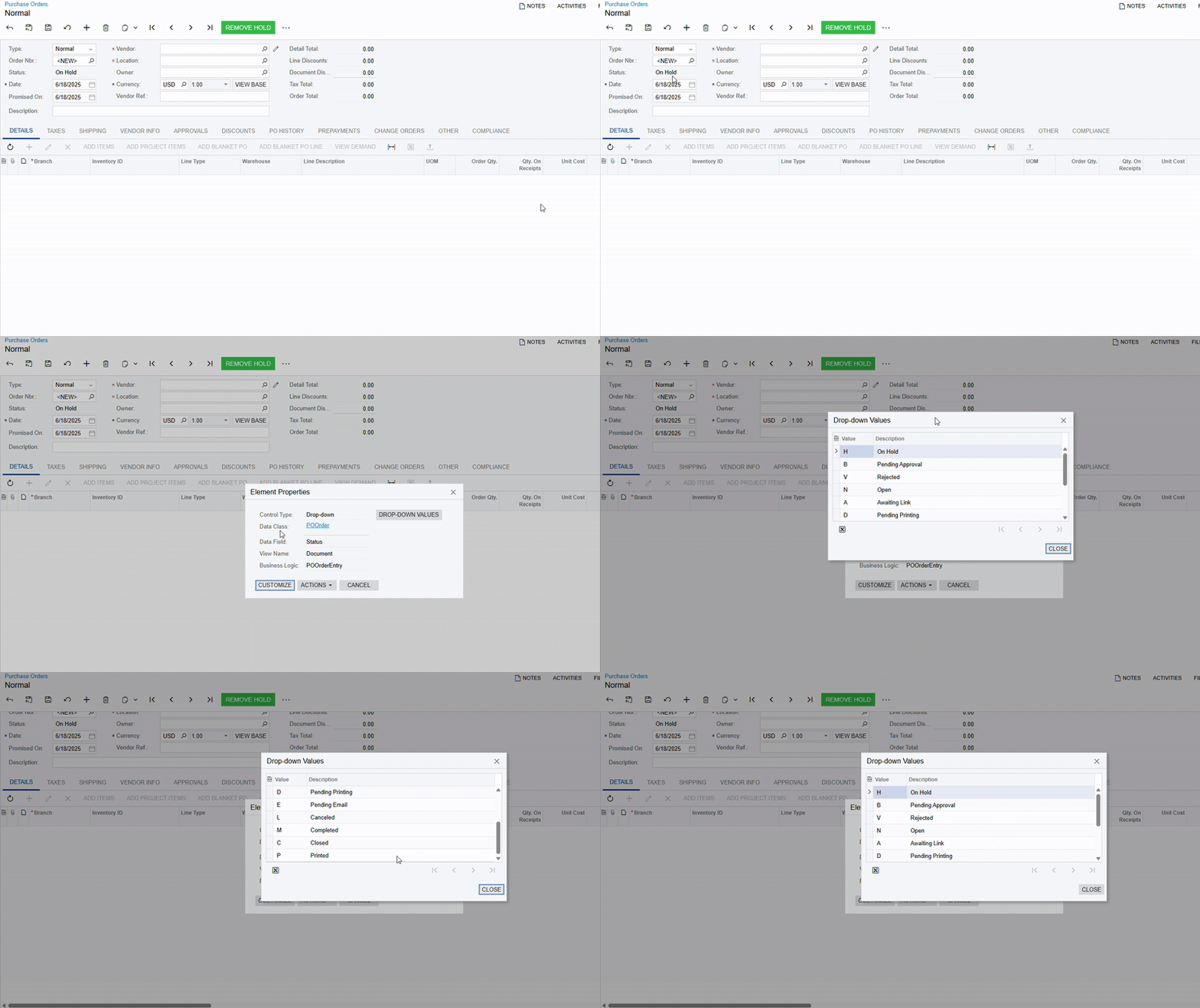
  1. Inspect Element in Acumatica. and check the status field. then look for dropdown values. 
Hope this helps someone avoid a few hours of confusion like I had 😅

Cheers!
Best answer by plambert

This is an excellent tip and definitely something everyone bumps into at some point! I have seen other solutions to exposing the codes, though the Inspect Element > Drop Down Values is my new favorite.

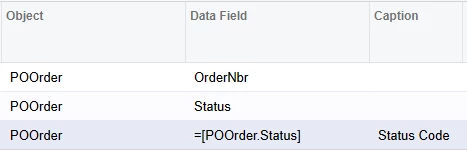
One additional trick (learned from a post now lost to me) is to include a field twice in a GI. 

Results Grid setup
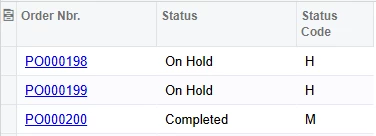
Resulting values

This can be useful for using GIs as data sources. Also good to know for the Report Designer, which will show the code if a field is included twice.

2 replies

plambert
Semi-Pro I
Forum|alt.badge.img+2
  • Semi-Pro I
  • Answer
  • June 18, 2025

This is an excellent tip and definitely something everyone bumps into at some point! I have seen other solutions to exposing the codes, though the Inspect Element > Drop Down Values is my new favorite.

One additional trick (learned from a post now lost to me) is to include a field twice in a GI. 

Results Grid setup
Resulting values

This can be useful for using GIs as data sources. Also good to know for the Report Designer, which will show the code if a field is included twice.


Isharam
Freshman I
Forum|alt.badge.img
  • Author
  • Freshman I
  • June 18, 2025

Thanks for bringing this up! 🙌 I actually use that same trick often especially when I need to create a new calculated field within a GI. Including a field twice allows me to apply conditions or formatting to one version while keeping the raw value in the other.

It’s also super handy when referencing external logic or simulating fields that don’t exist natively in Acumatica.

Great tip,

Appreciate you sharing it again!