I was having an issue with getting my new saved report getting into the site map.
At the time of writing this report I was able to get it to work by “Open report from server - load report lists” and saving it as a new report.
I was not able to get it to show up from editing the saved report and saving it to the server.
Problem solved, has anyone else had this issue?
Best answer by meganfriesen37
When you create a brand new report, you have to add the report and the address manually to the site map. See the documentation here under the “Report Publication” section.
Also - when you create a new report, don’t forget to update the access rights because by default any new reports have the “not set” setting for every role which means that everyone has access to in.
When you create a brand new report, you have to add the report and the address manually to the site map. See the documentation here under the “Report Publication” section.
Also - when you create a new report, don’t forget to update the access rights because by default any new reports have the “not set” setting for every role which means that everyone has access to in.
Can you show me the Report Name and the Site Map designation? Assuming they are a 100% match, this should have worked for you.
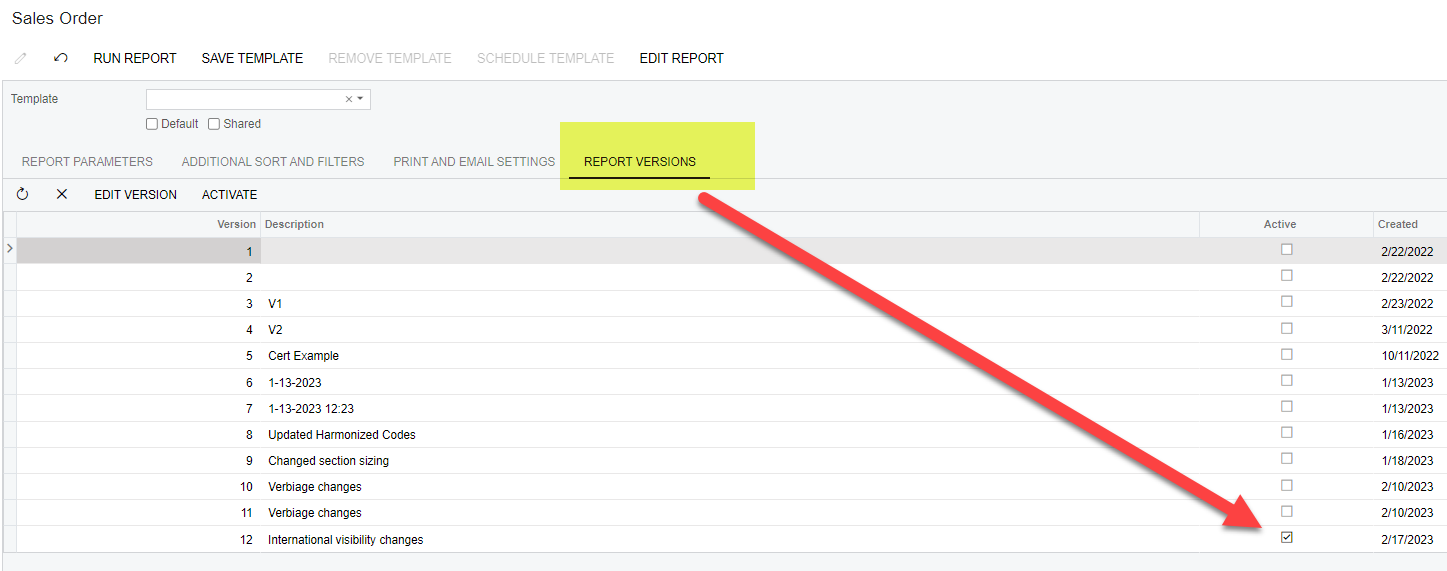
The other thing to check is that you didn’t check a previous version of the report to use from the RUN REPORT screen. If you did set it to run an older version, the new versions may not update who is being shown and you’ll forever see something like Version 1.03 instead of your new and improved version 1.08, or whatever, until you go in and manually set it to the most recent version.
When you create a brand new report, you have to add the report and the address manually to the site map. See the documentation here under the “Report Publication” section.
Also - when you create a new report, don’t forget to update the access rights because by default any new reports have the “not set” setting for every role which means that everyone has access to in.
Megan
Hi, having some issues saving new versions or saving a new report to the server. I’m not seeing any success messages when saving and cannot access the new report. Can you share a little more about the access rights? I’m an admin in our instance and I am attempting to make these changes within the Sandbox envoirnment.
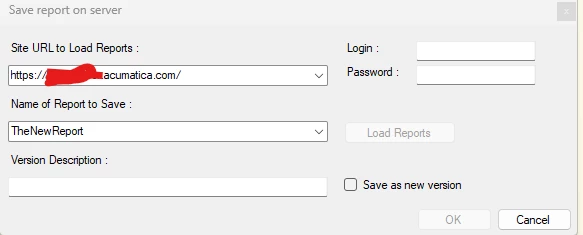
Save the report using Report Designer to your website. Use your credentials etc.
Open SITE MAP in Acumatica and ensure this report has a home there:
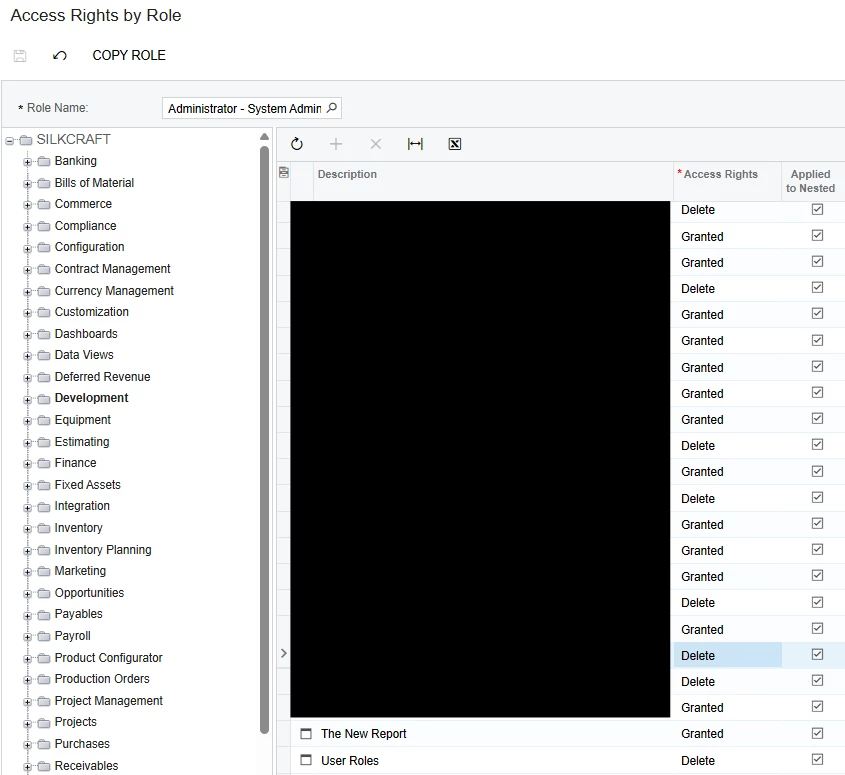
Now go to: Access Rights by Role and ensure Administrator can see it under the workspace you provided in the SITE MAP (Development in my example above).
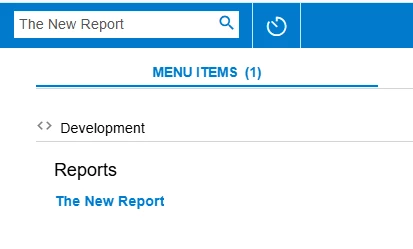
At this point, you should hit F5 (refresh) and be able to see it in your system when searching or navigating:
If you did everything above and are still struggling, please let us know whcih step you are getting caught on!
Just noticed the OP said SANDBOX, please be careful with the URL there if you are also in a sandbox. The sandbox almost always has a different URL than your production instance. You might be saving to production and not your sandbox. An easy test is to make the site map entry in both (prod and sandbox) and see if the report populates under Access Rights.
Save the report using Report Designer to your website. Use your credentials etc.
Open SITE MAP in Acumatica and ensure this report has a home there:
Now go to: Access Rights by Role and ensure Administrator can see it under the workspace you provided in the SITE MAP (Development in my example above).
At this point, you should hit F5 (refresh) and be able to see it in your system when searching or navigating:
If you did everything above and are still struggling, please let us know whcih step you are getting caught on!
Here is my path for making a new report.
Save the report using Report Designer to your website. Use your credentials etc.
Open SITE MAP in Acumatica and ensure this report has a home there:
Now go to: Access Rights by Role and ensure Administrator can see it under the workspace you provided in the SITE MAP (Development in my example above).
At this point, you should hit F5 (refresh) and be able to see it in your system when searching or navigating:
If you did everything above and are still struggling, please let us know whcih step you are getting caught on!
Just noticed the OP said SANDBOX, please be careful with the URL there if you are also in a sandbox. The sandbox almost always has a different URL than your production instance. You might be saving to production and not your sandbox. An easy test is to make the site map entry in both (prod and sandbox) and see if the report populates under Access Rights.
Thanks. When I gained access to the report, I saw all my attempted version updates lol.