Answer

Need GI with bill-to address, contact and customer shipping account info

  • November 25, 2024
  • 6 replies
  • 314 views

Hi! I need help pulling some information from the customer account in Acumatica.  I need the bill-to address and bill-to info found under the billing tab of the customer profile.  

I also need the customer’s shipping account information when we ship using the customer’s carrier and account coming from the ship via field on the shipping tab of the customer profile and the carrier account also found in the shipping tab of the customer profile.

If someone could send me screenshots of how to set it up as I don’t completely understand how to find and pull the information from tables it would be really appreciated.  Otherwise, I would have to go through accounts one by one and and manually fill this information in.

Thanks!
 

Best answer by dgodsill97

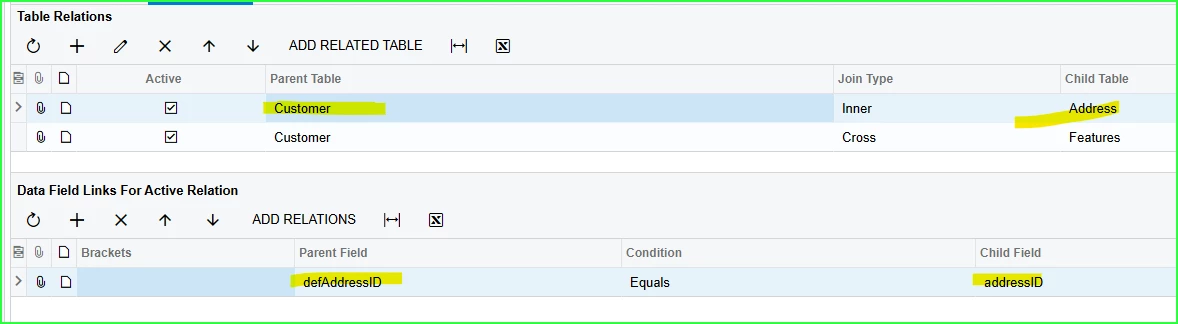
All contacts are stored in the  Contact DAC and all addresses for master records are stored in CR.Address DAC. look for columns in customer starting with def like defAddressID defContactID. defBillAddressID. defBillContactID, etc.  Similar relations for vendors, employees, contact, etc.


6 replies

Forum|alt.badge.img
  • Jr Varsity II
  • November 25, 2024

Hi, please private message me and i’ll help you through the process. Also, I find that using ChatGPT Perplexity and many other AI tools help and often can successfully create these and give you step by step directions.


Forum|alt.badge.img
  • Jr Varsity II
  • November 25, 2024

Step 1: Open the Generic Inquiry Screen

  1. Navigate to the Generic Inquiry screen:
    • Go to System ManagementInquiries (SM208000).
  2. Click + New Inquiry in the top toolbar.

Step 2: Add Basic Information

  1. In the Title field, enter a meaningful name like Customer Billing and Shipping Info.
  2. In the Screen ID, leave it blank (it will auto-populate when you save).

Step 3: Link the Necessary Tables

To get the required information, you’ll need to link the correct database tables in Acumatica.

  1. Go to the Tables Tab:

    • Click the + Add Row button to add a new table.
  2. Add the following tables:

    • Customer (AR303000): This holds general customer information.
    • CustomerBillingContact: Contains the billing address and contact details.
    • CustomerShippingContact: Contains the shipping account and carrier details.
  3. Define how the tables relate:

    • In the Join Type, select Inner Join for each added table.
    • Set relationships:
      • Customer → CustomerBillingContact: Match Customer.BAccountID to CustomerBillingContact.BAccountID.
      • Customer → CustomerShippingContact: Match Customer.BAccountID to CustomerShippingContact.BAccountID.

Step 4: Add Fields to Display

  1. Switch to the Results Grid Tab.
  2. Click + Add Row for each field you want to display:
    • Customer.AccountCD: This shows the customer ID.
    • Customer.AcctName: This shows the customer name.
    • CustomerBillingContact.Attention: The contact person for billing.
    • CustomerBillingContact.AddressLine1, City, State, PostalCode: The billing address.
    • CustomerShippingContact.CarrierID: The carrier ID for the customer’s shipping.
    • CustomerShippingContact.CarrierAccount: The account number for the customer’s shipping.

Step 5: Add Conditions (Optional)

If you want to filter the list (e.g., only active customers), do the following:

  1. Go to the Conditions Tab.
  2. Add a row for filtering:
    • Example: Customer.Status = ‘Active’.

Step 6: Preview and Save

  1. Click Preview on the top toolbar to see the data you’re pulling.
  2. If the results look good, click Save.

Step 7: Export to Excel

  1. Once the GI is saved, click the Export to Excel button in the top-right corner to download the information.

  • Author
  • Freshman I
  • November 25, 2024

Thank you for reaching out!  I got stuck, becuause I think the naming conventions are different.

See attached screenshots and let me know what questions you have for me, please. 

Thank you so much!

Sheila


Chris Hackett
Community Manager
Forum|alt.badge.img
  • Acumatica Community Manager
  • January 23, 2025

Hi ​@shargrave were you able to find a solution? Thank you!


  • Author
  • Freshman I
  • January 23, 2025

Hi Chris,

No, I’m still not able to figure out how to export the data I wanted…

Thanks for checking in!

Sheila


dgodsill97
Varsity I
Forum|alt.badge.img+3
  • Varsity I
  • Answer
  • August 14, 2025

All contacts are stored in the  Contact DAC and all addresses for master records are stored in CR.Address DAC. look for columns in customer starting with def like defAddressID defContactID. defBillAddressID. defBillContactID, etc.  Similar relations for vendors, employees, contact, etc.