Answer

How to group same-prefix numeric-suffix items & retain latest in Acumatica Report Designer?

  • November 20, 2025
  • 6 replies
  • 65 views

Forum|alt.badge.img+6

       I've used Acumatica's Report Designer to generate a list of items purchased by a searched customer in the last 90 days. The logic is to query records from SOLine in the recent 90 days, group them by ItemID and customerid, and then list the ItemIDs.

        However, the business side has a new requirement: some items are replaceable alternatives. For example, bfsk1, bfsk2, and bfsk3 are all beef steaks—only different in brand. Customers don’t care much about the brand; they purchased different ones simply because whichever brand was available in the warehouse at the time was used.

    So, on the Sales Order Collection form, only the recent "bfsk"  needs to be displayed(requested by the sales team).

The key challenges now are:

  1. How to identify replaceable items? The current idea is to group items with the same prefix and different numeric suffixes, but how does Acumatica Report Designer support this?
  2. After grouping, how to retain only the record with the latest OrderDate?

Are there any better solutions to fulfill the need?

Best answer by lauraj46

Hi ​@ray20 ,

1. You can define a report grouping based on a formula.  If you stay with the idea of a SKU prefix, I would recommend including a dash so that you can parse to pull out and group on the leftmost characters before the dash in the group formula.  This would allow the prefixes to vary in length.  The formula would be something like:

=Left([InventoryItem.InventoryCD],instr([InventoryItrm.InventoryCD],'-')-1)

Alternatively, you could consider adding an attribute on the stock item for the product group and use that to geoip, or using the Related Items tab on the stock item to define these relationships.  

2. Group on either the formula or the attribute and sort on the same. Add a secondary sort based on the order date.  In the footer for the grouping you will be able to print all of the details from the last record in the group.

Hope this helps!

Laura 

6 replies

Forum|alt.badge.img+3

Hi, ​@ray20
Did you consider implementing a DB view for this purpose?
I’d like to share my approach for cases where it’s too difficult or almost impossible to achieve the desired results in the Report Designer due to its limited functionality. In such situations, I prefer to create a DB view (and a DAC as well) and then connect it to the report. Since SQL provides extensive capabilities, it usually allows you to handle even very complex tasks.


lauraj46
Captain II
Forum|alt.badge.img+8
  • Captain II
  • Answer
  • November 20, 2025

Hi ​@ray20 ,

1. You can define a report grouping based on a formula.  If you stay with the idea of a SKU prefix, I would recommend including a dash so that you can parse to pull out and group on the leftmost characters before the dash in the group formula.  This would allow the prefixes to vary in length.  The formula would be something like:

=Left([InventoryItem.InventoryCD],instr([InventoryItrm.InventoryCD],'-')-1)

Alternatively, you could consider adding an attribute on the stock item for the product group and use that to geoip, or using the Related Items tab on the stock item to define these relationships.  

2. Group on either the formula or the attribute and sort on the same. Add a secondary sort based on the order date.  In the footer for the grouping you will be able to print all of the details from the last record in the group.

Hope this helps!

Laura 


Forum|alt.badge.img+6
  • Author
  • Captain II
  • November 21, 2025

Hi, ​@ray20
Did you consider implementing a DB view for this purpose?
I’d like to share my approach for cases where it’s too difficult or almost impossible to achieve the desired results in the Report Designer due to its limited functionality. In such situations, I prefer to create a DB view (and a DAC as well) and then connect it to the report. Since SQL provides extensive capabilities, it usually allows you to handle even very complex tasks.

@aleksandrsechin Thank you for your idea. But since I am not good at DB, I prefer to use ​@lauraj46 idea. It is simpler. But thank you all the same. I probably can use this for complex situations.


Forum|alt.badge.img+6
  • Author
  • Captain II
  • November 21, 2025

@lauraj46 Thank you , you saved my day. 
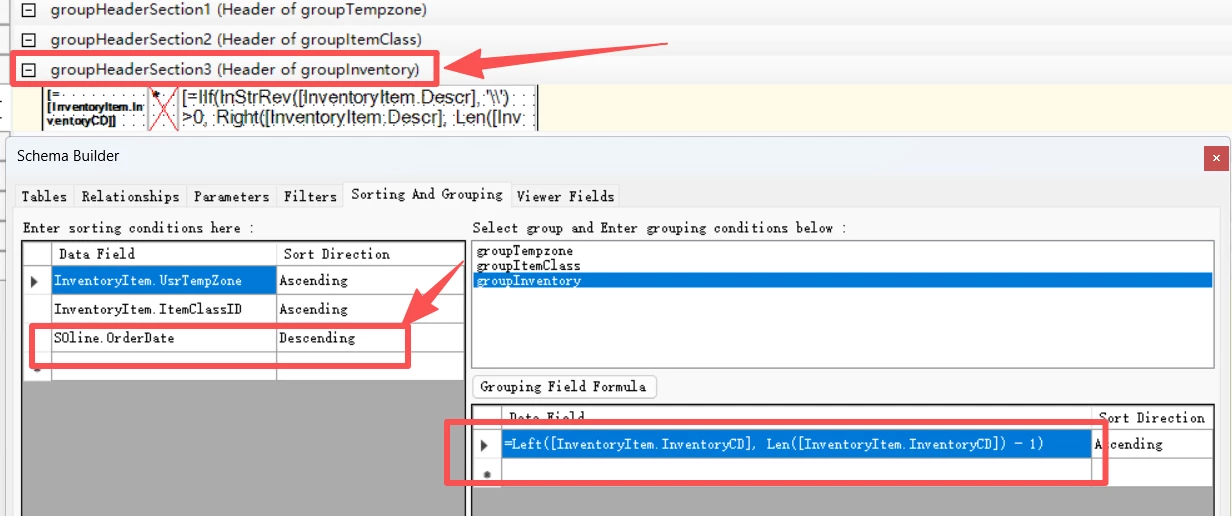
=Left([InventoryItem.InventoryCD], Len([InventoryItem.InventoryCD]) - 1)
I am using the above group forumal to solve my problem.
Acutally, the InventoryCD with smaller numberr will remain, like if we group bfsk3,bfsk4,bfsk9, the bfsk3 will remain.
Although I did not give the latest purchased item, but since the customer do not care about brand, and we also sell that item (I list out item with active status, filter out inactive , no sale). So, I think it is OK.


Forum|alt.badge.img+6
  • Author
  • Captain II
  • November 21, 2025

@lauraj46  “Acutally, the InventoryCD with smaller numberr will remain, like if we group bfsk3,bfsk4,bfsk9, the bfsk3 will remain.” --------This is not total correct. Acutally, if I order by inventoryCD, then the bfsk3 shal remain. but if I order by orderDate descending, only the item with the largest orderdate will appear in the header section once.

So my entire solutino is as below.


Forum|alt.badge.img+6
  • Author
  • Captain II
  • November 24, 2025

@aleksandrsechin ​@lauraj46 Hello experts, and others who are interested in, just 1 more tip to share.
Actually, report designer is very strong to group, it even support conditionally grouping. like below:

=IIf( [InventoryItem.ItemClassID]='01', Left([InventoryItem.InventoryCD], Len([InventoryItem.InventoryCD]) - 1), [InventoryItem.InventoryCD] )

Only when the itemclass =01 , which means meat, I group them as one. Beacuse the suffix standing for different brands. and for other class, like bevreage, I did not group tem. the suffix stands for different flavors. 

Very flexible.