Answer

Error: The Update button is disabled. Customer Class Update

  • July 16, 2025
  • 8 replies
  • 106 views

When trying to do a mass update to correct customer classes I get the following error message:

Error: The Update button is disabled.


anyone know how to fix it? 

Best answer by mmartinez51

@SunnyM I agree with you - why present an option if it can’t be done? It is confusing for the end-user.

Because this came up with one of our client’s today, I submitted an idea if you would like to upvote:


It would be nice to see this cleared up eventually.

8 replies

mblassingame35
Semi-Pro II
Forum|alt.badge.img+3

Is the Customer Active?


  • Author
  • July 16, 2025

@mblassingame35 yes. 


mblassingame35
Semi-Pro II
Forum|alt.badge.img+3

I would try to update that Customer manually and see if you get the same error. That might give you a better error, or you could use the Trace to see what is causing the error.


  • Author
  • July 16, 2025

manually no problem at all. Just the mass update is the issue. Trace doesn't give me anything. 


mblassingame35
Semi-Pro II
Forum|alt.badge.img+3

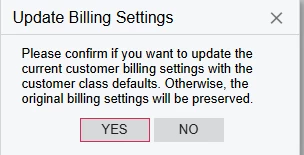
When you change the Class on a Customer, there is a pop-up box that happens where you have to select Yes or No. I am not sure you can do this with a Mass Update.


  • Author
  • July 16, 2025

I believe it is that box. But why present an option if it cant be done. 


  • Freshman II
  • Answer
  • August 30, 2025

@SunnyM I agree with you - why present an option if it can’t be done? It is confusing for the end-user.

Because this came up with one of our client’s today, I submitted an idea if you would like to upvote:


It would be nice to see this cleared up eventually.


bwhite49
Captain II
Forum|alt.badge.img+10
  • Captain II
  • September 2, 2025

I believe it is that box. But why present an option if it cant be done. 

It might be possible to change the behavior of the screen to default to either ‘Yes” or ‘No’ through a customization. If this was implemented, it would be possible to change the customer class through the mass update option.

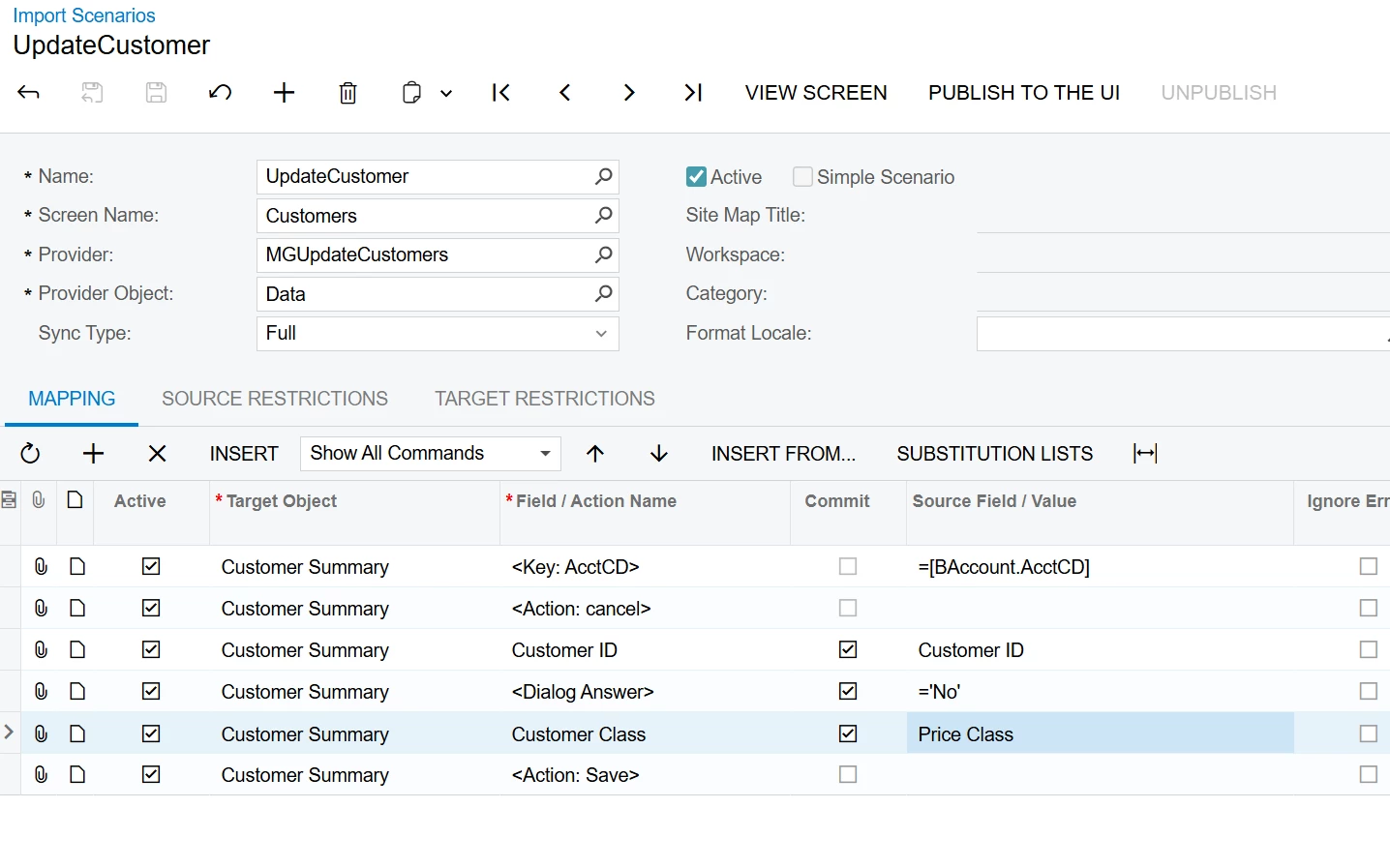
Since that dialog box exists, and there is no default selection, your classes will need to be updated through an import scenario where you can define if the answer is “Yes” or “No” for that box.

This is a fairly simple data update if you wanted to try your first import scenario.

To update these customers, all you need to do is create an excel spreadsheet with two columns. One column for customer ID and the 2nd with the NEW customer class (I used price class below, just swap for customer class). Only include customers that you want to update in this list. 

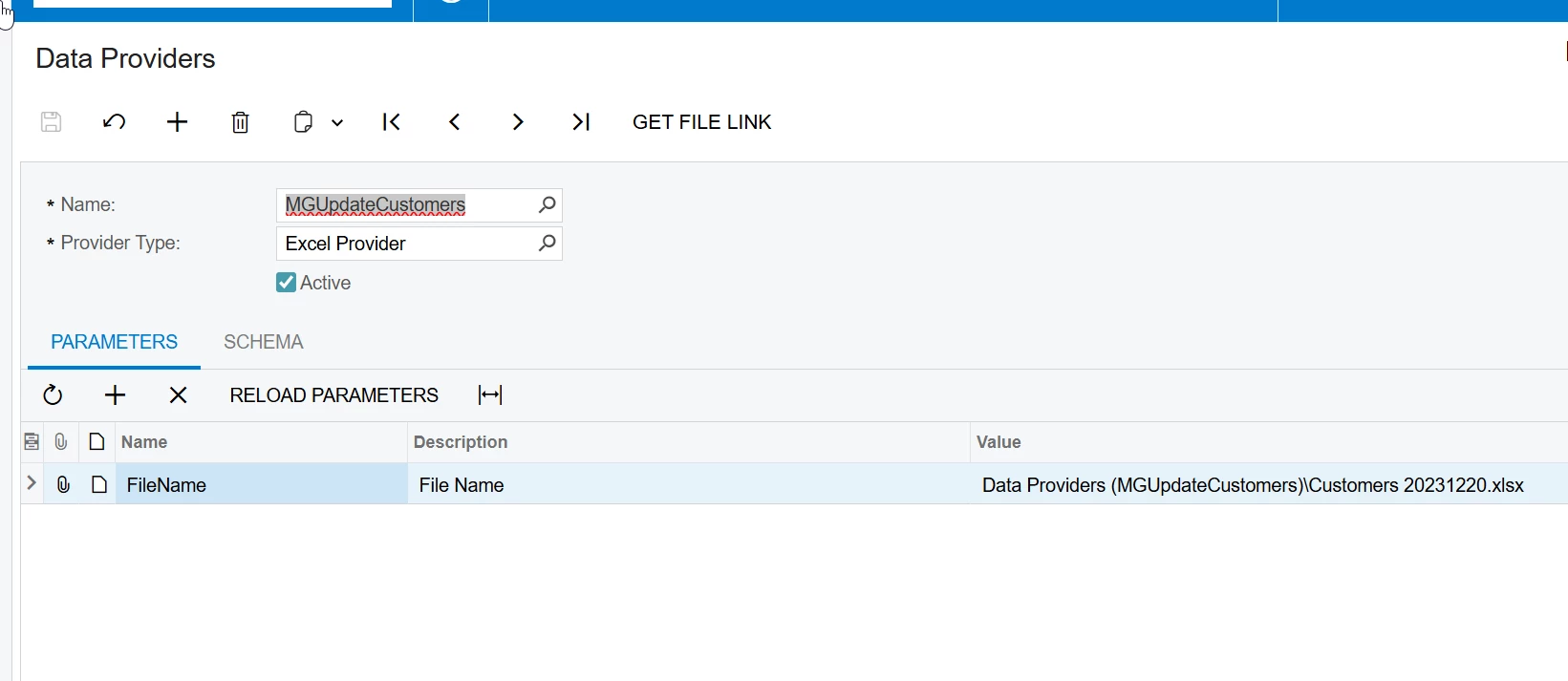
You would then create a new data provider through the data provider screen with the Provider type of Microsoft Excel and give the provider a name. Attach the file to the data provider. Your screen should look like below...


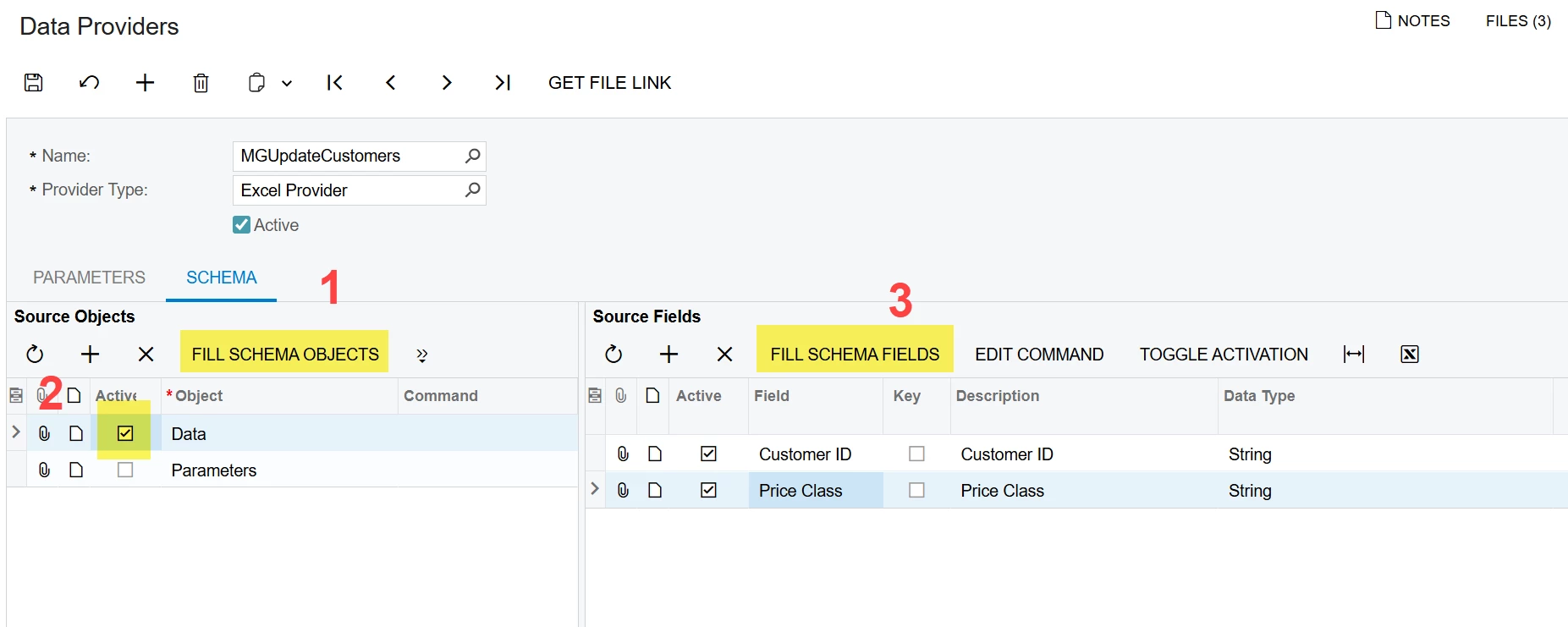
From the schema tab, Click on these buttons in this order, then save. The source object will be the name of your excel sheet.

Your import scenario will look like below.. The provider will be the name of your data provider and object will be the active excel sheet.


Once your import scenario matches above, you can run through the “import by scenario” screen. It’s always good to click the toggle activation button and only run one record for the first run to make sure everything worked correctly. It’s also a good idea to try this in a test tenant first as you should be cautious about impacting live data.