Answer

Create a GI Condition Based on Current Login (Employee Attribute)

  • August 21, 2024
  • 5 replies
  • 192 views

chrislower
Jr Varsity III
Forum|alt.badge.img

I am looking at adding a GI for customer Service Order lookups, that will allow me to issue user credentials to a few customers.  From there they can look up basic information on all their current Service Orders.  Unfortunately it does not appear that the Self Service Portal is capable of Service Orders, only cases.  (Hopefully they will add this natively soon).

I was hoping to create a Dashboard that would show the relevant information but that was tied directly to a login.  It doesn’t look like you can create an Attribute directly for the User but you can for the employee.  I was thinking about creating an Attribute at the Employee Class level “Customers”, that allowed for me to enter the customer number assigned to the login.  

What I don’t know how to do, is to associate the GI with the current person logged in and place a condition in the GI that looks at the Attribute (Customer) and filters the customer based on that info.  

Any thoughts, or potentially better avenues to go about this?

Thanks,

Chris Lower

Best answer by hkabiri

@chrislower You can always use Restriction Group to restrict access to customers for users. However, that require a full config for all users to avoid restrict from users who need the access. but if you want to  filter based on value for attribute linked to employee you should be able to do so under conditions.

5 replies

hkabiri
Acumatica Moderator
Forum|alt.badge.img+8
  • Acumatica Support Team
  • August 21, 2024

@chrislower Add PX.Objects.PR.PREmployee DAC on the GI Data Sources Tab.

under Conditions user Date Field: PREmployee.UserID condition: equals Value 1:@me

Add the attribute added to the Employee Class on Results Grid and any other information required.

When View Inquiry it only shows data related to the employee linked to current logged in user


chrislower
Jr Varsity III
Forum|alt.badge.img
  • Author
  • Jr Varsity III
  • August 21, 2024

@hkabiri 

I think I am ultimately going to need to add the attribute from the Employee into the = Value field to filter based on customer.  I am not sure how to filter to a single customer on the GI based on the @me.  Is there an option in the Employee or User field to place a restriction on customer access? 


Thanks for your help!


hkabiri
Acumatica Moderator
Forum|alt.badge.img+8
  • Acumatica Support Team
  • Answer
  • August 21, 2024

@chrislower You can always use Restriction Group to restrict access to customers for users. However, that require a full config for all users to avoid restrict from users who need the access. but if you want to  filter based on value for attribute linked to employee you should be able to do so under conditions.


chrislower
Jr Varsity III
Forum|alt.badge.img
  • Author
  • Jr Varsity III
  • August 22, 2024

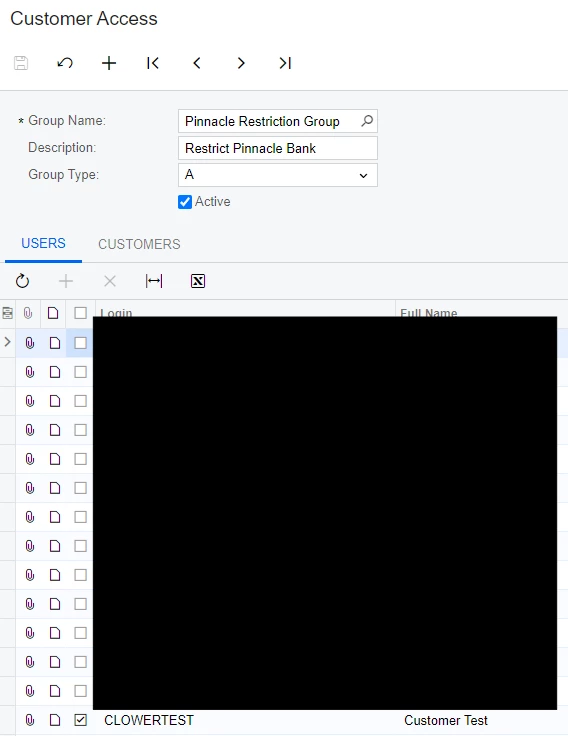
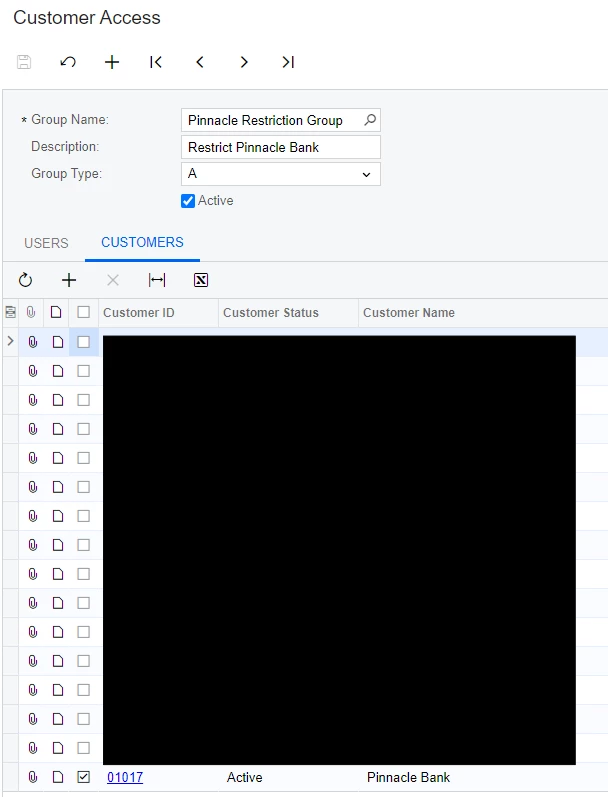
I am not opposed to configuring each user, do you know if there is a training document associated with Restriction Groups for customers?  I was able to find screen AR102000 and created a restriction group which included 1 User and 1 Customer in a test environment.  Didn’t seem to have an effect on what they could see, I am sure I am applying it incorrectly.  

Thanks!


chrislower
Jr Varsity III
Forum|alt.badge.img
  • Author
  • Jr Varsity III
  • August 23, 2024

@hkabiri 

Just as a follow up to close the Post.  I was able to get the Restriction Groups to work perfectly.  Unfortunately I found some forums that showed me the page, so I navigated directly to the setup but didn’t actually enable the feature for Row Security.  Once I completed that tasks, and set up the restriction group for All Customers, it worked perfectly.  Thanks!