Question

Business Event not updating all Lines when it has same Inventory ID

  • April 29, 2026
  • 14 replies
  • 105 views

Good day,

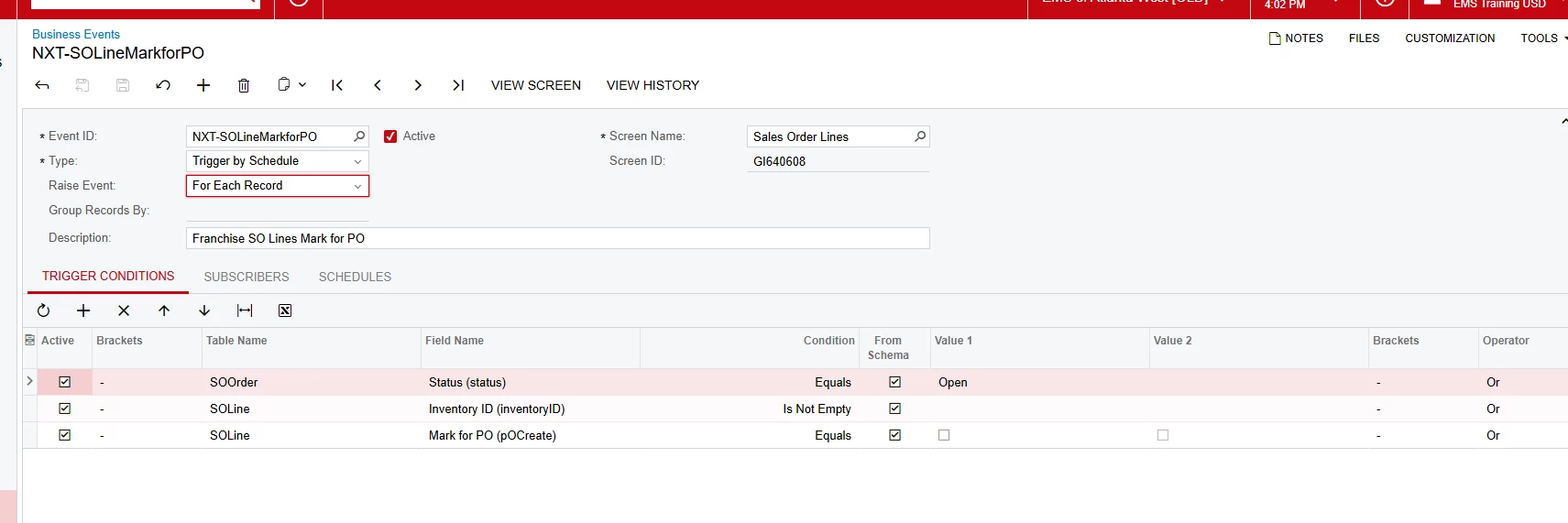
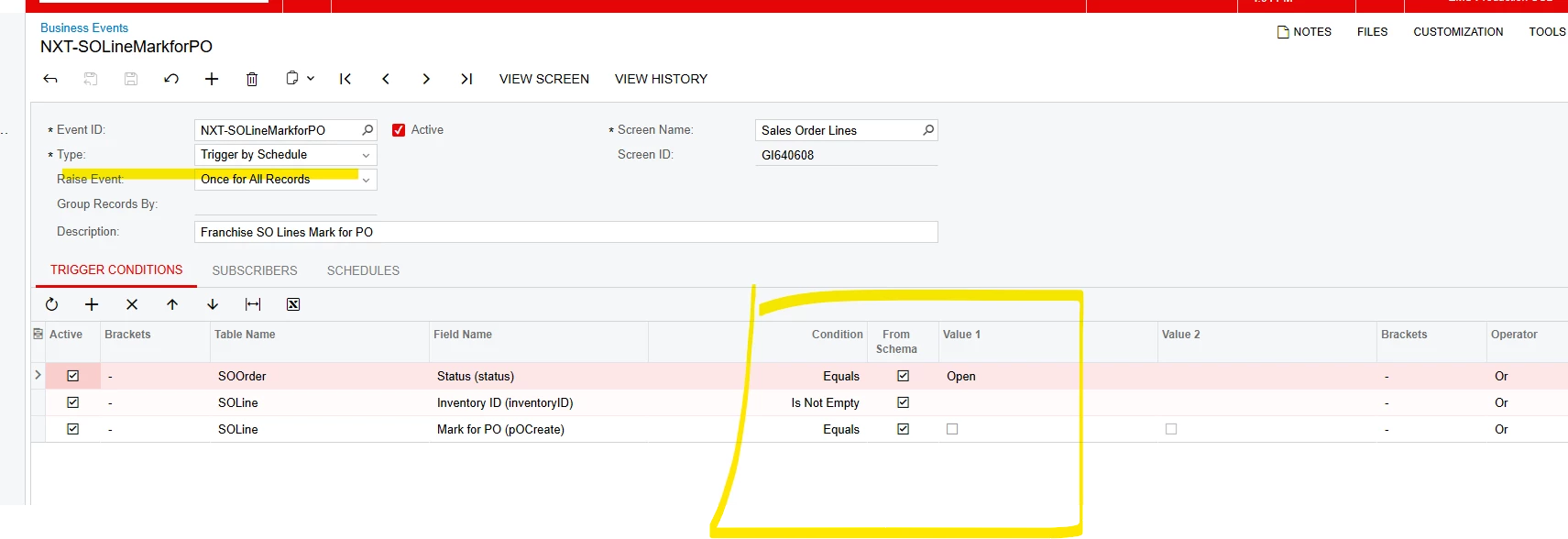
I have business event that updates the SO Line as Mark for PO.  It works fine.  However, we have come across an issue with it updating the SO Line when the Order has the same inventory ID.  The Business Event update only one line correct and leaves the rest.  The trigger conditions are below.

Has anyone run into this situation?  My thoughts are it is due to with Raise Event selection. 

Thank you.


14 replies

BenjaminCrisman
Acumatica Employee
Forum|alt.badge.img+4
  • Acumatica Support Team
  • April 30, 2026

@evangrill What are you using to mark the lines? An import scenario? Can you share the details of this since it’s not the BE that is the issue I’m sure.


Naveen Boga
Captain II
Forum|alt.badge.img+20
  • Captain II
  • April 30, 2026

@evangrill   I think there are actually two things worth checking here:

1. Raise Event setting — "Once for All Records" fires the subscriber a single time for the whole result set. If multiple SO Lines share the same Inventory ID on an order, only one may get processed. Try switching this to "Once per Record" so the subscriber fires individually for each matching line.

2. Trigger Conditions using OR — All three conditions are joined with OR, meaning the event fires if any condition is true — not all three together. An SO Line with any Inventory ID would always qualify. You likely want these joined with AND so the event only triggers when the order is Open, the line has an item, and Mark for PO is currently false.

Also, what subscriber action are you using? That would help confirm whether the "Once per Record" change alone would solve it.


bwhite49
Captain II
Forum|alt.badge.img+12
  • Captain II
  • April 30, 2026

If you use @@InventoryID as the key to update each line, it will only update the first record with that inventory ID. You will need to use @@LineNbr to update all lines.


BenjaminCrisman
Acumatica Employee
Forum|alt.badge.img+4
  • Acumatica Support Team
  • April 30, 2026

Right, assuming he’s using an import he’ll need to include LineNbr and maybe a =Every line also


  • Author
  • Freshman I
  • April 30, 2026

@BenjaminCrisman; ​@bwhite49; ​@Naveen Boga 

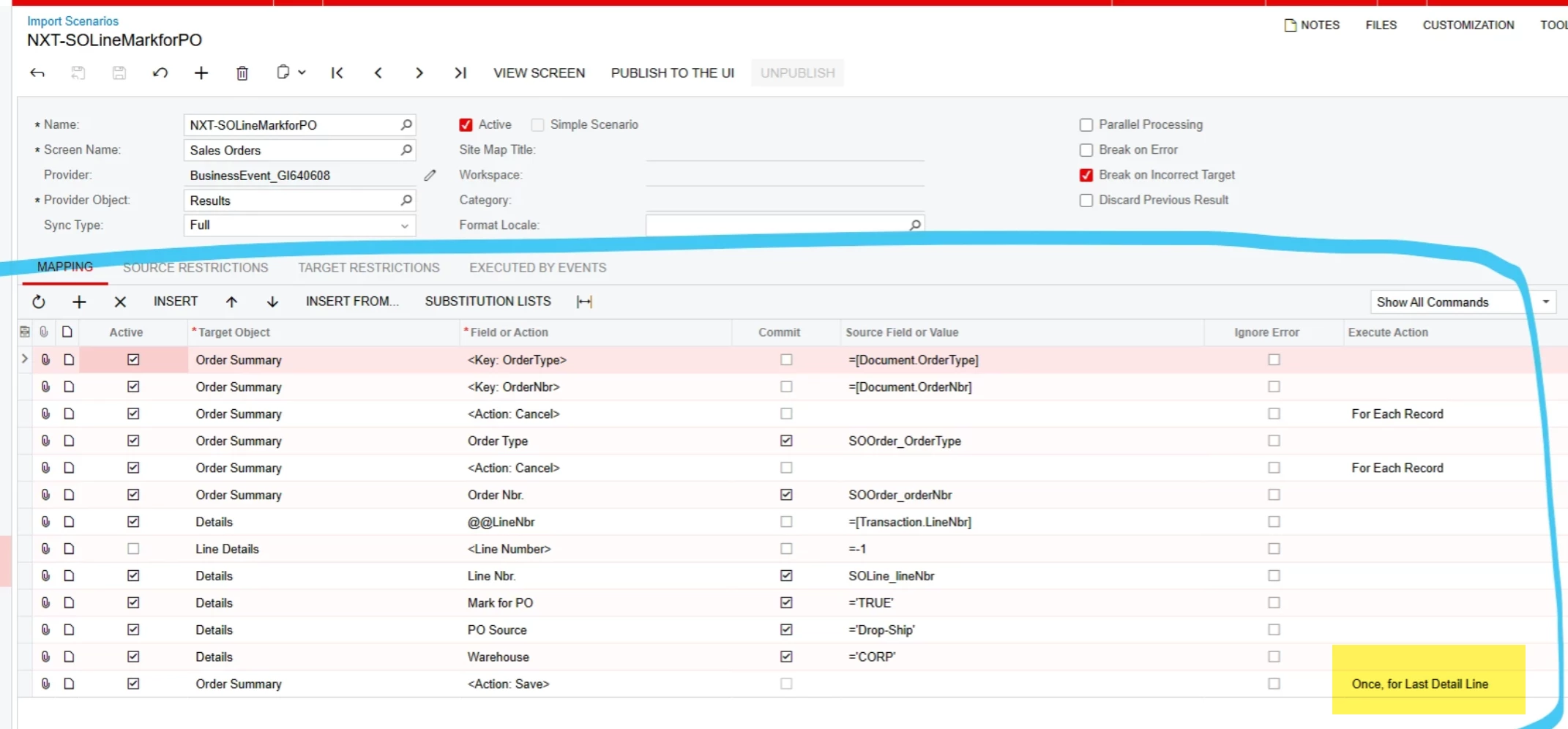
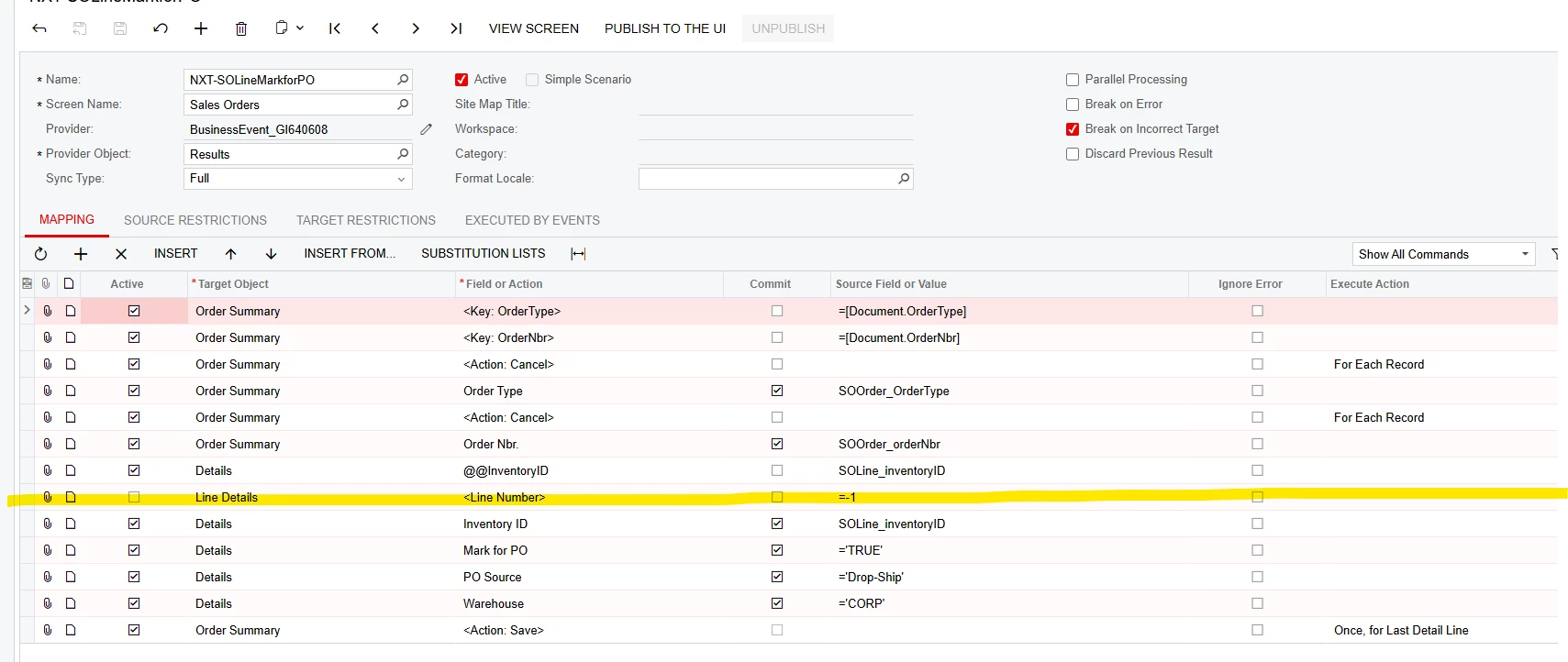
Thank you for your insights and suggestions.  Attached the import scenario that runs the Business Event.  It is an inherited one when I took on this role.  It does seem that the prior person did have the Line Number but then inactivated the record.  Also, they didn’t use the @@ wild card key to help.

Any thoughts?


bwhite49
Captain II
Forum|alt.badge.img+12
  • Captain II
  • April 30, 2026
  1. Add the SOLine.LineNbr field to your inquiry GI640608.
  2. Go to data provider screen and refresh the columns in the data provider
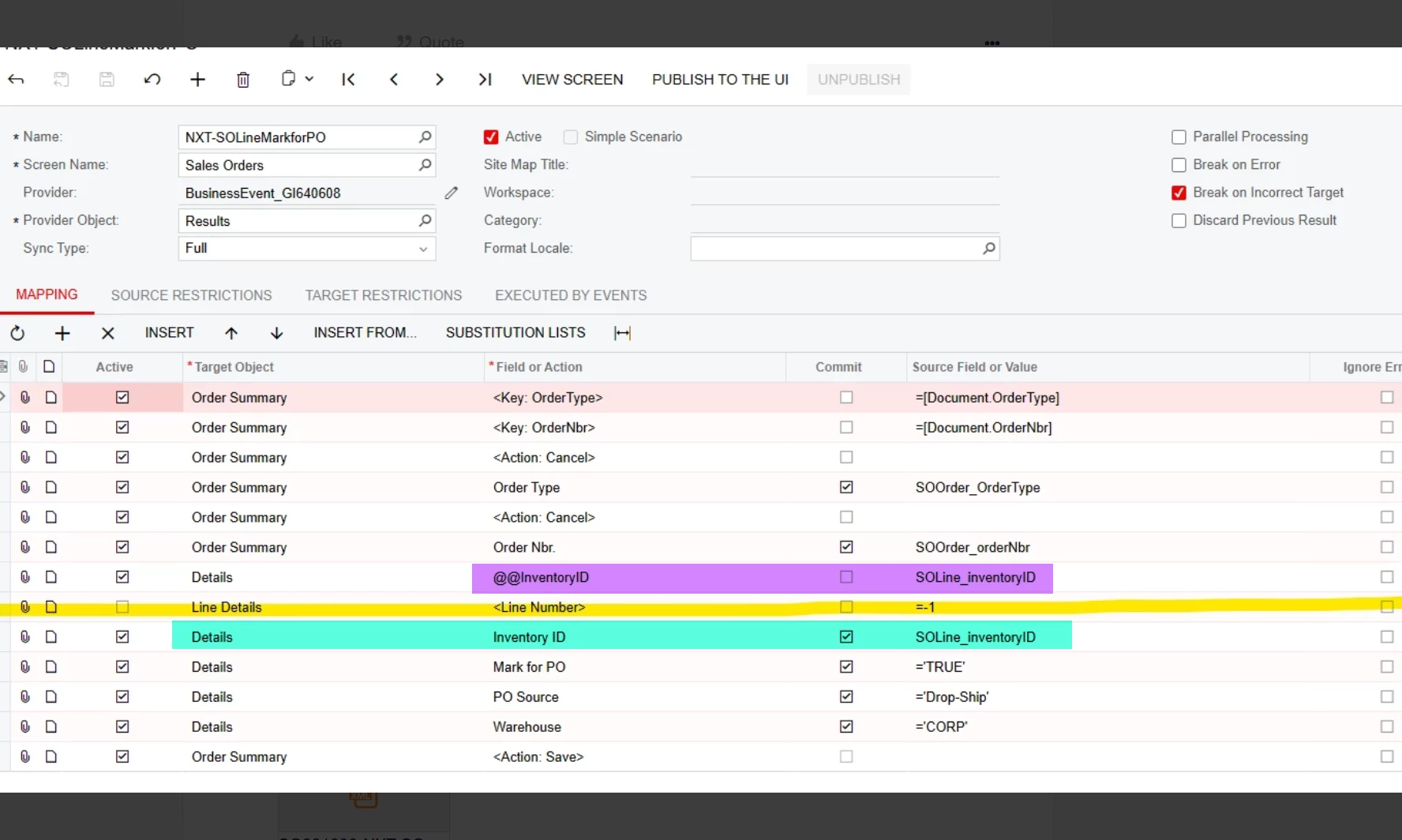
  3. Replace the purple with @@LineNbr = [Transactions.LineNbr] (internal field)
  4. replace the blue/teal with LineNbr = SOline_LineNbr


MissyMain41
Jr Varsity II
Forum|alt.badge.img
  • Jr Varsity II
  • April 30, 2026
  1. Add the SOLine.LineNbr field to your inquiry GI640608.
  2. Go to data provider screen and refresh the columns in the data provider
  3. Replace the purple with @@LineNbr = [Transactions.LineNbr] (internal field)
  4. replace the blue/teal with LineNbr = SOline_LineNbr


This is exactly it -- a common mistake I see is including the data in both the custom key config as well as the second line where the data should be specified.

This is outlined in the following webinar I hosted last year for import scenarios.

I definitely recommend checking out my custom key breakdown section of this webinar -- it may help in the future!


  • Author
  • Freshman I
  • May 4, 2026

@bwhite49 ​@MissyMain41

Good day,

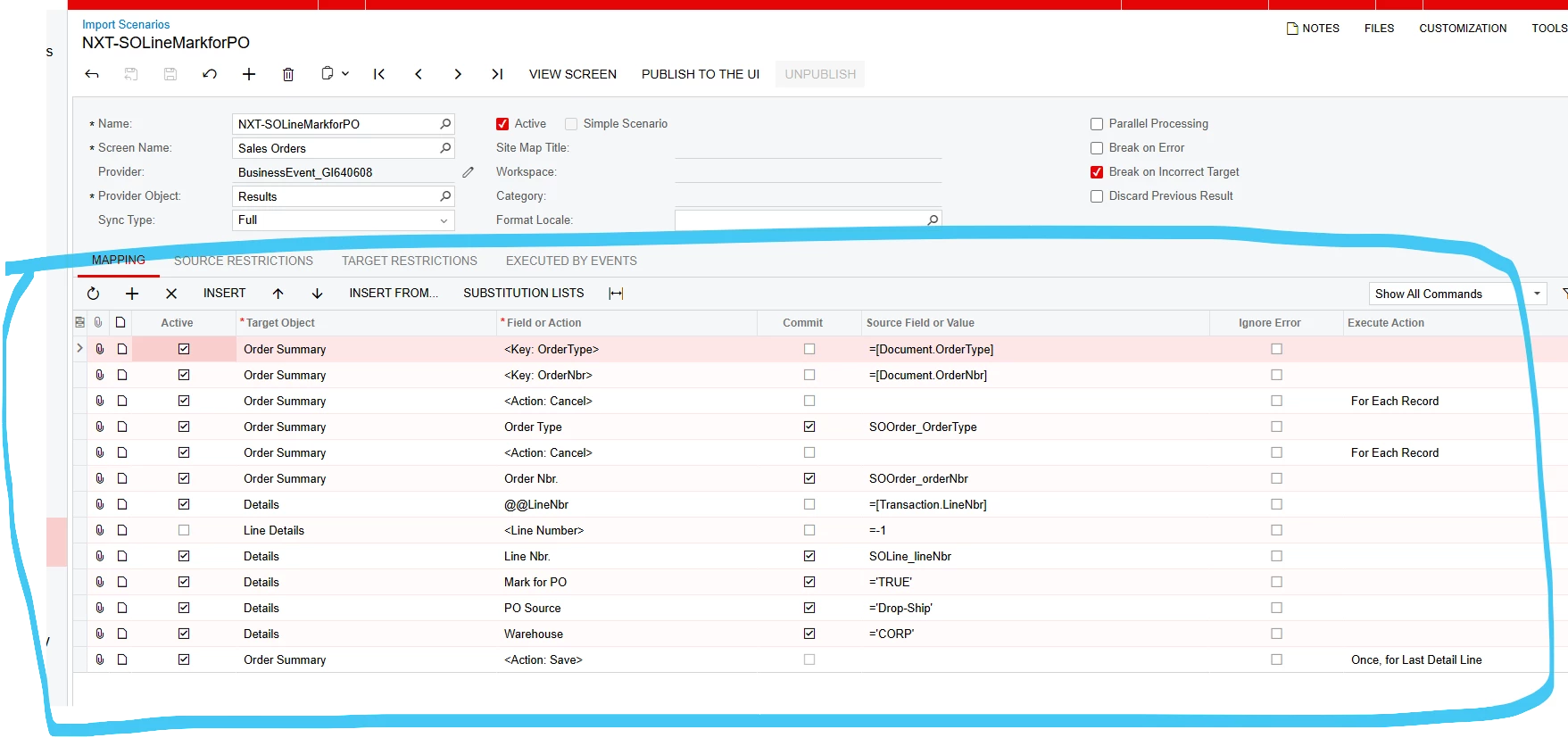
Attached is the updated import scenario.  I must have missed something because it is only marking one line on the Sales Order. 

Can you see where I went wrong.  Maybe I reversed the line instructions.

Thank you.

Evan 


bwhite49
Captain II
Forum|alt.badge.img+12
  • Captain II
  • May 4, 2026

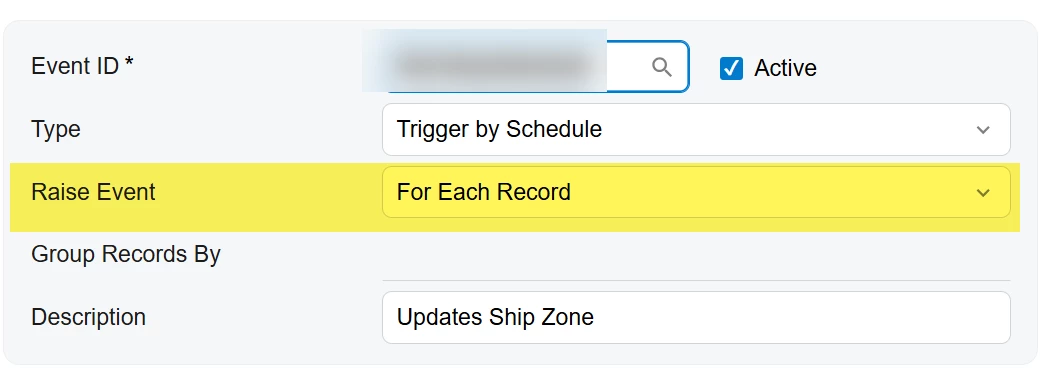
Import scenario looks good. Make sure the BE has the raise event as “for each record” not “once for all records”


  • Author
  • Freshman I
  • May 4, 2026

@bwhite49 

Gave it try; still only marked one line on the sales order.  See Business Event below.  Maybe I should change the Inventory ID to the SO LIne Number?  Or the change the conditions to AND instead of OR?  Or may just add the SO LIne Number? 


bwhite49
Captain II
Forum|alt.badge.img+12
  • Captain II
  • May 5, 2026

For the conditions,

I would remove those from the business event and either add those conditions to the GI or add them to the conditions in the automation schedule.

Trigger conditions on the BE do not always behave as expected.

For BEs that are trigger by schedule, my preference is to make a GI containing all of the required conditions and after the BE is run the records are removed from the GI. The goal is to make a GI that is always empty except for when a record needs to be updated. After update, it disappears from the GI.

In the import scenario, you could also see if changing the “execute action” to “for each record” as well.


MissyMain41
Jr Varsity II
Forum|alt.badge.img
  • Jr Varsity II
  • May 5, 2026

@bwhite49 

Gave it try; still only marked one line on the sales order.  See Business Event below.  Maybe I should change the Inventory ID to the SO LIne Number?  Or the change the conditions to AND instead of OR?  Or may just add the SO LIne Number? 


Near the end of the webinar link I provided earlier in this thread is a section that outlines how to test imports that are tied to BE’s. I recommend following that to determine if the import works outside of the BE first, then once confirmed, start looking into the BE. 


  • Author
  • Freshman I
  • May 6, 2026

@MissyMain41 

I went to view the webinar; it seems that I don’t have access rights.

Thank you.

Evan


MissyMain41
Jr Varsity II
Forum|alt.badge.img
  • Jr Varsity II
  • May 7, 2026

@MissyMain41 

I went to view the webinar; it seems that I don’t have access rights.

Thank you.

Evan

It is a partner specific webinar, but I can explain how it’s done in writing

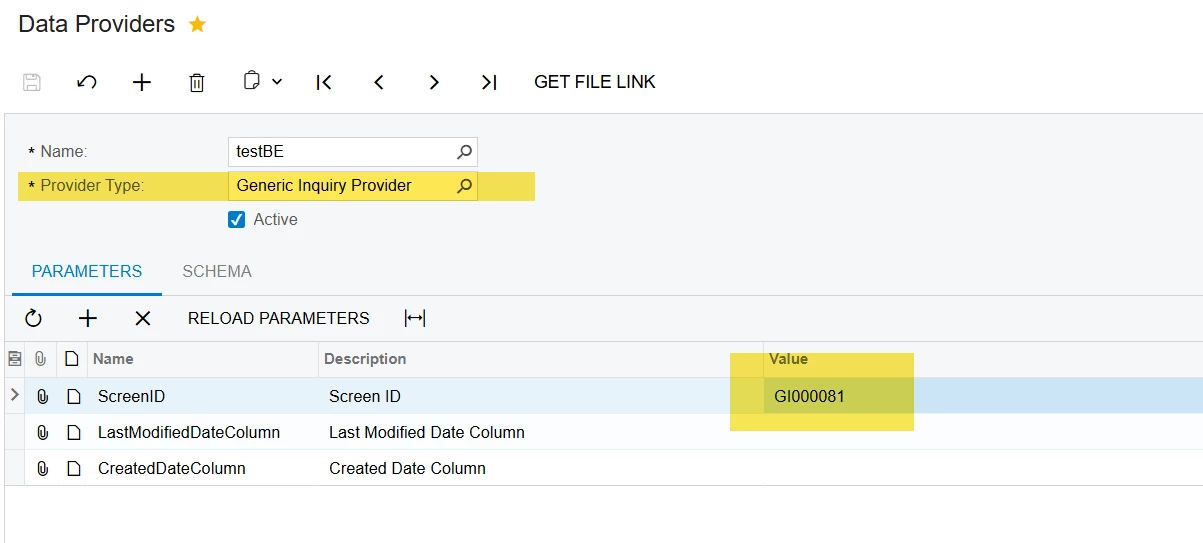
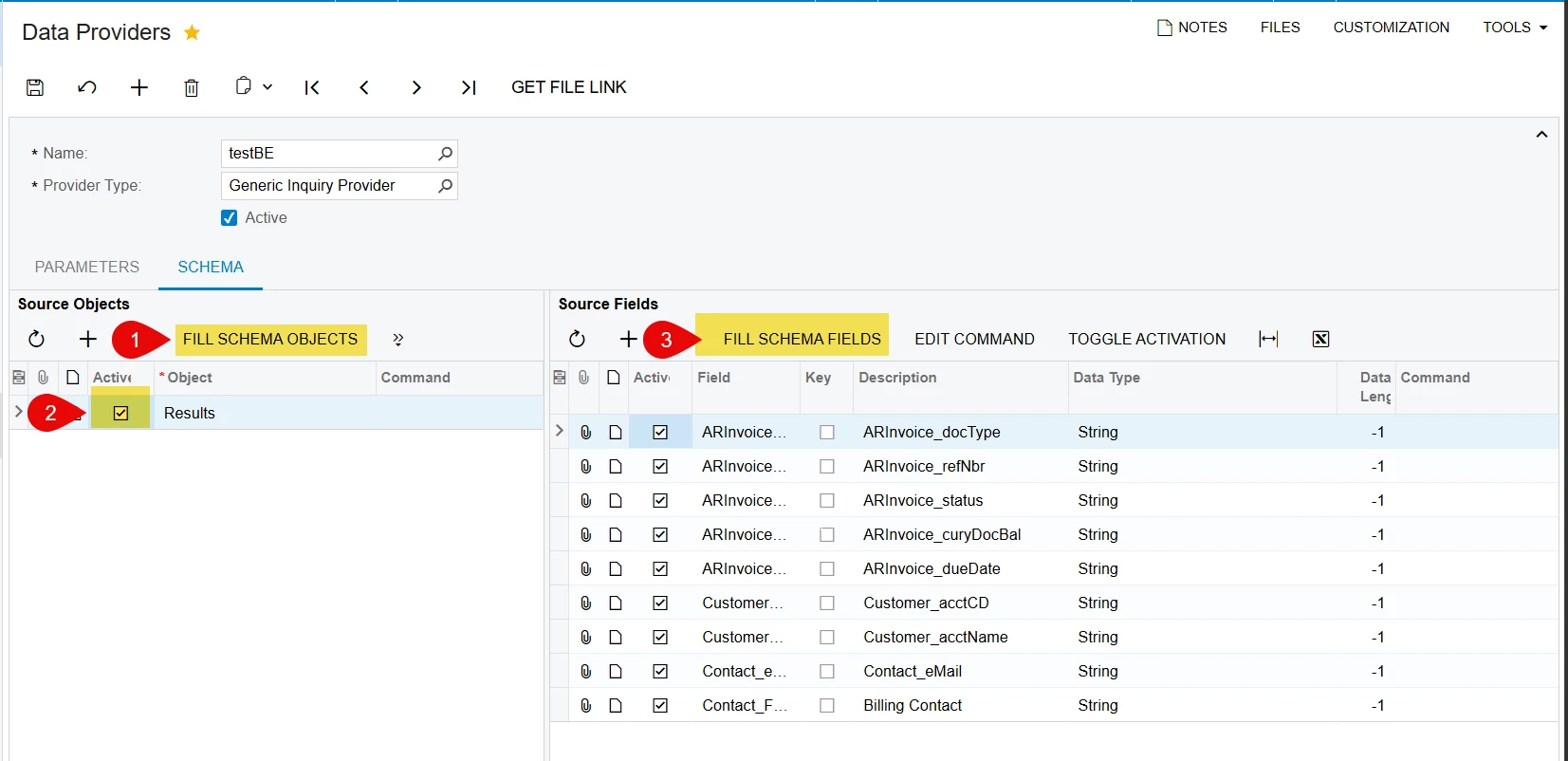
1. navigate to Data Providers screen
2. Create a data provider of the “Generic Inquiry” type
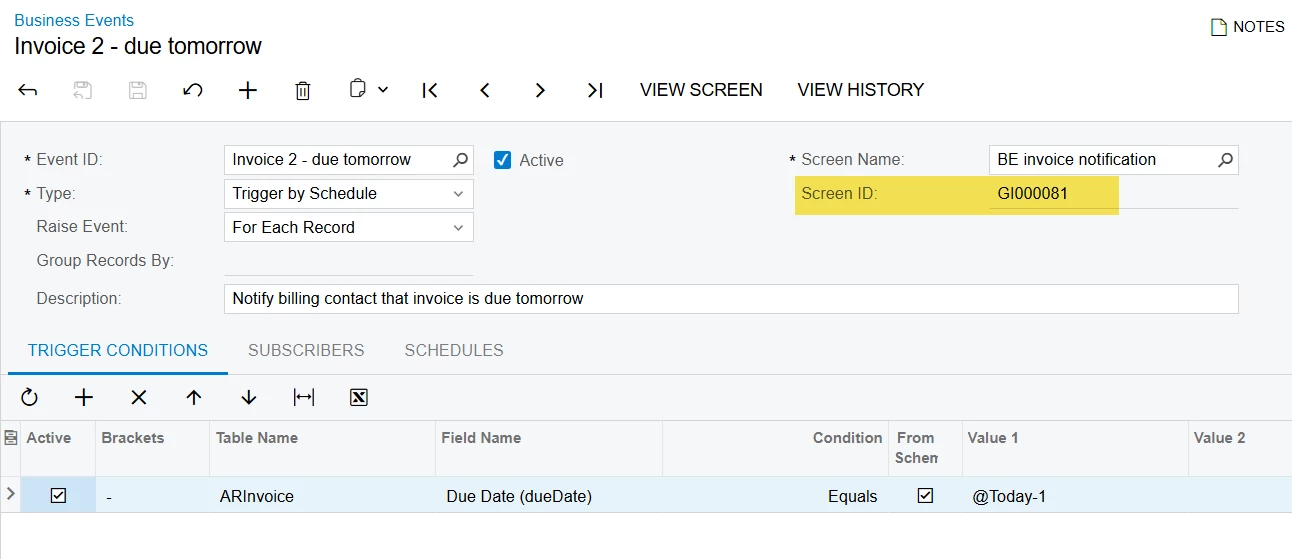
3. Add the screen ID of the GI you are using for your BE into the screen ID for the GI data provider 
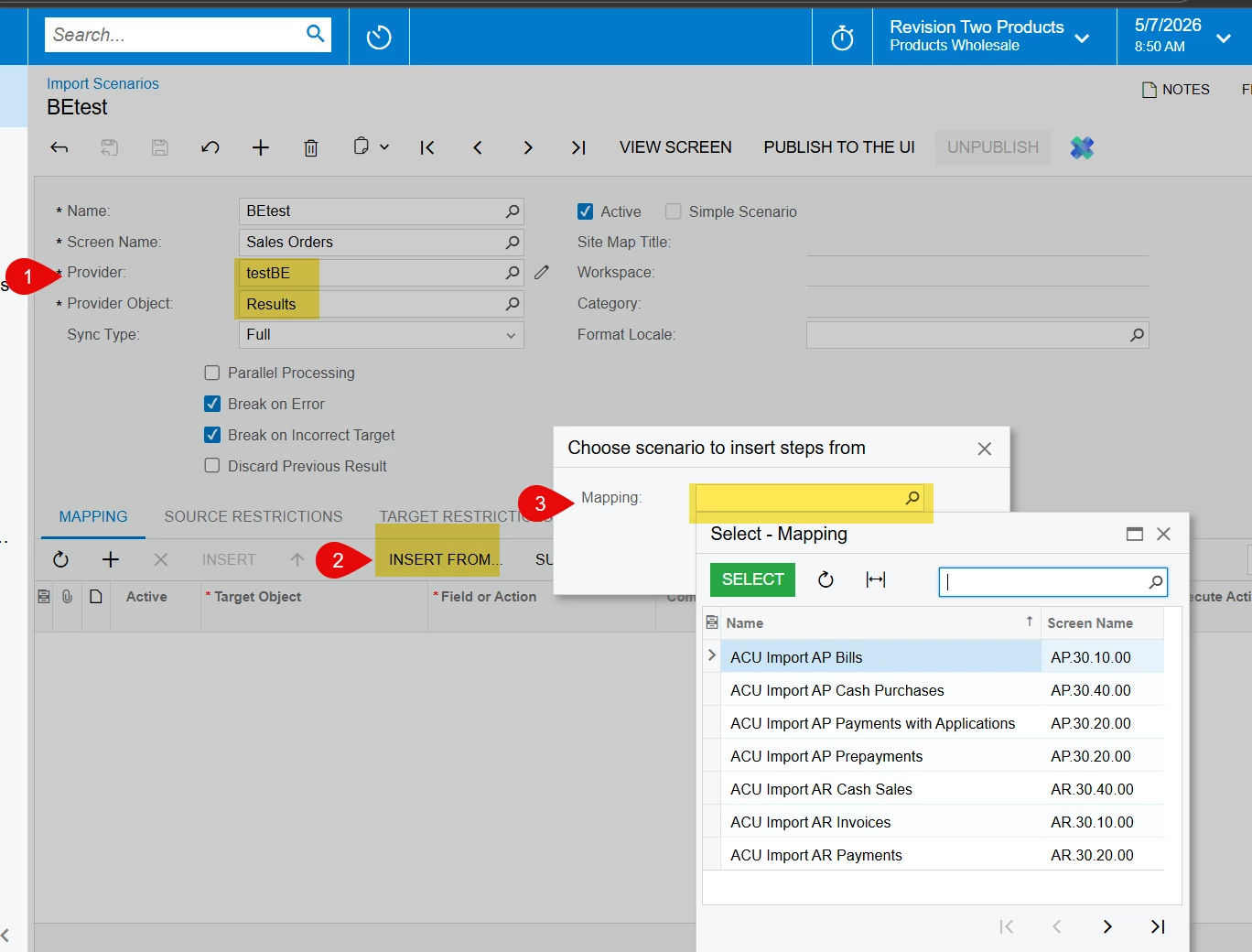
4. Create a new import scenario and use all the same settings of the BE import, except ensure the data provider is your GI data provider you just created 
5. In the grid of this new import select “insert from” and pull in the configs from your BE import scenario 
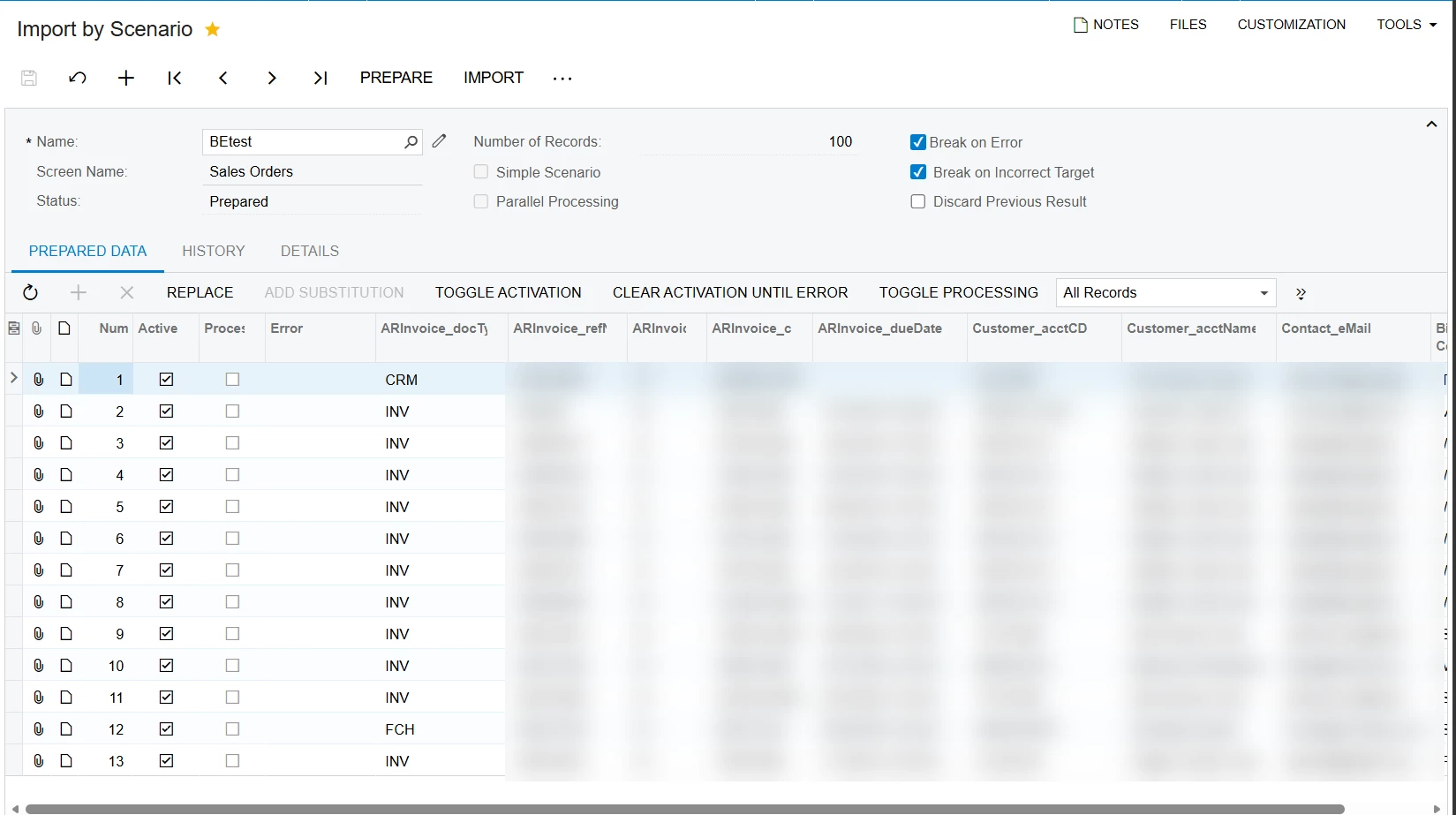
6. Test using the “Import by scenario” screen

Images for reference
screen ID of BE: 


New GI data provider: 

Data provider settings config 


New import using that data provider, and how to pull the config settings from BE import into it easily


test here on “import by scenario” screen